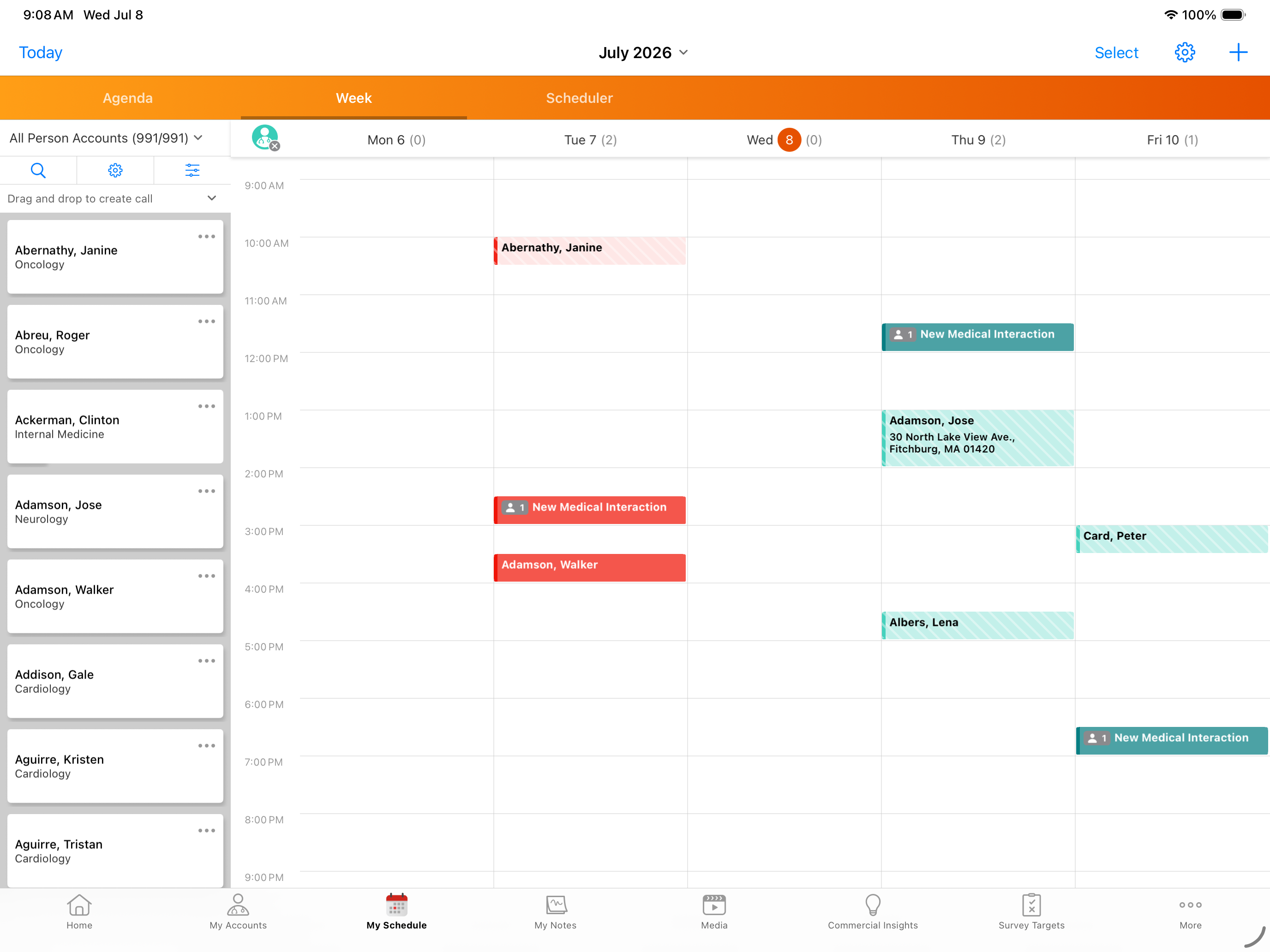
Viewing Custom Account Information with Display-By
To view more relevant information when planning calls, users can display custom account-related information from pre-defined fields on My Schedule. Field information displays below the account name in the account panel the same way default display-by information displays. For example, when License Valid to Sample is selected, the account address’s status (Valid or Invalid) displays below the account name.
The following objects are available to use:
- account__v
- address__v
- child_account__v
- childaccount_tsf__v
- mc_cycle_plan_channel__v
- mc_cycle_plan_product__v
- mc_cycle_plan_target__v
- tsf__v
Who can use this feature?
- End Users - iPad
- Displaying Custom Account, Address, or TSF Information
- Users do not require an additional license
Configuring Custom Display-By Values for
 End Users
To configure this feature:
- Ensure Configuring Call Planning is complete.
- Navigate to Business Admin > Objects > Veeva Settings.
- Populate the scheduler_configure_display__v field with a semicolon-delimited list of the appropriate object code and API field names. The following objects are available to use:
- account__v (ACC)
- address__v (ADD)
- child_account__v (CHILD_ACC)
The format for the setting values is [Object Code].[API Field Name], where [Object Code] represents the object. For example, to display the gender__v and spec_1_cda__v fields on the account__v object, use ACC.gender__v;ACC.spec_1_cda__v.
Ensure users have at least Read permission for all fields referenced in the scheduler_configure_display__v Veeva Settings in order for them to display as an option.
Configuring Custom Display-By Values for MCCP Attributes
To display information from MCCP-related fields:
- Navigate to Business Admin > Objects > Veeva Settings.
- Ensure the enable_adv_cycpln_scheduling__v check box is selected.
This setting enables users to select Display-By Cycle Plan attributes in the My Schedule account panel and enables retention of users' display preferences if they have Edit permission to the scheduler_cycle_plan_display__v field on the preferences__v object. If the enable_adv_cycpln_scheduling__v Veeva Setting is not enabled, Cycle Plan metrics always display when there is an active Cycle Plan for the user; the display-by functionality is set to Target > My Calls, which cannot be changed.
- Populate the scheduler_configure_display__v Veeva Setting with a semicolon-delimited list of the appropriate object code and API field names. Use the following format:
- To display a field from the mc_cycle_plan_target__v object, enter MCCP_Target.[API field name]
- To display a field from the mc_cycle_plan_channel__v object, enter MCCP_Channel.[API field name]
- To display a field from the mc_cycle_plan_product__v object, enter MCCP_Product.[API field name]
For example, ACC.gender__v;ACC.specialty_1__v;MCCP_Target.channel_interactions_remaining__v;MCCP_Product.name__v;
Ensure users have at least Read permission for all fields referenced in the scheduler_configure_display__v Veeva Settings in order for them to display as an option.
Configuring Custom Display-By Values for TSF Attributes
To display information from territory-related fields, populate the tsf_fields_scheduler__v Veeva Setting with a semicolon-delimited list of the appropriate fields. The required format differs depending on which object the field is from:
- tsf__v - the format is the field API name with a trailing semicolon. For example, last_activity_date__v;mccp_target__v;route__v;
- childaccount_tsf__v - the format is CHILD_ACC_TSF.[API Field Name] with a trailing semicolon. For example, CHILD_ACC_TSF.territory__v;
Fields from both objects can be included in the same list in the tsf_fields_scheduler__v Veeva Setting. Use the appropriate format for each field. For example: last_activity_date__v;mccp_target__v;CHILD_ACC_TSF.childaccount__v;
Ensure users have at least Read permission for all fields referenced in the tsf_fields_scheduler__v Veeva Settings in order for them to display as an option.
Displaying Custom Account, Address, or TSF Information as
End Users
To display additional account, address, or TSF information using the display-by functionality:
Changing the address that displays does not change the Best Times that display.
- Select the My Schedule tab.
- Select the gear icon at the top of the accounts panel.
To access Child Account fields, first select a child account list view from the picklist at the top of the accounts panel.
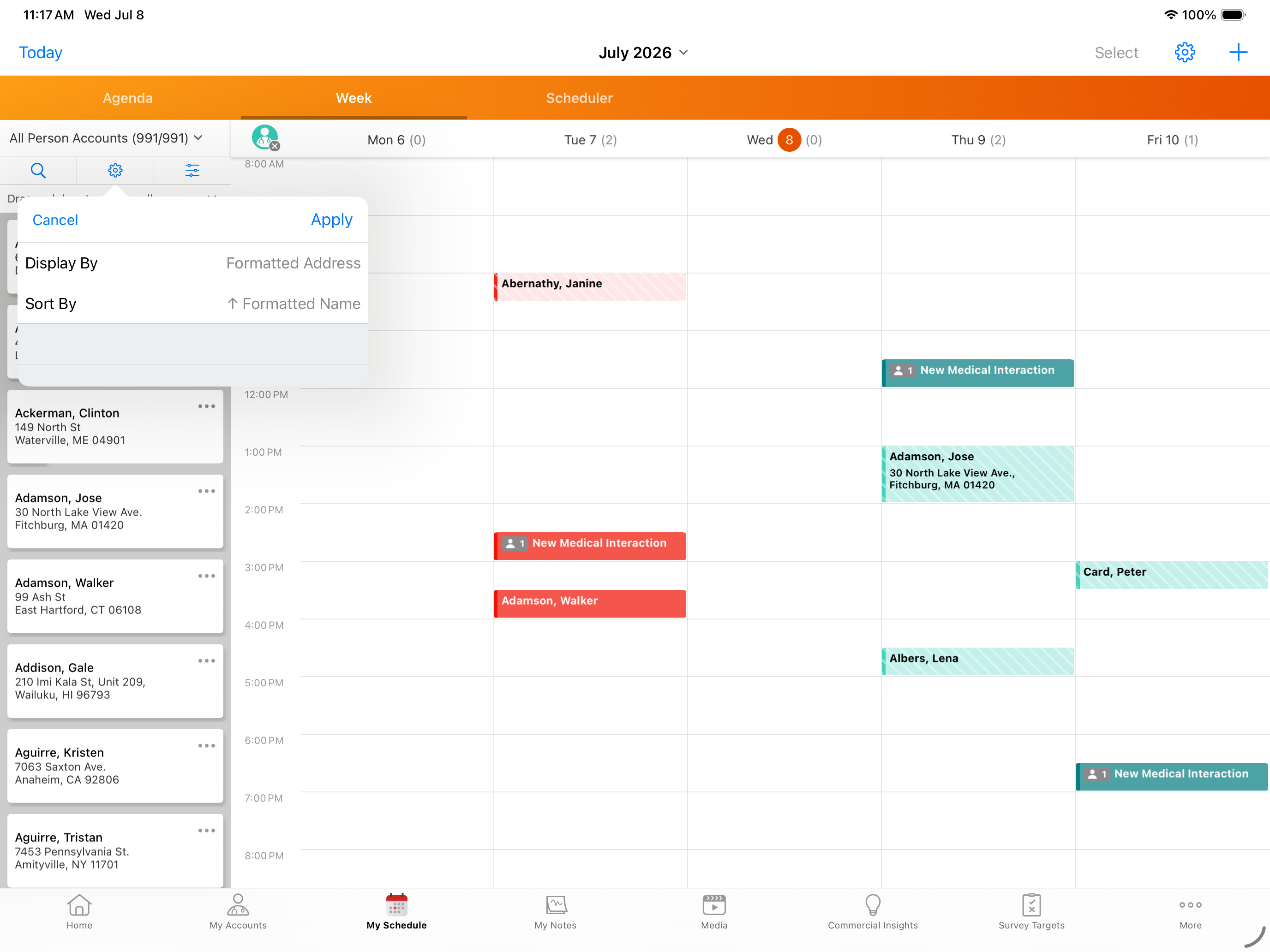
- Select Display By.
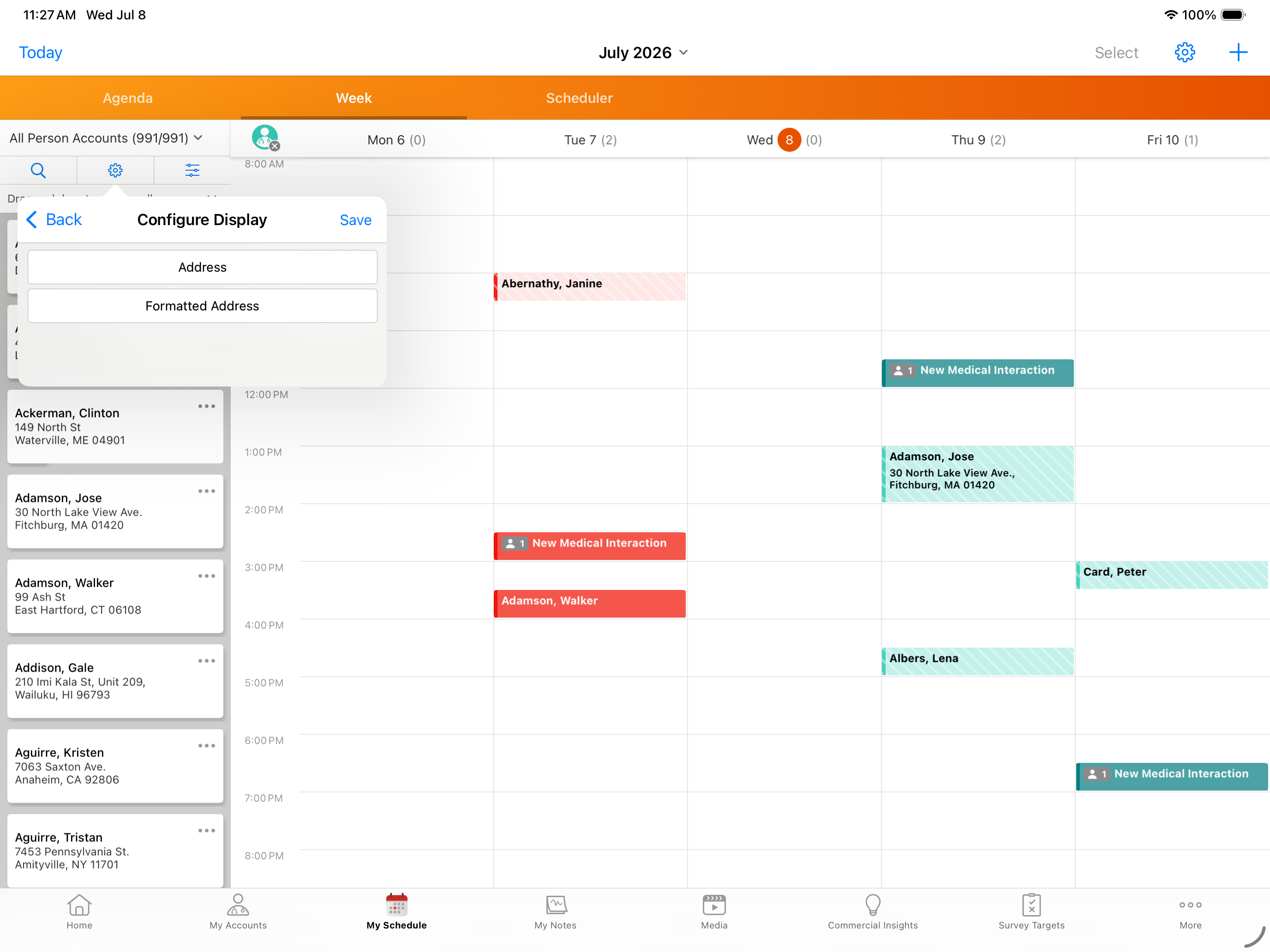
- Select the appropriate object from the picklist.
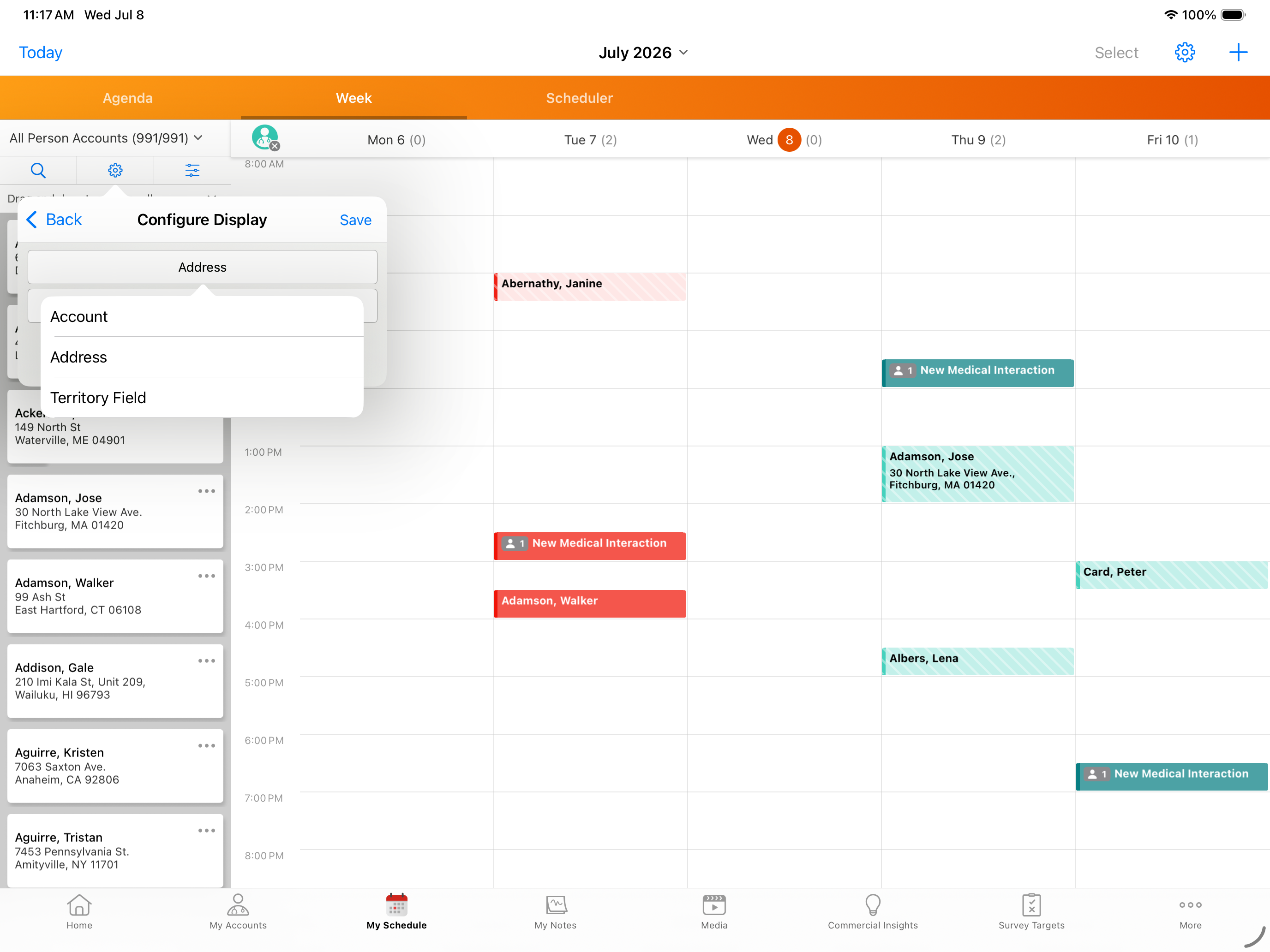
- Select the appropriate field from the picklist.
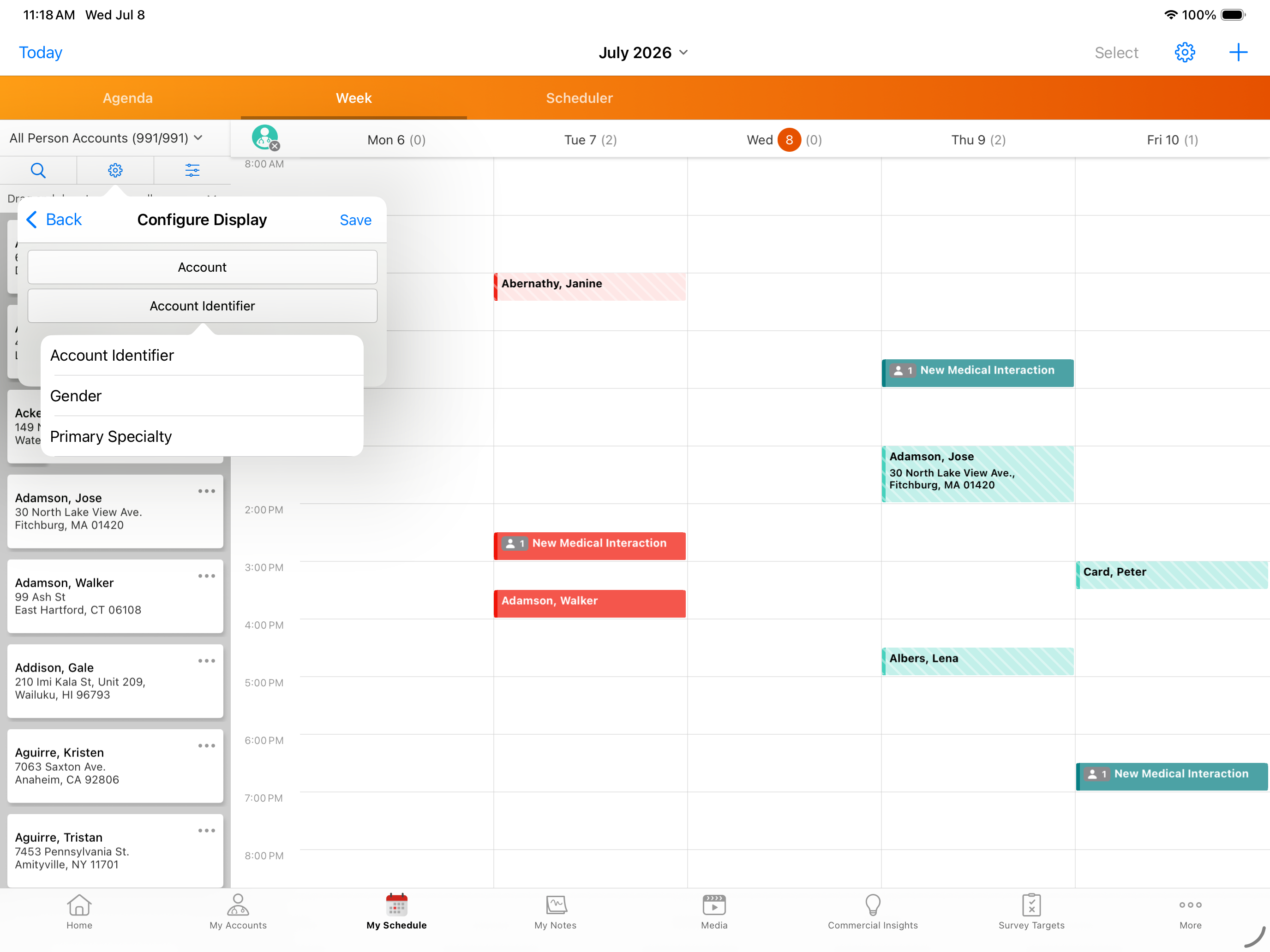
- Select Save. The field value displays below the account’s name in the account panel.