Journey Branching: Field Value Splits
With Field Value Splits, Journey Builder gives marketing users a powerful new way to segment targets within a single journey without creating separate journeys for every segment. Marketing users can now branch a journey based on CRM Data, defining a different name, set of criteria, and series of downstream actions for each group of targets according to the chosen field value. This ensures every target in a journey receives the most relevant content.
Each Field Value Split evaluates targets against each path's criteria in priority order at the moment the target arrives at the split, and sends each target down the first path whose criteria it meets. Targets that do not meet the criteria of any path continue down the Unmatched Targets path. This ensures every target in a journey receives content relevant to their attributes, without requiring separate journeys for each audience.
Who can use this feature?
- Marketing Users - Browser
- Adding Field Value Splits
- Defining Paths
- Executing Journeys with Field Value Splits
- Users require a Campaign Manager license
Configuring Field Value Splits for
 Marketing Users
To configure this feature:
- Ensure Configuring Campaign Manager is complete.
- Navigate to Admin > Users & Groups > Permission Sets.
- Select the appropriate Permission Set.
- Select Objects.
-
Grant the following permissions to any of the following objects to use for splitting::
Object
Object Permission
Object Types
Fields
Field Permission
account__v
R
All applicable object types
All supported fields used for splitting
Read
address__v
R
All applicable object types
All supported fields used for splitting
Read
cycle_plan_detail__v
R
All applicable object types
All supported fields used for splitting
Read
cycle_plan_target__v
R
All applicable object types
All supported fields used for splitting
Read
dynamic_attribute_query__v
R
All applicable object types
All supported fields used for splitting
Read
multichannel_consent__v
R
All applicable object types
All supported fields used for splitting
Read
product_metrics__v
R
All applicable object types
All supported fields used for splitting
Read
tsf__v
R
All applicable object types
All supported fields used for splitting
Read
Adding Field Value Splits as
Marketing Users
To add a Field Value Split:
- Navigate to the Builder tab of the appropriate multi-action journey. The journey’s status must be in Draft.
-
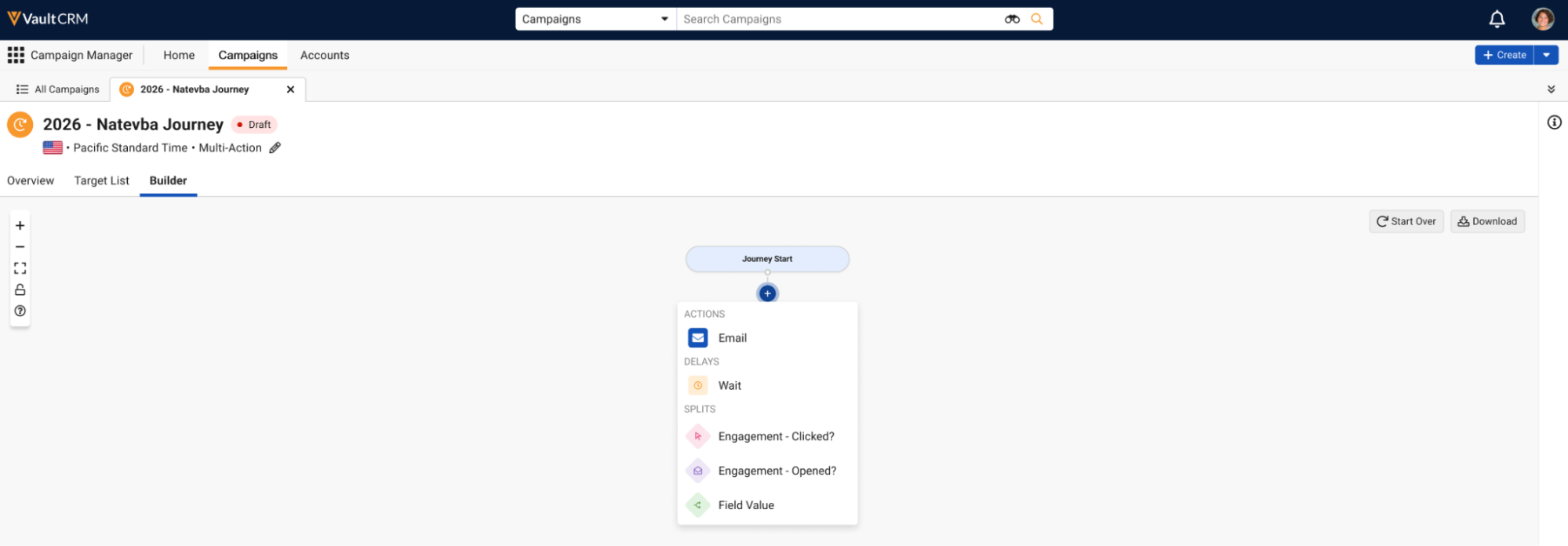
Select the + button at the appropriate point in the timeline.
-
Select Field Value in the Splits section. The Field Value option is disabled if anything other than an End node exists downstream of the selected point.
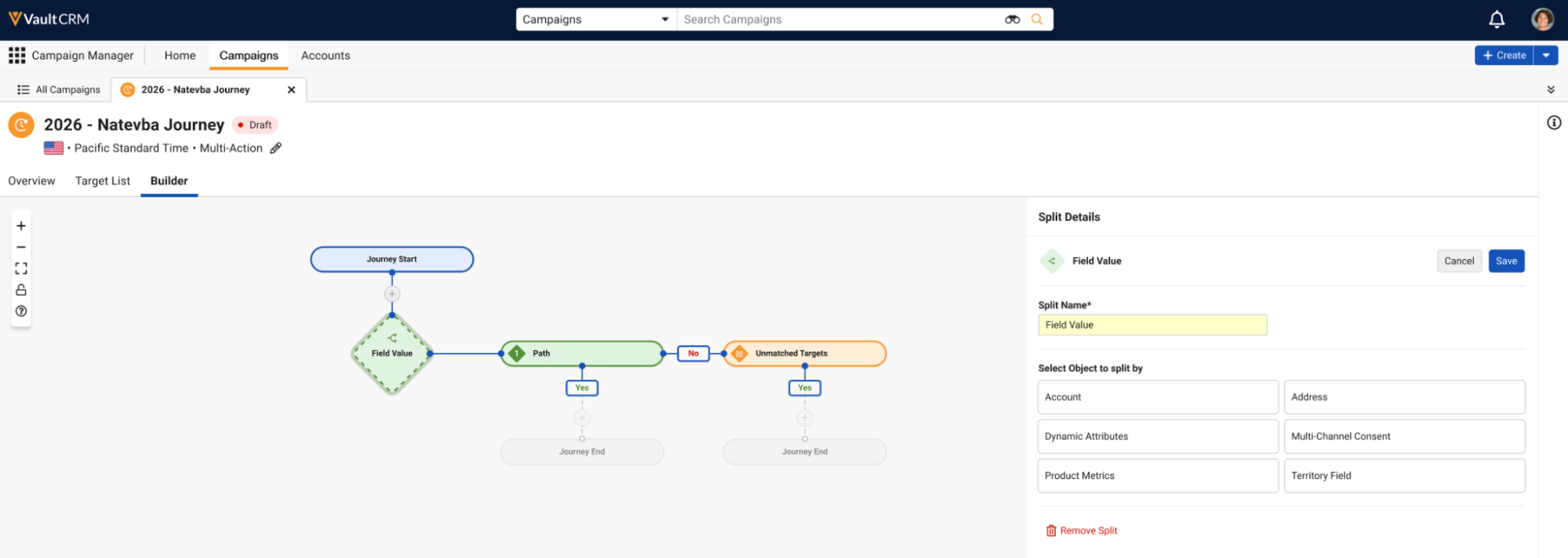
A Field Value Split node, a Path node, an Unmatched Targets node, and their corresponding Yes and No branches are added to the canvas, and the Split Details panel opens in Edit mode.
- Enter a Split Name. This field defaults to Field Value, is limited to 80 characters, and is required. The name displays in the split node on the canvas as it is entered.
-
Select the appropriate tile in the Select Object to split by section. The following objects are supported:
- Account (account__v)
- Address (address__v)
- Cycle Plan (cycle_plan_target__v)
- Cycle Plan Detail (cycle_plan_detail__v)
- Dynamic Attributes (dynamic_attribute_query__v)
- Multichannel Consent (multichannel_consent__v)
- Product Metrics (product_metrics__v)
- Territory Field (tsf__v)
-
Search for and select the appropriate field. The following field types are not supported:
- ID
- Long Text
- Rich Text
- Time
- Parent Object
- Attachment
- Formula – Only supported when the formula references its own object
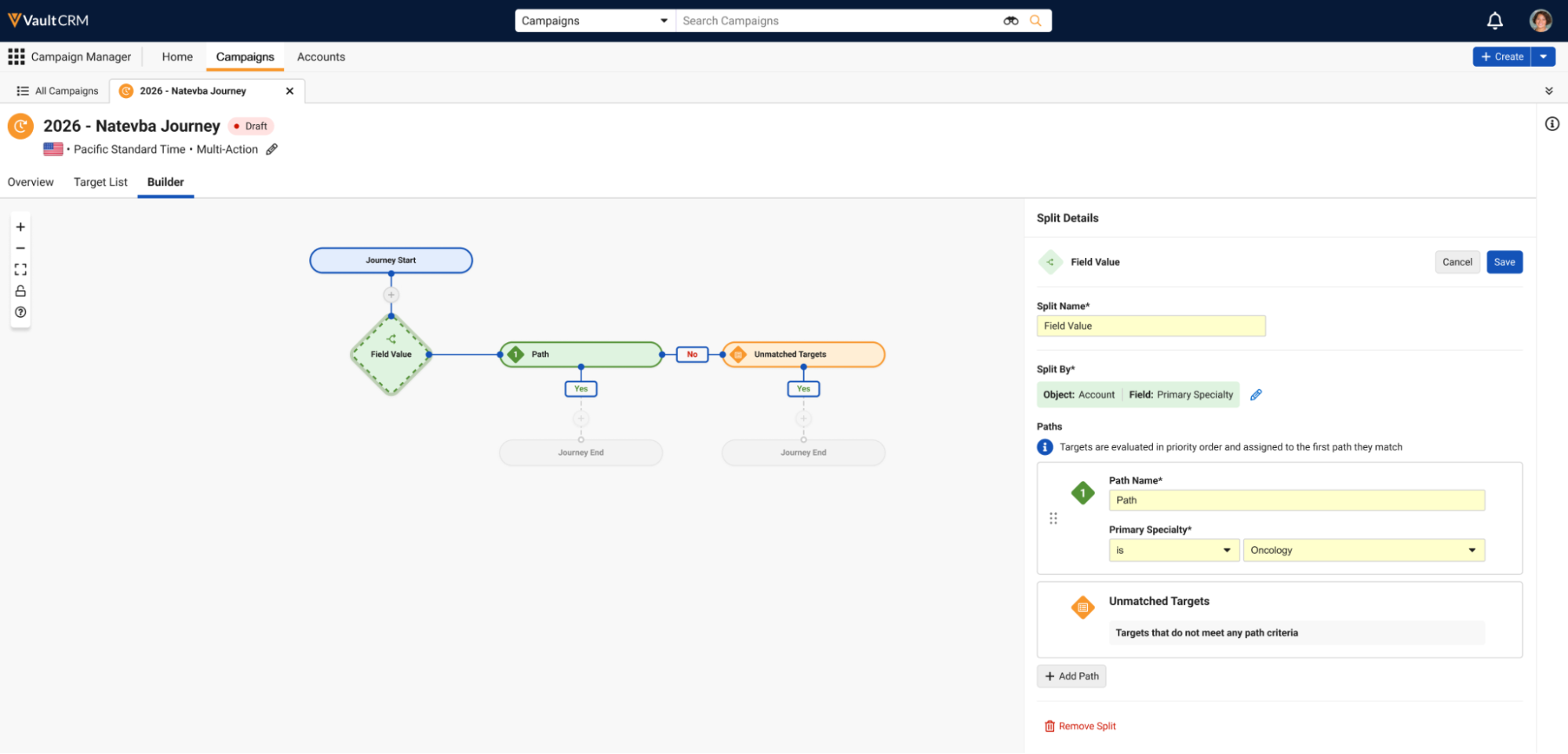
- Select the Select Field button. The selected object and field display under the Split By label in the Split Details panel.
After defining the appropriate field, users can then define all appropriate paths and their criteria.
Defining Paths
Each split can support up to 10 paths. By default, every Field Value Split has at least two paths:
- A user-defined path with a priority of 1
- An Unmatched Targets path – This path collects any target that does not meet the criteria of a user-defined path. This path cannot be renamed, removed, or reordered, and does not have criteria.
To add a path:
- Select + Add Path from the Split Details panel.
-
Enter the appropriate fields:
- Path Name – Defaults to Path, is limited to 80 characters, and is required
-
Operator – Defaults to the first available operator for the selected field's data type. The following operators are available:
Field Type
Filter Operators
Text – Including the following subtypes:
- Phone
- Link
- Time
- contains
- is
- is not
- is blank
- is not blank
Picklist (single value)
- is
- is not
- is any of
- is none of
- is blank
- is not blank
Picklist (multi-value)
- is
- is not
- is any of
- is none of
- is all of
- is blank
- is not blank
Yes/No (boolean)
- is
- is not
Number – Including the following subtypes:
- Currency
- Percent
- is equal to
- is not equal to
- is less than
- is greater than
- is blank
- is not blank
Lookup
- is
- is not
- is any of
- is none of
- is blank
- is not blank
Date
- is
- is before
- is after
- is between
- is blank
- is not blank
DateTime
- is
- is before
- is after
- is between
- is blank
- is not blank
- Criteria – The value to evaluate targets against. This field is required, and does not display when the selected operator is either
is blankoris not blank. The input varies by the selected field's data type and operator: - Text – Enter a value
- Picklist – Select a single value for
isandis notoperators. Select one or more values foris any of,is all of, andis none ofoperators. - Yes/No – Select Yes or No
- Number – Enter a numeric value
- Lookup – Search for and select the appropriate record. The
is any ofandis none ofoperators support selecting multiple records. - Date – Select a single date for
is,is before, andis after. The is between operator displays separate Start Date and End Date fields, and the Start Date must be earlier than the End Date. - DateTime – Behaves the same as Date, with an additional time value. DateTime criteria are evaluated in the journey's time zone.
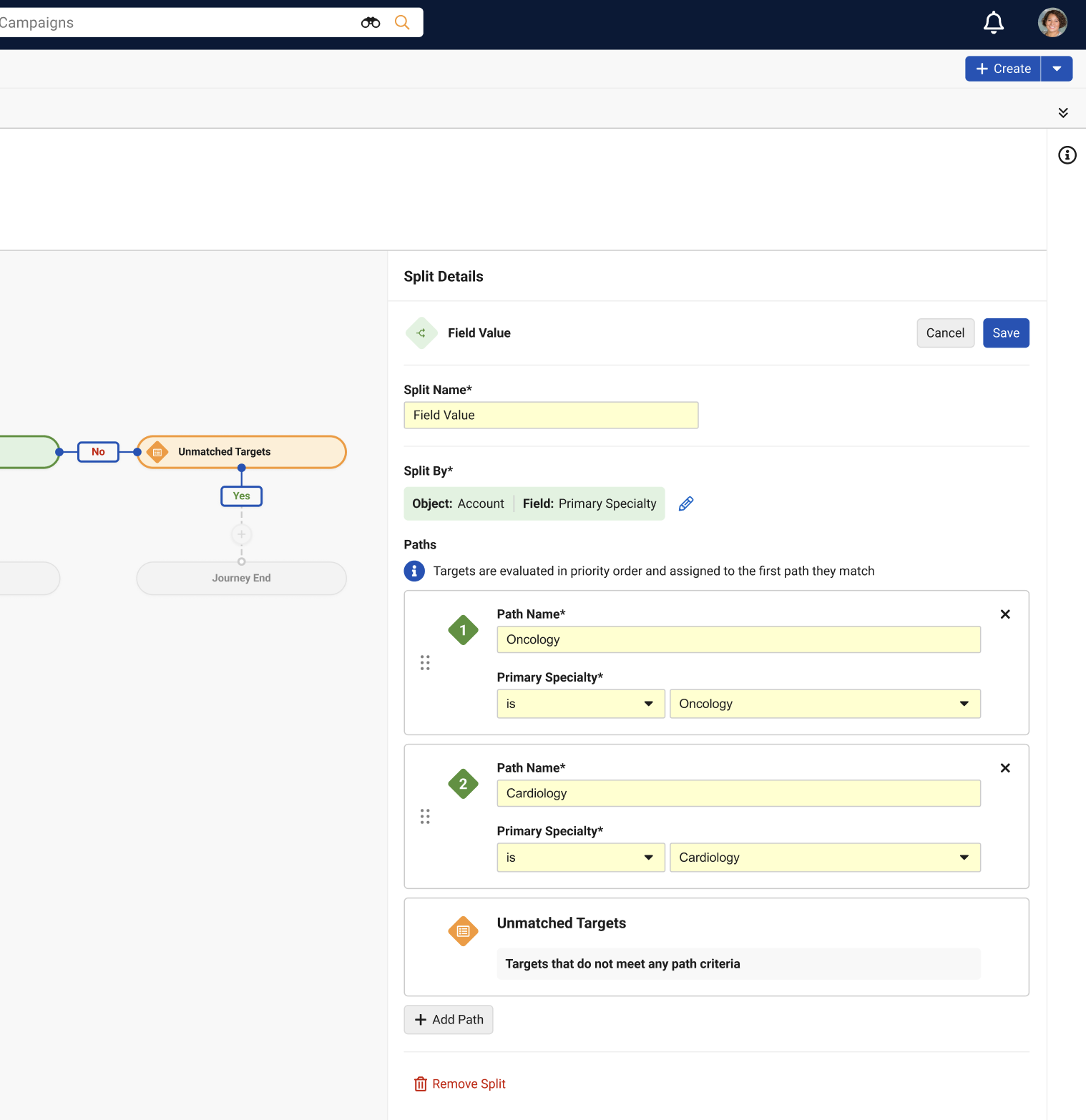
- Repeat this process as needed.
- Drag and drop each path card in the appropriate priority order. Paths evaluate in this order.
- Select Save.
After saving, users can select the + icon of any downstream paths to add additional nodes.
Selecting a different object or field to split by resets all paths.
Viewing Field Value Splits
Selecting any of the following nodes on the Builder canvas opens the Split Details panel in View mode, displaying the Split Name, the object and field the split is based on, and a read-only summary of each path's criteria:
- The Field Value Split node
- A user-defined path node or the Unmatched Targets node
- A Yes or No branch node
Hovering over a user-defined path node on the canvas displays a tooltip with the path's priority number, name, and criteria summary.
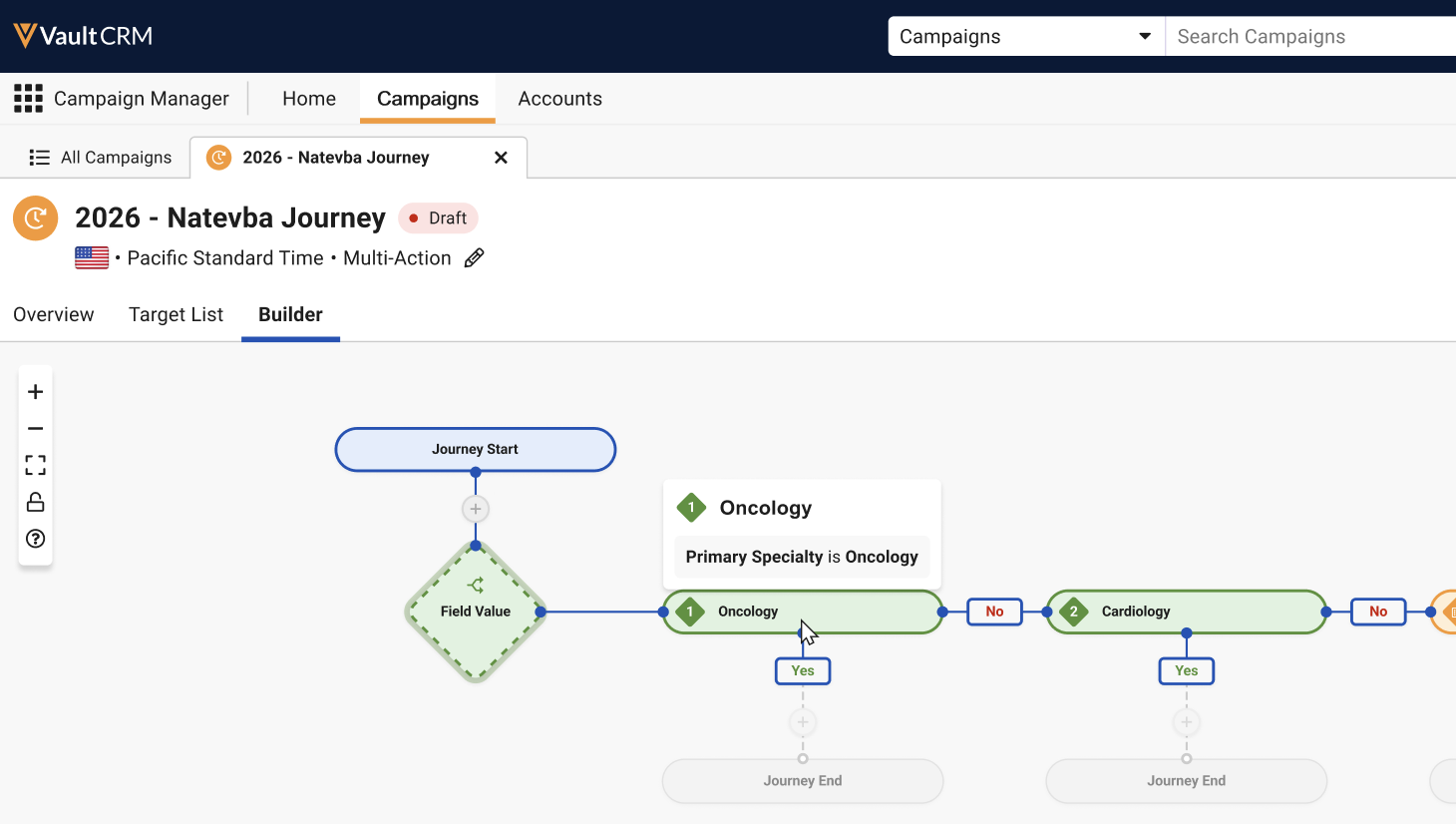
Tooltips do not display for the Field Value Split diamond or for Yes and No branch nodes.
The Splits grouping in the Add Details section of the Overview tab includes each saved Field Value Split in its count, and displays the Field Value icon when at least one Field Value Split is saved.
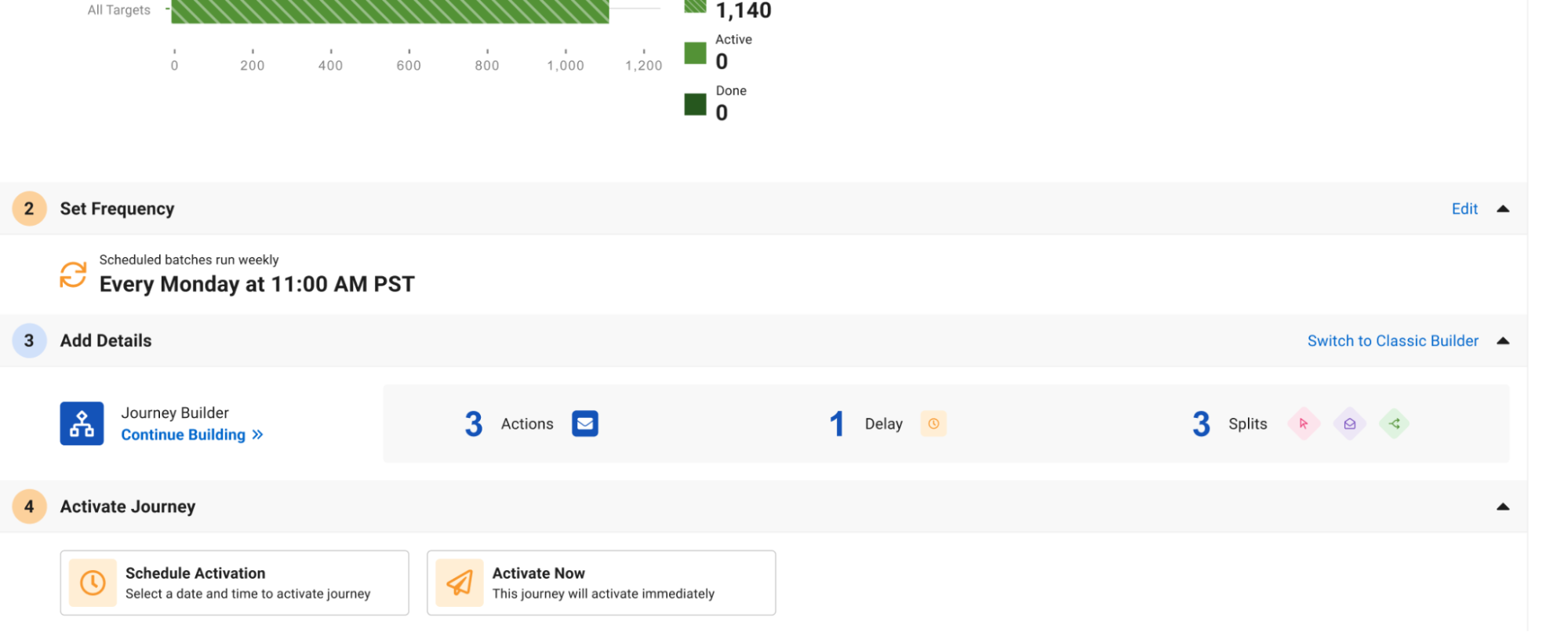
Removing a path also removes any nodes downstream of that path's Yes branch. The Unmatched Targets path and the last remaining user-defined path cannot be removed. Removing the Field Value Split entirely removes all paths, branches, and downstream nodes.
Executing Journeys with Field Value Splits
Path criteria evaluate when a target arrives at the Field Value Split, not when the target enters the journey. This means a target is assigned a path based on its field values at that point in time.
Targets are evaluated against each path in priority order, beginning with path 1, and continue down the first path whose criteria they meet. Targets that meet no user-defined criteria continue down the Unmatched Targets path.
If the object or field a split is based on no longer exists, or its API name changed, targets arriving at the split are marked Done and do not continue down any path.
Field values are sourced from the Data Lakehouse, so updates to a target's field values can take approximately 30 minutes to be reflected. Targets are evaluated in batches of 1,000, so larger journeys can take several minutes to process.

