Customized Scoring and Matching When Reconciling Walk-in Attendees
To improve the accuracy of walk-in attendee reconciliation and reduce manual data entry, business admin users can configure custom scoring logic and auto-match rules based on specific walk-in fields. This ensures that high-value identifiers, for example, National Provider Identifier (NPI) numbers or state licenses, are prioritized in search results and are used to automatically reconcile walk-in attendees to existing accounts, when available.
This feature is not supported when using Child Accounts in Events Management.
Who can use this feature?
- Business Admin Users – Browser
- Defining Custom Scoring and Auto-Match Requirements
- End Users – Browser, iPad
- Reconciling Attendees with Custom Scoring and Auto-Matching
- Users require Events Management and Engage licenses
Configuring Attendee Reconciliation Custom Scoring and Auto-Match for
 Business Admin Users
To configure this feature:
-
Ensure the following features are configured:
- Configuring Events Management
- Reconciling Walk-in Attendees to Existing Accounts
- Displaying Walk-in Fields by Attendee Type – Optional, enables defining custom scoring and auto-match requirements for specific walk-in types
- Navigate to Admin > Users & Groups > Permission Sets.
- Select the appropriate permission set.
- Select the Objects tab..
-
Grant the following permissions:
Object Object Permission Object Types Fields Field Permission em_event_rule__v CRED walk_in_fields__v - nonprescriber_field_search_logic__v
- other_field_search_logic__v
- prescriber_field_search_logic__v
- walkin_field_search_logic__v
Edit attendee_reconciliation_configuration__v CRED All - em_event_rule__v
- name__v
- search_weight__v
- walkin_field__v
- trigger_auto_match__v
Edit - Navigate to Admin > Configuration > Objects > em_event_rule__v > Layouts.
- Edit the layout assigned to the walk_in_fields__v object type.
- Add the Attendee Reconciliation Configuration related object section to the layout.
- Navigate to Business Admin > Objects > Events Management Settings.
- Edit the appropriate record.
- Ensure the attendee_automatch_mode__v setting is populated with 1.
End Users
To configure this feature:
-
Ensure the following features are configured:
- Configuring Events Management
- Reconciling Walk-in Attendees to Existing Accounts
- Displaying Walk-in Fields by Attendee Type – Optional, enables defining custom scoring and auto-match requirements for specific walk-in types
- Navigate to Admin > Users & Groups > Permission Sets.
- Select the appropriate permission set.
- Select the Objects tab..
-
Grant the following permissions:
Object
Object Permission
Object Types
Fields
Field Permission
em_attendee__v
R
All
- auto_match_status__v
- auto_match_id__v
- walk_in_status__v
Read
em_event_rule__v
R
walk_in_fields__v
- nonprescriber_field_search_logic__v
- other_field_search_logic__v
- prescriber_field_search_logic__v
- walkin_field_search_logic__v
Read
attendee_reconciliation_configuration__v
R
All
- em_event_rule__v
- modified_date__v
- name__v
- search_weight__v
- walkin_field__v
- trigger_auto_match__v
Read
- Navigate to Admin > Configuration > Objects.
- Select em_attendee__v
- Select the Object Types tab
- Select the attendee__v object type
- Select the walk_in_status__v field
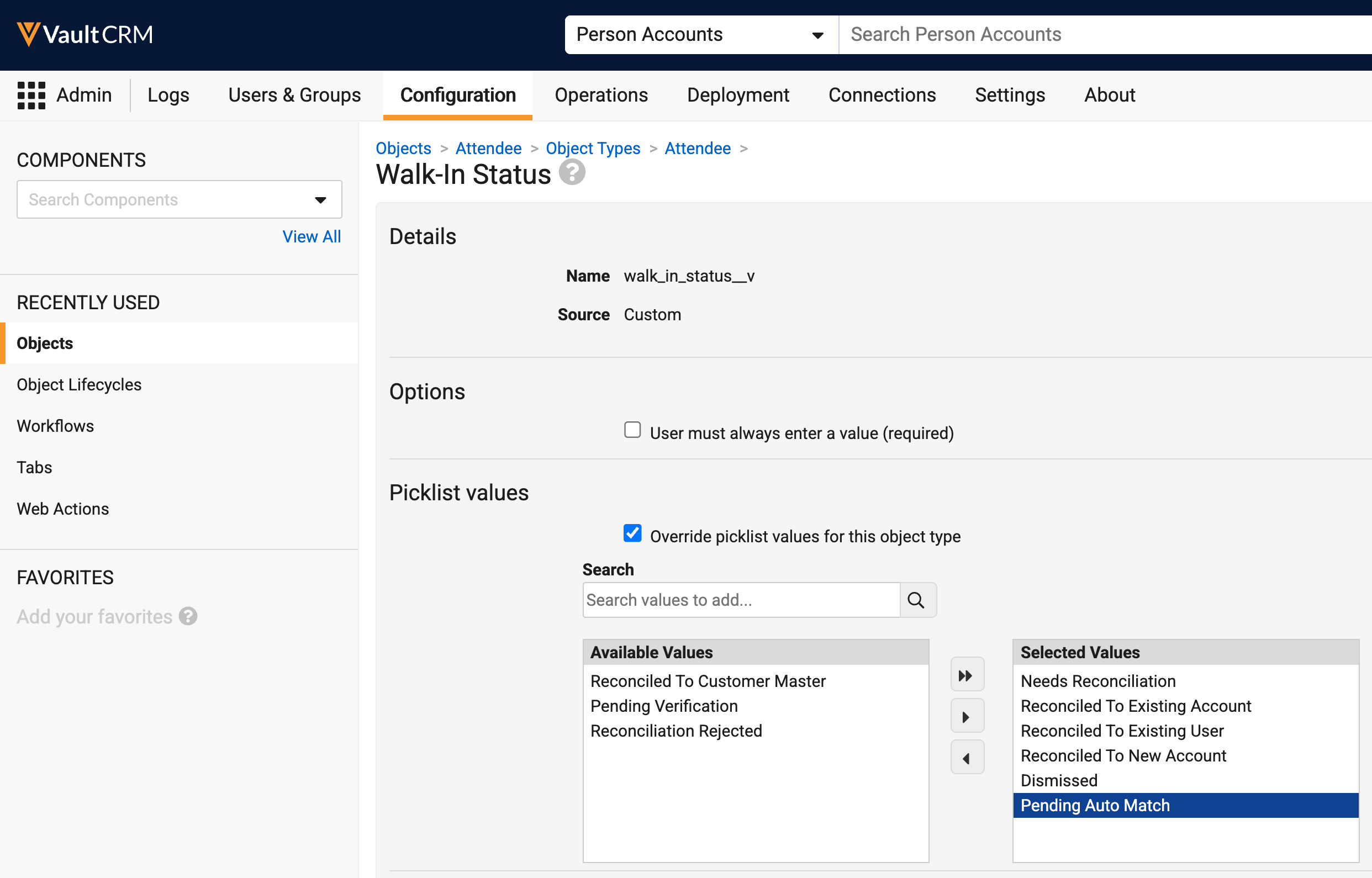
- Move the Pending Auto Match picklist value to Selected Values
- Navigate to Business Admin > Objects > VMobile Object Configurations.
- Activate the appropriate VMOCs for the attendee_reconciliation_configuration__v object.
Defining Custom Scoring and Auto-Match Requirements as
Business Admin Users
To define custom scoring and auto-match requirements:
- Navigate to the appropriate em_event_configuration__v record.
- Navigate to the Event Rules section.
- Edit the appropriate Sign-in Rule type event rule. See Defining Walk-in Attendee Fields for more information.
- Ensure the Sign-in Rule has appropriately defined walk-in fields.
- Navigate to the Attendee Reconciliation Configuration section.
- Navigate to the appropriate walk-in attendee type Field Settings section. This step is only applicable if Displaying Walk-in Fields by Attendee Type is configured.
-
Populate the following fields:
-
Walk-in Field – Select the appropriate walk-in field you want to score
Boolean fields are not supported.
- Search Weight – Enter the appropriate search weight used for scoring the field
- Trigger Auto Match – Select this checkbox if you want to trigger an automatic reconciliation when there is a match on this field
-
- Select the + button. Each added field is assigned a number, used in the Search Logic field.
- Repeat this process for as many fields as necessary. Up to five fields per section can be added.
-
Update the Search Logic field, if necessary. This logical statement is used to perform the searches in attendee reconciliation. By default, this field populates with all added fields joined together with AND operators.
The following characters and operators are supported:
- Numeric characters representing added fields
- Parentheses
- AND
- OR
-
Select Save.
Attendee Reconciliation Configuration records and Search Logic values should only be created, edited, or deleted via Event Rules. Do not create, edit, or delete these records via the Business Admin tab as this bypasses validation logic and may result in incomplete search results during attendee reconciliation.
Example Configuration
For example, the business admin user defines the following walk-in fields with the following weights:
|
Field Number |
Walk-in Field |
Search Weight |
Trigger Automatch |
|---|---|---|---|
|
1 |
npi__v |
10000 |
Yes |
|
2 |
last_name__v |
10 |
No |
|
3 |
first_name__v |
5 |
No |
|
4 |
email__v |
100 |
No |
They then define the following Search Logic: 1 OR (2 AND 3) OR 4. This ensures that only accounts that meet one of the following criteria are considered for reconciliation for a walk-on attendee, including triggers for auto-matching:
- The account has a matching NPI value (field 1). Because this field has Trigger Automatch enabled, an exact match on NPI automatically reconciles the walk-in.
- The account has matching last name AND first name values (fields 2 AND 3)
- The account has a matching email value (field 4)
Reconciling Attendees with Custom Scoring and Auto-Matching as
End Users
When a walk-in attendee is created — whether manually, through a sign-in sheet, or via data loading — the walk-in attendee automatically reconciles to an account or user if any of the following conditions are met:
- The walk-in attendee has a field value that is an exact match to a field that has been configured for auto-matching
- The walk-in attendee's email address matches an email address on an existing account__v or user record
- The walk-in attendee's first name and last name exactly match those on an existing account__v or user record, and no other records in CRM share that combination of first name and last name
The first condition reflects the Attendee Reconciliation Configuration defined for the Sign-in Rule. The second and third conditions reflect the default walk-in attendee auto-match behavior described in Using Auto-Match. When custom scoring is configured, both sets of conditions are evaluated independently and either can produce a match.
When any condition produces a match, the Auto Match Status field on the walk-in attendee is set to Match Found, and the Auto Match ID field is populated with the ID of the matched record. These fields are populated regardless of which condition triggered the match.
For example, If a walk-in has the same first name, last name, and email address as an existing account, the walk-in is auto-matched and stamped with Match Found, even if a configured auto-match field like NPI does not match.
Walk-in attendees do not automatically match to accounts available via OpenData. However, custom scoring is applied to OpenData search results when reconciling manually.
If a match is not automatically found, the end user reconciles the walk-in via the normal process.
Search results are weighted based on the fields and score values defined in the appropriate Attendee Reconciliation Configuration settings.
If this feature is configured alongside Merging Duplicate Walk-in Attendees, auto-matched walk-ins merge into existing attendees, if applicable. If an automatched walk-in is associated with an existing attendee record with a recorded signature, the walk-in does not merge and does not reconcile.

