WhatsApp Business for Events Management
Event team members can send compliant, event-related WhatsApp messages to HCPs, providing an alternative to paper or email invitations. This allows event team members to use HCPs’ preferred channel of choice, potentially increasing registration response rates and improving overall event attendance. In addition, event team members can access automated real-time tracking, while HCPs can use self-registration dynamic links and send instant RSVPs using predefined quick reply buttons.
Event team members can:
- Send invitations for events that provide details about the event with a link to a registration page or a request to RSVP
- Send reminders leading up to the event date
- Send follow-up messages
Who can use this feature?
- Business Admin Users - Browser
- Using WhatsApp Business for Events Management
- End Users - iPad
- Using WhatsApp Business for Events Management
- HCPs - Browser (Off-Platform)
- Using WhatsApp Business for Events Management
- Users require an Events Management license
Configuring WhatsApp Business for Events Management for
 Business Admin Users
To configure this feature:
- Ensure the following are configured:
- Navigate to Admin > Users & Groups > Permission Sets.
- Select the appropriate permission set.
- Select the Objects tab.
- Grant the following permissions:
Object
Object Permission
Object Types
Fields
Field Permission
message_template__v
CRED
whatsapp_events_message_template__v
events_management_subtype__v Edit
em_event_material__v
CRED
message_template__v
current_material_status__v Read
- message_template__v
- message_subtype__v
Edit
sent_message__v
CRED
events_management_message__v
events_management_subtype__v Read
- em_attendee__v
- em_event_speaker__vevent__v
Edit
em_event_rule__v
CRED
material__v
message_template__v
Edit
em_topic_material__v
CRED
- product_material__v
- topic_material__v
message_template__v
Edit
-
Navigate to Admin > Configuration> Objects.
- Add the message_template__v field to the following layouts:
- em_event_rule__v layout for the material__v object type
- em_topic_material__v layout for the product_material__v and topic_material__v object types
- Add the events_management_subtype__v field to the appropriate message_template__v layout
- Add the Send WhatsApp Message to the Visible Buttons on applicable em_event__v layouts
- Add the confirmation_message_template__v field to the em_catalog__v layout
- Add the following fields to the appropriate sent_message__v layout:
- events_management_subtype__v
- em_attendee__v
- em_event_speaker__v
- event__v
- Add the message_template__v field to the following layouts:
Optional Configuration
Event Registration
To configure this feature:
- Ensure Using Attendee Self-Registration with Events is configured.
- Navigate to Admin > Users & Groups > Permission Sets.
- Select the appropriate permission set.
- Select the Objects tab.
- Grant the following permissions:
Object
Object Permission
Object Types
Fields
Field Permission
em_catalog__v
CRED
registration_form__v
confirmation_message_template__v
Edit
message_template__v
CRED
whatsapp_events_message_template__v
- whatsapp_button_1_crm_action__v
- whatsapp_button_2_crm_action__v
- whatsapp_button_3_crm_action__v
Edit
- Navigate to Admin > Configuration > Objects > message_template__v.
- Select the Layouts tab.
- Add the following fields to the appropriate layout:
- whatsapp_button_1_crm_action__v
- whatsapp_button_2_crm_action__v
- whatsapp_button_3_crm_action__v
RSVP
To configure this feature:
- Navigate to Admin > Users & Groups > Permission Sets.
- Select the appropriate permission set.
- Select the Objects tab.
- Grant the following permissions:
Object
Object Permission
Object Types
Fields
Field Permission
multichannel_message__v
CRED
events_message_action__v
- rsvp_response__v
- event_attendee_status__v
- message_identifier__v
Edit
message_template__v
CRED
whatsapp_events_message_template__v
- whatsapp_button_1_crm_action__v
- whatsapp_button_2_crm_action__v
- whatsapp_button_3_crm_action__v
- whatsapp_button_1_crm_action_handler__v
- whatsapp_button_2_crm_action_handler__v
- whatsapp_button_3_crm_action_handler__v
Edit
- Navigate to Admin > Configuration > Objects > message_template__v.
- Select the Layouts tab.
- Add the following fields to the appropriate layout:
- whatsapp_button_1_crm_action__v
- whatsapp_button_2_crm_action__v
- whatsapp_button_3_crm_action__v
- whatsapp_button_1_crm_action_handler__v
- whatsapp_button_2_crm_action_handler__v
- whatsapp_button_3_crm_action_handler__v
End Users
To configure this feature:
- Ensure the following are configured:
- Navigate to Admin > Users & Groups > Permission Sets.
- Select the appropriate permission set.
- Select the Objects tab.
- Grant the following permissions:
Object
Object Permission
Object Types
Fields
Field Permission
message_template__v
R
whatsapp_events_message_template__v
events_management_subtype__v Read
em_event_material__v
CRED
message_template__v
current_material_status__v Read
- message_template__v
- message_subtype__v
Edit
sent_message__v
CRED
events_management_message__v
events_management_subtype__v Read
- em_attendee__v
- em_event_speaker__vevent__v
Edit
em_event_rule__v
R
material__v
message_template__v
Read
em_topic_material__v
R
- product_material__v
- topic_material__v
message_template__v
Read
- Grant access to the send_whatsapp_message__v action on the em_event__v object.
- Navigate to Admin > Configuration > Objects.
- Select em_event__v
- Select the Object Types tab.
- Enable the send_whatsapp_message__v action for the appropriate object types
- Navigate to Business Admin > Objects > Event Layouts.
- Select the appropriate layout
- Add send_whatsapp_message__v to the visible_buttons__v field
Optional Configuration
Event Registration
To configure this feature:
- Navigate to Admin > Users & Groups > Permission Sets.
- Select the appropriate permission set.
- Select the Objects tab.
- Grant the following permissions:
Object
Object Permission
Object Types
Fields
Field Permission
em_catalog__v
R
n/a
confirmation_message_template__v
Read
message_template__v
R
whatsapp_events_message_template__v
- whatsapp_button_1_crm_action__v
- whatsapp_button_2_crm_action__v
- whatsapp_button_3_crm_action__v
Read
RSVP
To configure this feature:
- Navigate to Admin > Users & Groups > Permission Sets.
- Select the appropriate permission set.
- Select the Objects tab.
- Grant the following permissions:
Object
Object Permission
Object Types
Fields
Field Permission
multichannel_message__v
R
events_message_action__v
- rsvp_response__v
- event_attendee_status__v
- message_identifier__v
Read
message_template__v
R
whatsapp_events_message_template__v
- whatsapp_button_1_crm_action__v
- whatsapp_button_2_crm_action__v
- whatsapp_button_3_crm_action__v
- whatsapp_button_1_crm_action_handler__v
- whatsapp_button_2_crm_action_handler__v
- whatsapp_button_3_crm_action_handler__v
Read
HCPs
To configure this feature:
- Ensure valid messaging consent is updated and documented on the account level or through configured event consent entry points before end users initiate messaging transactions.
- Ensure the recipient's primary account record contains a valid WhatsApp number populated in the account__v field on the whatsapp__v object.
Using WhatsApp Business for Events Management as
Business Admin Users
Business admin users create and manage event message templates, create event rules or topic materials, and configure dynamic response interactions.
Creating a WhatsApp Message Template
To create a WhatsApp message template for Events Management:
- Ensure the message template is approved in your Meta Business Profile.
When submitting WhatsApp message templates to Meta for approval, ensure your sample values accurately reflect the expected length and format of the actual content. If the approved sample text is significantly shorter than the actual input, Meta might apply character limits during token resolution causing message delivery failures.
- Navigate to the Message Templates tab and create a new record.
- Select whatsapp_events_message_template__v as the object type.
- Populate the following minimum required fields:
- Message Template Name - Must match the exact name of the template in Meta
- Template Type - Match the Meta profile designation, for example, Utility or Marketing
- Language - Matches the language code configured in Meta
- Message Template Status - Select Staged, Approved, or Expiring
- WhatsApp Body Text - Enter the message text, inserting numbered placeholders, for example, {{1}}) where dynamic tokens belong
- WhatsApp Body Placeholder - The fields referenced by the placeholders in the WhatsApp Body Text field using the format {{ObjectAPIName.FieldAPIName}}. For example, {"{{1}}": "{{em_attendee__v.account_vr.name__v}}", "{"{{2}}": "{{em_event__v.name__v}}"}
- Tokens - Tokens are case-sensitive. Tokens are resolved according to the language/locale of the sending user for both manually sent messages as well as automatically triggered messages as part of the RSVP or Registration confirmation workflows. The following tokens are supported:
- {{ObjectAPIName.FieldAPIName}} - for example, em_event__v.name__v. Limited to the following objects:
- em_event__v
- em_attendee__v (as recipient)
- em_event_speaker__v (as recipient)
- user__v
- user_detail__v
- {{ObjectAPIName.RelationshipName.FieldAPIName}} - for example, em_event__v.topic__vr.name__v. Relationship tokens can be used from the following objects:
- em_event__v
- em_attendee__v (as a recipient)
- em_event_speaker__v (as a recipient)
- {{ObjectAPIName.FieldAPIName}} - for example, em_event__v.name__v. Limited to the following objects:
Aligning Message Templates with Event Rules or Topic Materials
To align message templates using Event Rules or Topic Materials:
-
Open the target whatsapp_events_message_template__v record.
-
Locate the Event Rules or Topic Materials related lists.
- To align by event configuration, create a new Event Rule record with the object type material__v, referencing the Event Configuration and adding an optional country override
- To align by product or topic, create a Topic Material record:
- Select object type product_material__v to reference an Event Product
- Select object type topic_material__v to reference an Event Topic
Configuring RSVP Button Automations
To configure RSVP button automation behaviors:
- Navigate to Multichannel Messages.
- Create a record using the events_message_action__v object type.
- Define a unique text identifier in the message_identifier__v field (for example, event_accept).
- Set the target attendee picklist status in the event_attendee_status__v field (for example, accepted__v).
- Map an automated confirmation template to the behavior by populating the rsvp_response__v lookup field. This step is optional.
- Return to your primary WhatsApp Message Template record and assign the exact text identifier string to the corresponding button action field (for example, whatsapp_button_1_crm_action__v).
Example RSVP - General Template Setup
|
Field |
Field Value |
Final Text |
|---|---|---|
|
Name |
verteo_event_invite |
|
|
Events Management Subtype |
Invitation |
|
|
Message Template Type |
WhatsApp Events Management Template |
|
|
Language |
en_US |
|
|
Template Type |
Marketing |
|
|
Message Template Status |
Approved |
|
|
WhatsApp Body Text |
Dear {{1}}, You are invited to join the upcoming {{2}} Expert Roundtable. We will be discussing the latest real-world evidence (RWE) surrounding treatment pathways for {{3}}. *Date & Time:* {{4}} *Location:* {{5}} Please reply to this invitation by tapping "I will attend" or "I am unable to attend." We are looking forward to seeing you! Verteo BioPharma |
|
|
WhatsApp Body Placeholder |
{"{{1}}": "{{em_attendee__v.account_vr.name__v}}", "{{2}}": "{{em_event__v.name__v}}", "{{3}}": "{{em_event__v.topic__vr.em_catalog_name__v}}", "{{4}}": "{{em_event__v.start_time__v}}", "{{5}}": "{{em_event__v.location__v}}"} |
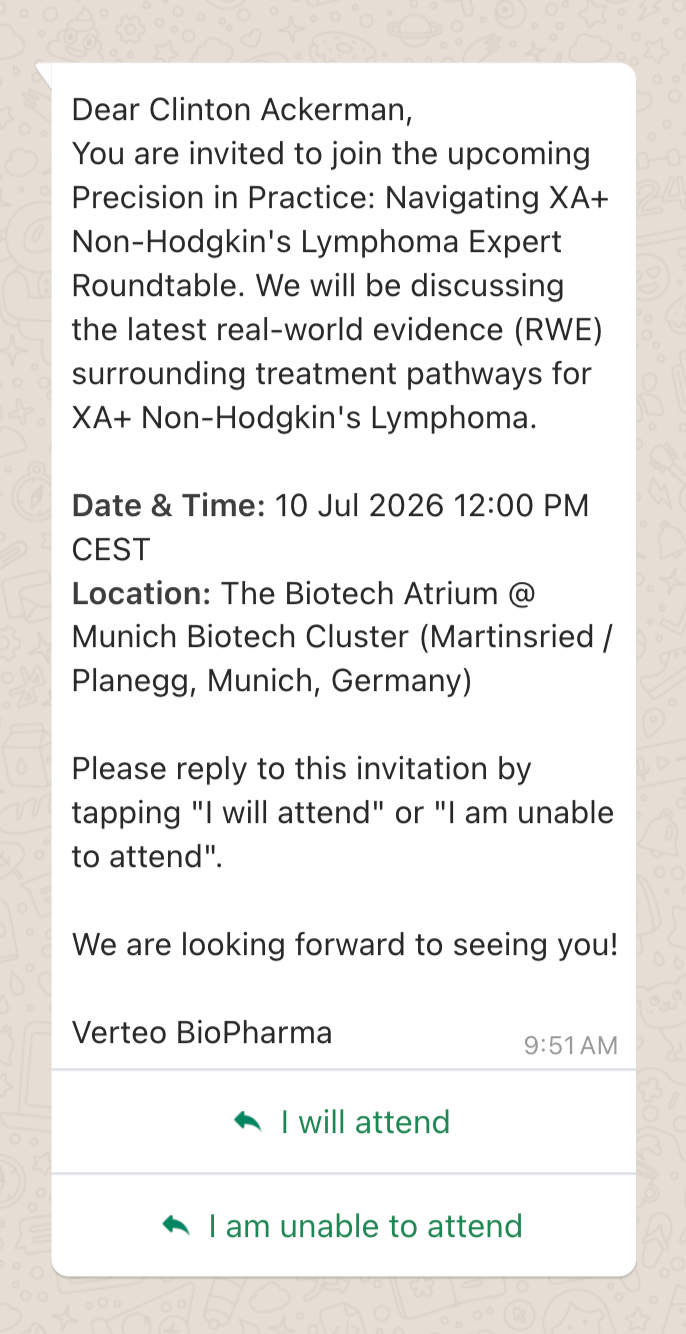
Example - Accept Button Automation
|
Field |
Field Value |
|---|---|
|
WhatsApp Button 1 Type |
Quick Reply |
|
WhatsApp Button 1 Text |
I will attend |
|
WhatsApp Button 1 CRM Action |
event_accept |
|
WhatsApp Button 1 CRM Action Handler |
Events Management RSVP |
Example - Reject Button Automation
|
Field |
Field Value |
|---|---|
|
WhatsApp Button 2 Type |
Quick Reply |
|
WhatsApp Button 2 Text |
I am unable to attend |
|
WhatsApp Button 2 CRM Action |
event_reject |
|
WhatsApp Button 2 CRM Action Handler |
Events Management RSVP |
Configuring Attendee Self-Registration
To configure attendee self-registration forms:
Only targeted registrations are supported in WhatsApp.
- Ensure Using Attendee Self-Registration with Events is configured.
- Create a dynamic Call to Action - Visit Website button inside Meta using your system's Veeva Common QR Server URL.
- Log into Vault CRM.
- Populate whatsapp_button_1_type__v with Call to Action - Visit Website.
- Set the whatsapp_button_1_value__v field to point to the server structure with a single terminal trailing token parameter. For example, https://signin-app-regqr-us-alt.<server>.com/{{1}}
- Manually populate the whatsapp_button_1_crm_action__v field with the exact text string event_registration.
- Open the EM Catalog registry list and update the target registration form record by adding your chosen template to the confirmation_message_template__v lookup field.
Example Configuration - Event Registration
|
Field |
Field Value |
Final Text |
|---|---|---|
|
Name |
verteo_event_invite |
|
|
Events Management Subtype |
Invitation |
|
|
Message Template Type |
WhatsApp Events Management Template |
|
|
Language |
en_US |
|
|
Template Type |
Marketing |
|
|
Message Template Status |
Approved |
|
|
WhatsApp Body Text |
Dear {{1}}, You are invited to join the upcoming {{2}} Expert Roundtable. We will be discussing the latest real-world evidence (RWE) surrounding treatment pathways for {{3}}. *Date & Time:* {{4}} *Location:* {{5}} Please reply to this invitation by tapping "Register here!" We are looking forward to seeing you! Verteo BioPharma |
|
|
WhatsApp Body Placeholder |
{"{{1}}": "{{em_attendee__v.account_vr.name__v}}", "{{2}}": "{{em_event__v.name__v}}", "{{3}}": "{{em_event__v.topic__vr.em_catalog_name__v}}", "{{4}}": "{{em_event__v.start_time__v}}", "{{5}}": "{{em_event__v.location__v}}"} |

Configuring Registration Button Automations
To configure Registration button automations, ensure Using Attendee Self-Registration with Events is configured.
Example - Registration Button Setup
|
Field |
Field Value |
|---|---|
|
WhatsApp Button 1 Type |
Call to Action - Visit Website |
|
WhatsApp Button 1 Text |
Register here! |
|
WhatsApp Button 1 CRM Action |
event_registration |
|
WhatsApp Button 1 Value |
https://signin-app-regqr-us-alt.veeva-vcrmdi.com/{{1}} |
End Users
End users can manage event materials, select templates, narrow down cross-territory target list selections, verify rendering formats, and execute delivery tasks.
To select templates and filter recipient lists:
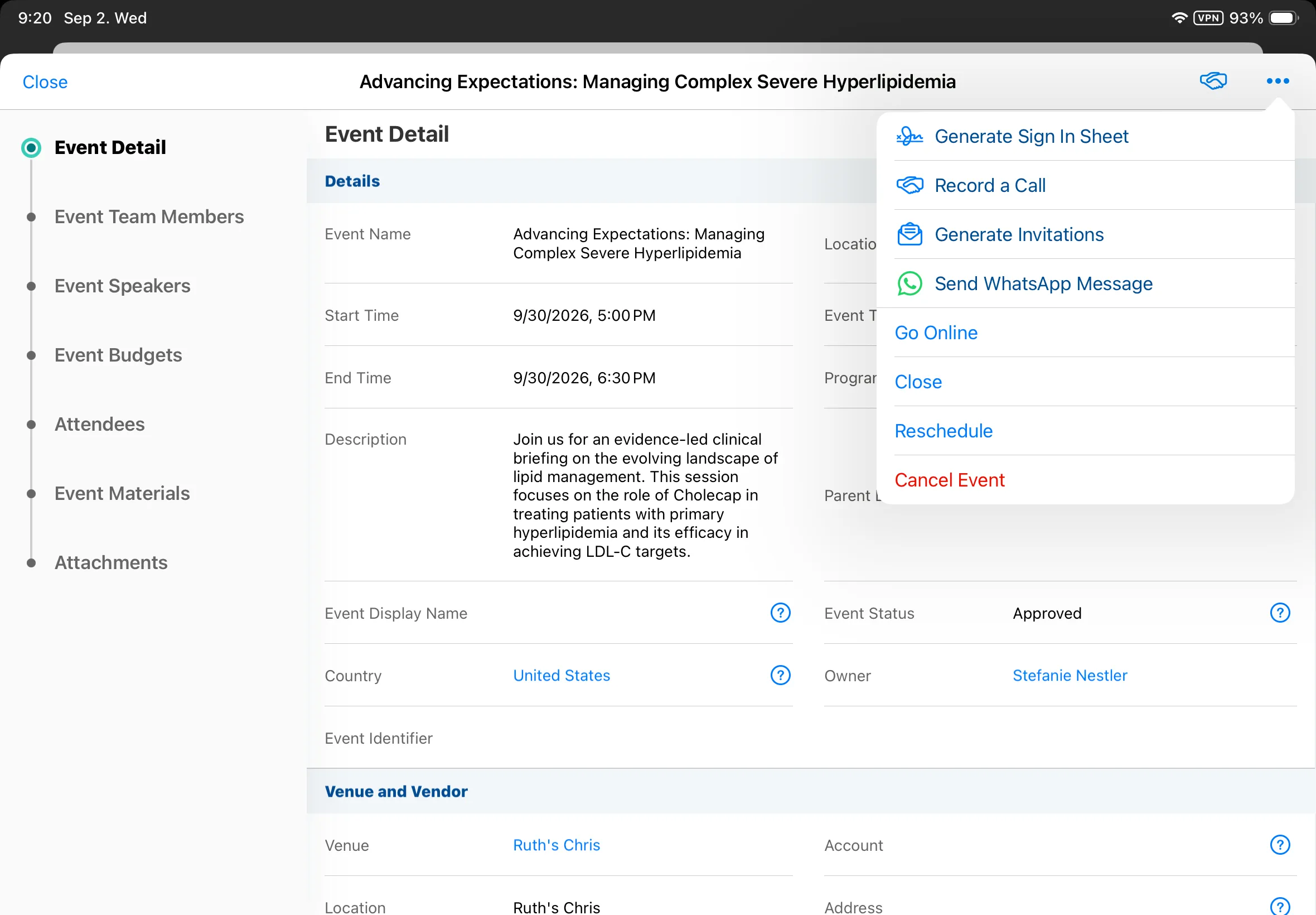
- Navigate to an event.
- Select Send WhatsApp Message from the More Actions menu.
- Review the template selection table.
Message templates must to be associated with the WhatsApp Business Account in order to display. Both Approved and Staged message templates display for Content Admins; otherwise, only Approved materials display.
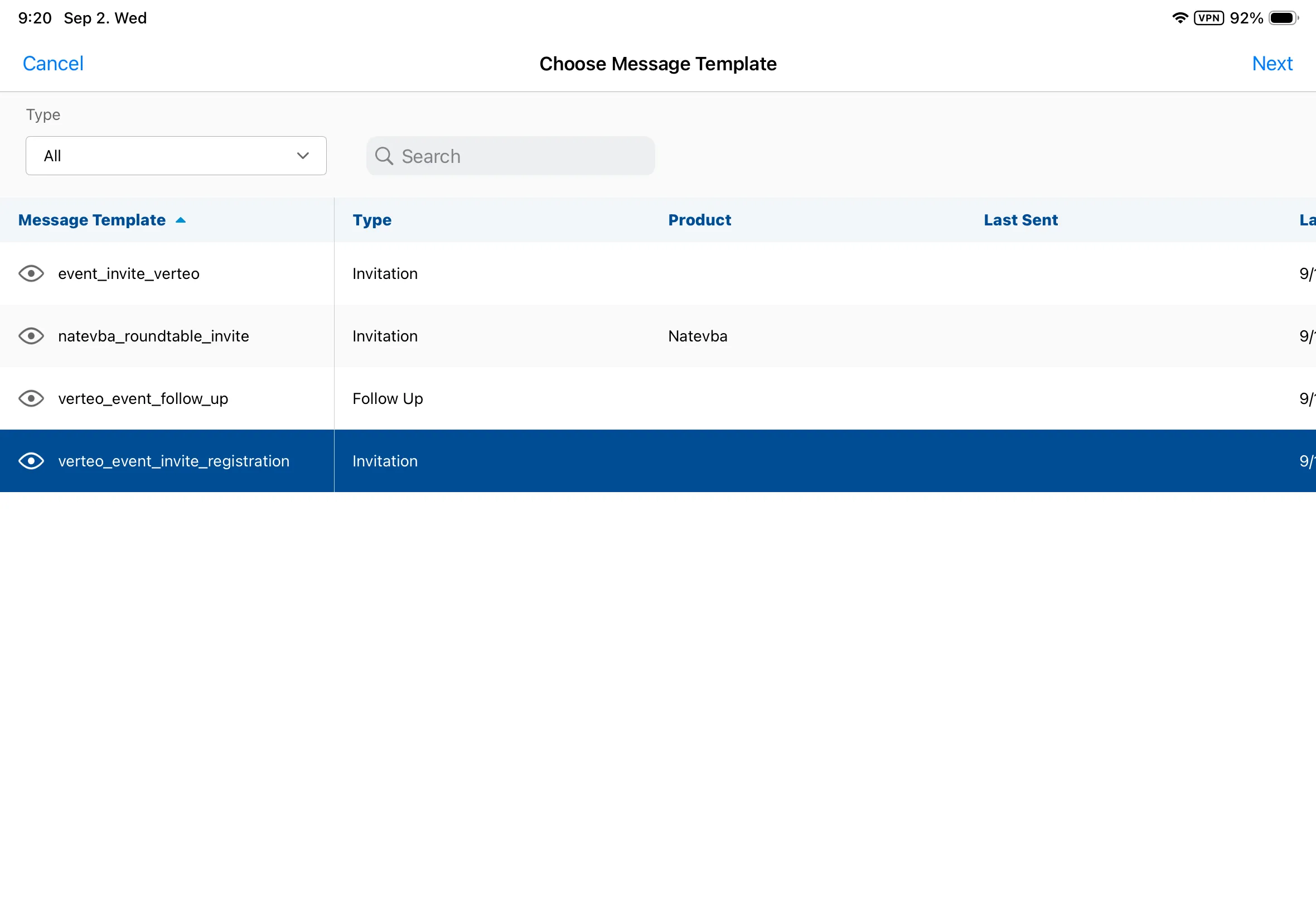
- Select a template.
- Select Next to open the recipient view.
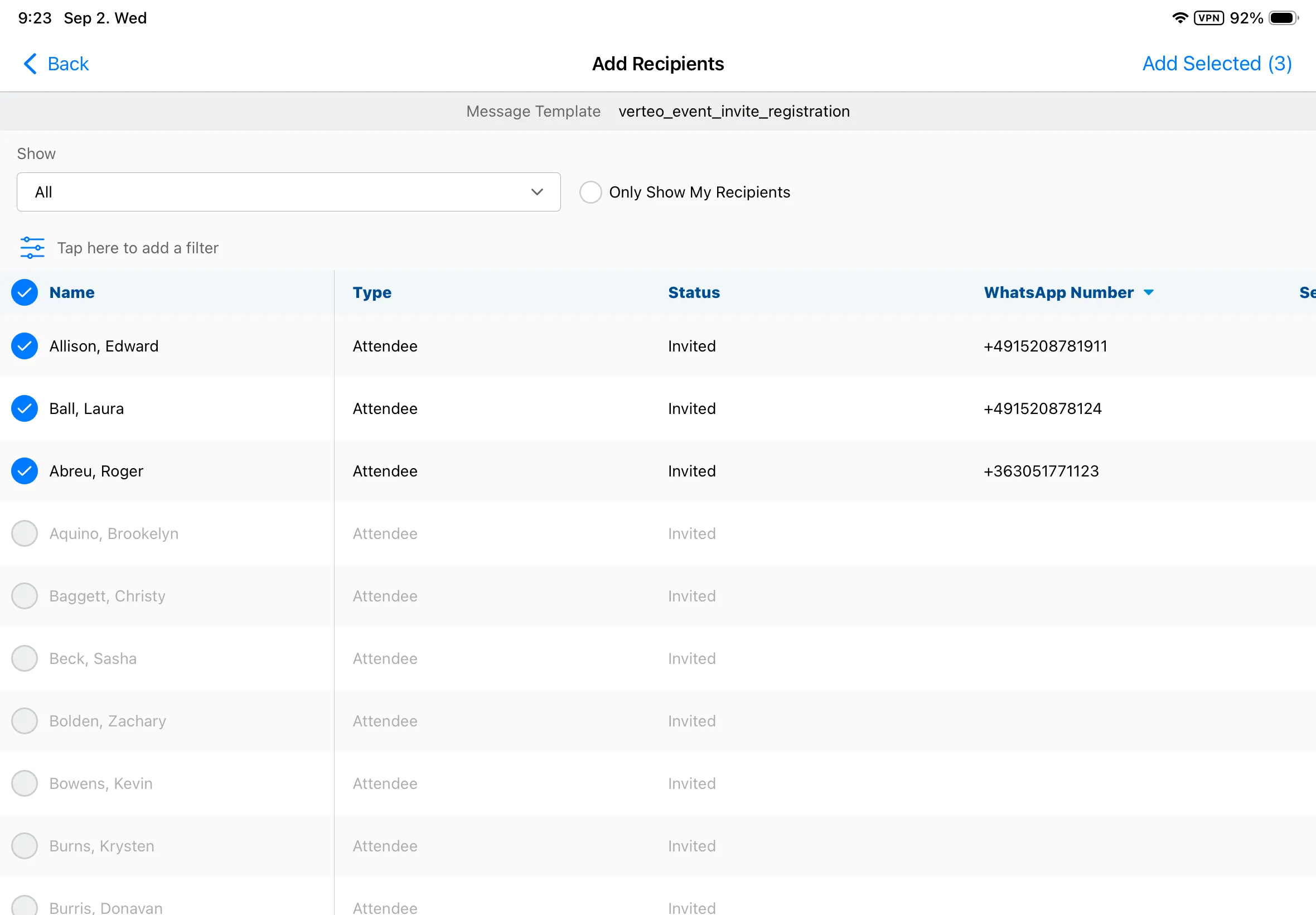
- Filter your recipient views using the screen controls:
- Toggle Show My Attendees to narrow results strictly to your owned or assigned relationship records
- Apply the Type filter to isolate Attendee vs Event Speaker records
- Apply the Status filter to isolate specific transaction states
- Change the main view filter to People who have not received this message to view records lacking a local historical delivery entry
- Select the check boxes next to the intended recipient rows (up to a maximum limit of 50 accounts per transaction).
- Select Add Selected. The system flags target errors if an account lacks a phone entry, has an active chat session open with another team member sharing the phone line, or fails consent/product restriction checks.
- Select Preview to review the personalized message(s).
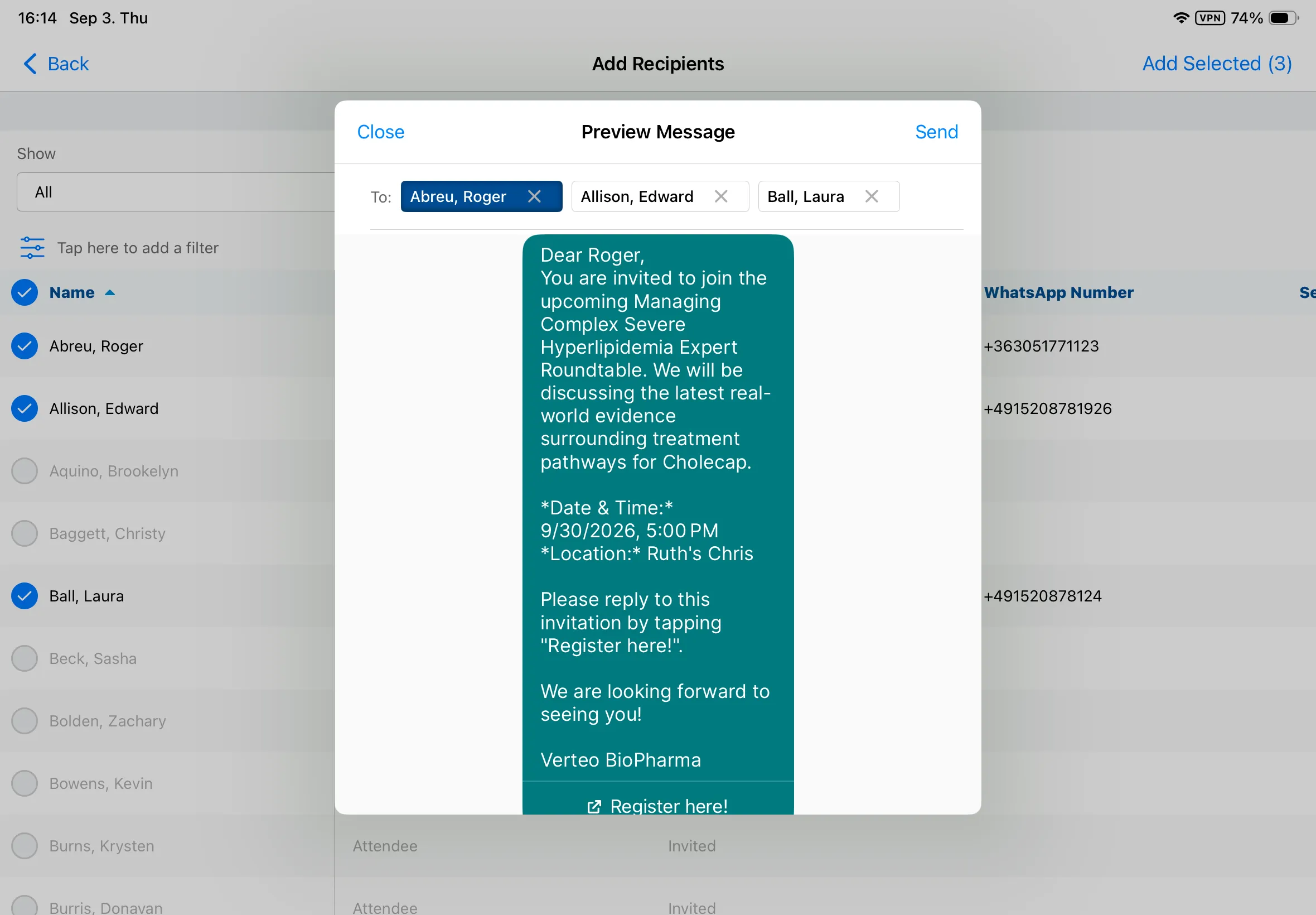
- Select Send. A confirmation banner displays.
HCPs
HCPs receive message assets directly inside their personal WhatsApp application threads and interact using device buttons.
To submit an event RSVP or register for an event:
Only attendees can RSVP to an event.
- Open the invitation message in the WhatsApp chat screen.
- Submit a status update to Vault CRM and/or launch an external mobile browser window containing pre-filled account profile registration fields.
Button text for RSVP and registering is determined by the customer.

