Brand Kits in Content Studio
Content creators can use brand kits to quickly and easily assemble, edit, and test customer-facing content with consistent brand styling across all channels. Brand kits enable content creators to define global typography settings, logos, supporting asset graphics, and a unified color palette, ensuring consistent style and tone wherever the content is used.
Who can use this feature?
- Content Creators - Browser
- Creating a Brand Kit
- Editing and Deleting Brand Kits
- Using Brand Kits
- Users do not require an additional license
Configuring Brand Kits for
 All Users
To configure this feature, ensure Configuring Content Studio is complete.
Creating a Brand Kit as
Content Creators
To create a Brand Kit:
-
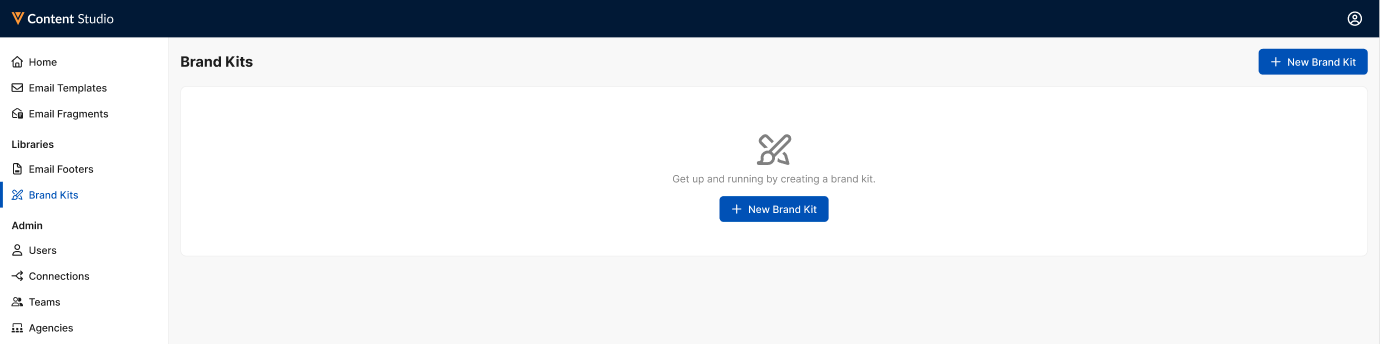
Navigate to the Brand Kits tab in the Navigation Menu.
-
Select + New Brand Kit.
-
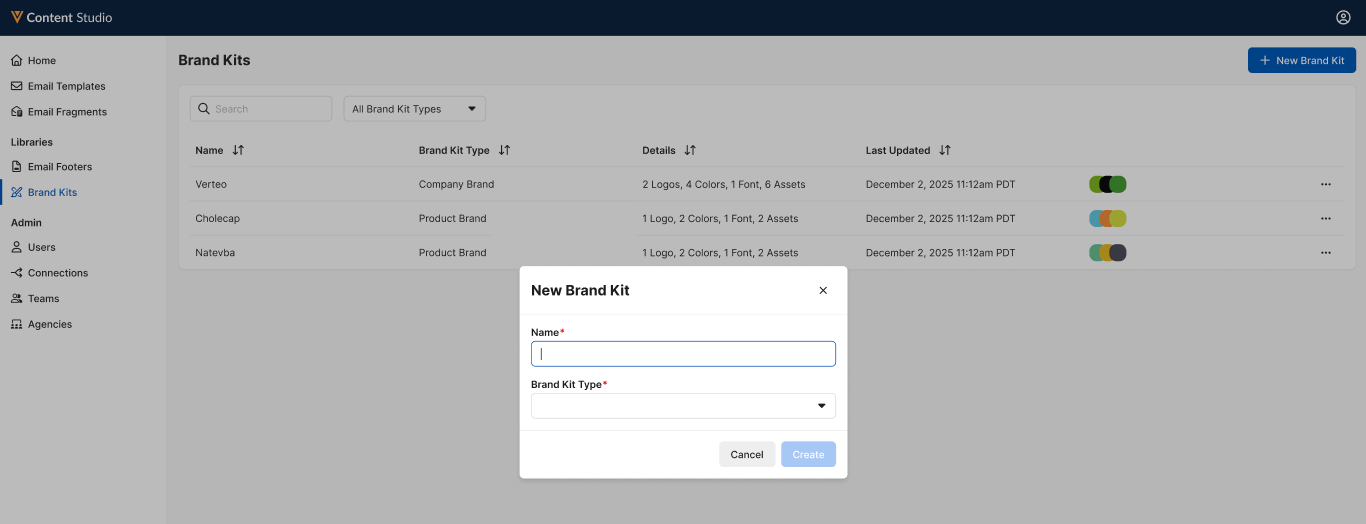
Populate the following fields:
- Name – Enter a name (maximum 100 characters)
- Brand Kit Type – Select either Company Brand or Product Brand
- Select Create.
Defining Brand Kit Logos, Assets, and Styles
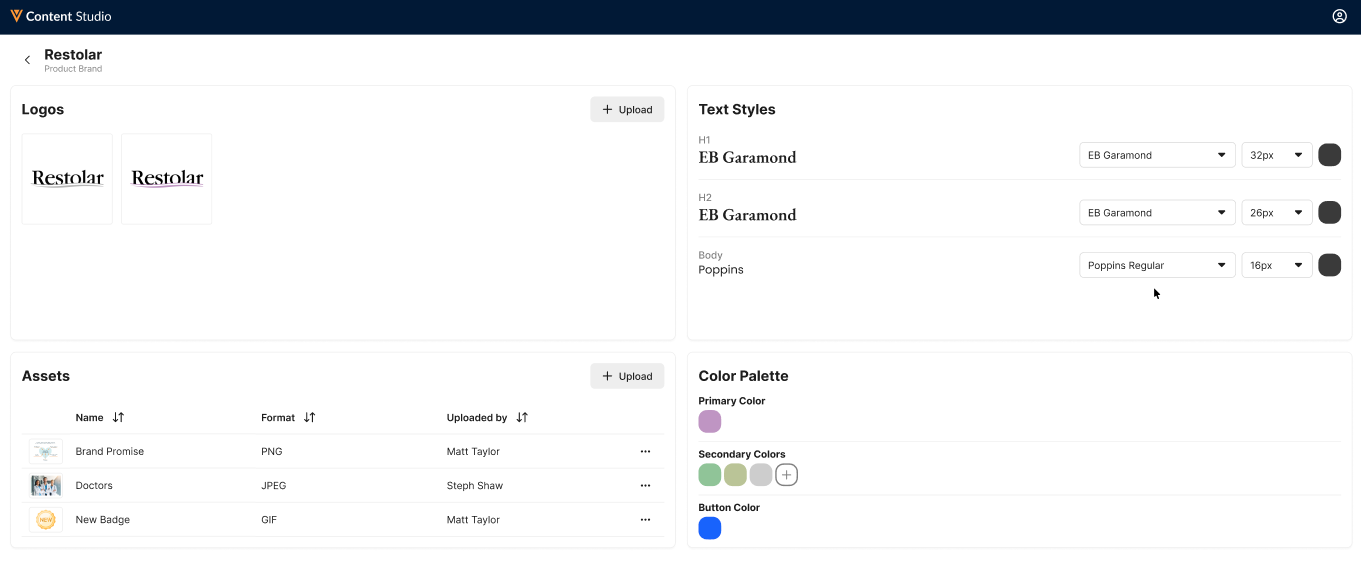
Once created, content creators can view and edit the following types of assets and styles to the brand kit:
-
Logos – To upload logos, or primary visual identifiers for the brand or company, select the + Upload button in the Logos section. The following extensions are supported:
- SVG
- PNG
- JPG/JPEG
Up to 10 photos may be uploaded at once.
-
Assets – To manage supporting graphics, for example icons, hero images, or badges, select the + Upload button in the Assets section. The following extensions are supported:
- PNG
- JPG/JPEG
- GIF
-
Text Styles – Content creators can define the font, size, and color for the following HTML tags:
- h1
- h2
- p
- Color Palette – Content creators can define a primary color, secondary colors, and a button color
Editing and Deleting Brand Kits as
Content Creators
From the Brand Kit tab, content creators can also edit or delete existing brand kits using the All Actions menu.
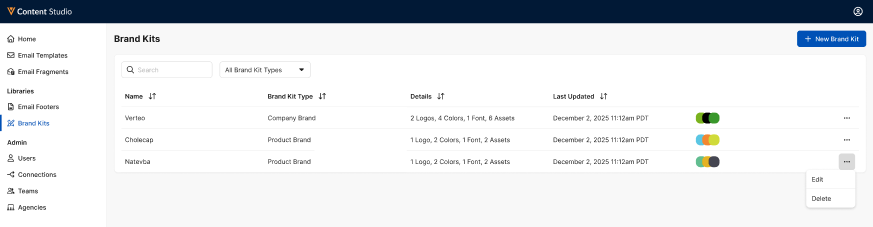
Brand kits cannot be deleted if they are currently used by content.
Using Brand Kits as
Content Creators
Content creators can use brand kits to automatically apply styling and quickly select common assets when creating content. To apply brand kits to content, navigate to the Editor tab of the appropriate piece of content. See Assembling Content in the Editor for more information.
Brand kits can be applied to the following locations and elements:
-
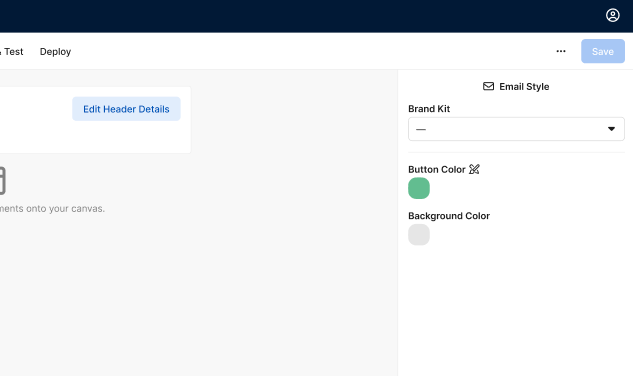
Email Style – Applies the brand kit styling to the entire content
-
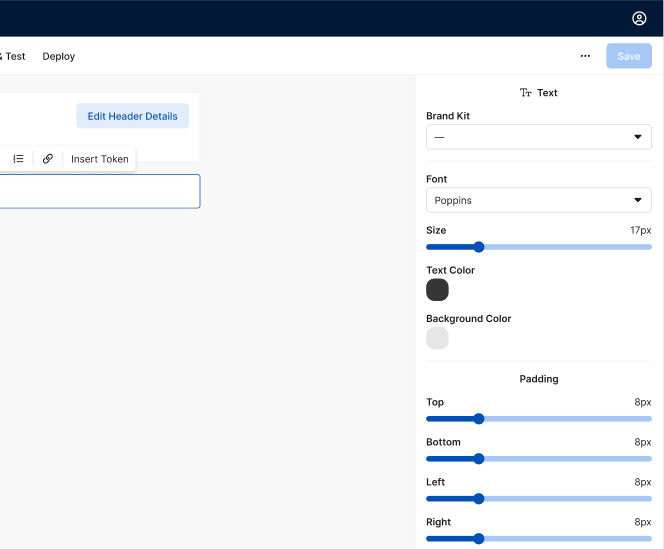
Text element – When adding or editing text elements, content creators can use the Brand Kit picklist to automatically apply text styles to the element
-
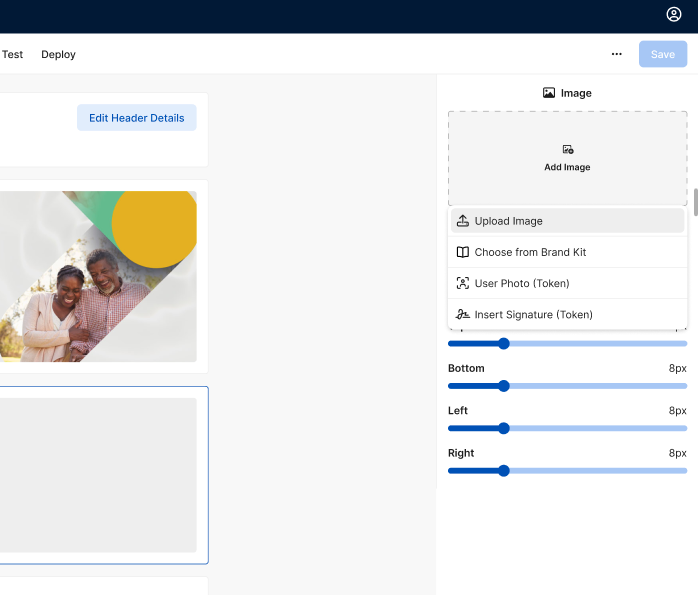
Images – When adding an image element, content creators can choose to add an image or other asset from an associated brand kit