Content Studio MCP
Content creators can generate Approved Email templates through natural language conversations in Claude using Content Studio’s Model Context Protocol (MCP), significantly reducing template creation time and accelerating content delivery.
Content Studio MCP enables content creators to describe their intended content, including content type, product, email type, and specific formatting requirements to Claude. Those requirements are then used to produce a complete draft, ready for final editing, device preview, and deployment in Content Studio.
Using Content Studio MCP consumes credits based on the Claude client.
Who can use this feature?
- Content Creators – Browser
- Creating Content with the Content Studio MCP
- Users do not require an additional license
Configuring Content Studio MCP for
 Content Creators
To configure this feature, ensure the following features are configured:
Adding the Custom Connector in Claude Team or Enterprise Plans
Before individual contributors on Team or Enterprise Claude plans can connect to the MCP, the account owner must first make the connection available to other users on the account:
- Contact Veeva Support to receive the appropriate Content Studio remote MCP server URL.
- Navigate to Organization Settings > Connectors in Claude.
- Select Add.
- Select Custom > Web.
- Enter https://content-mcp.veeva-vcrm.com/mcp as the URL.
- Select Add.
Once added, individual plan members can then connect their Claude account to the MCP:
- Navigate to Customize > Connectors.
- Locate Vault CRM Content Studio in the list.
- Select Connect to authenticate.
-
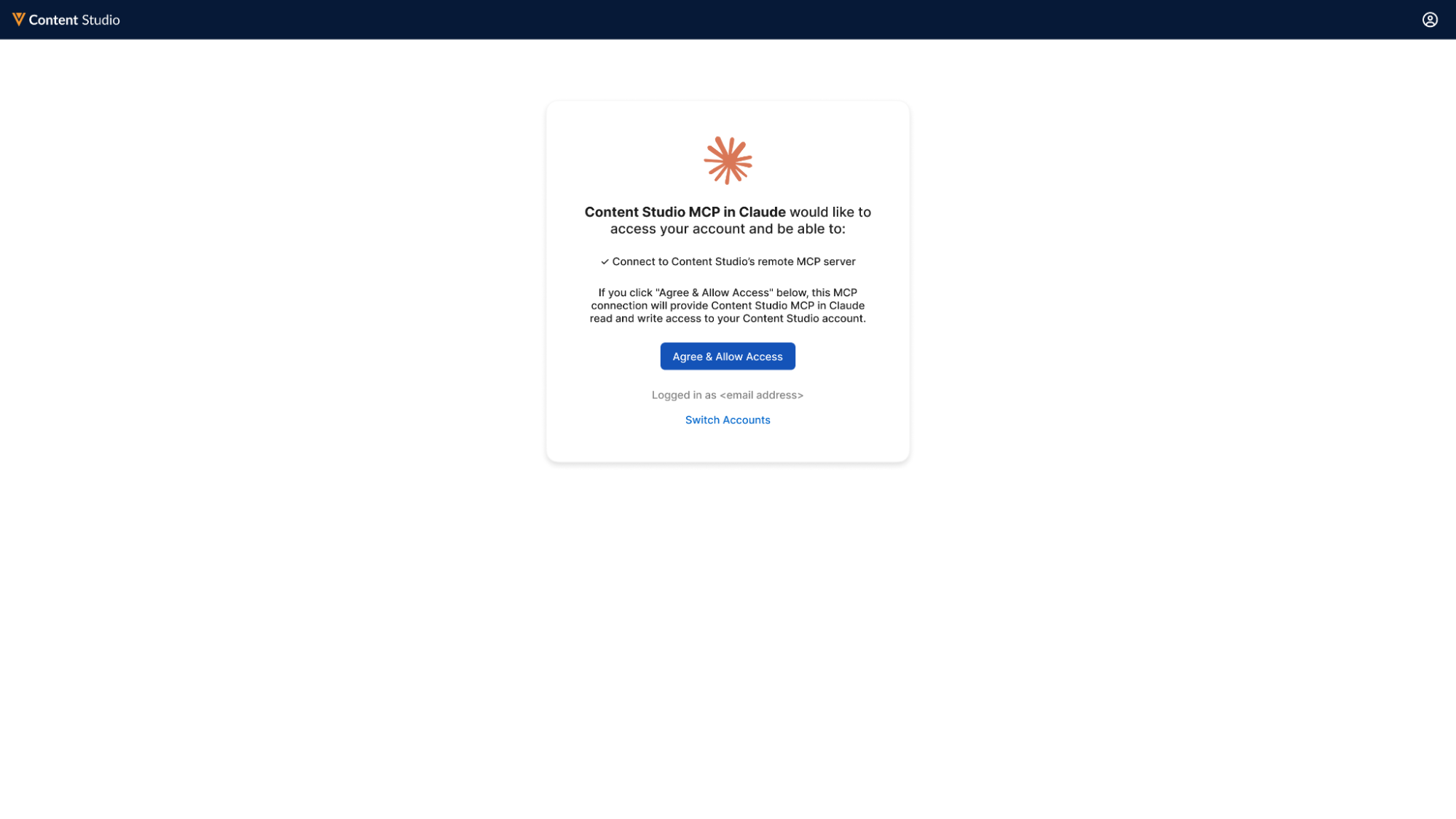
Log in to Content Studio when redirected and grant access to Content Studio MCP.
Adding the Custom Connector in Claude Free, Pro, or Max Plans
To connect Claude Free, Pro, or Max plans to the MCP:
- Contact Veeva Support to receive the appropriate Content Studio remote MCP server URL.
- Navigate to Customize > Connectors.
- Select the + button.
- Select Add custom connector.
- Enter https://content-mcp.veeva-vcrm.com/mcp as the URL.
- Select Add.
-
Log in to Content Studio when redirected and grant access to Content Studio MCP.
End Users
To configure this feature, ensure Configuring Approved Email End Users is complete.
Creating Content with the Content Studio MCP as
Content Creators
Content creators can use Content Studio MCP directly within Claude to interactively draft, edit, and save Approved Email content.
To generate an Approved Email template:
- Open a new chat session in Claude. The recommended model is Sonnet 5 Medium.
-
Describe the email template to generate, including specifications on the following:
- Product
- Email type
- Language
- Specific formatting requirements, including CSS specifications. The following properties are supported with the following minimum and maximum values:
- Padding
- Min: 0 px
- Max: 48 px
- Font Size
- Min: 8 px
- Max: 72 px
- Thickness
- Min: 1 px
- Max: 20 px
- Length
- Min: 1%
- Max: 100 %
- Height
- Min: 1 px
- Max: 120 px
To ensure Claude uses Veeva’s Content Studio tools and not generic Email Template tools during content creation, it is recommended to explicitly mention Content Studio in the prompt.
- Confirm required details when prompted.
-
Select or confirm the brand kit to apply when prompted, if applicable.
Content creators should be as specific as possible when referring to brand kit assets to use.
- Provide optional refinement instructions, for example tone, key messages, or specific sections, when prompted before generation.
- Select Open Preview Link in Content Studio to preview the generated template in Content Studio.
- Request any changes or adjustments until the content is sufficiently refined.
-
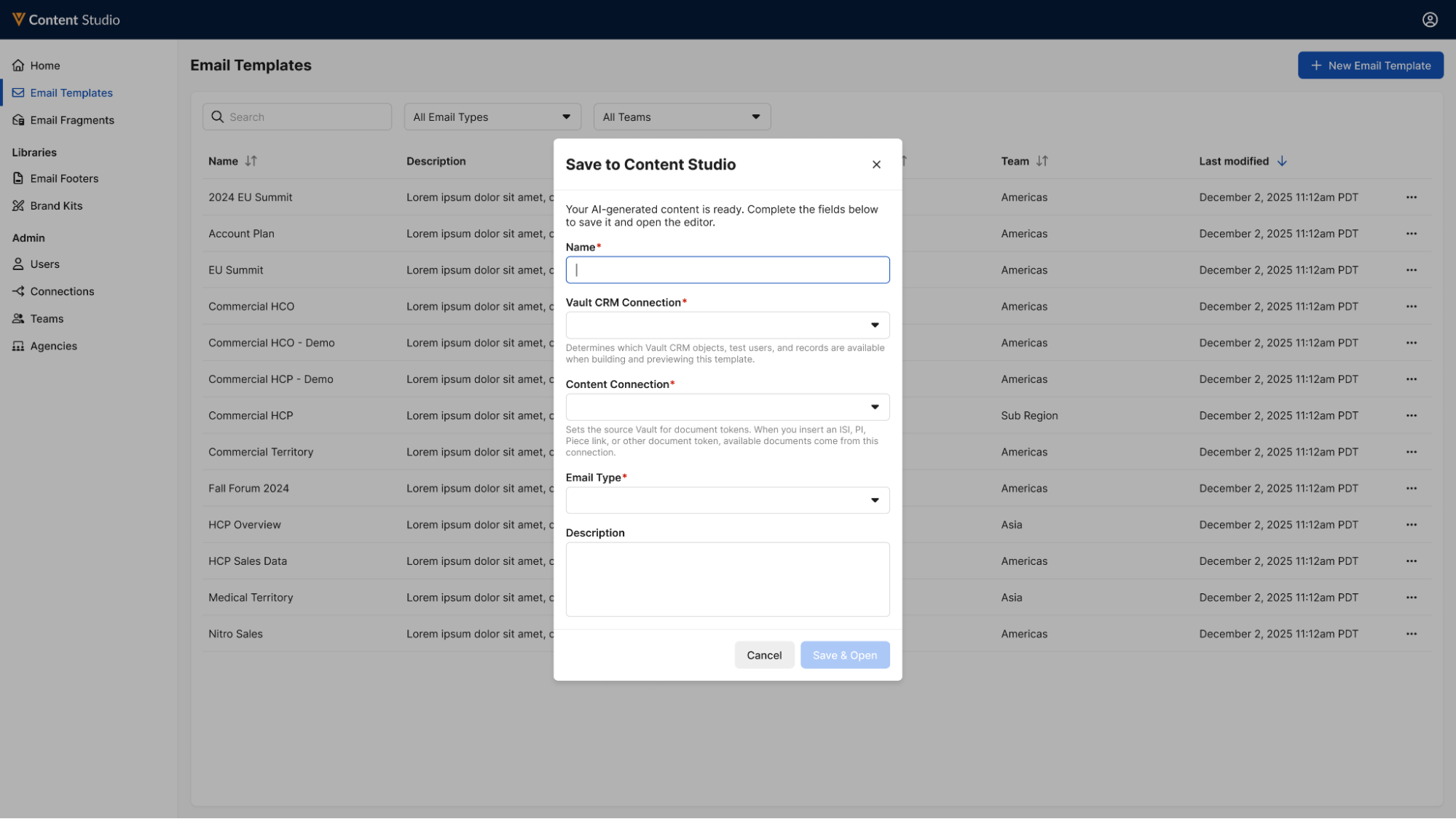
Select Save to Content Studio. The Save to Content modal within Content Studio displays.
-
Enter the following information for the new content:
- Name – Enter the appropriate name
- Vault CRM Connection – Select the appropriate Vault CRM Connection
- Content Connection – Select the appropriate PromoMats or MedComms Connection
- Email Type – This may be pre-populated based on if the email type was provided to Claude during initial content drafting
- Description – Enter an optional description.
- Select Save & Open to load the template into the Content Studio editor for final editing and deployment.
Unsupported Approved Email Tokens
The following Approved Email tokens are currently not supported for use within content generated by the MCP:
- {{customContent}}
- {{ObjectName.FieldName}}
- {{ObjectName.RelationshipName.FieldName}}
- {{EmailAddressUnsub}}
- {{EmailId}}
- {{OrgId}}
- {{AppDocId}}
- {{EmailAddressUnsub}}
- {{emailProduct}}
- {{submitUnsub}}
- {{productModList}}
- {{submitPerfOptions}}
- {{cancel}}
- {{unsubscribeAll}}
- {{linkTracker}}
- {{MessageId}}
- {{emailTemplateFragment}}
- {{insertCallSample[Column1,Column2]}}
- {{insertSignature}}
- {{insertConsentLines}}
- {{insertMCConsentLines[Subscribed,Unsubscribed]}}
- {{unsubscribe_product_link[,unsubscribe__v.unsubscribe_identifier__v]}}
- {{unsubscribe_product_link[External URL,unsubscribe_identifier__v]}}
- {{aiRewriteStart}}
- {{aiRewriteEnd}}
Content creators can add these tokens manually to the content once the content is saved.
Content creators can insert the Vault Doc ID token into templates from MCP, but will have to select which document to use once the template has been saved to Content Studio.

