Using My Cases for Service Center Inbound
To better prioritize their work and drive cases toward resolution more effectively, Service Center reps can access My Cases from the Inbound tab to view a centralized hub of their assigned cases. This provides a launch point for a Service Center Rep’s work throughout the day. When Service Center reps select My Cases, a time-sorted list of case cards displays, providing a visual representation of the cases assigned. This allows Service Center reps to better prioritize their work and drive cases toward resolution more effectively.
Who can use this feature?
- Service Center Reps - Browser
- Using My Cases for Service Center Inbound
- Users do not require an additional license
Configuring My Cases for Service Center Inbound for
 Service Center Reps
To configure this feature, ensure Using the Service Center Inbound Tab is complete.
Using My Cases for Service Center Inbound as
Service Center Reps
Service Center reps can view and manage their assigned cases from My Cases. When Service Center reps select My Cases from the Inbound tab, a list of their active cases displays with the first case already highlighted.
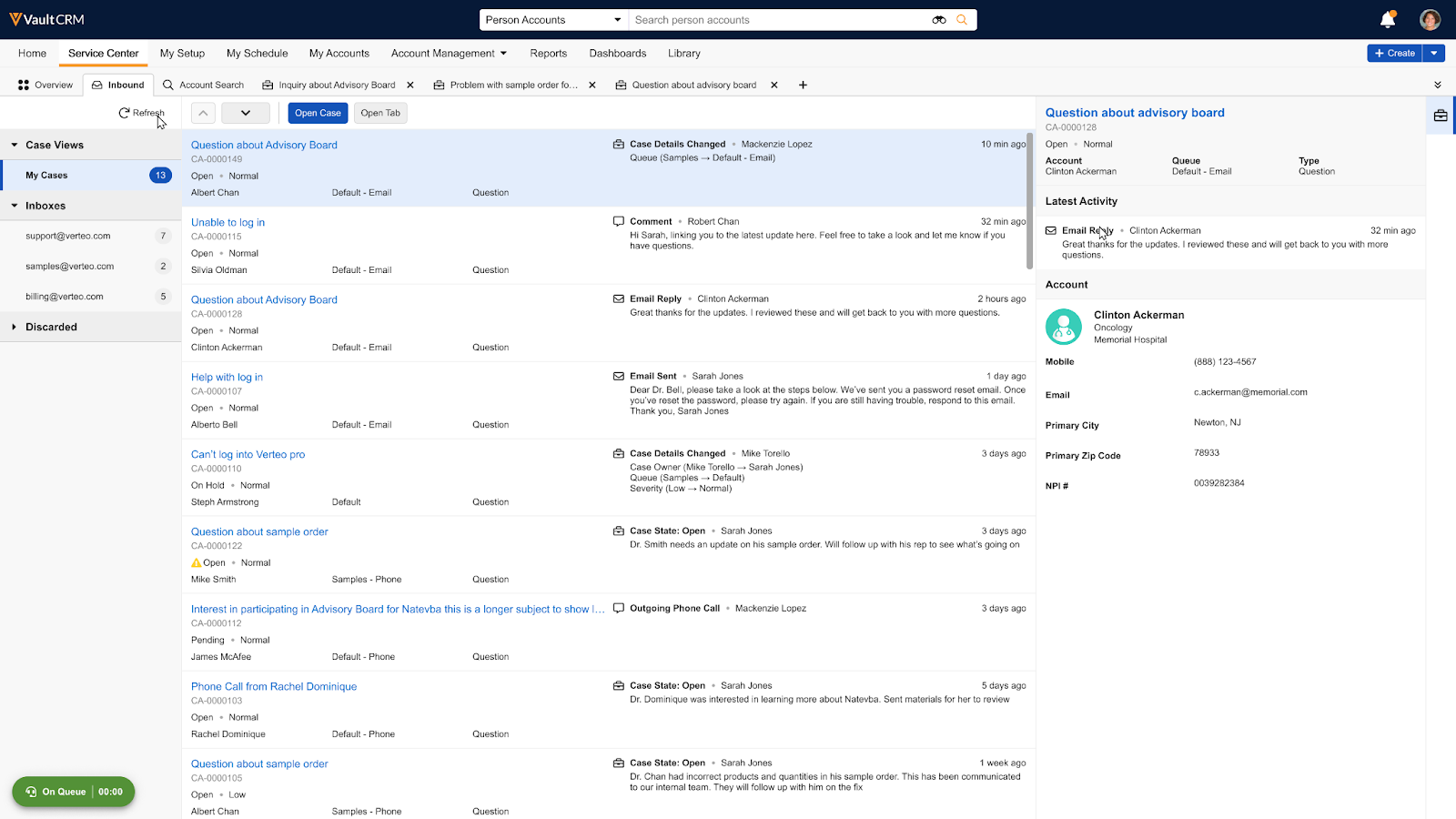
A list of all active cases assigned to the Service Center Rep displays. The total number of active cases displays next to the My Cases label. Each item in the case list is an active case card. A preview of the first case’s details automatically displays to the right.
Viewing Case Cards
Each case card displays the following information:
- Case Subject - Title of the case
- Last Update - Icon and description of the most recent activity. For example, a status change or a new conversation. This also includes who performed the action and a relative timestamp. For example, "A few seconds ago" or "5 minutes ago.”
- Case Number
- Severity - Special icon that displays for cases with a High severity
- State - Current case lifecycle state. A special icon appears next to the state if the case is escalated.
- Account - Associated account's formatted name
- Case Queue - Name of the assigned queue
- Case Type - Type of case
A second column displays the Category, Subcategory, and Product for each card. These fields and their field order are not configurable.
Case cards display active cases with the most recently updated cases first, with two exceptions:
- Cases with an Escalated state always display at the top of the list. If there are multiple escalated cases, they are sorted by their creation date.
- Initially, 15 cases are loaded. As the Service Center Rep scrolls, more cases load automatically.
Viewing Case Previews
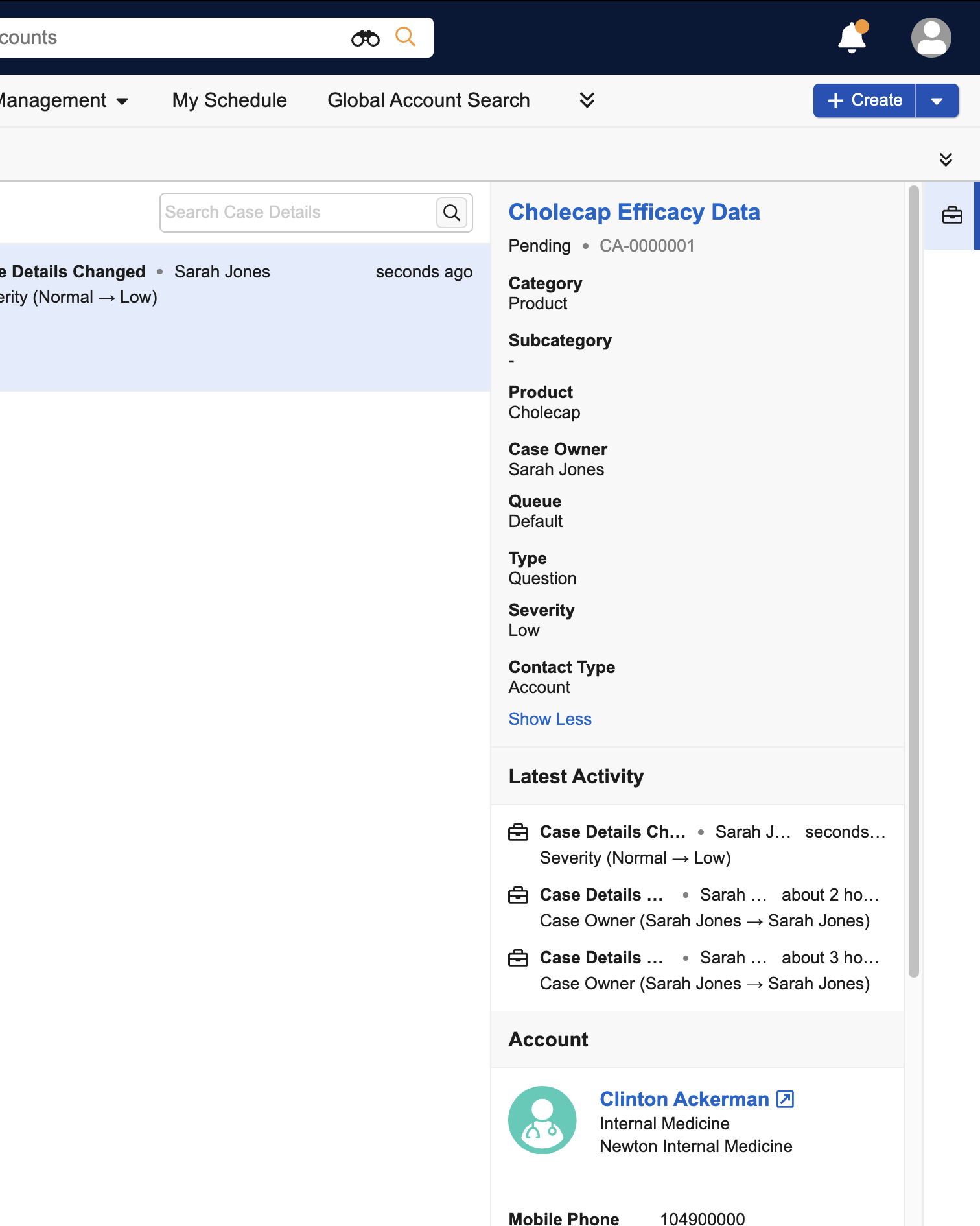
Service Center reps can select any case card in the My Cases list to display its preview. The preview pane to the right displays that case’s three most recent timeline events (for example, status changes, comments, or conversations), account details, and the latest email, if available. The following case__v fields always display:
- Category (case_category__v)
- Product (product__v)
- Owner (case_owner__v)
- Queue (case_queue__v)
If Displaying Preferred Case Details fields are enabled, a Show More link displays in the Preview. Select the link to view customer-defined Preferred Case Details fields, with additional relevant information for Service Center reps.
If the case_subcategory__v field is included as a Preferred Case Details field, it always displays in the top preview section and after the case_category__v field.
Viewing Cases
To open and display a case in focus:
- Highlight a case in the active case list.
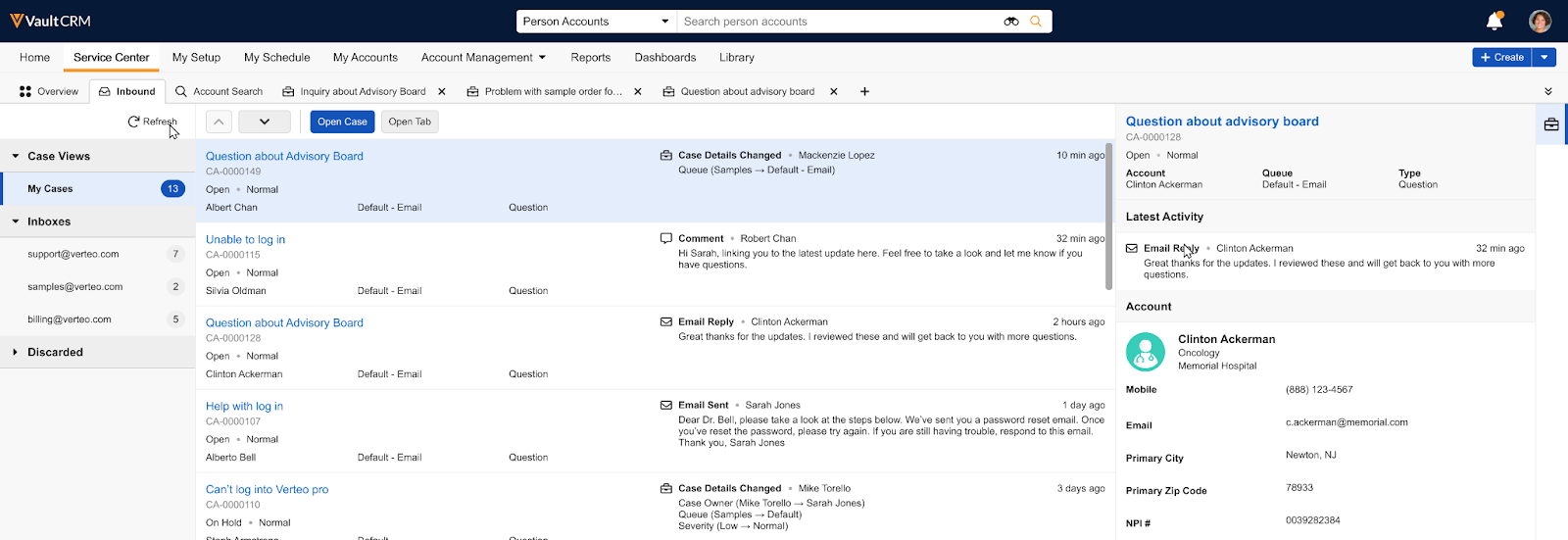
- Select the Open Case button. The case opens and automatically switches focus to the new tab.
Viewing Messaging
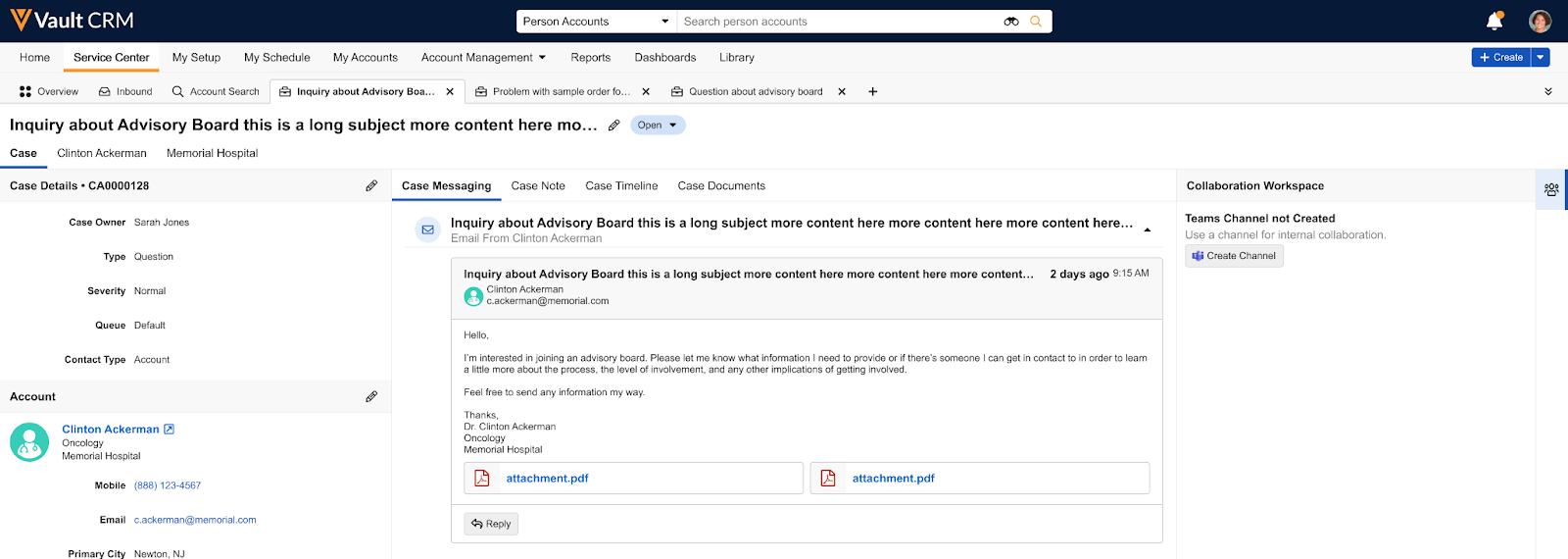
When a Service Center rep selects a case with an email conversation associated with it, the Messaging tab displays by default as the left-most tab in the case's center pane. The system automatically scrolls to the most recent message in the thread. If the case does not have any associated emails, the Notes tab displays by default. The header of the email thread in the Messaging tab displays a count of the total number of messages in the conversation.
The Messaging tab in the open case's center pane provides a comprehensive, threaded view of the entire inbound email conversation, including attachments, if any. This allows Service Center reps to quickly understand the context and history of an inquiry without navigating away from the case. Each message displays key information, including the subject, sender, and date. The account name displays on cards in the Messaging tab if there is a match between the relevant email address and an account, as identified by Preferred Email Search.
Service Center reps can reply to any email message within a case thread, regardless of the sender. The reply is sent to the sender of the specific email message selected. After sending the reply, a success notification displays briefly.
If the Account on the case is changed or the email address on the associated account is updated or deleted, a banner displays on the Messaging tab warning users of mismatched account information.
Viewing Notes
Information related to a case is available in the Notes tab. When a Service Center rep creates a case, the initial comment entered becomes the first note. Service Center reps can use Notes to document a customer's intent, concerns, and questions, and to capture information that adds context. Notes can also be used for multiple parties to communicate during case triage and resolution by adding comments.
To edit a note:
- Open the desired case. The Notes modal automatically displays for cases not in a Solved or Closed state.
- Enter or edit text in the rich text field.
- Select Save. Each save action creates a new version of the note and a corresponding entry on the timeline. Users can view all previous versions from the Version History section of the Notes tab.
Users can collaborate on a case by adding comments to the note. Comments display in a single thread with the most recent comment at the bottom.
To add a comment:
- Navigate to the Notes tab.
- Select Comment in the Replies section.
- Enter comment text.
- Select Save.
Viewing Case Details
Case Details display as an abbreviated version in the left Case Console pane, and as a full layout in the center pane.
In the left pane, the following key fields display by default:
- is_escalated__v, if the case is escalated
- product__v
- case_category__v
- case_owner__v
- case_queue__v
If Classifying Cases in Service Center is enabled, the case_subcategory__v field displays after the case_category__v field. If Displaying Preferred Case Details are enabled, preferred fields also display in the left pane.
To display the full Case Details layout, select the Case Details tab in the center pane. This tab displays all sections and fields defined by the layout. The full layout is based on the case_detail_page_layout__c on the case__v object. For information on configuring the layout, see Configuring Service Center.
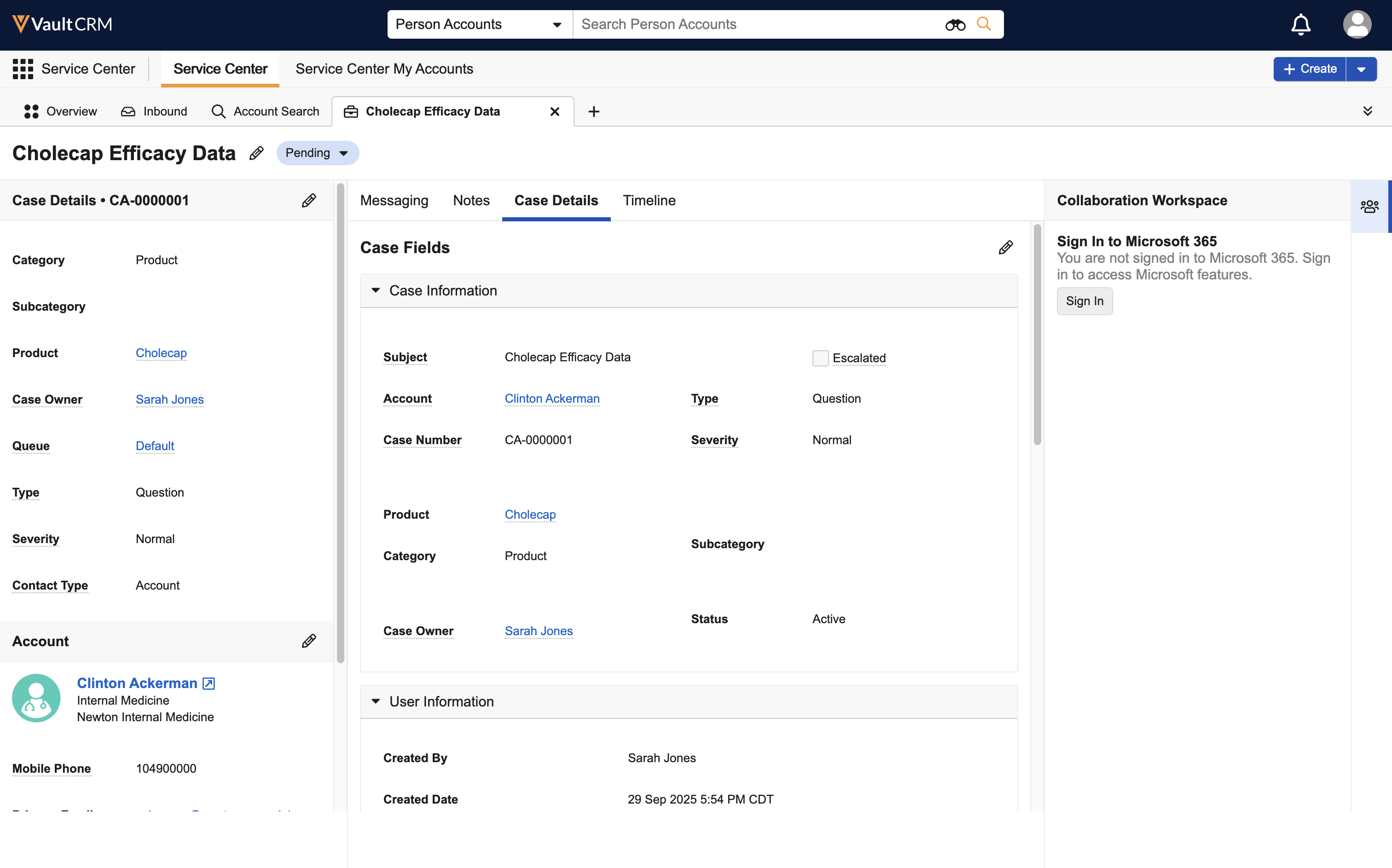
To edit details from either Case Details section, select the Edit button.
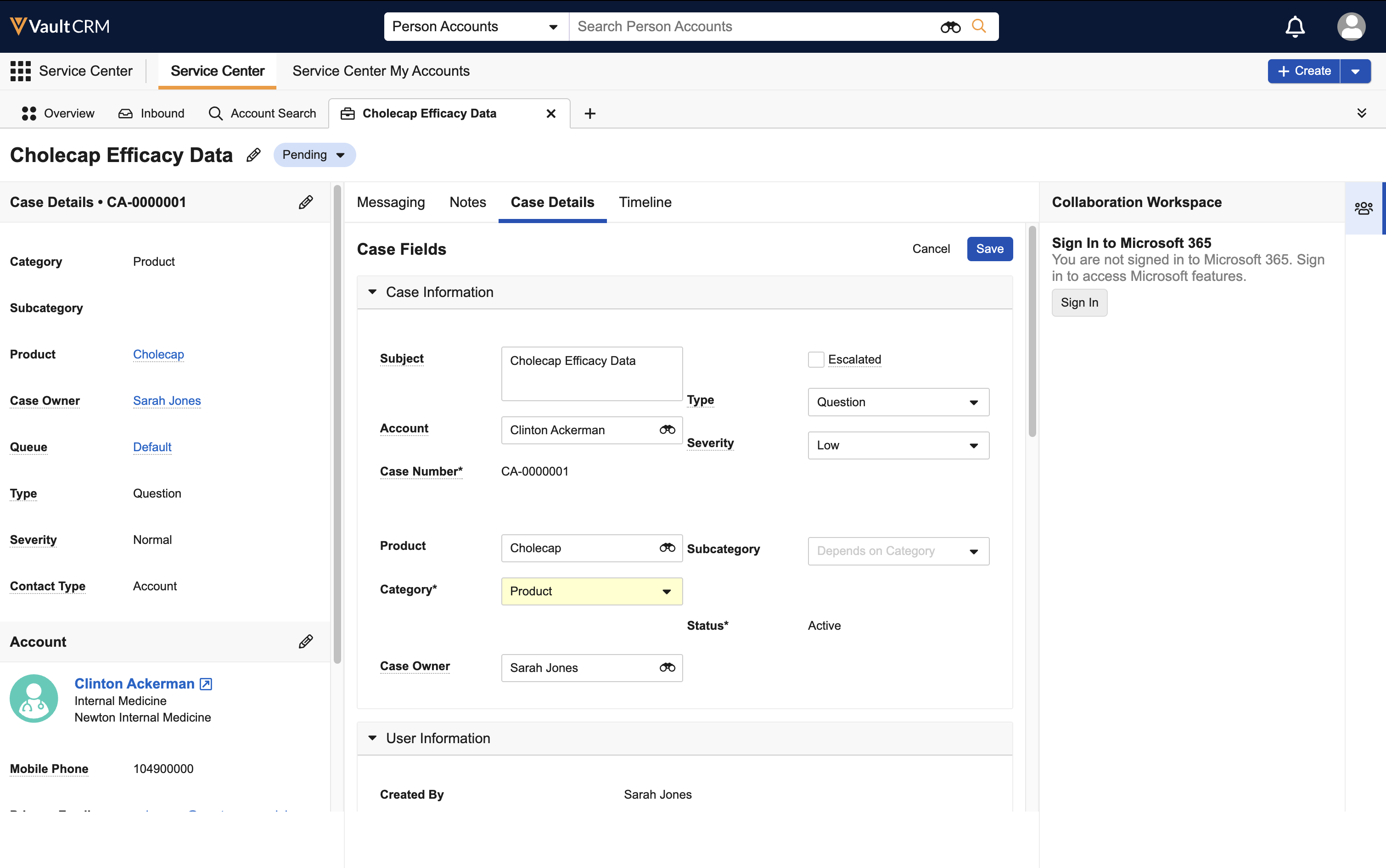
After making the appropriate changes, select Save.
Users are prompted to save their changes before taking the following actions:
- Closing the Case tab
- Navigating to another tab in Vault CRM
- Simultaneously editing the Case Details center pane and any sections in the left pane
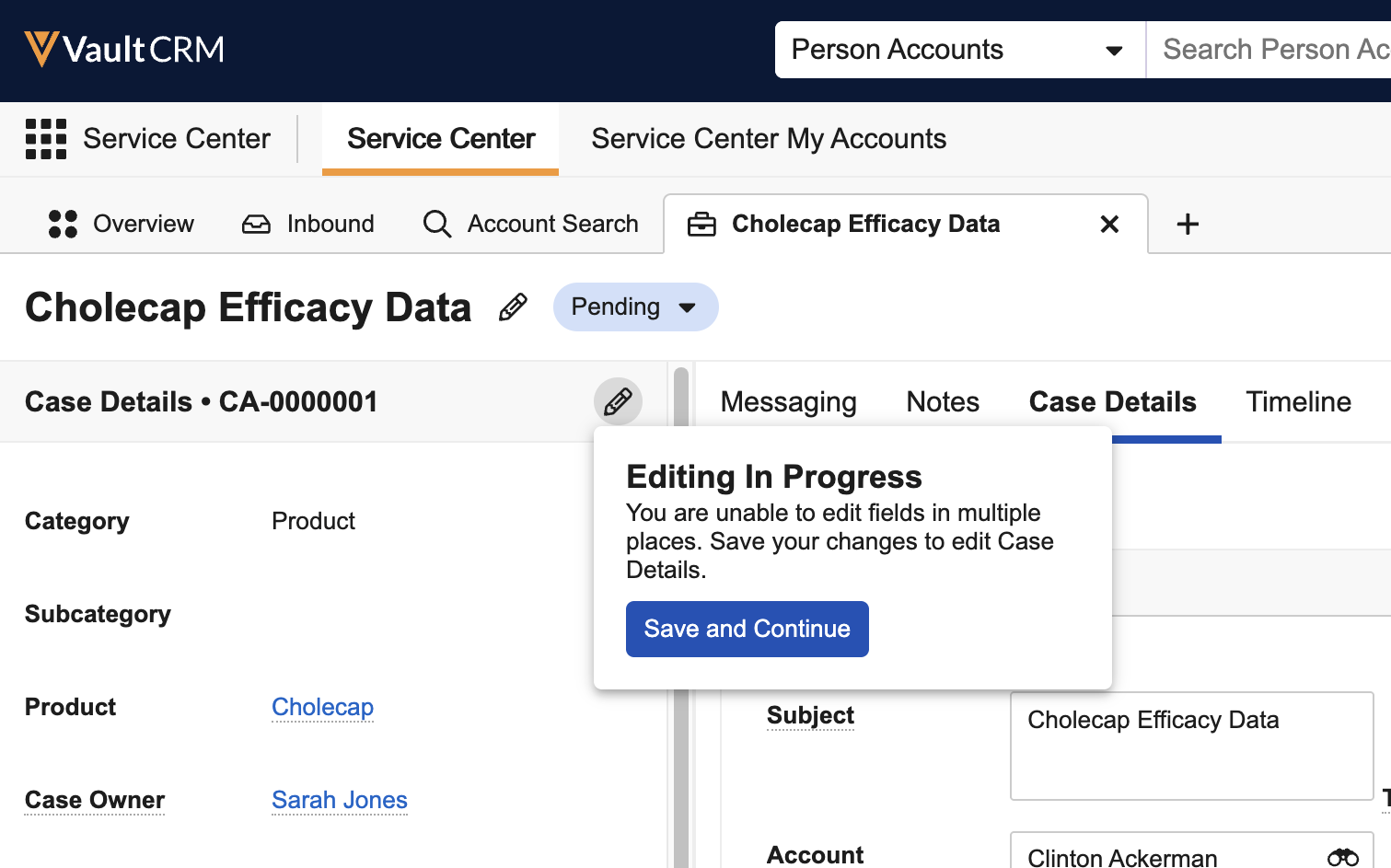
Editing the Case Details center pane and sections on the left pane simultaneously is not supported.
Viewing Documents
The Documents tab provides Service Center users with a centralized place to upload and view all documents related to a specific case. To access case documents, open a case and select the Documents tab. The number of documents displays on the tab header. Documents are ordered by upload date, with the newest documents displayed first.
Ensure users are granted at least View access to Case Documents records via Dynamic Access Control. For more information, see Dynamic Access Control for Documents on the Vault platform help site.
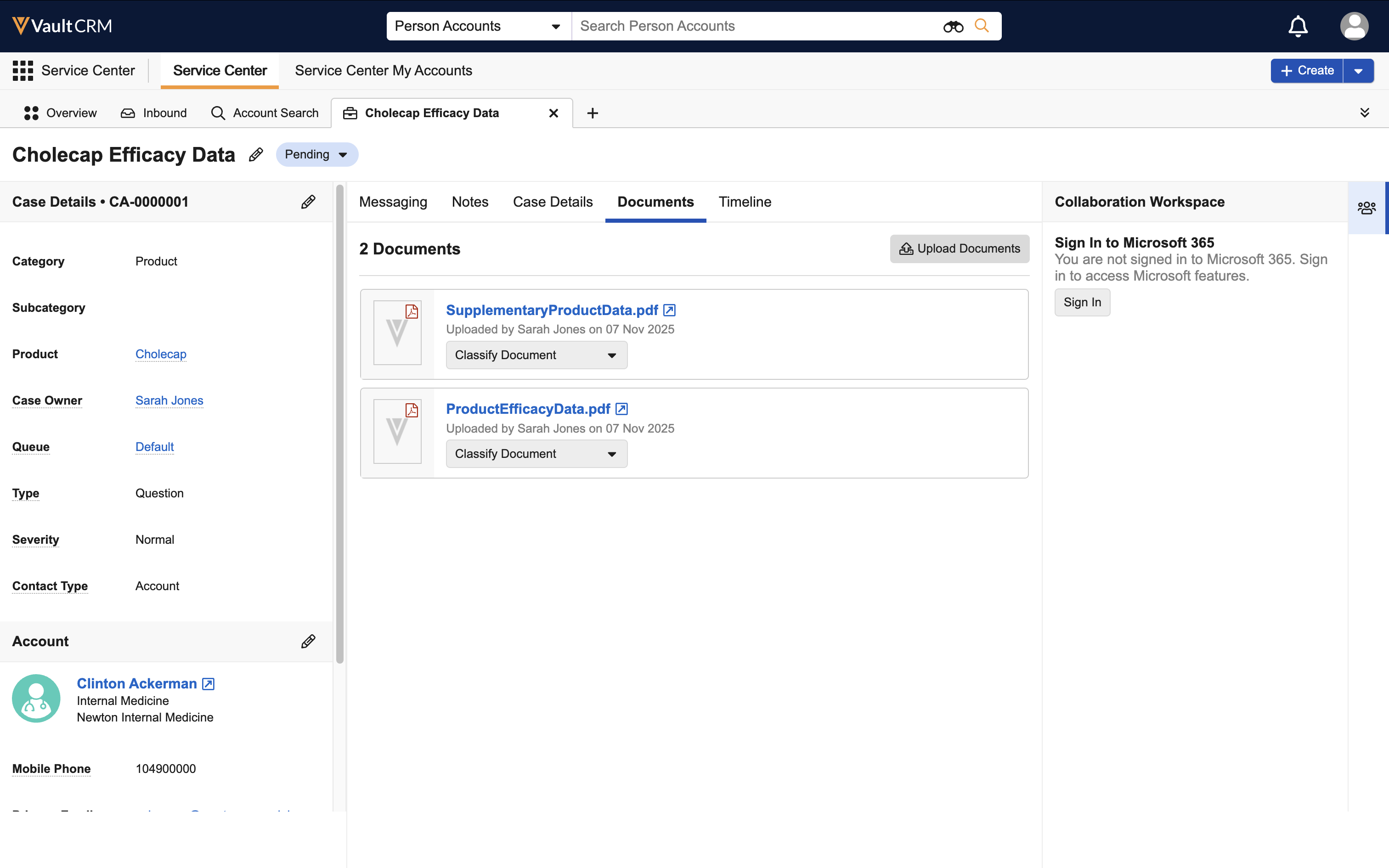
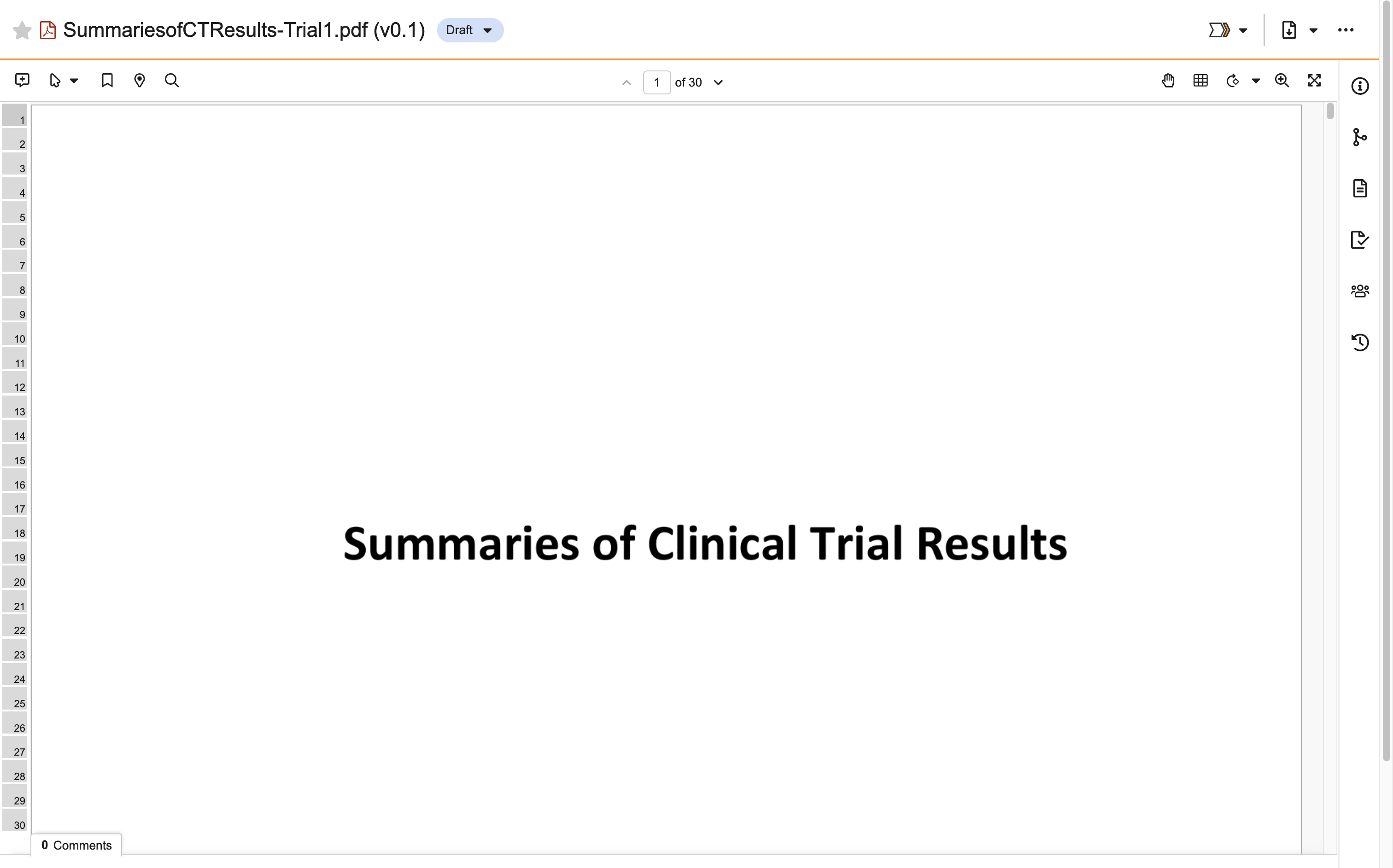
To view a document, select the document name. The document opens in a new window.
Uploading Documents
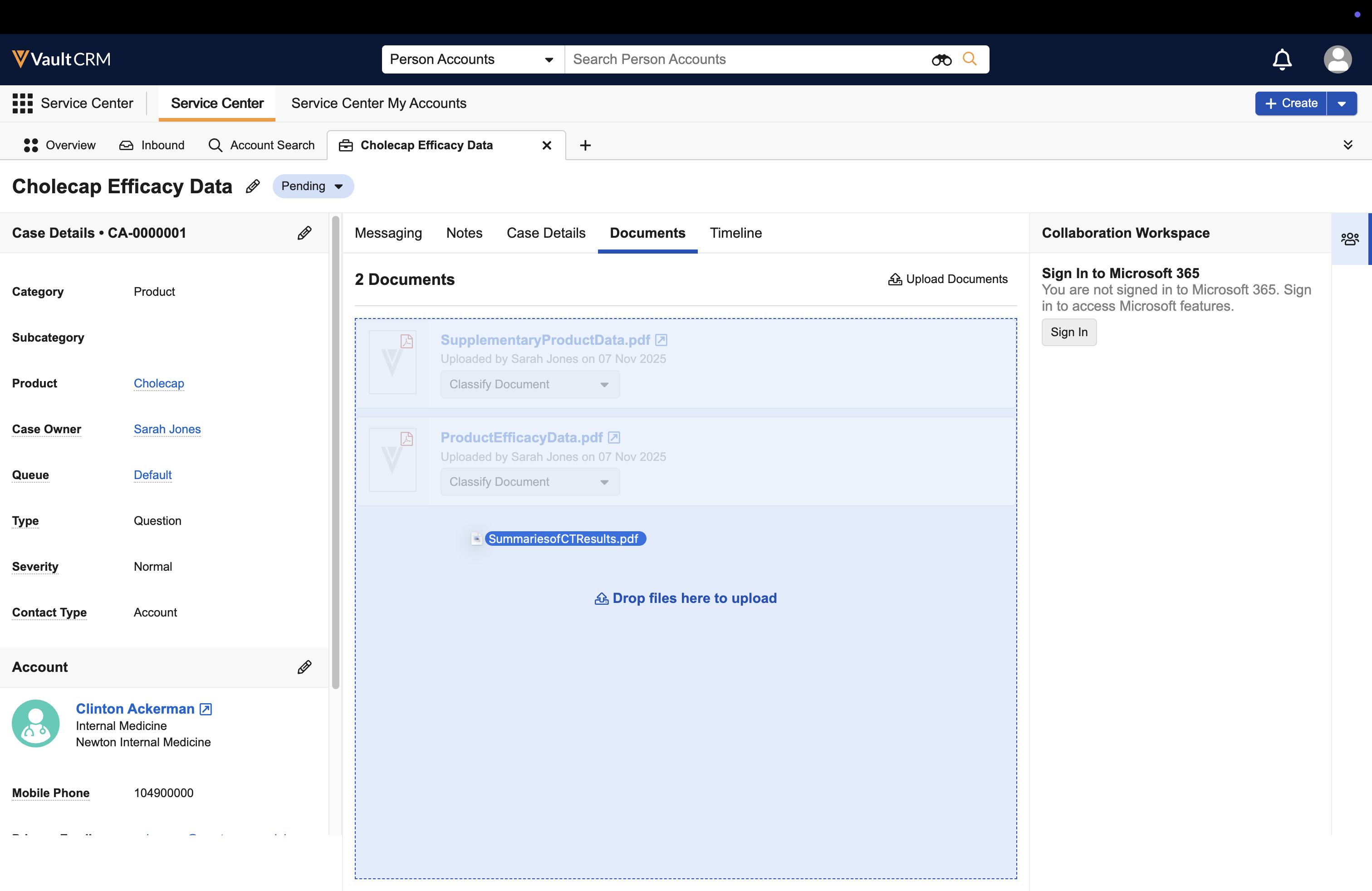
To upload documents, users can either drag and drop documents onto the tab, or use the Upload Documents action. Users can upload a maximum of ten documents at a time.
To upload documents with drag and drop:
-
Drag one or more files from your computer to the Documents tab.
-
Release the files when the Drop files here to upload message displays. An Uploading Files modal displays the progress.
To upload documents using the Upload Documents action:
-
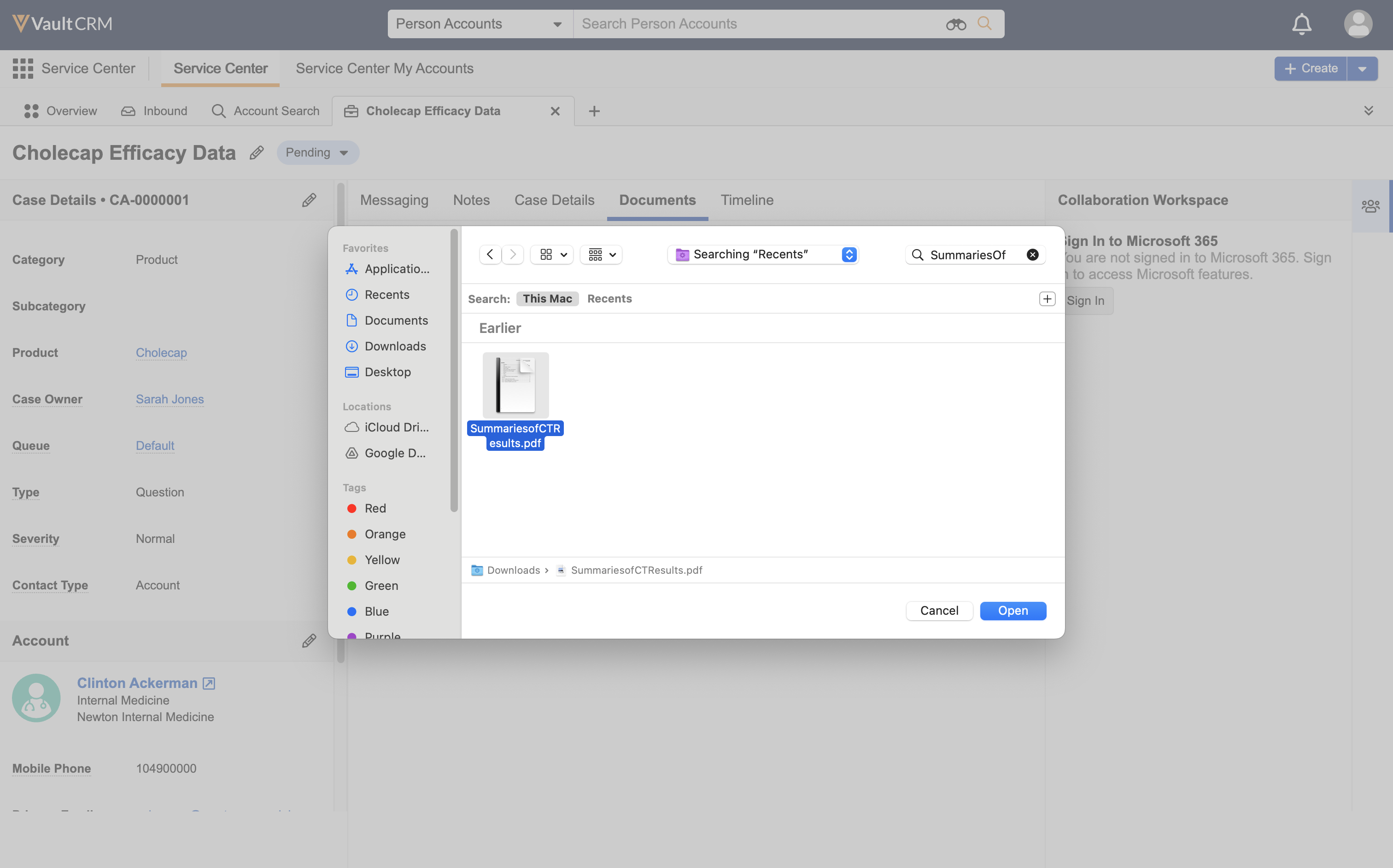
Select the Upload Documents action from the tab header.
-
Select one or more files from the file dialog window.
-
Select Open. An Uploading Files modal displays the progress.
Users cannot navigate elsewhere in the application until the upload is complete. After completion, a confirmation message displays and the new document displays in the Documents tab.
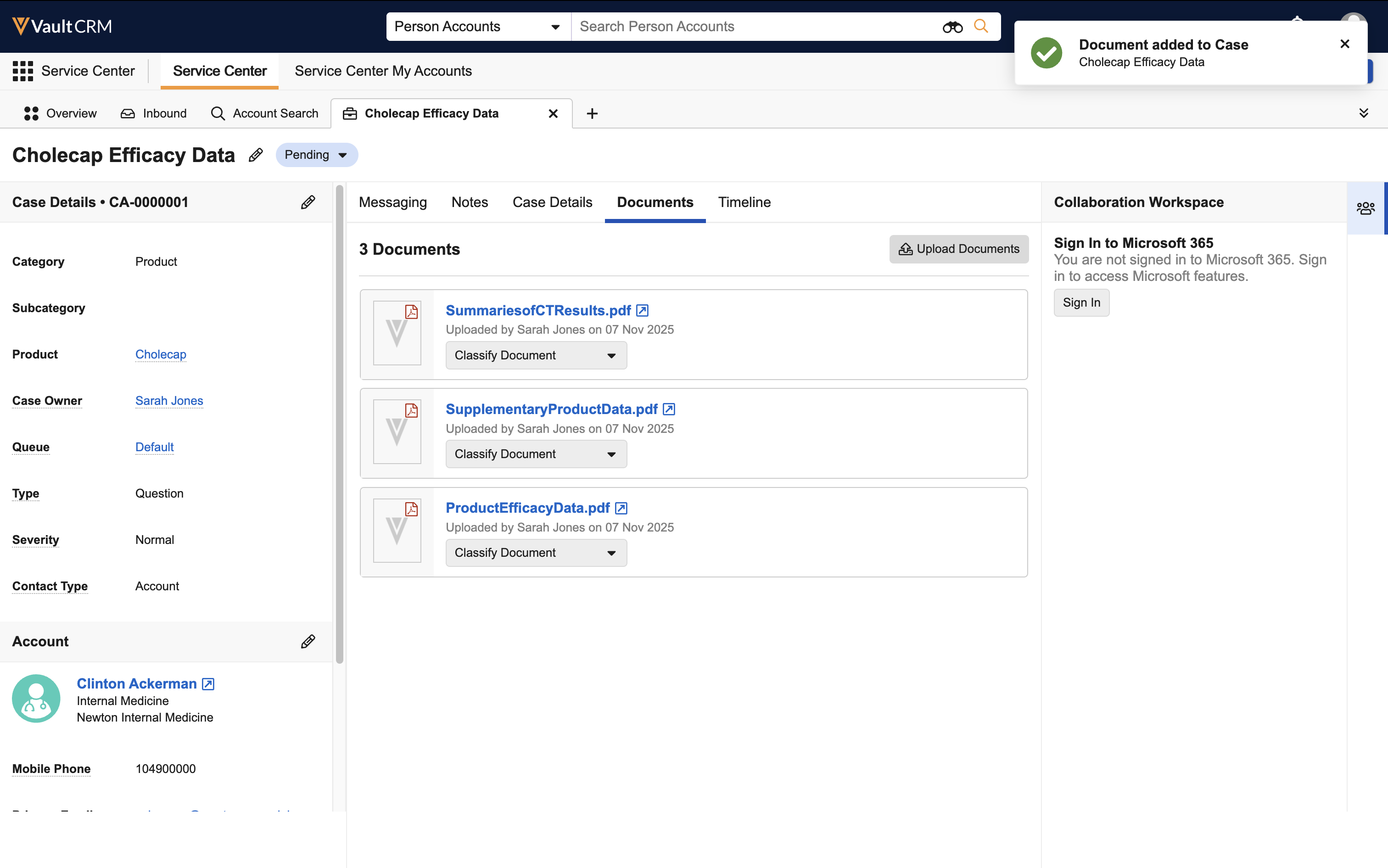
Documents cannot be uploaded to cases with a status of Solved or Closed. If an upload error occurs (for example, due to case status or number of files selected), an Upload Error modal displays the reason.
Classifying Newly Uploaded Documents
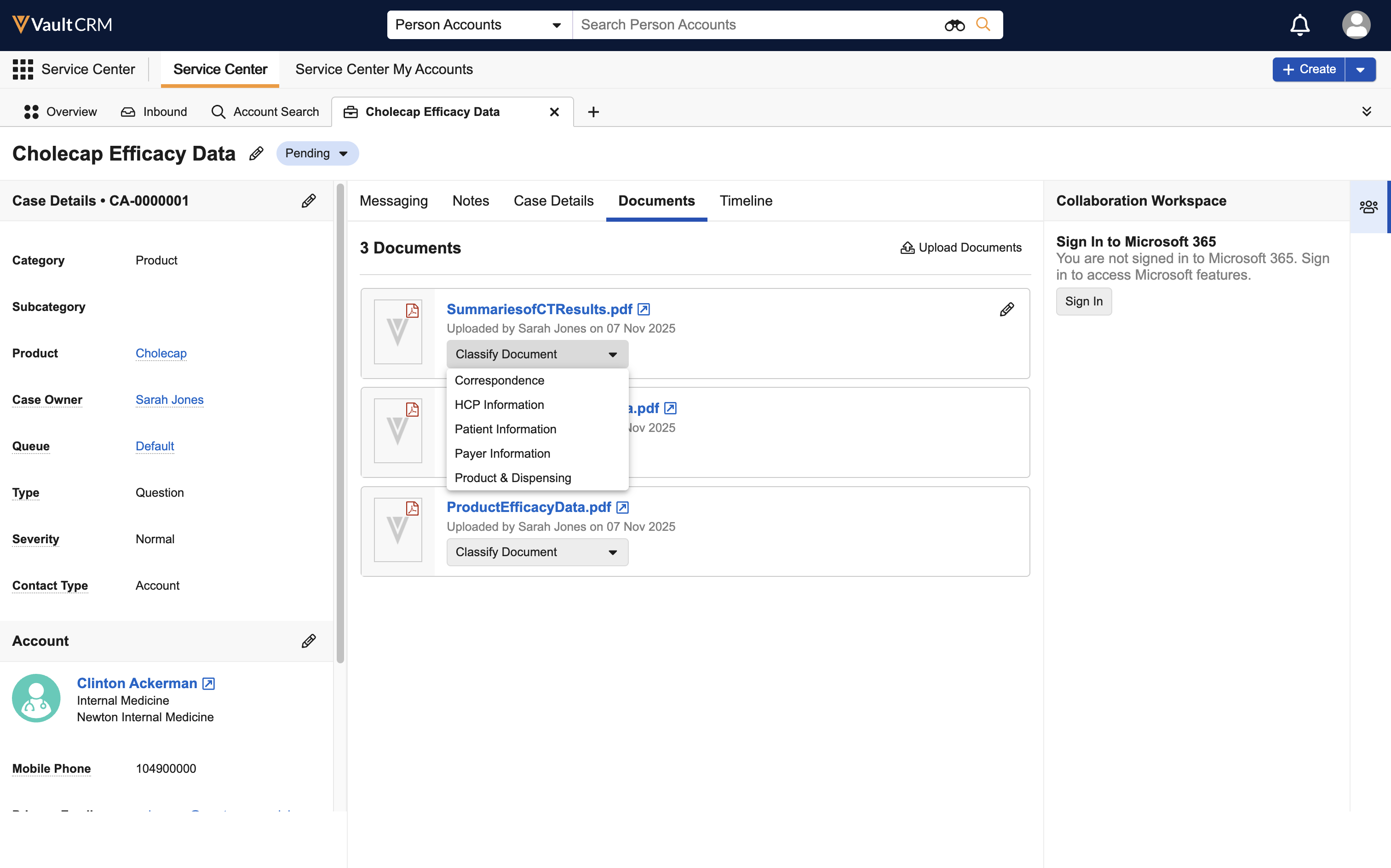
Newly uploaded documents default to the Other document subtype. To enable users to easily classify new documents, a Classify Document dropdown automatically displays on new document cards.
To classify documents:
-
Locate the new document card at the top of the list.
-
Select the Classify Document dropdown.
-
Select the appropriate Document Subtype from the list.
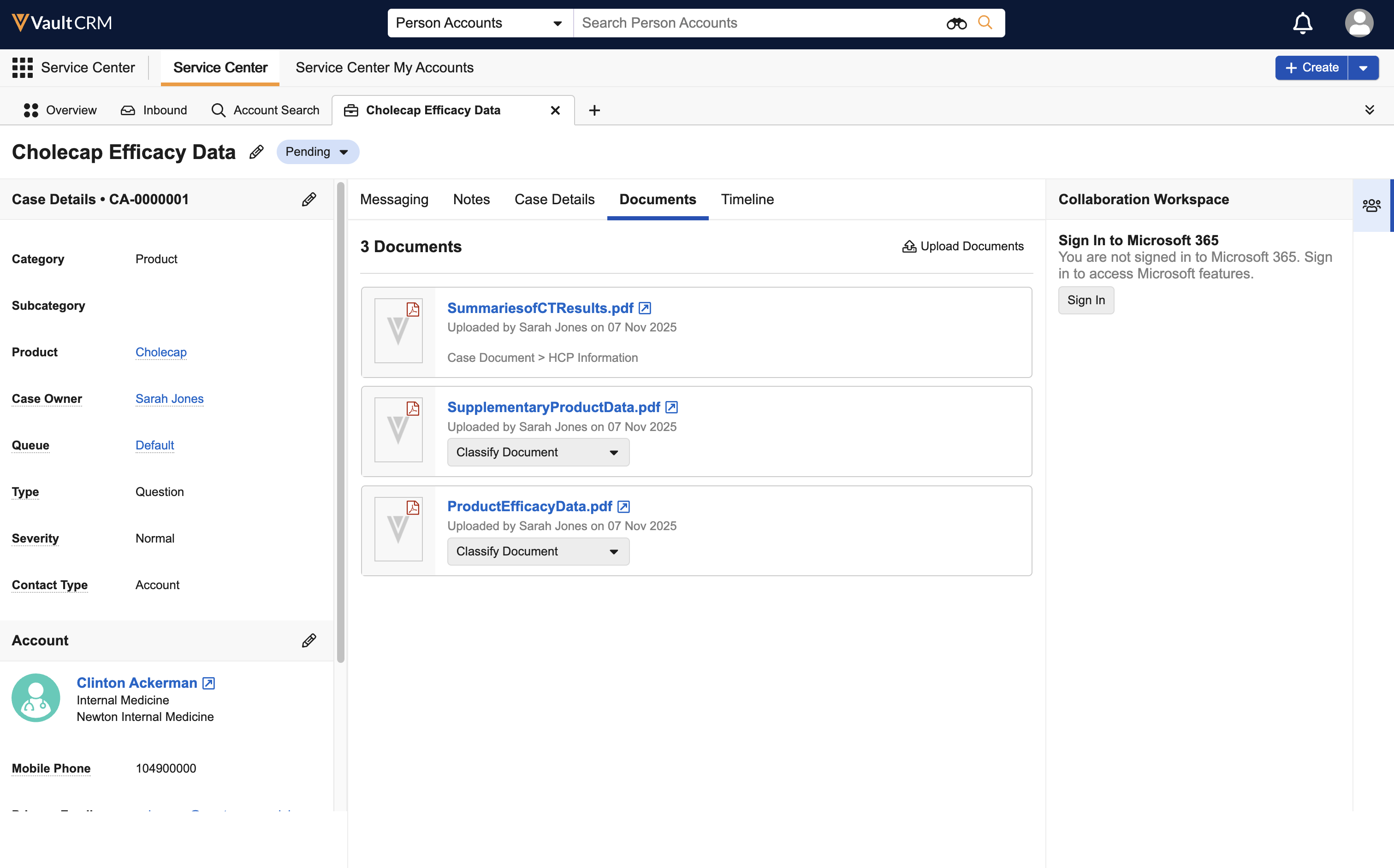
The card updates to display the new classification.
Editing Document Information
To edit the document name or subtype:
-
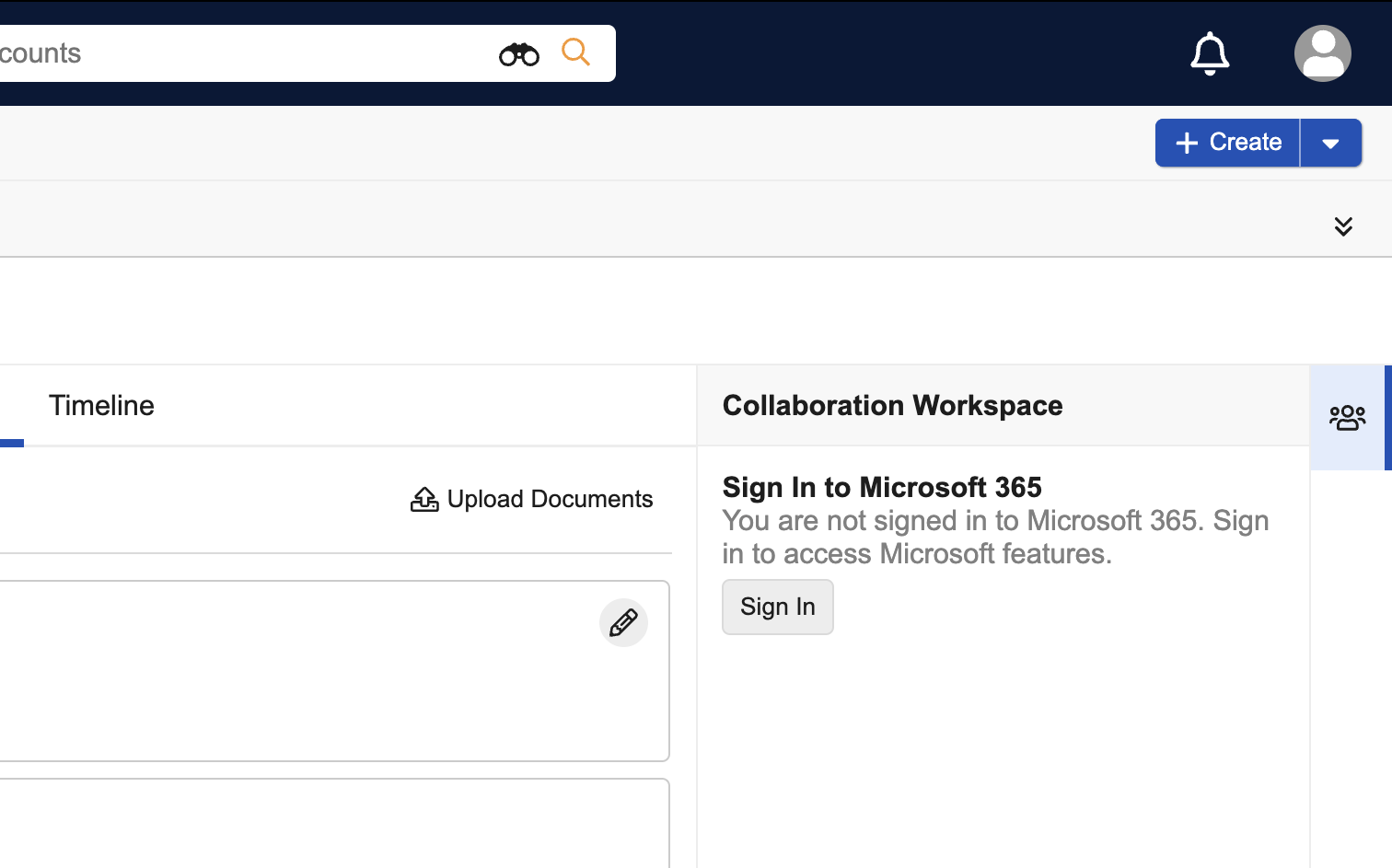
Hover over or select a document card.
-
Select the pencil icon.
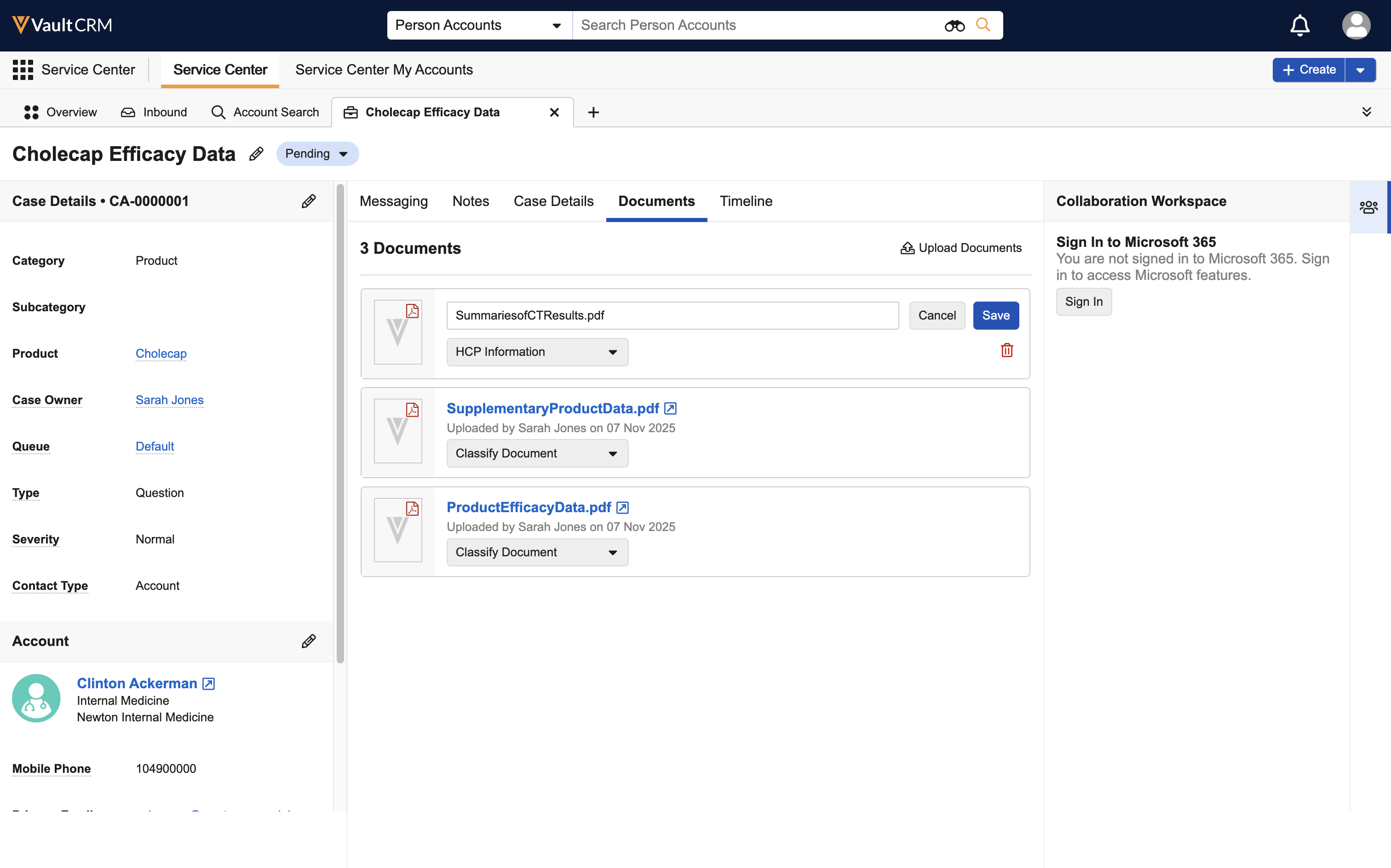
-
Edit the appropriate information:
- To edit the name, modify the text in the Document Name field
- To edit the classification, select a new Document Subtype from the dropdown menu
-
Select Save.
Removing Documents
To remove documents from the case:
-
Hover over or select a document card.
-
Select the pencil icon.
-
Select the removal icon from the bottom right corner of the document card.
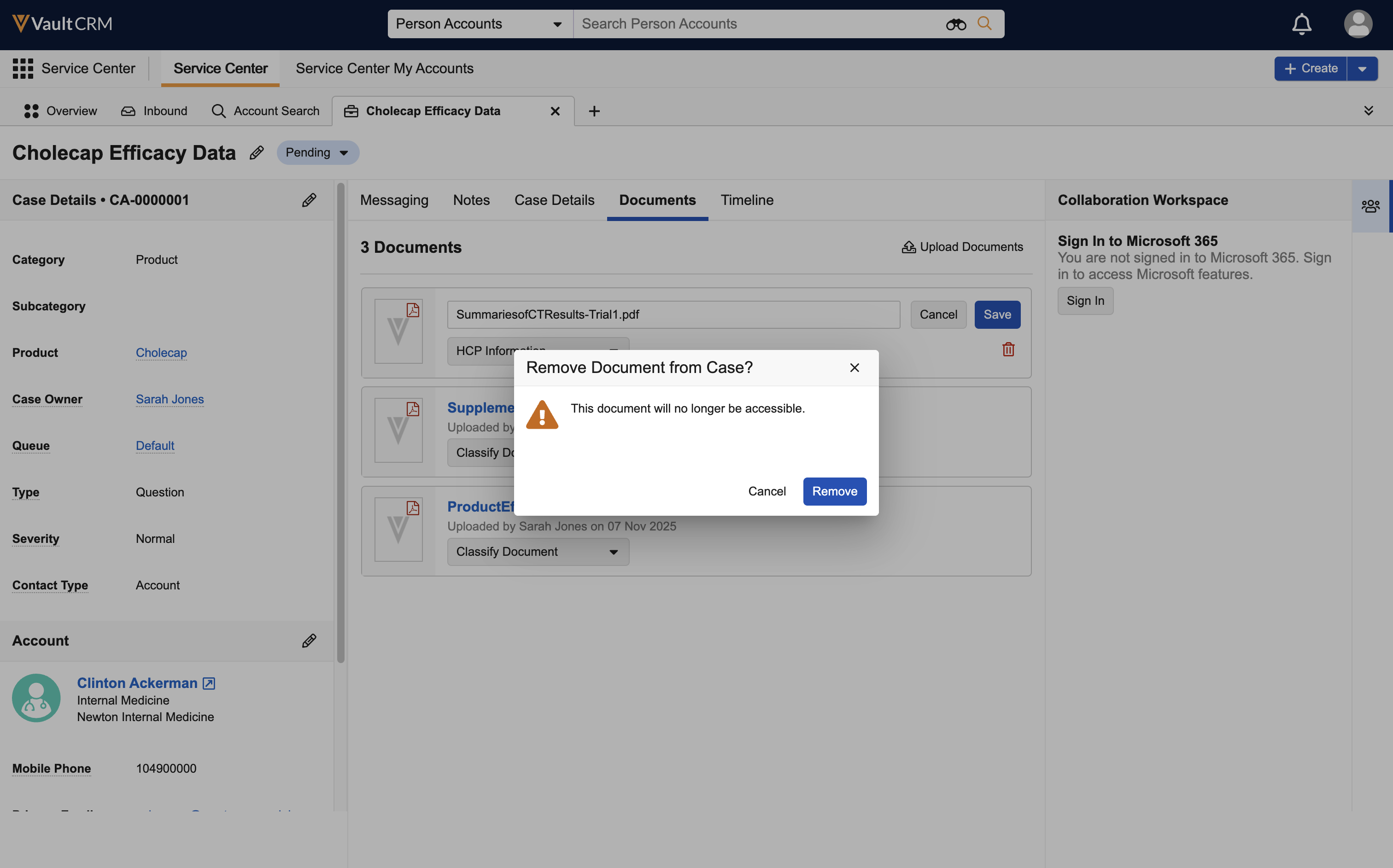
-
Confirm the removal.
This removes the document's association with the case, and the document no longer displays in Service Center. The document record is retained in Vault CRM for recordkeeping purposes.
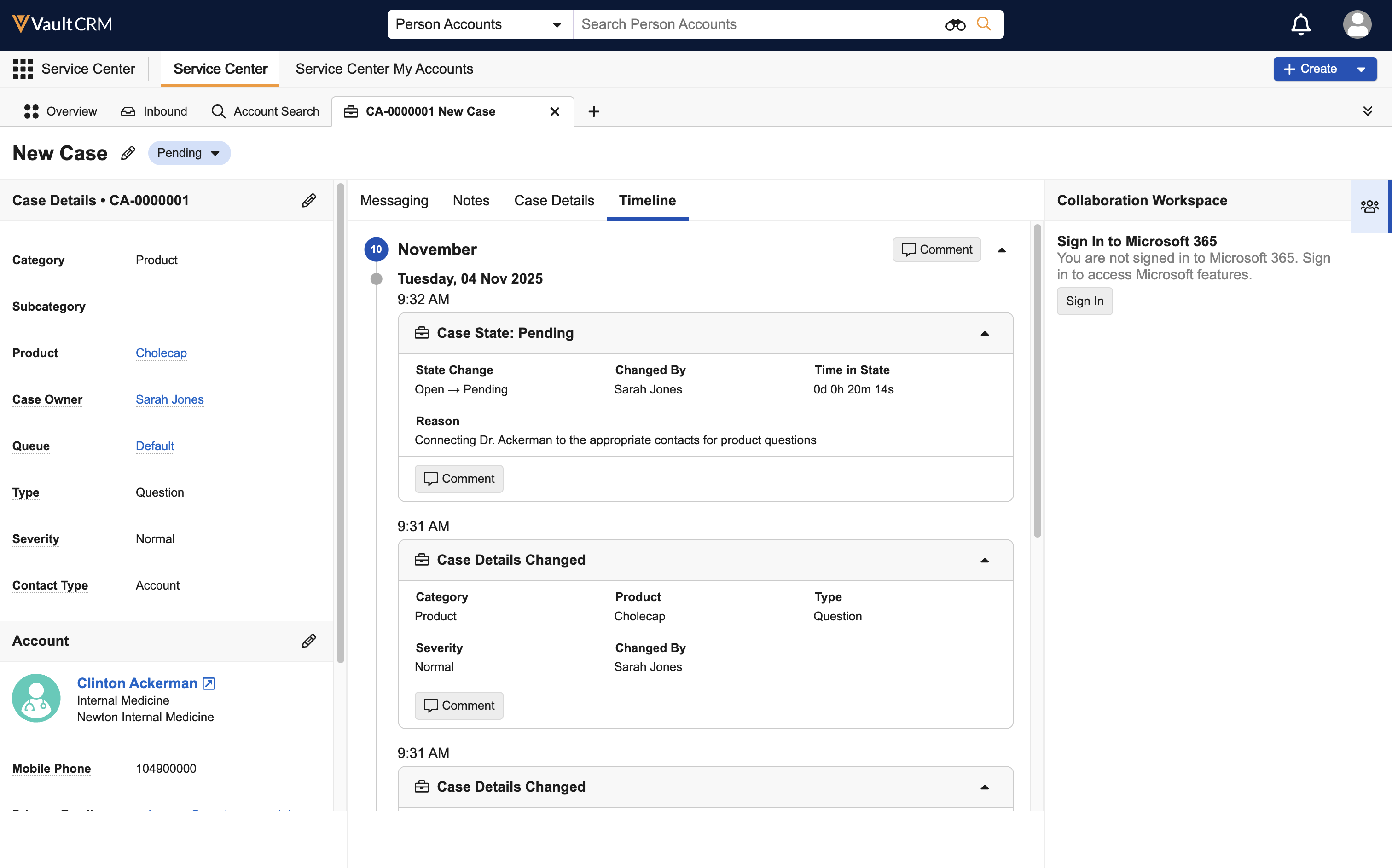
Viewing the Timeline
The Timeline tab displays the most relevant, or actionable, updates used to assist Service Center reps in determining their next action. Timeline events are view-only.
The following events display:
- Case Detail Change (for example, case owner, case queue, or case severity change)
- Case State Change
- Conversation
- Comment
For cases associated with an email thread, the account name displays in the card header title and the To and From fields, when a sender or receiver email matches to an account via Preferred Email Search.