Five9 for Service Center
Five9 for Service Center streamlines communication by providing an embedded interface to answer, disconnect, hold, and transfer calls without leaving the Vault CRM application. Service Center reps benefit from real-time access to interaction history and account data while engaging with callers, which increases efficiency and improves the accuracy of communication records.
Who can use this feature?
- Service Center Reps - Browser
- Logging in to Five9
- Receiving Inbound Calls with Five9
- Placing Outbound Calls with Five9
- Managing Five9 Calls in Service Center
- Users do not require an additional license
Configuring Five9 for Service Center for
 Service Center Reps
To configure this feature:
-
Ensure Configuring Service Center is complete.
-
Ensure Five9 is configured to properly route outbound calls.
Service Center does not pass a Campaign Identifier to Five9; only Skills are used.
-
Create an Omnichannel Integrations record for Five9:
- Navigate to Business Admin > Objects
- Select the Omnichannel Integrations object
- Select Create
- Select Five9 in the Create Omnichannel Integration field
- Select Continue
-
Enter the following on the Omnichannel Integrations record:
- Name - Five9
- Integration Platform - Five9
- Omnichannel URL - Enter the authentication URL provided by Five9 or by your IT Admin
- Embedded UI Height
- 536 pixels is recommended for Five9 legacy interfaces
- 600 pixels is recommended for newer versions of Five9
- Embedded UI Width
- 200 pixels is recommended for Five9 legacy interfaces
- 300 pixels is recommended for newer versions of Five9
-
Create a Five9 Case Queue:
- Navigate to Business Admin > Case Queue
- Select Create
- Enter at least the following information
- Queue - Five9
- External Queue ID - Appropriate skill-based queue, for example, Sample_Skill_Sales
- Select Save
- Navigate to Business Admin > Objects > Console Application Settings
- Select this Queue on the appropriate Console Application Settings records for Service Center reps
-
Enable Five9 on the appropriate reps' user records:
- Navigate to Business Admin > Objects > user__sys
- Set the Veeva Omnichannel field to Five9
-
Disable automatic answer options:
- Select the embedded Five9 interface
- Navigate to Settings > Automatic Answer
- Deselect all automatic answer options
- Select Save and Close
Ensure users have microphone and speaker access enabled in their browser settings.
Logging in to Five9 as
Service Center Reps
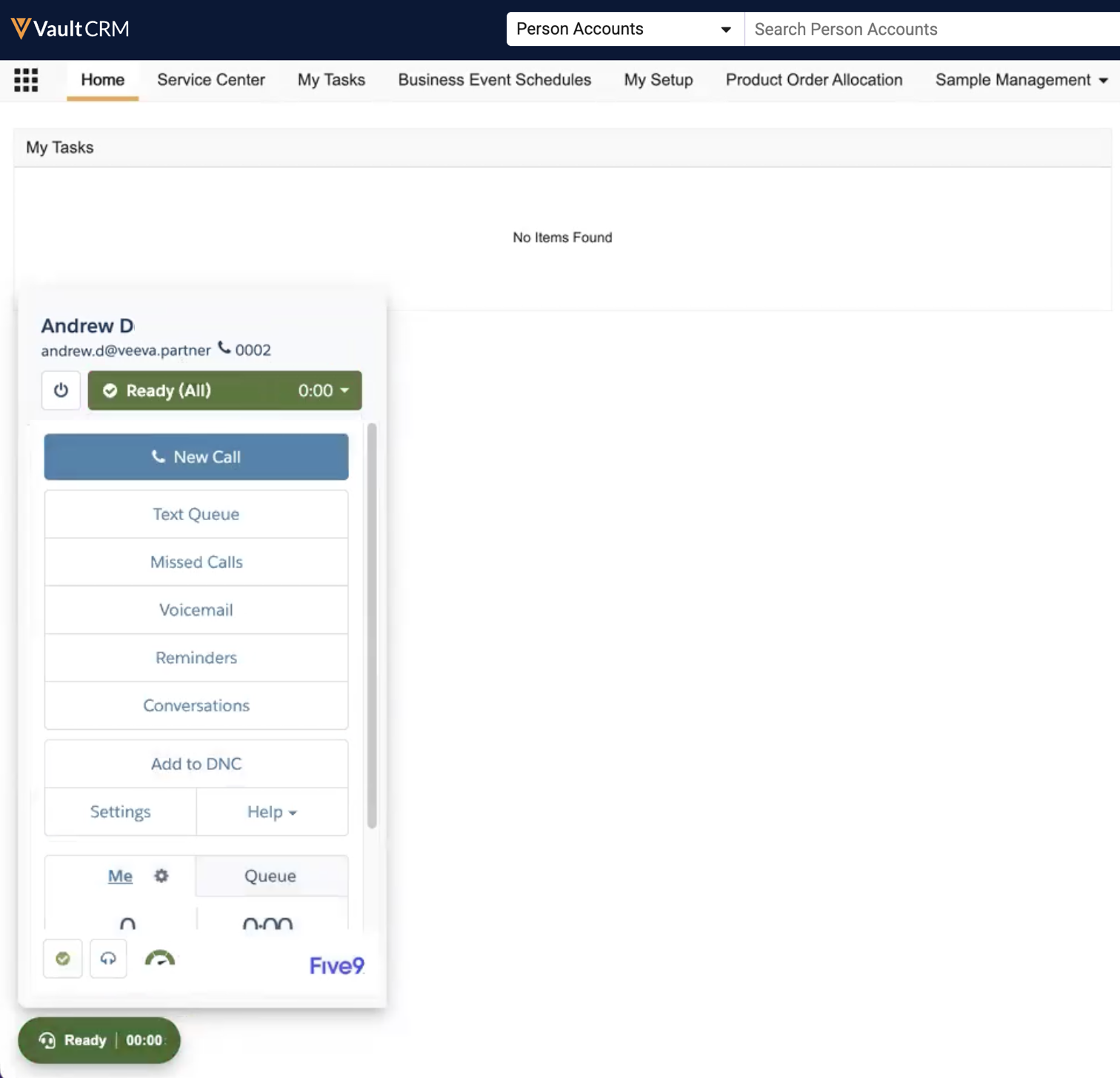
When a user is not logged in to Five9, a Not Logged In status displays on the Omnichannel action button in the lower left of the Service Center interface.
To log in and manage status:
-
Select the Omnichannel action button in Service Center to expand the embedded Five9 UI.
Users must sign in from a Service Center page. Signing in while using another Vault CRM tab or page (for example, the call report modal) can result in unexpected behavior.
-
Enter the appropriate Five9 credentials. If a pop-up blocker is enabled, the login dialog does not display.
After successfully logging in, the Omnichannel button updates to Ready to indicate you are available to receive calls. The Omnichannel button reflects your current Five9 status as follows:
- Ready (green) - Available to receive calls. This includes Ready and Ready For statuses.
- Not Ready (red) - Not available for calls
- Not Logged In (gray) - User credentials are needed
Receiving Inbound Calls with Five9 as
Service Center Reps
Service Center reps can receive inbound Five9 calls and create cases for them directly in Service Center.
To answer an incoming call, select Accept in the embedded Five9 interface.
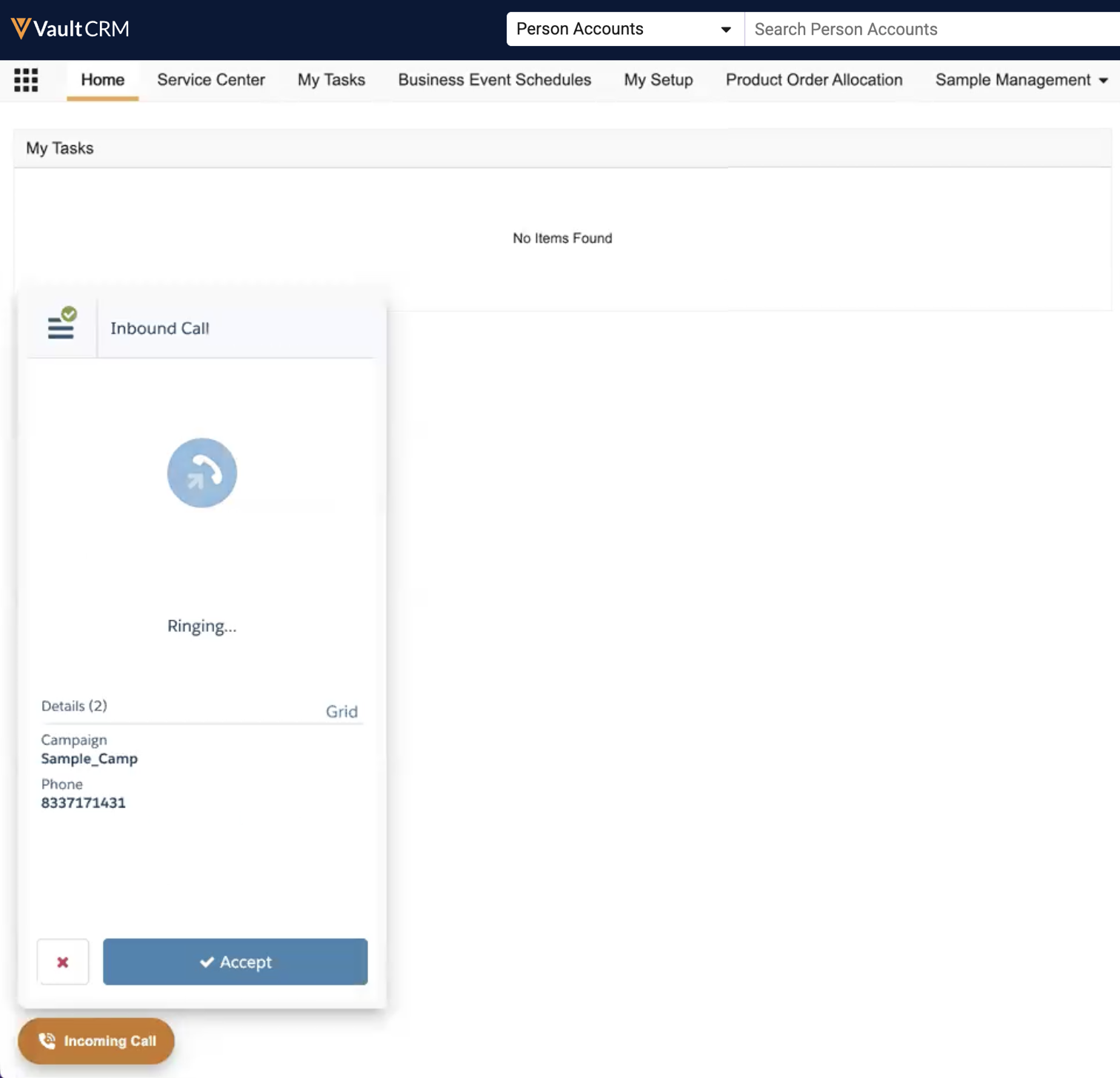
When you answer a call:
- If you are in an area of Vault CRM other than Service Center, the display switches to the Account Search tab of Service Center
- A telephone icon displays on the Account Search tab
- The Omnichannel status is updated to In A Call, and the Omnichannel modal displays buttons for muting the call and placing it on hold
- An Account Search field auto-populated with the caller’s phone number displays
Select the appropriate account to create a case, or select the + Create Case button under Can’t find the right Account?. The interface automatically navigates to the new case tab and populates the Case Queue, Case Owner, and interaction history. See Account Search for Service Center for details on searching and creating a case from the Account Search function.
International dialing codes in the E.164 format (for example, +1) are not passed between Five9 and Service Center.
Placing Outbound Calls with Five9 as
Service Center Reps
Users can initiate outbound calls to clients directly from their Outbound target activity lists and views, from case records, or from the Omnichannel dial pad.
To place outbound calls:
- Ensure the status is set to Ready in the Five9 interface.
- Select a target from an Outbound target list or view, or from the case record.
- Select a phone number from the click-to-dial menu to initiate a call, or type the appropriate phone number in the embedded Five9 interface. International dialing codes in the E.164 format (for example, +1) are not recognized by Five9.
- Select the Campaign, if applicable.
- Select Dial. The Five9 interface initiates the call and updates your status to In Progress.
Phone numbers are displayed to the user based on the preferred_phone_search__v field on the applicable console_application_settings__v record. For more information, see Configuring Preferred Phone Numbers.
New Outbound Target Activity records are created with successful click-to-dial actions:
- Start time is set to the time the call connects to Five9
- End time is set to the call entering finished Five9 state
The call must be finished before users can submit the Outbound Target Activity.
Managing Five9 Calls in Service Center as
Service Center Reps
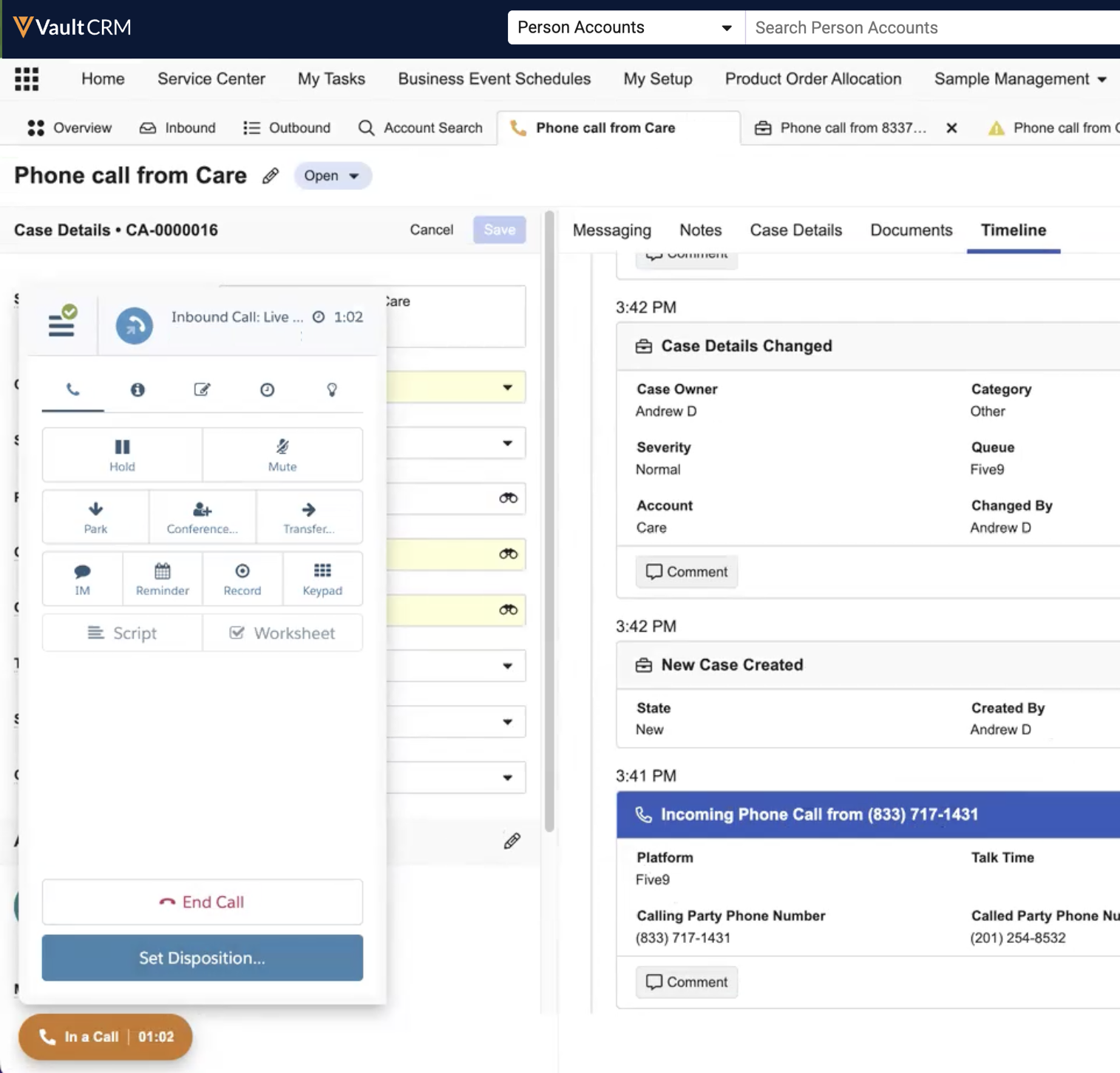
Whether in an outbound call or in an inbound call, a control panel with options for managing the call displays in the lower left corner. Select the Omnichannel button to collapse or expand the control panel as needed. The following options are available:
- Hold - Place the call on hold
- Mute - Mute your audio input
- Set Disposition/End Call - End the call
Disconnecting a Call
To disconnect a call, select Set Disposition in the Omnichannel model, then select End Call. After the call ends, the system updates the Talk Time (talk_time__v) on the Conversation (conversation__v) record.
Service Center uses the CallFinished event from Five9 to determine the end of a call, meaning Talk Time includes any time spent in the After Call Work status.

