Installing Territory Designer
Territory Designer Components
Hardware Recommendations When Using Territory Designer
- Operating System – Microsoft Windows 10 or 11
- CPU Cores – At least two
- Total RAM – At least 8GB
- Local hard drive space – At least 20GB
- One or more high resolution monitors
- Mouse with scroll wheel and middle-click capabilities
- Internet connectivity – Required for integrations
- Microsoft Office:
- Excel – Recommended
- PowerPoint – Recommended
- Access – Optional
Territory Designer Desktop Application
The Territory Designer application is stored on users’ local computers.
Territory Designer Shape Files
Territory Designer shape files contain the geographic data used to draw maps and support alignments. These are kept in a folder on the local computer or on a network drive.
Keeping shape files on a network drive may cause Territory Designer to take longer to open or fail if there are connection issues. Storing these files on the computer’s local drive is recommended.
There are three standard shape files for United States alignments:
- USDIST.ALP – Contains United States data for the optimizer and routing features
- USASHAPES.ALP – Contains United States postal areas and other information
- USASTREETS.ALP – Contains United States streets
For other countries, the three standard files are:
- <country>SHAPES.ISH or <country>BRICKS.ISH – Contains postal areas or brick areas
- <country>ROADS.ISH – Contains road information
- BORDERINFO2.DAT – Contains border information
New shape files are available periodically.
Territory Designer Databases
Territory Designer uses Microsoft Access database files (.accdb) to store information about the accounts, territories, and alignments. Each Territory Designer database file is associated with a particular country and shape file. If the referenced shape file is not found when the database is opened by Territory Designer, users are prompted to locate it.
A Territory Designer database template is provided with shape files. Users can also create new databases without using this template, if necessary.
The Microsoft Access application is not required to use Territory Designer.
Geographies
Each Territory Designer database references a particular set of shape files. The shape files define the geographies available in Territory Designer. The United States uses ZIP Codes as its base geography, each of which is associated with a primary city, county, and state. International alignments use Postal Areas or Bricks as its base, each of which is associated with upper administrative levels. Territory Designer reflects these differing classifications.
Accounts
Each Territory Designer database can contain multiple sets of accounts, each of which can display on the map with different setups in the application. Primary address information is stored directly with the list of accounts, rather than as a separate set of data. Secondary address information is typically not utilized. Most account locations are defined by their ZIP Code, Brick Code, or by their latitude and longitude, though defining locations using county, state, or other levels is also supported.
Attributes
Attributes are numeric fields based on the values in one or more account tables. An attribute can be configured as the combination of any set of numeric fields in account tables.
Installing and Registering the Territory Designer Desktop Application
Territory Designer must be installed and activated on a user’s computer before creating and editing alignments.
To install the Territory Designer app:
-
Contact Veeva Support to receive a link to download the latest Territory Designer installer, along with any supporting files. The name of the application executable is TerritoryDesigner.exe.
IT admin rights are required to run Territory Designer’s installer. The installer includes Microsoft C++ libraries and Microsoft Access drivers.
- Run the Territory Designer installer as Administrator.
-
Launch the Territory Designer application. If the application is not registered or if the registration expired, the Territory Designer Registration modal displays.
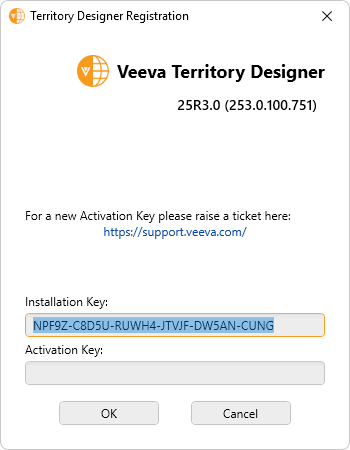
- Copy the displayed Installation Key.
-
Submit a Veeva Support ticket and provide the Installation Key to receive the Activation Key.
Territory Designer does not need to remain open while waiting for the Activation Key. Even though the Installation Key may change each time the dialog displays, the key combination is valid for 2 weeks.
- Enter the provided Activation Key in the Territory Designer Registration modal.
- Select OK.
Reregistering the Territory Designer Desktop Application
Users are warned when opening the application if the registration key is within 30 days of expiring.
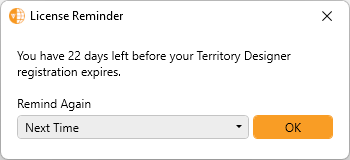
Users can edit the frequency period of this reminder to limit reminder frequency.
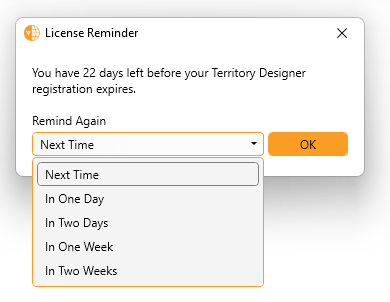
Users can navigate to Help > Update Registration Key to input a new registration key prior to the existing key expiring.
The Territory Designer Application Log File
Daily log files are updated or created each time the application is opened. The log file contains select debug messages and information about changes made to alignments and is intended to help Veeva Support resolve certain issues. The log files can be deleted periodically if there are not any recent issues requiring support. Log files are stored in the Territory Designer\Logs subfolder of %LOCALAPPDATA% (normally C:\Users\<username>\AppData\Local\Territory Designer\Logs\).

