Creating a New Territory Designer Database
End users must create a Territory Designer database using an associated Shape file. This blank database is used to import other important files and structures.
Creating a New Database
To create a new database:
-
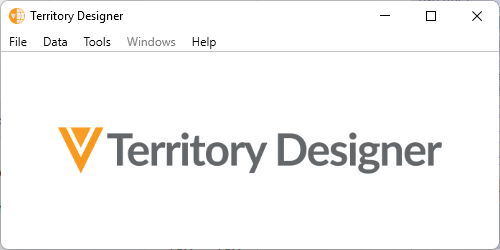
Launch the Territory Designer application.
-
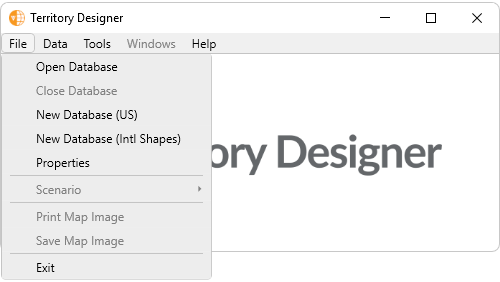
Select File from the Main menu.
-
Select the appropriate option:
- New Database (US) – For US alignments using ZIP Code as the geographic basis
- New Database (Intl Shapes) – For non-US alignments
-
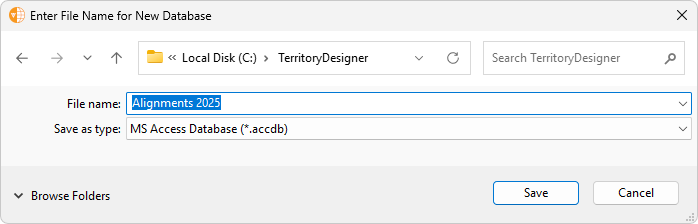
Navigate to the appropriate storage folder and enter an appropriate name for the database.
-
Select Save to begin the process of creating the new database.
-
Select the appropriate Territory Designer shapes files for the database to reference.
- For a US database, select the USASHAPES.ALP file
- For a non-US database, select the <country>SHAPES.ISH file
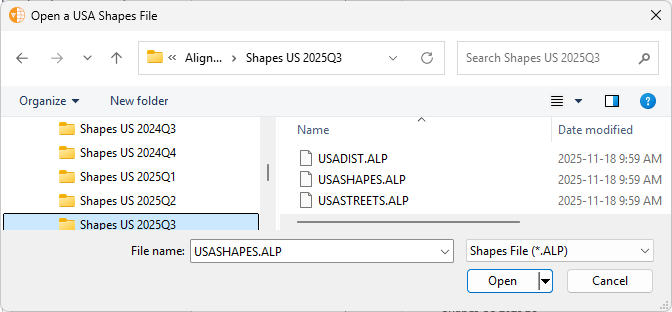
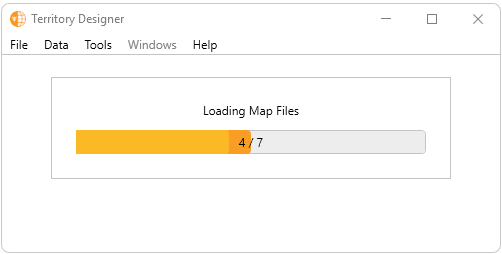
- Select Open. The database populates with geographic definitions from the shape files.
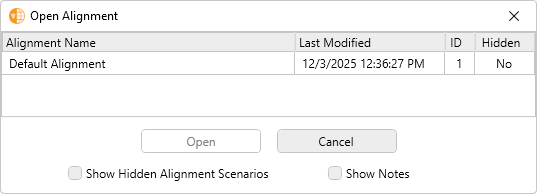
When shapes files finish loading, users can proceed with opening the Default Alignment, creating a new scenario, or proceeding with various imports in the newly created database.
Getting Started in a New Database
The following methods are available when getting started with an alignment scenario in a new database:
- Using the Default Alignment as a base alignment template
- Creating a new alignment scenario from scratch
- Importing existing alignment files as Territory Designer scenarios
- Importing an existing alignment from an Align Modeling Project
The Default Alignment
When a newly created Territory Designer database is opened, a blank Default Alignment is available.
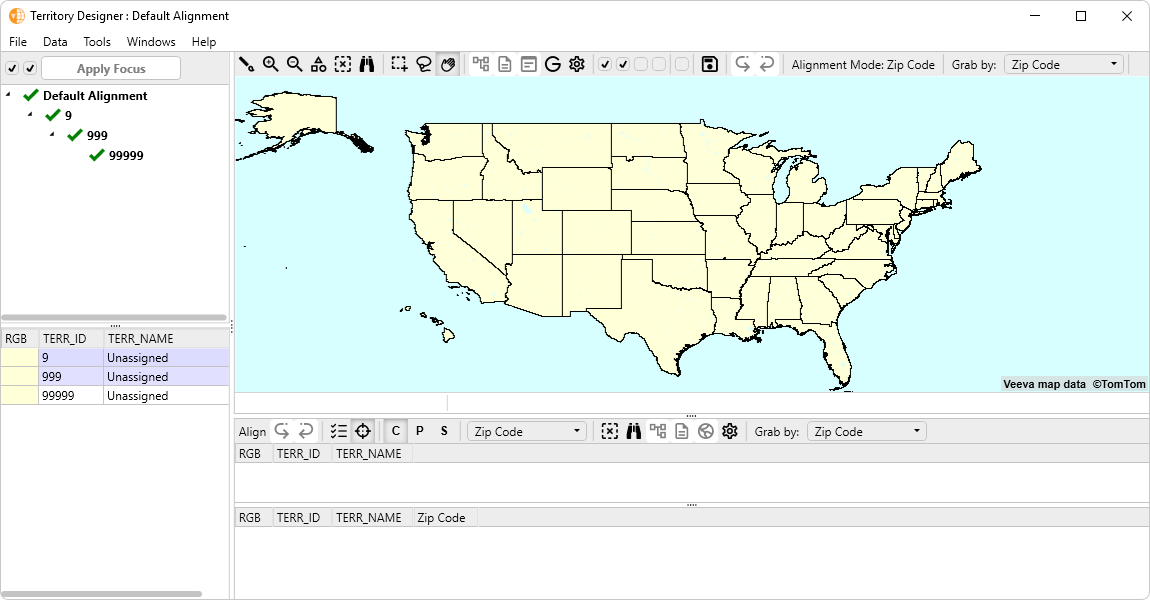
Territory Designer initially aligns all ZIP Codes to the Unassigned Territory (Territory 99999, District 999, Region 9), The Unassigned Territory is also the Default Territory.
Using the Default Alignment as a starting point, the territory hierarchy may be modified in the Scenario Tree, and geographies may be assigned to territories with the Map and Alignment Worksheet. Accounts may be imported, and account data fields may be configured as attributes in the alignment.
After creating the database, you can import alignments from Microsoft Excel, CSV Text, or Microsoft Access files

