Agentic Account Plan Summary
Key Account Managers (KAMs) and End Users can use Agentic Account Plan Summary to generate concise executive summaries of account plans directly within Vault CRM. Account plans often contain strategic goals, tactics, and granular action items distributed across multiple child objects and related lists. Agentic Account Plan Summary combines this information into a structured summary. This enables users to prepare efficiently for leadership reviews, team meetings, and account onboarding without navigating through nested related records.
Who can use this feature?
- Key Account Managers (KAMs), End Users - iPad
- Using Agentic Account Plan Summary
- A Vault AI license is required
Configuring Agentic Account Plan Summary for
 All Users
To configure this feature:
- Ensure the following are complete:
- Navigate to Admin > Users & Groups > Permission Sets.
- Select the appropriate permission set.
- Select the Admin tab.
- Select the Read checkbox for Agents.
- Select the Agents tab.
- Select the Execute checkbox for the Account Plan Summary Agent (account_plan_summary_agent__v).
- Navigate to Business Admin > Objects > Veeva Settings > Global Veeva Settings.
-
Verify the account_plan_object_hierarchy__v Veeva Setting meets the following requirements:
- Contains one to three child objects beneath the Account Plan
- The final object in the hierarchy is action_item__v or call_objective__v
Custom objects are not supported.
For more information on configuring the Veeva Setting, see Account Plans Overview.
- Navigate to Admin > Configuration > Agents.
- Set the Account Plan Summary Agent status to Active.
- Expand the Actions section.
-
Verify the appropriate agent actions are Active for the agent:
- Generate Account Plan Summary - Gathers and summarizes account plan data such as progress, strategies, and action items
Using Agentic Account Plan Summary as
All Users
With Agentic Account Plan Summary, Key Account Managers (KAMs) can generate executive summaries to assess account performance, prepare for leadership updates, and review strategic progress directly from account plans or related pages. End users can review strategic account health, identify upcoming deadlines, and track assigned deliverables.
The summary includes the following information:
- Account Plan Overview - Displays an introductory paragraph summarizing the account plan name, account, description, plan owner, overall health status, and progress percentage
- Top-Level Hierarchy Overview - Displays one to two sentences and bullet points summarizing the first-level records defined below the account plan in the Account Plan Object Hierarchy Veeva Setting.
- Completed Tasks - Displays up to five completed tasks finished within the last 30 days based on user locale and timezone. Tasks sort from earliest to latest completed date.
- Pending Tasks - Displays up to five pending tasks due on or before 30 days from the current date. Tasks sort from earliest to latest due date.
Any fields to which the user does not have at least Read access are not included in the response.
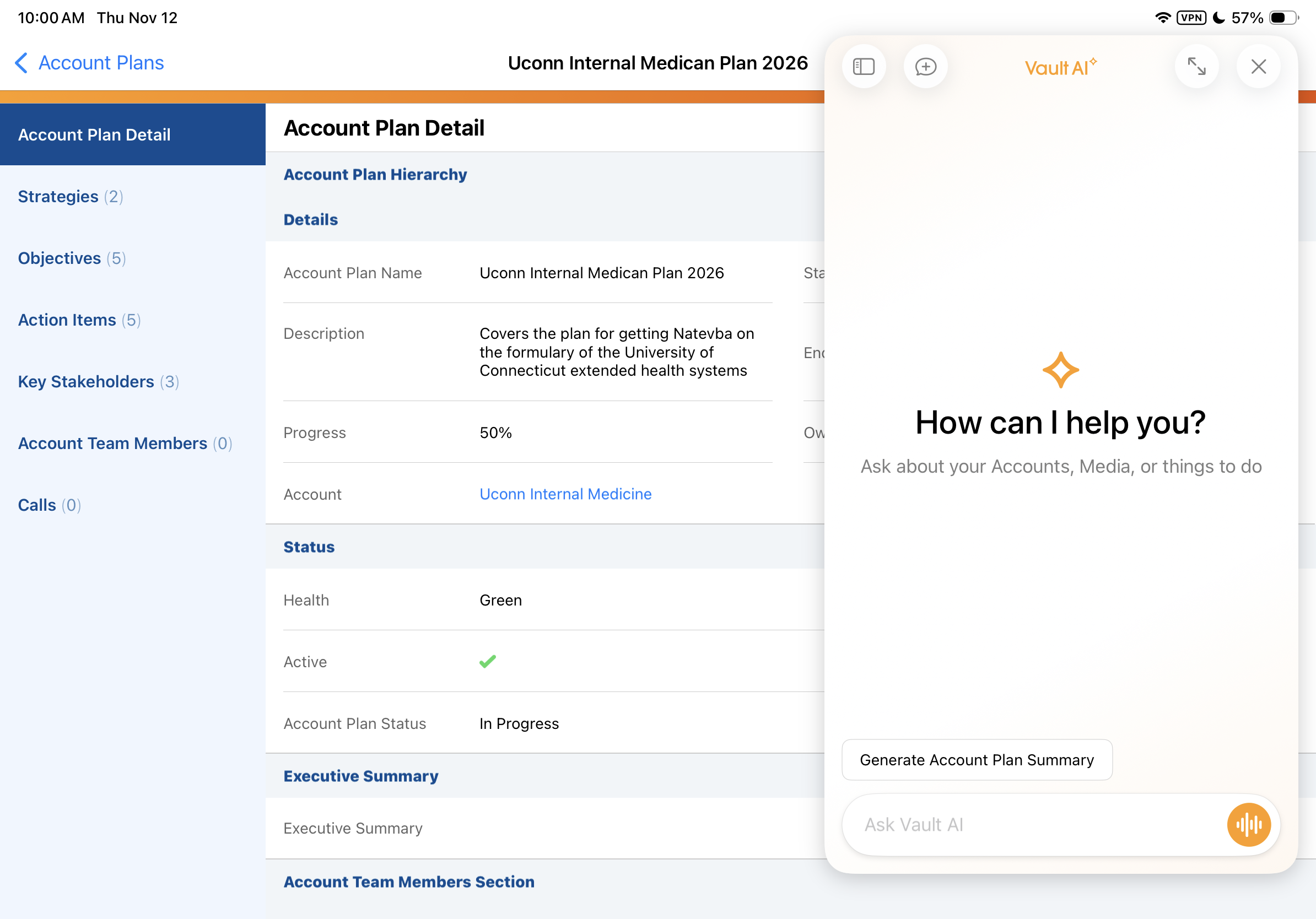
The Generate Account Plan Summary prompt displays in Conversational AI when the agent is configured. Users can generate a summary using the action prompt or by entering natural language in the Conversational AI input box.
To generate an account plan summary using the action prompt:
-
Select an Account Plan record.
-
Select the AI icon.
-
Select the Generate Account Plan Summary option.
The generated executive summary displays in Conversational AI.
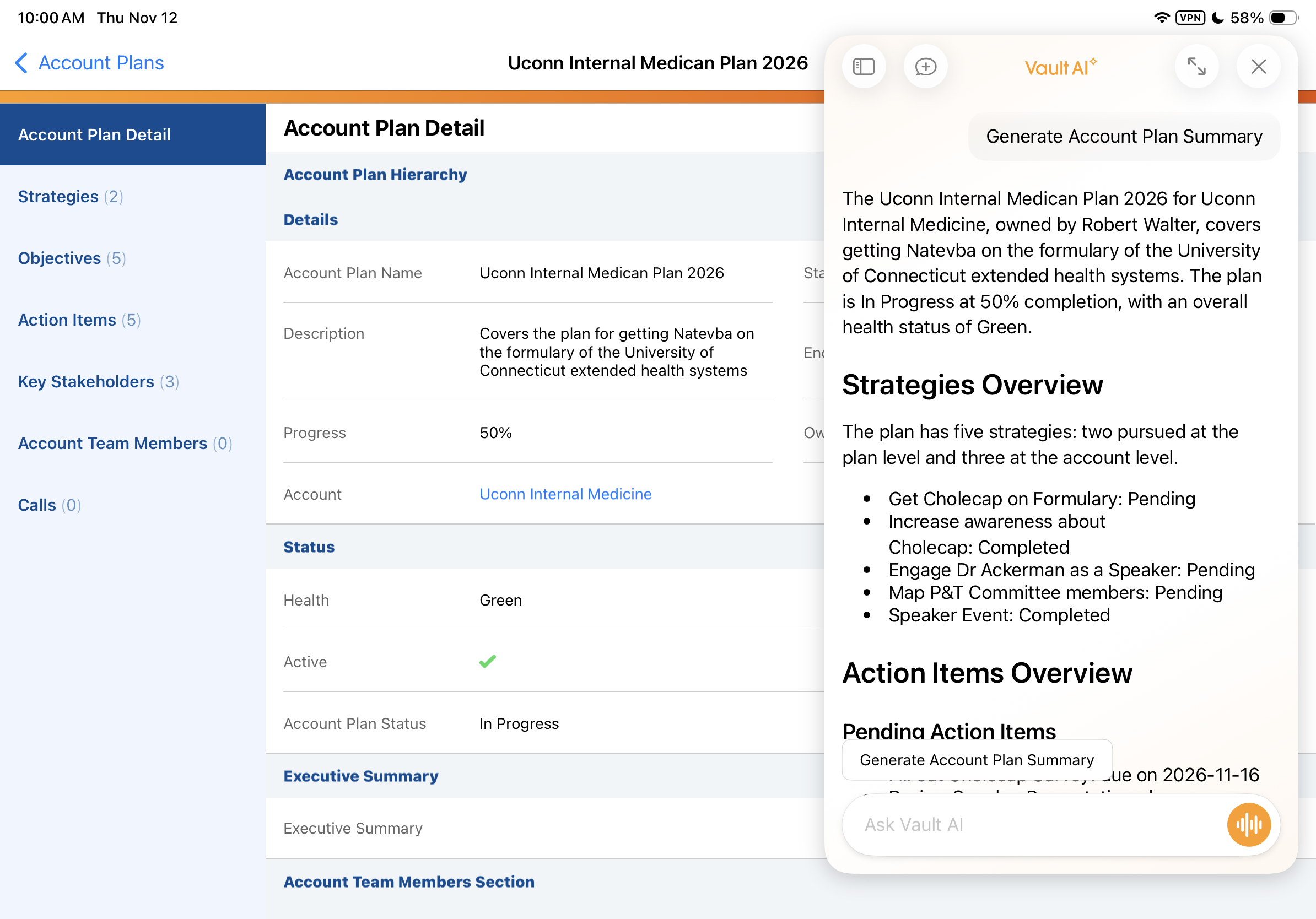
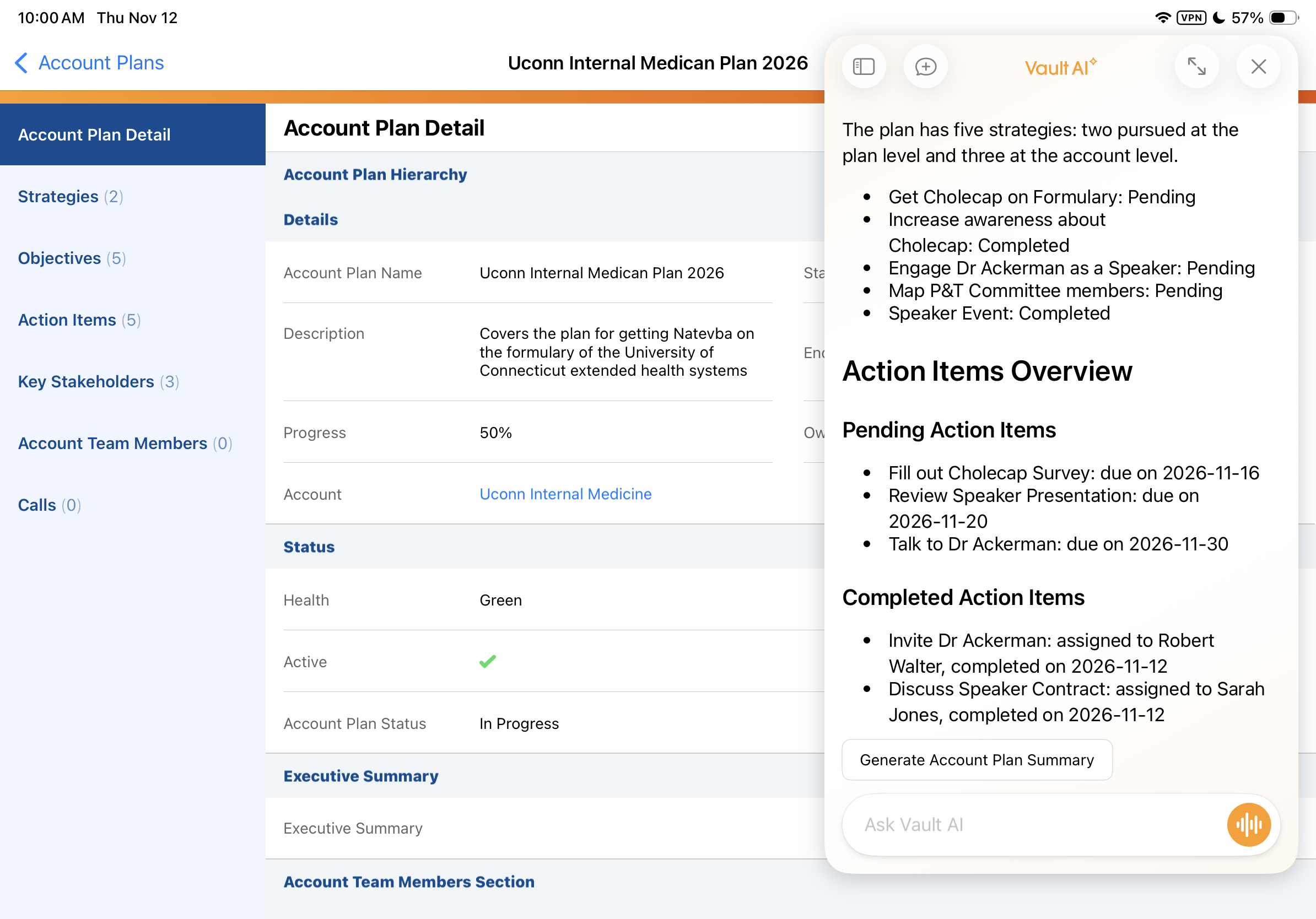
To generate an account plan summary using natural language, while viewing an account plan, simply enter a natural language request in the chat text box and select Send. For example:
- "Summarize this account plan"
- "Provide an Executive Summary"
When the user requests a summary while viewing an account plan, the summary is generated for that specific account plan, regardless of conversational history.
To generate an account plan summary from any screen, specify the account plan in your request. For example, “Summarize the Newton Memorial Hospital 2026 account plan”. A list of up to five matching active account plans displays if the agent returns multiple options. Clarify the correct account plan in the chat text box and select Send again to view the executive summary.