Conversational AI (Early Adopter)
Conversational AI (Early Adopter) uses two-way voice and text to deliver a conversational experience for end users to research, prepare for, and document their interactions with HCPs. It is designed to support field users in answering territory-level questions and completing HCP visits. Using a context-aware Conversational Agent, users seamlessly obtain answers about accounts, prepare for upcoming calls, plan next activities, and route to action-oriented workflows from a single conversation.
This experience revolutionizes field preparation by using agentic AI to synthesize complex data sources from across Vault CRM into intuitive, real-time responses, enabling users to research and plan for account interactions more quickly and thoroughly than ever before.
All responses are dependent on the features configured for the user and the records available. If one of the features detailed in Module Configuration is not enabled, or relevant records are not available, then the corresponding information cannot be delivered with Conversational AI.
Who can use this feature?
- End Users — iPad, iPhone
- Starting a Conversation
- Identifying High-Priority Actions and Accounts
- Searching Accounts and Discovering Related HCPs
- Preparing for HCP Interactions with Briefings
- Identifying Supporting Content with Agentic Media
- Documenting HCP Interactions with Agentic Call Report™
- Managing Conversation History
- A Vault AI license is required

Considerations for Conversational AI (Early Adopter)
- Supported Languages - Conversational AI is available in all Vault CRM Supported Languages, with the exception of the following for Voice Mode: Hungarian, Latvian, Thai, Norwegian, and Vietnamese. To receive text and voice responses in a supported language, provide your input in that language. The agent responds in the language of your input rather than your logged-in language.
While in Early Adopter mode, Conversational AI voice responses are optimized for the English language.
- Internet Connectivity - Conversational AI requires an active internet connection. If the user does not have an active internet connection, they can continue to view the current conversation, but cannot send additional requests.
- AI Chat Experience - When enabled, the chat experience available through the standard AI Chat interface is replaced by Conversational AI. Answers are routed through the Conversational Agent, rather than the Account Summary Agent. Custom AI chat interfaces configured via X-Pages Prompt Overlay are not affected.
- Agentic Media - Agentic Media in Conversational AI (Early Adopter) currently supports CLM as Object Model content only. CLM as Document Model content is available from the Media AI tab.
Configuring Conversational AI (Early Adopter) for
End Users
To configure this feature:
- Ensure the following configuration is complete:
- Navigate to Admin > Users & Groups > Permission Sets.
- Select the appropriate Permission Set.
- Select the Application tab
- Select the Use Chat checkbox for the Vault AI Chat permission.
- Select the Objects tab.
- Grant Edit permission for the conversation_view__v field on the preferences__v object. This enables Vault CRM to retain the user’s preference for opening Conversational AI in an expanded view versus a side panel view.
- Select the Agents tab.
- Grant Execute access to conversational_agent__v.
- Navigate to Admin > Configuration > Vault AI Setup > Agents.
- Select the Conversational Agent.
- Select Edit.
- Select Active in the Status picklist.
- Select Save.
Enabling Conversational AI also enables Agentic Home Screen, allowing users to launch conversations directly from their Vault CRM home screen.
Module Configuration
Conversational AI relies on information from modules across Vault CRM. To enable users to access relevant information, ensure configuration is complete for the following:
- Account Hot Lists - Enables users to view high-priority accounts, as defined by Hot Lists
- Agentic Call Report™ - Enables launching Agentic Call Report
- Agentic Media - Enables searching CLM content (CLM as Object Model only)
- Approved Email - Enables display of Sent Email history
- Call Reporting - Enables display of call history and recent interactions
- Call Follow-up Activities - Enables access to call follow-up activities
- Call Objectives - Enables access to open or urgent Call Objectives
- Commercial Insights - Enables users to access recent commercial insights for accounts, products, and call history
- Multichannel Cycle Plan - Enables access to current Cycle Plan target information
- Suggestions - Enables actionable Suggestions to display
If users lack access to or configuration for any of the above functionality, the corresponding information is not available for Conversational AI.
Data Best Practices for
Admin Users
User experience with Conversational AI is directly related to the quality and completeness of the underlying data in the user’s Vault. When users enter a request via Conversational AI, the Conversational Agent dynamically builds the response around high-value, relevant data. It tailors each response to ensure that users receive accurate, actionable, and noise-free insights based on the data in their Vault.
For the most successful use of Conversational AI, admins should:
- Ensure fields used by Conversational AI—as identified in following sections—are populated and accurate
- Ensure Module Configuration is complete, and users are granted at least Read permission to all fields used by Conversational AI
Accounts
To identify and surface account information, Conversational AI uses the following fields from Account (account__v) records:
- name__v
- spec_1_cda__v
- credentials__v
- city_cda__v
- primary_parent__vr.name__v (reference to name__v field on primary_parent__v object)
Account Hot Lists
To identify high-priority accounts, Conversational AI pulls from Account Hot Lists. Ensure account_list__v and account_list_item__v records are loaded for all accounts which should be identified as high-priority.
The following fields on account_list__v records are used:
- name__v
- end_date__v
- start_date__v
The following fields on account_list_item__v records are used:
- account__v
- acknowledged__v
- last_touch__v
- rank__v
- reason__v
Only accounts not already acknowledged are surfaced. The Hot List must be assigned to the user’s territory.
Call Reports
Conversational AI relies on call report (call2__v) data for requests related to past calls or interaction history. The following fields on call2__v records are used:
- account__v
- call_datetime__v
- call_channel__v
- call_notes__v
- call2_status__v
- ownerid__v
Five recent calls are surfaced by default. Up to 50 calls can be included in the response if requested.
Only Saved or Submitted calls for the current user are surfaced; planned or future calls are not part of interaction history.
Call Objectives
Open Call Objectives (call_objective__v) assigned to the user can be surfaced in Conversational AI. The following fields on call_objective__v records are used:
- account__v
- completed_flag__v
- name__v
- object_type__v
- product__v
- title__v
- to_date__v
To ensure relevance, the AI response does not include Call Objectives which are completed, already assigned to a call report, or expired.
Call Follow-Up Activities
Open Call Follow-up Activities assigned to the current user can be surfaced in Conversational AI. The following fields on call_followup_task__v records are used:
- account__v
- assigned_to__v
- complete__v
- completion_date__v
- description__v
- due_date__v
- name__v
To ensure activities are relevant and timely, upcoming activities or activities with a due date in the past 10 days are considered. Up to three activities can be surfaced per AI response.
Commercial Insights
Commercial Insights can be surfaced in Conversational AI, either independently or as part of call history. To surface commercial insights, Conversational AI uses the following fields on commercial_insight__v records:
- account__v
- call2__v
- commercial_insight_status__v
- date__v
- insight__v
- product__v
- source__v
Five recent Commercial Insights are surfaced by default. Up to 50 insights can be included in the response if requested.
Multichannel Cycle Plans
Information from active Multichannel Cycle Plan target (mc_cycle_plan_target__v) records assigned to the user can be surfaced in Conversational AI.
The following fields on the parent mc_cycle_plan__v record are used:
- end_date__v
- mc_cycle_plan_status__v
- name__v
- start_date__v
The following fields on mc_cycle_plan_target__v records are used:
- channel_attainment__v
- channel_status__v
- cycle_plan__v
- product_attainment__v
- product_status__v
- target__v
- team_channel_status__v
Only targets in active Cycle Plans are considered; the parent Multichannel Cycle Plan status (mc_cycle_plan_status__v) must be set to in_progress__v, and the plan’s start date and end date fields must be populated and current.
Products
Conversational AI uses Product and My Setup records to disambiguate products mentioned in the user’s request.
The following fields on the product__v object are used:
- id
- name__v
- product_identifier__v (optional)
- product_type__v
- therapeutic_area__v (optional)
The following fields on the my_setup_products__v object are used:
- ownerid__v
- product__v
If Detail Groups are enabled, the following fields on the product_group__v object are used:
- product__v
- product_catalog__v
If Detail Groups are enabled, the following field on the call2_detail__v object is used:
- detail_group__v
Sent Email
Sent Email history (sent_email__v) can be surfaced in Conversational AI to give users a comprehensive understanding of past interactions or communications with the account. The following fields on sent_email__v records are used:
- account__v
- approved_email_template__v
- created_by__v
- email_sent_date__v
- name__v
- object_type__v
- opened__v
- scheduled_send_datetime__v
- sent_email_status__v
The most recent emails sent to the account are surfaced, with a maximum of five recently sent emails.
Suggestions
Open Suggestion (suggestion__v) records can be surfaced in Conversational AI, guiding users on next steps. The following fields on suggestion__v records are used:
- account__v
- account_priority_score__v
- actioned__v
- dismissed__v
- expiration_date__v
- marked_as_complete__v
- name__v
- object_type__v
- posted_date__v
- priority__v
- reason__v
- title__v
Up to three open Suggestions can be included in the AI response. To ensure responses are actionable, Suggestions which are dismissed, completed, or actioned are not considered.
Starting a Conversation as
End Users
To start a conversation, users can:
- Enter a prompt from the Agentic Home Screen
- Select the AI icon from supported pages in Vault CRM
- Selecting the icon from the Home Page opens the interface in full expanded view.
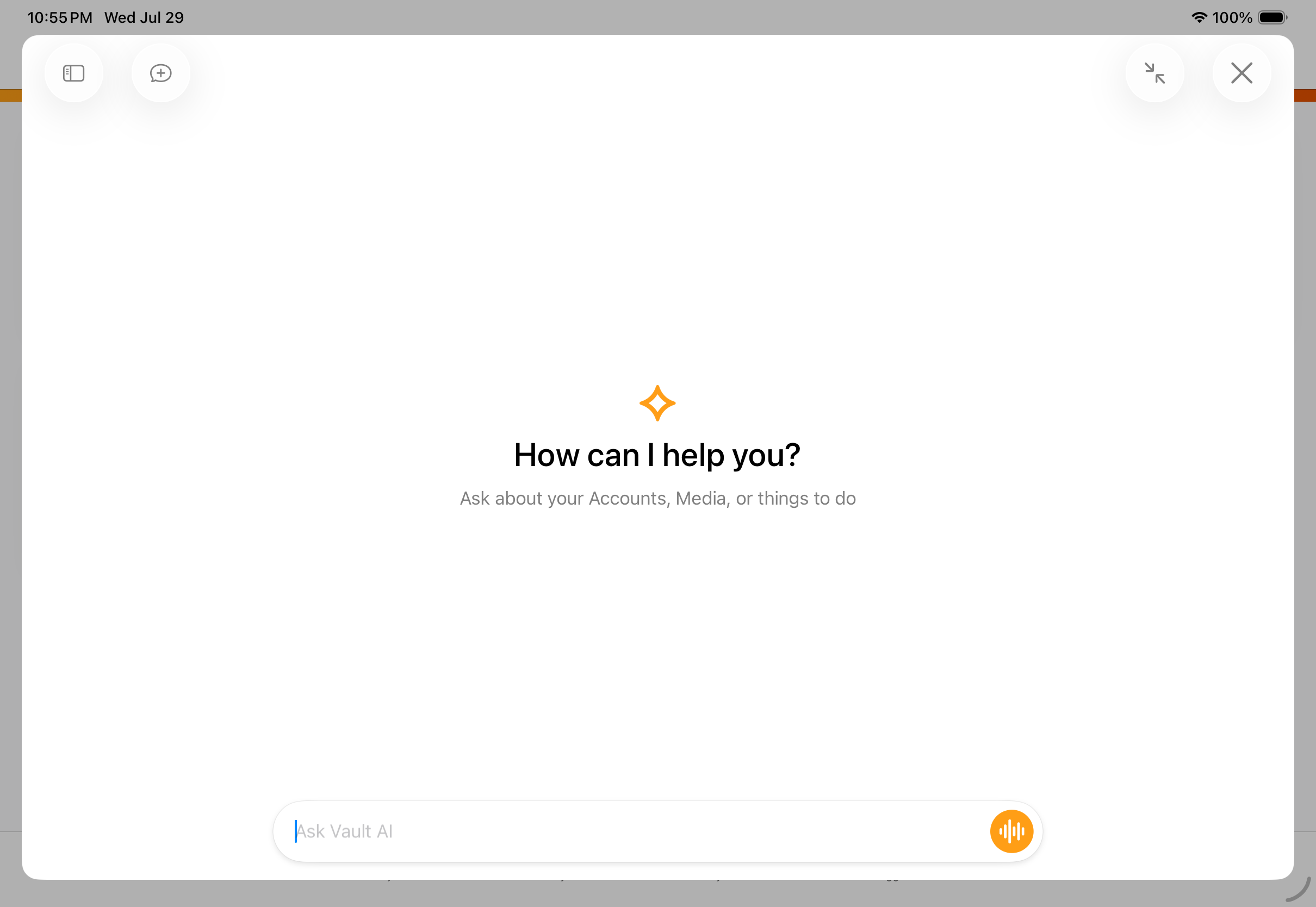
- Selecting the icon from any other supported page opens the interface in a side view or expanded view
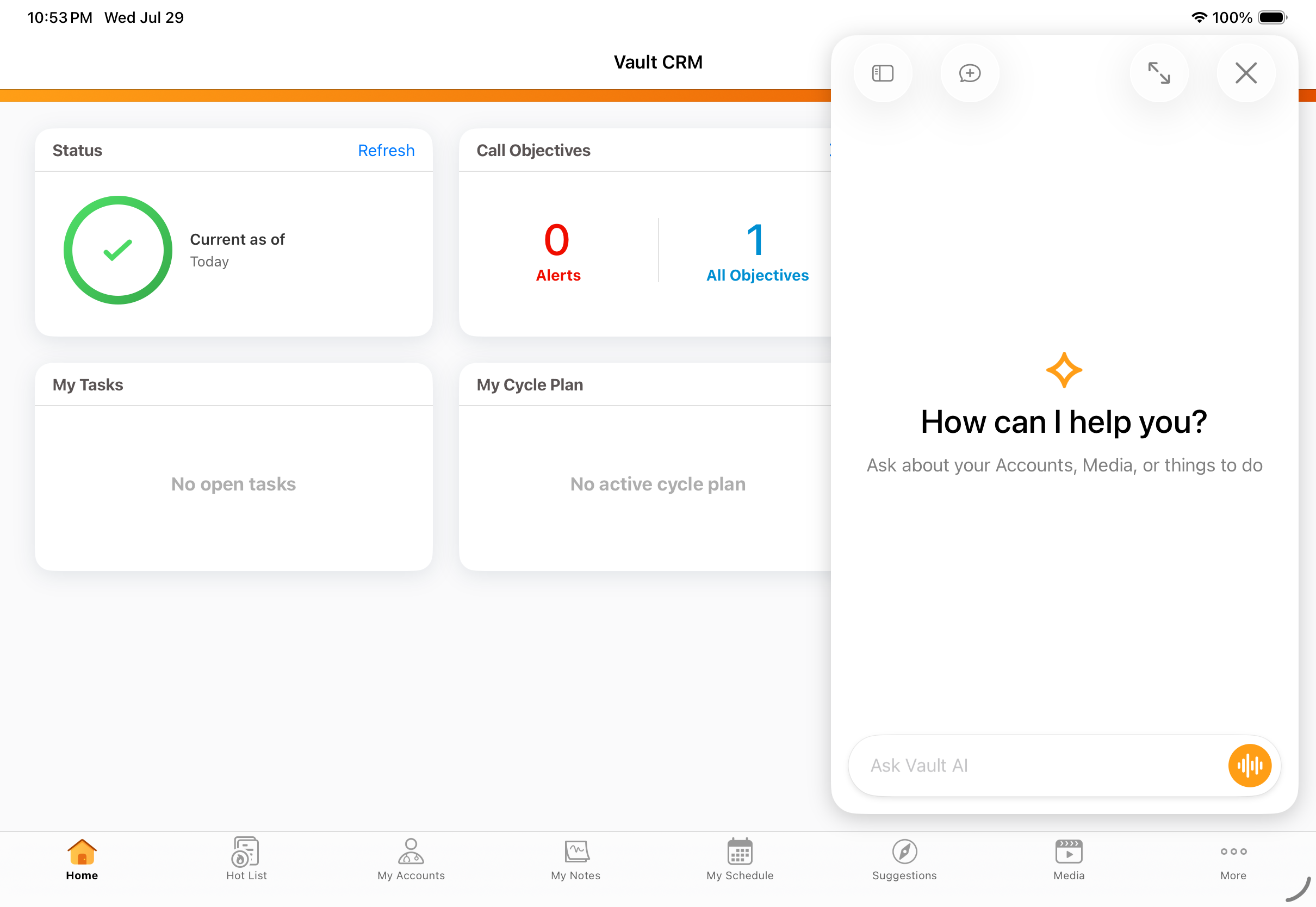
Select the resize button (located to the left of the close button) to change between side view and expanded view modes.
The Conversational AI entry point and AI icon are not available from Media AI; to maintain focus on CLM content, only the Media AI search interface and Agentic Media responses are available.
On the iPhone platform, users access Conversational AI from the AI icon on the home page or the Agentic Home Screen. Conversational AI always fills the iPhone screen; side view is not available.
Text Mode
To communicate with the agent using text:
- Type your request directly into the input box at the bottom of the window.
- Select the blue Send icon that replaces the wavelength icon once text entry begins.
Review the response. The agent typically provides at least one follow-up question after its response.
If you switch to another conversation while waiting, an orange circle displays next to the original conversation name to signal that the answer is ready.
Voice Mode
To communicate with the agent using two-way voice:
- Select the Voice Mode (wavelength) icon to the right of the input box.
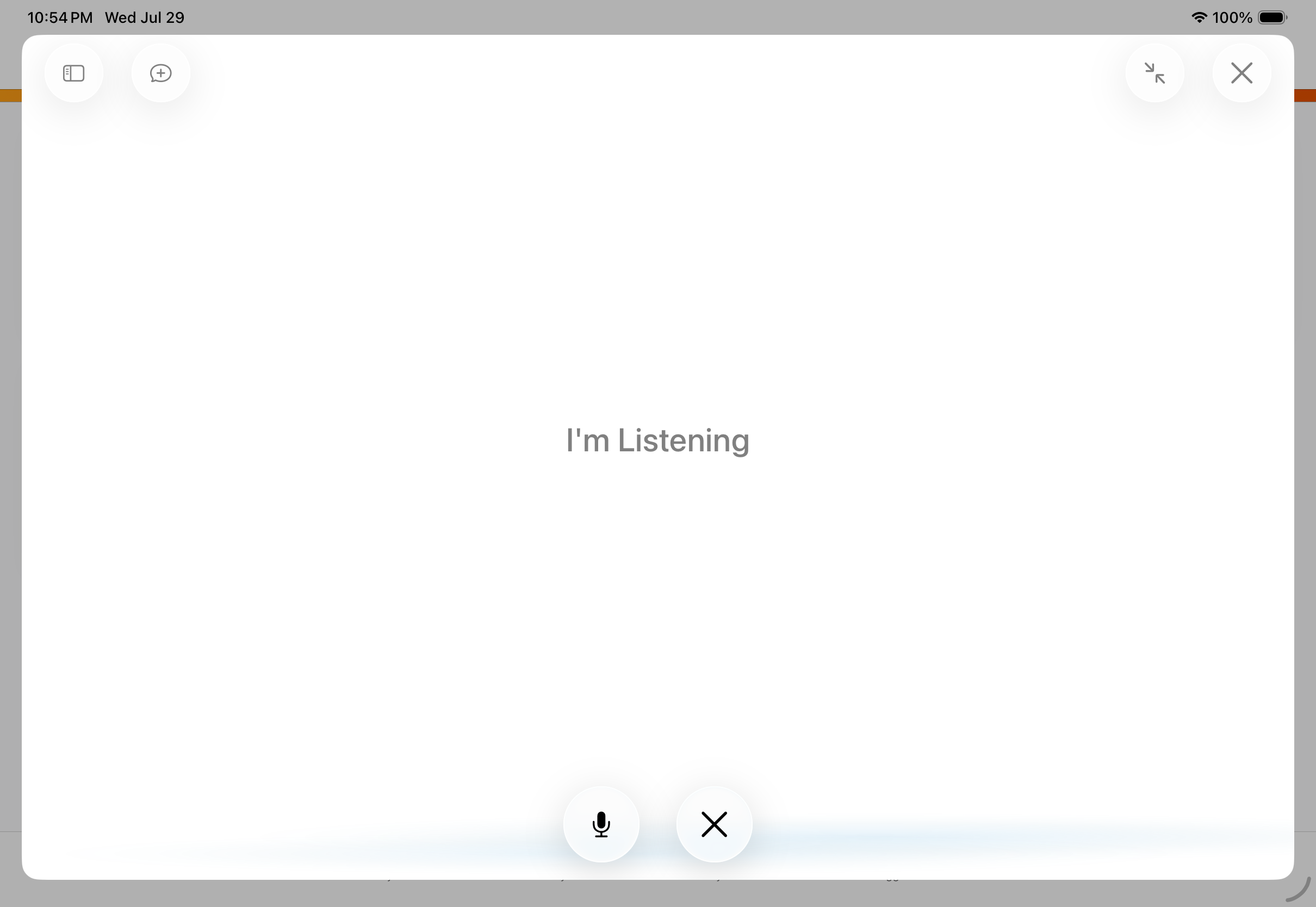
- Speak your request clearly once the listening status displays.
The agent responds to your prompt when you finish speaking. Listen to the conversational AI-generated audio response and ask follow-up questions as needed. The agent typically provides at least one follow-up question after its response.
The following options are available during a voice session:
- Mute input - To mute your input during a voice session, select the microphone icon. The agent continues speaking its response if one is in progress.
- Exit voice mode - To exit voice mode and return to text mode, select the X icon. The text transcript of your voice interaction remains preserved, and you can continue the conversation via text mode.
Identifying High-Priority Actions and Accounts as
End Users
Using Conversational AI, end users can easily establish a baseline of high-priority actions and map out which target accounts and related professionals require attention. The following are considered when determining next actions:
- Hot List Accounts - Accounts to prioritize are based on the Hot List assigned to the user’s territory; the top three highest-ranked accounts not yet acknowledged are surfaced by Conversational AI.
- Open Suggestions - Suggestions which are not dismissed, completed, or expired
- Open Call Follow-up Activities - Follow-up activities assigned to the user, not yet completed, with an upcoming due date or a due date in the past 10 days
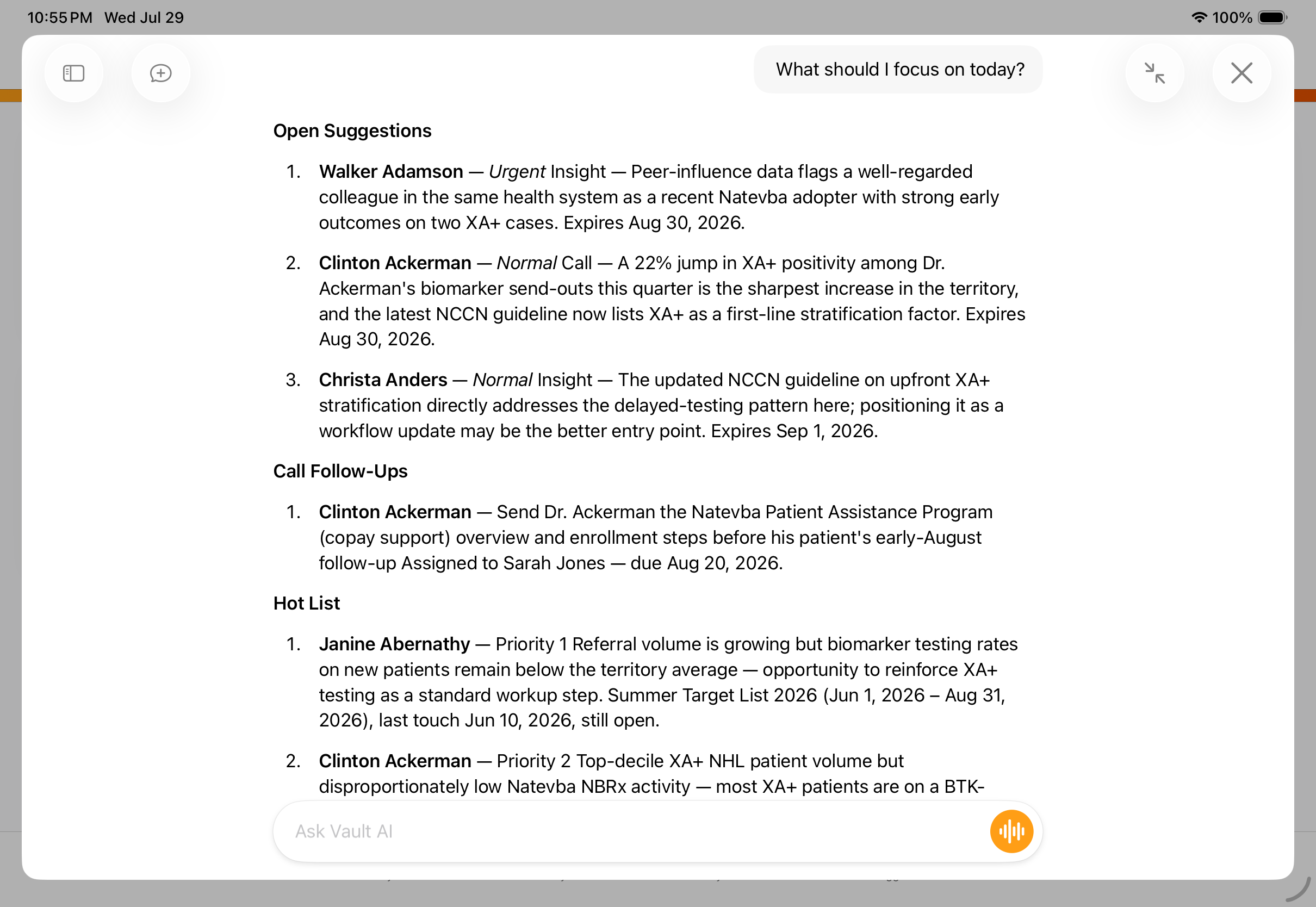
To gain a comprehensive understanding of highest-priority daily tasks, type or speak a request regarding daily activities or next actions. Example phrases include:
- "What to focus on today?"
- "Give me a quick rundown of what to take care of before I head out."
- "What are my most urgent action items across my accounts right now?"
- "I have a few hours this afternoon — what to prioritize?"
- "What open follow-ups and suggestions do I have that are due soon?"
- "Catch me up — what is outstanding across my target list, suggestions, and follow-ups?"
- "What are the most important things to action today?"
Based on available information, the system returns an actionable summary with high-priority actions customized to the specific user and their accounts.
Targeted Searches
To narrow the focus to a single category instead of the entire summary, enter a targeted request. For example:
- Suggestions Only: "Do I have any open suggestions right now?", "What suggestions are expiring this week?", "Show me all my urgent suggestions."
- Call Follow-Up Activities Only: "What follow-ups do I have open right now?", "Which of my follow-ups are coming due soon?", "Show me everything due this week across my accounts.", "Do I have any follow-ups assigned to me not yet closed?"
- Hot List (Target List) Only: "Show me my target list.", "Who are my top priority accounts right now?", "What accounts on my target list are still open?"
- Cross-Feature Prioritization: "What suggestions and follow-ups do I have open across my accounts?", "Show me anything urgent — suggestions or follow-ups — needing attention today.", "Which of my target list accounts also have open suggestions?", "Show me my top priority accounts and any suggestions tied to them.", "Do any of my target list accounts have open follow-ups not yet closed?", "Show me outstanding follow-ups for my highest priority accounts."
If no results are available, the agent indicates that records do not exist.
Searching Accounts and Discovering Related HCPs as
End Users
To find specific accounts or discover additional HCPs at a hospital or location, specify a name, city, or primary parent account. The agent searches assigned data to identify potential matches, maximizing the field footprint.
Example requests include:
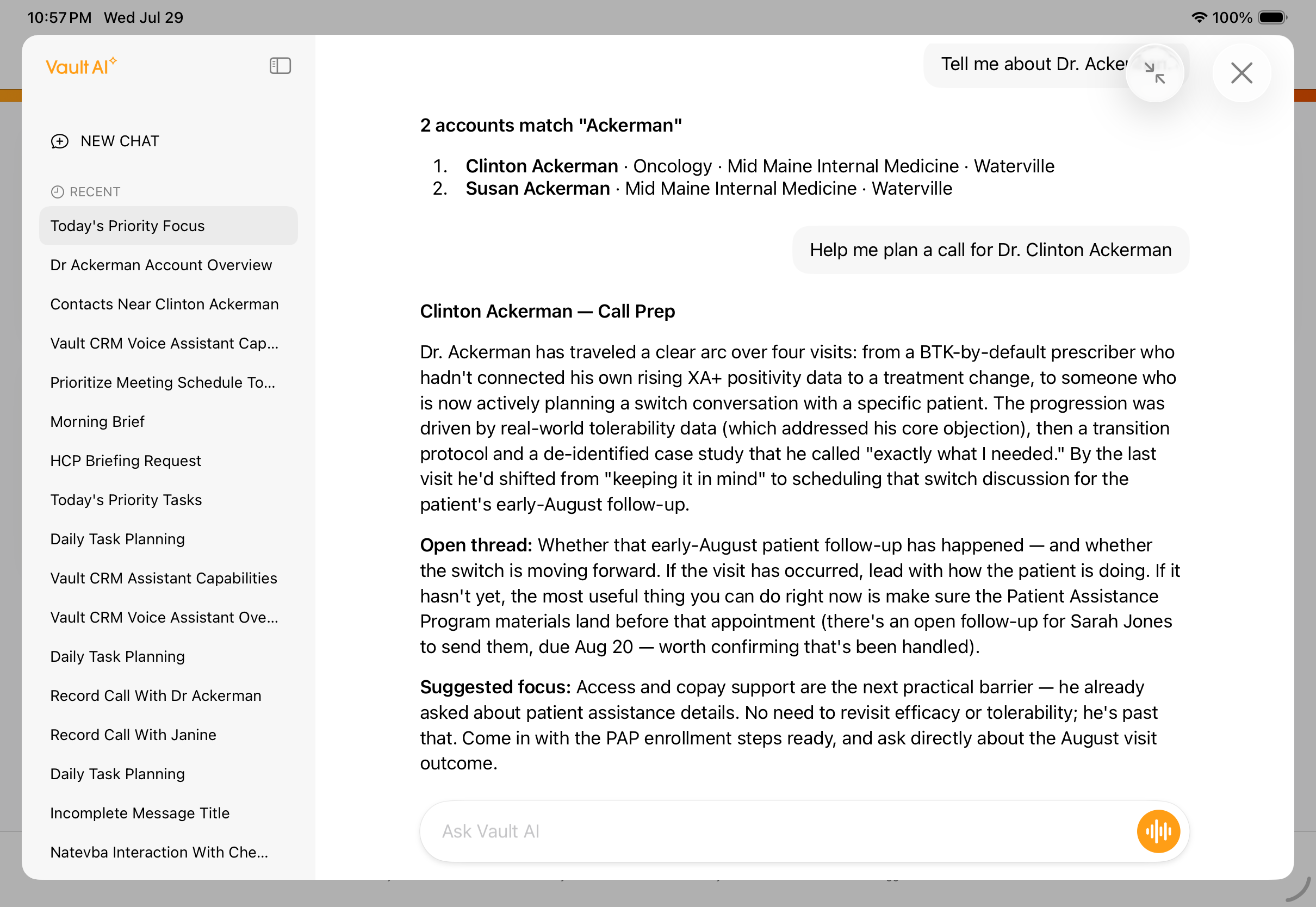
- "Tell me about Dr. Ackerman."
- "Can you find Dr. Beacher at Newton Memorial Hospital?"
- "Are there any other HCPs at Newton Memorial Hospital?"
- "Which doctors do I have in Denver?"
If multiple potential accounts match the request, the agent responds with a list of up to five accounts.
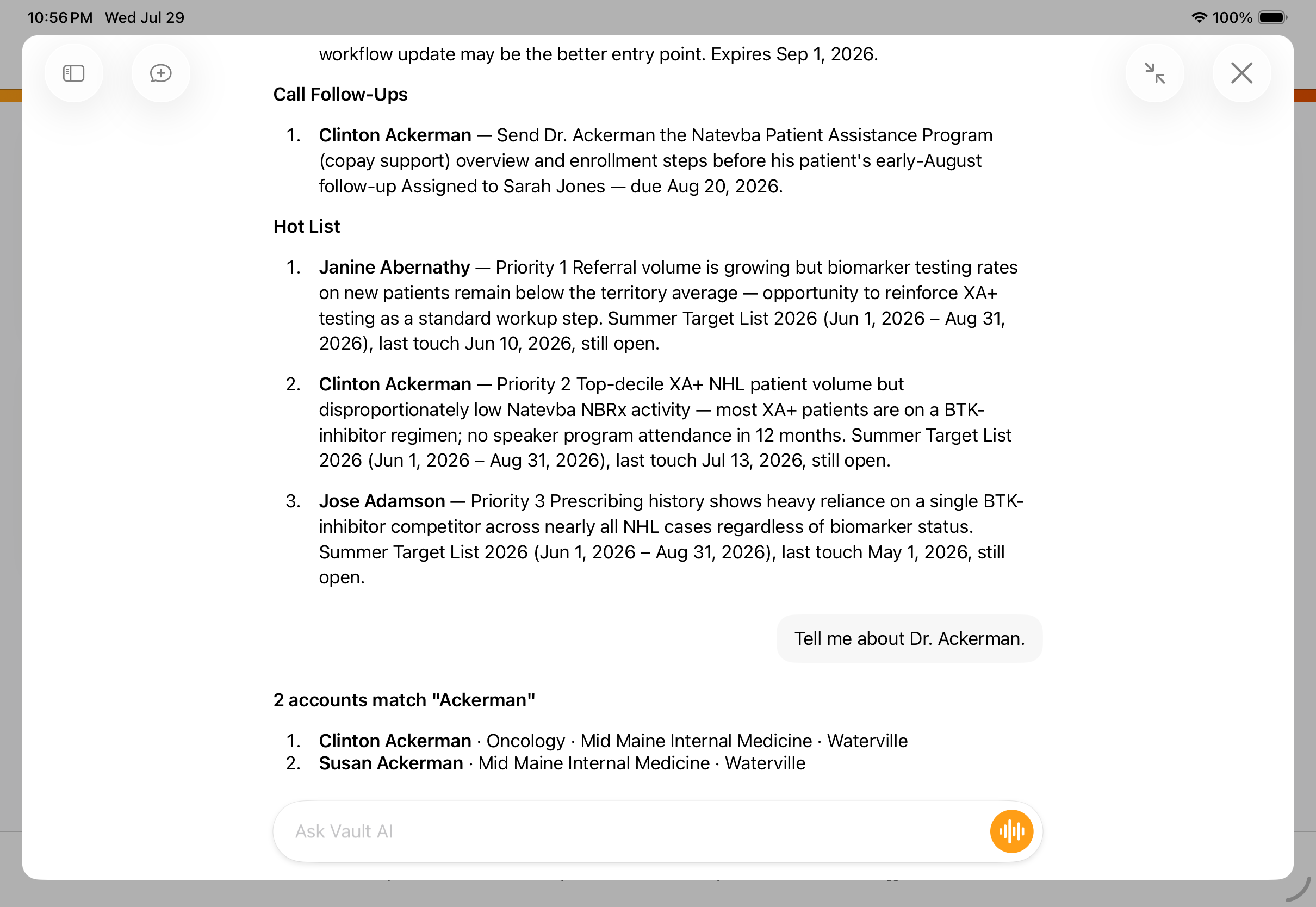
If there are more than five results, the agent informs the end user that more results exist and prompts for more specific criteria.
Preparing for HCP Interactions with Briefings as
End Users
With daily priorities and target accounts identified, end users can begin planning their interactions with accounts. Conversational AI provides useful briefings on the account and their interaction history to help users prepare for the interaction, as well as specific activity details allowing users to dive deeper into account history and potential next steps for more granular interaction planning.
Call Briefings
When users ask to be briefed on an HCP, or for help planning a visit to an account (for example, “Help me plan for a call with Dr. Ackerman”, "Debrief me for this account", "What's the one thing I need to land with him for my upcoming meeting?"), the agent searches across call history,
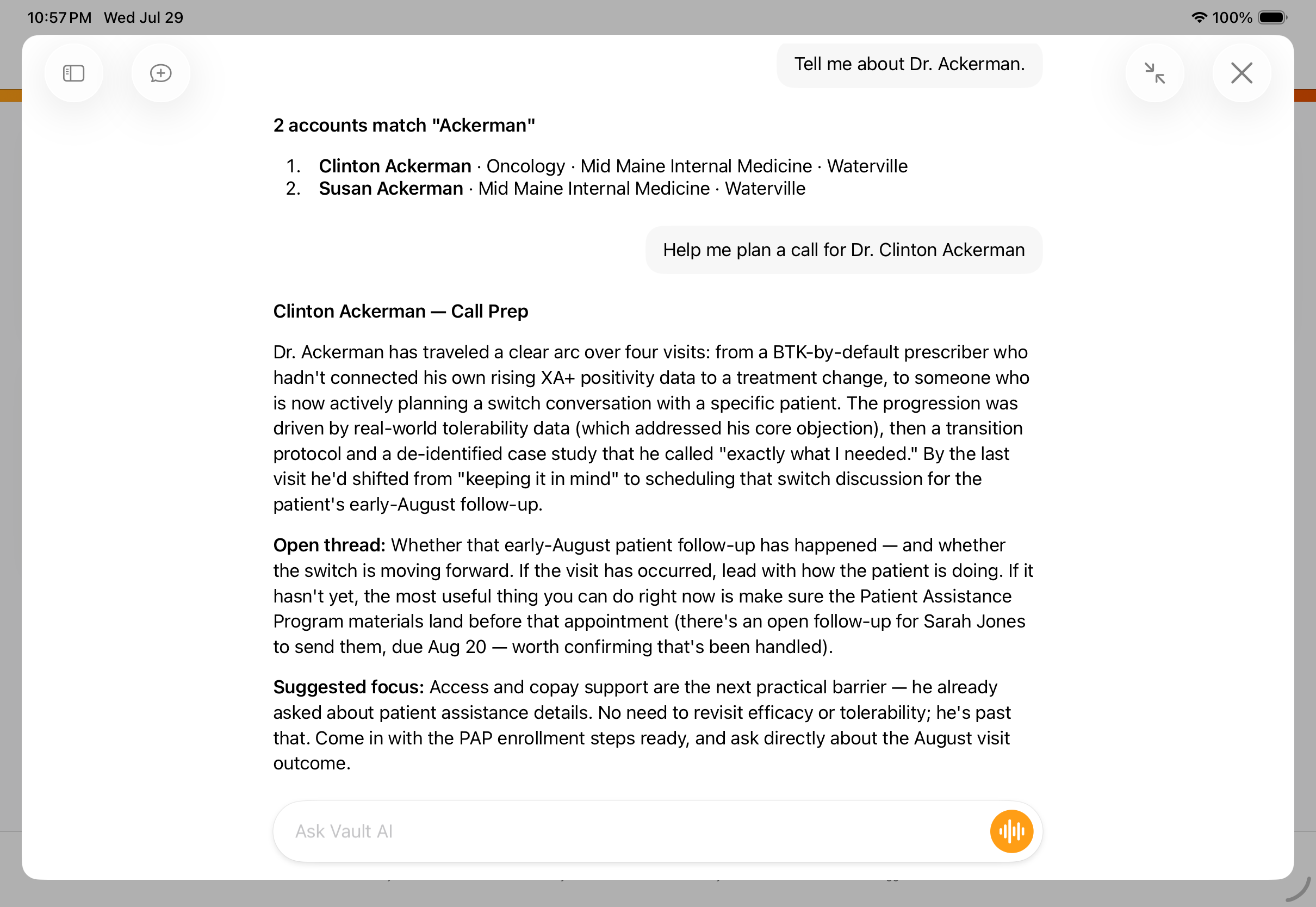
Account and Activity Details
In addition to reviewing the call briefing and suggested next actions, users can further explore an account’s specific history by generating comprehensive briefings on the account and their past interactions. Enter a request regarding an identified professional to view a consolidated breakdown of their information from across Vault CRM in a single structured response.
For example, users can ask about the following:
- Account Overview & Profiling:
- "Show me the details for this account."
- "What specialty is Dr. Martinez listed under?"
- "What credentials are on file for this account?"
- "What city is this account located in?"
- "Who is the primary parent account for this physician?"
- Commercial Insights:
- “What insights have I captured with Clinton Ackerman?”
- “What are my team's recent observations about this account?”
- “Show me my recent insights about Natevba.”
- Interactions:
- Call History: "Show me the recent call history for this account.", "What were my last calls with this HCP?", "What notes did I leave after my last visit with Dr. Chen?"
- Sent Email: "Have I sent any emails to this account recently?", "Did this HCP open the last email I sent?","What approved email templates have been used with this account?"
- Multichannel Cycle Plan Performance & Planning:
- "How is this account performing against my cycle plan?"
- "Am I on track with my product goals for this HCP this cycle?"
- "What is the channel attainment status for this account?"
- "When does the current cycle plan end for this account?"
- "What is my team's channel status for this HCP?"
- "Is there an active cycle plan assigned to me that includes this account?"
- Hot Lists:
- "Show me my target list."
- "Who are my top priority accounts right now?"
- "What accounts on my target list are still open?"
- Next Steps:
- Suggestions: "Do I have any suggestions for this account?", "Are there any urgent suggestions to act on before my call?", "Which suggestions for this account are expiring soon?"
- Call Objectives: "What call objectives do I have open for this account?", "Are there any objectives to complete before my next visit?", "Which products have open objectives on this account?"
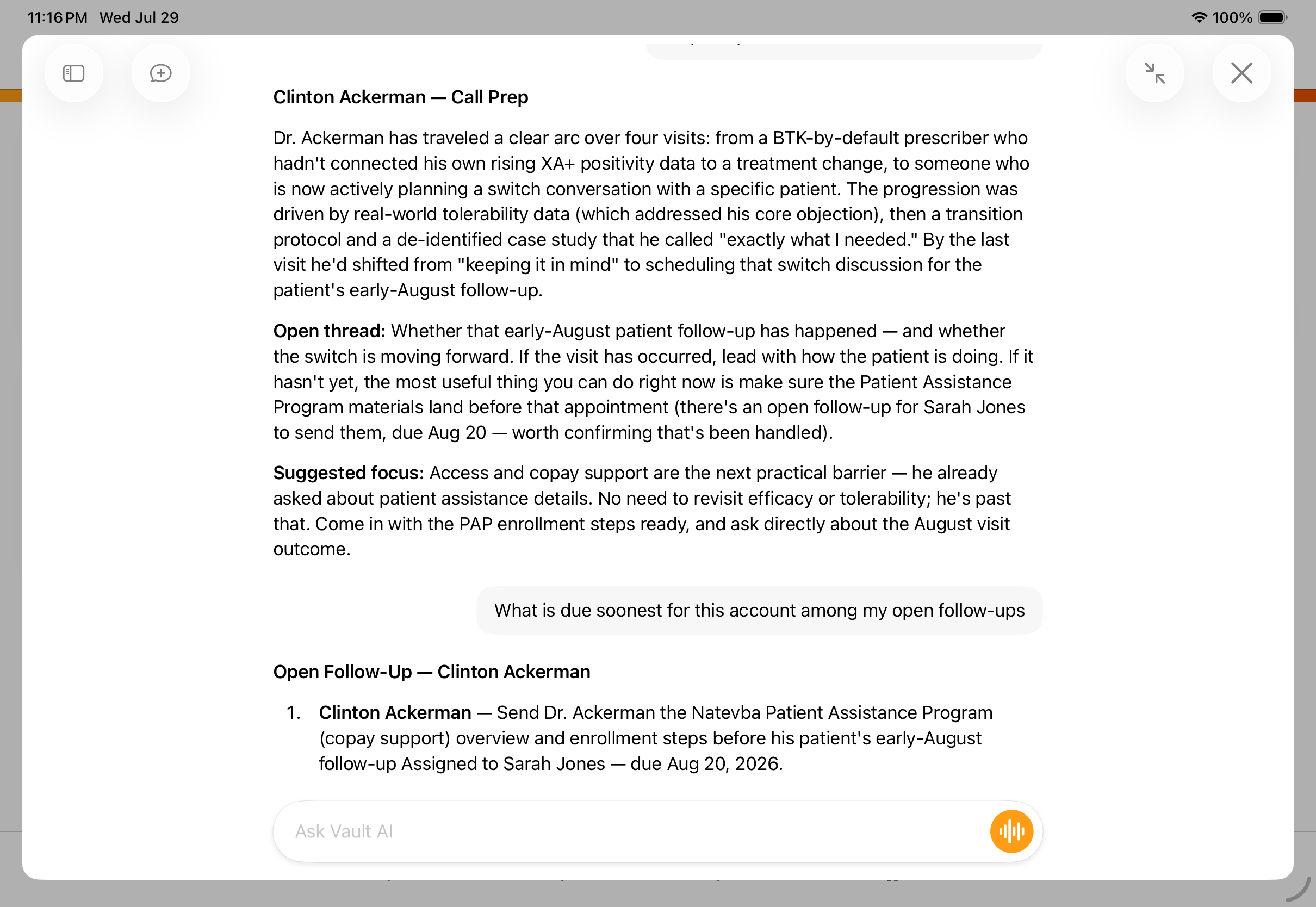
- Call Follow-ups: "Are there any follow-ups to handle for this account?", "What is due soonest for this account among my open follow-ups?"
The agent extracts core account details and creates a summary briefing containing:
- Account Overview and Profiling - Information about the account
- Call History - Up to five recent calls owned by the user (planned or future calls not included)
- Commercial Insights - Up to five recent Commercial Insights owned by the user
- Sent Email - Information about the last five approved emails sent to that account
- Multichannel Cycle Plans - Active cycle plan target information for the plan assigned to the user's territory
- Call Objectives - Open Call Objectives assigned to the user
- Call Follow-up Activities - Up to three active call follow-up activities assigned to the user, with an upcoming due date or a due date within the past ten days
- Suggestions - Up to three open Suggestions
After reviewing the high-level briefings, end users can continue to drill down into specific sub-categories by asking further questions.
Identifying Supporting Content with Agentic Media as
End Users
When Agentic Media is enabled and end users ask technical or product questions found in CLM content, Conversational AI leverages Agentic Media to deliver a factual answer based directly on the My Setup Products and CLM content assigned to the end user.
For more on how Agentic Media searches CLM content, see Finding Product Information with Agentic Media.
Agentic Media in Conversational AI (Early Adopter) supports CLM as Object Model content only. CLM as Document Model content is available from the Media AI tab.
Documenting Interactions with Agentic Call Report™ as
End Users
After preparing for their visit with the HCP and gathering all relevant information, end users can seamlessly transition into documenting the interaction via Agentic Call Report™.
Simply state an intent to create or log a call for a specific professional. Conversational AI identifies the right account (or prompts the user if the account is not clear), confirms the request, and opens a Call Voice Note for the user to start dictating the details of their interaction.
Example requests include:
- "I want to create a call with Dr. Ackerman."
- "Log a call for this account."
- "Start a call report for Newton Memorial Hospital."
- "Help me record what just happened in my visit."
After dictating the details of their interaction, users can transform their dictated notes into an Agentic Call Report pre-populated with relevant information from their notes. For more information, see Agentic Call Report™.
Creating a new Agentic Call Report is not available when you are actively creating or editing a call report, or when displaying CLM from a call report.
Managing Conversation History as
End Users
Conversational AI stores chat history and maintains context from previous interactions within a single session. To manage and review past interactions within the session:
- Select a conversation from the Recent list in the sidebar to reopen the conversation thread and continue where you left off.
- Select the New Chat action (located in the collapsible sidebar or top tray) to clear the current text area and begin a fresh conversation.