Agentic Home Screen
Agentic Home Screen enables users to launch conversations with AI agents and initiate AI-enabled media searches directly from their Vault CRM home screen. This provides an intuitive conversational entry point for key AI functionality, reducing friction and accelerating AI-enabled workflows.
Who can use this feature?
- End Users
- Using Agentic Home Screen with Conversational AI (Early Adopter) - iPad, iPhone
- Using Agentic Home Screen with Agentic Media - iPad
- A Vault AI license is required
Configuring Agentic Home Screen for
 End Users
To configure this feature:
- Ensure Configuring Vault AI in CRM is complete.
-
Enable one or both of the following:
- Conversational AI (Early Adopter) - Delivers an AI-forward interface for end users to research, prepare for, and document their interactions with HCPs through natural language text or two-way voice conversations with an AI agent
- Agentic Media - Uses agentic AI to help users quickly find information about products and access relevant CLM content for HCP interactions (iPad-only)
To disable the Agentic Home Screen when Agentic Media is configured, set the disable_homepage_ai_widget__v Veeva Setting to Media Agent (media_agent__v).
Using Agentic Home Screen with Conversational AI (Early Adopter) as
End Users
When Conversational AI (Early Adopter) is enabled, users can easily access agentic AI through natural language text or two-way voice conversations. If Agentic Media is enabled along with Conversational AI, Agentic Media is automatically leveraged within Conversational AI when answering user requests about technical or product information found in the user’s library of approved CLM content.
Agentic Media in Conversational AI (Early Adopter) supports CLM as Object Model content only. CLM as Document Model content is available from the Media AI tab.
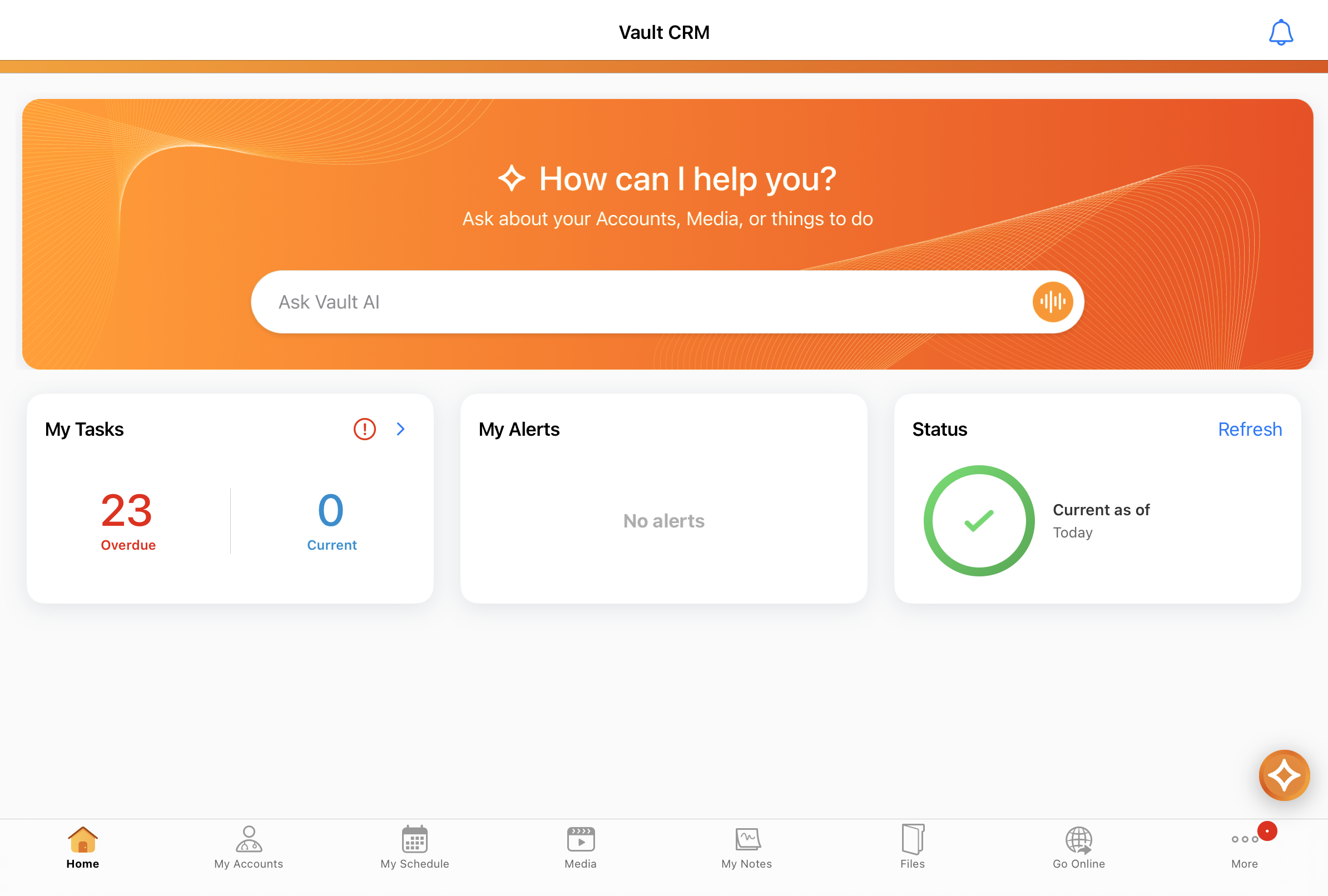
Text Mode
To communicate with the agent using text:
-
Type your request directly into the input box at the bottom of the window.
-
Select the blue Send icon that replaces the wavelength icon once text entry begins.
Conversational AI responds in a chat interface. Review the response. The agent typically provides at least one follow-up question after its response. If you switch to another conversation while waiting, an orange circle displays next to the original conversation name to signal that the answer is ready.
Voice Mode
To communicate with the agent using two-way voice:
- Select the Voice Mode (wavelength) icon to the right of the input box.
- Speak your request clearly once the listening status displays.
The agent responds to your prompt when you finish speaking. Listen to the natural, conversational AI-generated audio response and ask follow-up questions as needed. The agent typically provides at least one follow-up question after its response.
The following options are available during a voice session:
- Mute input - To mute your input during a voice session, select the microphone icon. The agent continues speaking its response if one is in progress.
- Exit voice mode - To exit voice mode and return to text mode, select the X icon. The text transcript of your voice interaction remains preserved, and you can continue the conversation via text mode.
Supported Languages
To receive text and voice responses in a specific language, provide your input in that language. The agent responds in the language of your input rather than your logged-in language. All Vault CRM Supported Languages are recognized.
Internet Connectivity
AI agents in Vault CRM require an active internet connection. If the user does not have an active internet connection, they cannot send requests. If text is already entered in the Agentic Home Screen widget before the device goes offline, a warning displays and the text is retained in the input box.
Using Agentic Home Screen with Agentic Media as
End Users
When Conversational AI is not enabled, but Agentic Media is, iPad users can interact with the AI using text inputs. A content-focused message displays on the Agentic Home Screen widget to guide users in asking questions about CLM content.
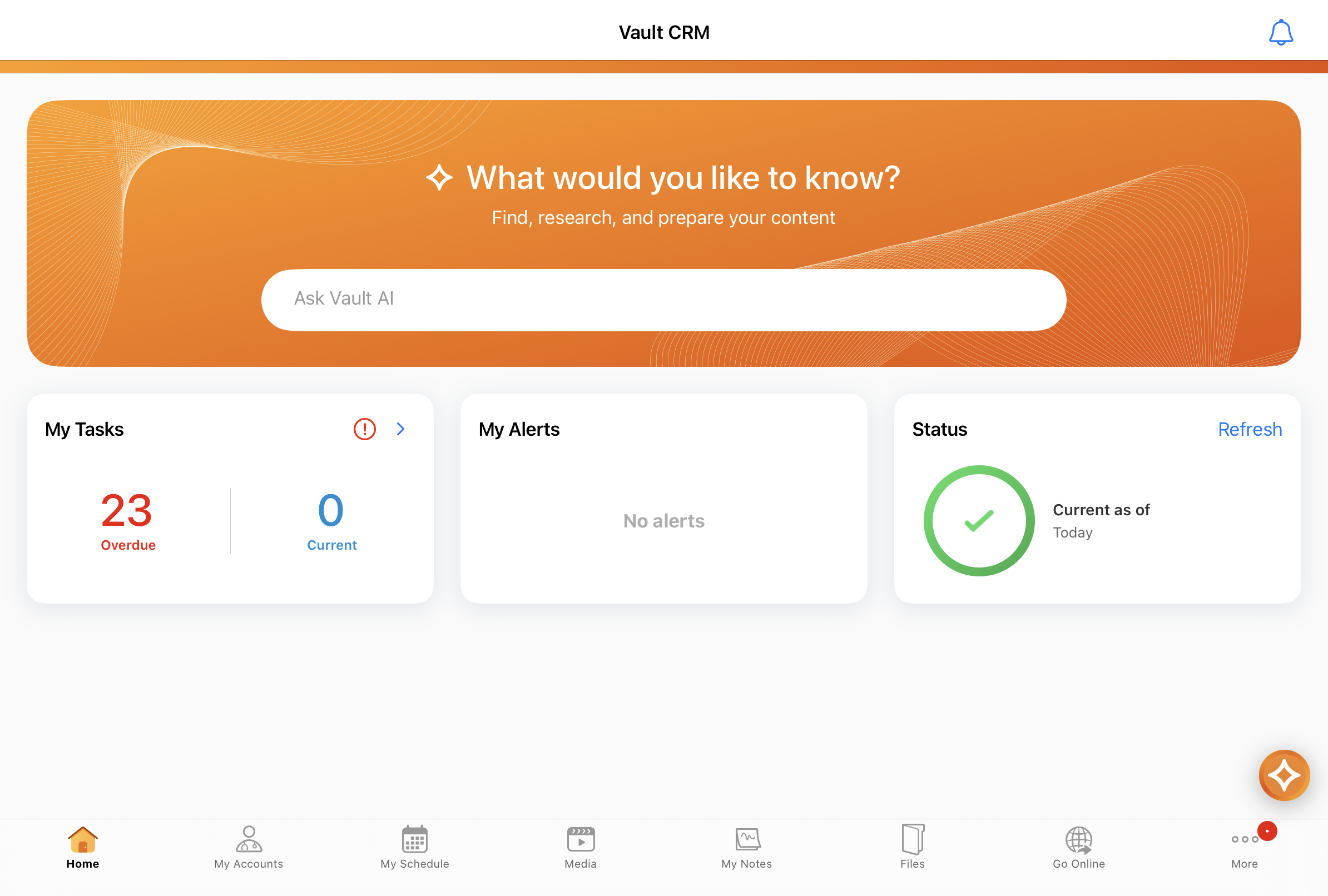
To interact with Agentic Media (text only):
- Select the text input box on the widget.
- Enter text.
- Select Enter on the device keyboard, or select the Send icon on the input box that displays once text entry begins.
To assist with content preparation, the agent’s response opens in the floating AI chat interface at the bottom right of the screen. Only eligible content in the user’s media library is searched; for details on which types of material are searched and how responses are returned, see Finding Product Information with Agentic Media.
Internet Connectivity
AI agents in Vault CRM require an active internet connection. If the user does not have an active internet connection, they cannot send requests. If text is already entered in the Agentic Home Screen widget before the device goes offline, a warning displays and the text is retained in the input box.

