Configuring Agentic Text Monitoring for Home Office
Configuring Agentic Text Monitoring for Home Office for
 Compliance Administrators
To configure this agent:
- Ensure Configuring Vault AI in CRM is complete.
- Navigate to Admin > Users & Groups > Permission Sets.
- Select the appropriate permission set.
- Select the Agents tab.
- Select the Execute checkbox for the Text Monitoring for Home Office Agent (text_monitoring_for_home_office_agent__v).
- Select the Objects tab.
- Grant the following permissions:
Object
Object Permission
Object Types
Fields
Field Permission
agent_rule__v
CRE
text_monitoring_agent_rule__v
- acceptable_example__v
- applicable_countries__v
- applicable_fields__v
- applicable_user_types__v
- display_order__v
- instruction__v
- name__v
- unacceptable_example__v
Edit
monitored_text__v
CRE
- agent_monitored_text__v
- agent_flagged_phrase__v
- issues_found__v
- reviewer_determination__v
- reviewer_notes__v
Edit
- agent_flagged_phrase__v
- agent_reasoning__v
- agent_rule__v
- agent_rule_instruction__v
- application_profile__v
- assignee__v
- category__v
- complete_agent_request__v
- complete_agent_response__v
- country__v
- created_by__v
- created_date__v
- detail_group__v
- external_id__v
- flagged_phrase__v
- global_id__sys
- id
- is_parent__v
- feedback__v
- job_id__v
- modified_by__v
- modified_date__v
- legacy_crm_id__v
- lifecycle__v
- stage__sys
- state__v
- state_stage_id__sys
- link__sys
- vault_id_link__v
- monitored_date__v
- monitored_field__v
- monitored_object__v
- name__v
- monitored_text_status__v
- object_type__v
- monitoring_rule_name__v
- ownerid__v
- parent_monitored_text__v
- product__v
- security_profile__v
- status__v
- text__v
- text_created_by__v
- text_last_modified_by__v
- text_last_modified_date__v
- text_owner__v
- user_profile__v
- user_type__v
- vault_id__v
Read - Grant Edit access to the flagged_text__v field on the appropriate objects (enables flagging monitored text for records on the object):
- Account Plan (account_plan__v)
- Action Item (action_item__v)
- Call Report (call2__v)
- Call Discussion (call2_discussion__v)
- Call Follow-Up Task (call_followup_task__v)
- Call Objective (call_objective__v)
- Commercial Insights (commercial_insights__v)
- Expense (expense__v)
- Goal (goal__v)
- Medical Discussion (medical_discussion__v)
- Medical Insights (medical_insight__v)
- SWOT(swot__v)
- Navigate to Admin > Configuration > Objects > ai_settings__v.
- Select the Layouts tab.
- Place the home_office_text_monitoring__v field on the appropriate layouts.
Creating Agent Rule Layouts
To customize the information displayed to compliance admins, create layouts for agent rules:
- Navigate to Admin > Configuration > Objects > agent_rule__v.
- Select the Layouts tab.
- Create a layout for the text_monitoring_agent_rule__v object type.
- Place the appropriate fields on the layout, in the desired order:
- acceptable_example__v
- applicable_countries__v
- applicable_fields__v
- applicable_user_types__v
- display_order__v
- instruction__v
- name__v
- unacceptable_example__v
Compliance Monitors
To configure this agent:
- Ensure Configuring Vault AI in CRM is complete.
- Navigate to Admin > Users & Groups > Permission Sets.
- Select the appropriate permission set.
- Select the Agents tab.
- Select the Execute checkbox for the Text Monitoring for Home Office Agent (text_monitoring_for_home_office_agent__v).
- Select the Objects tab.
- Grant the following permissions:
Object
Object Permission
Object Types
Fields
Field Permission
monitored_text__v
CRE
- agent_monitored_text__v
- agent_flagged_phrase__v
- issues_found__v
- reviewer_determination__v
- reviewer_notes__v
Edit
- agent_flagged_phrase__v
- agent_reasoning__v
- agent_rule__v
- agent_rule_instruction__v
- application_profile__v
- assignee__v
- category__v
- complete_agent_request__v
- complete_agent_response__v
- country__v
- created_by__v
- created_date__v
- detail_group__v
- external_id__v
- flagged_phrase__v
- global_id__sys
- id
- is_parent__v
- feedback__v
- job_id__v
- modified_by__v
- modified_date__v
- legacy_crm_id__v
- lifecycle__v
- stage__sys
- state__v
- state_stage_id__sys
- link__sys
- vault_id_link__v
- monitored_date__v
- monitored_field__v
- monitored_object__v
- name__v
- monitored_text_status__v
- object_type__v
- monitoring_rule_name__v
- ownerid__v
- parent_monitored_text__v
- product__v
- security_profile__v
- status__v
- text__v
- text_created_by__v
- text_last_modified_by__v
- text_last_modified_date__v
- text_owner__v
- user_profile__v
- user_type__v
- vault_id__v
Read - Grant Edit access to the flagged_text__v field on the appropriate objects (enables flagging monitored text for records on the object):
- Account Plan (account_plan__v)
- Action Item (action_item__v)
- Call Report (call2__v)
- Call Discussion (call2_discussion__v)
- Call Follow-Up Task (call_followup_task__v)
- Call Objective (call_objective__v)
- Commercial Insights (commercial_insights__v)
- Expense (expense__v)
- Goal (goal__v)
- Medical Discussion (medical_discussion__v)
- Medical Insights (medical_insight__v)
- SWOT(swot__v)
Creating Monitored Text Layouts
To customize the information displayed to compliance monitors, create layouts for Agent Monitored Text and Agent Flagged Phrase object types.
Agent Monitored Text
To create this layout:
- Navigate to Admin > Configuration > Objects > monitored_text__v.
- Select the Layouts tab.
- Create a new layout for the agent_monitored_text__v object type.
-
Create the following Detail Form sections:
- Review Assignment (two-column layout)
- Monitored Record Details (two-column layout)
- Agent Request and Response (two-column layout)
- Workflow Timeline, if not already on the layout (one-column layout)
- Create a Related Object section for Agent Flagged Phrase (s).
-
Include the following columns in the Agent Flagged Phrase (s) section:
- Monitored Text Name (name__v)
- Agent Rule (agent_rule__v)
- Agent Reasoning (agent_reasoning__v)
- Text (text__v)
- Reviewer Determination (reviewer_determination__v)
-
Place the following fields in the Detail Form sections:
- Review Assignment:
- ID (id)
- Created By (created_by__v)
- Created Date (created_date__v)
- Last Modified By (modified_by__v)
- Last Modified Date (modified_date__v)
- Assignee (assignee__v)
- Issues Found (issues_found__v)
- Status (status__v)
- Lifecycle (lifecycle__v)
- Lifecycle Stage (stage__sys)
- Lifecycle State (state__v)
- Owner (ownerid__v)
- Monitored Record Details:
- Link to Flagged Record (vault_id_link__v)
- Monitored Date (monitored_date__v)
- Monitored Object (monitored_object__v)
- Monitored Field (monitored_field__v)
- Text Owner (text_owner__v)
- Text Last Modified Date (text_last_modified_date__v)
- User Country (country__v)
- User Profile (user_profile__v)
- User Type (user_type__v)
- Agent Request and Response:
- Complete Agent Request (complete_agent_request__v)
- Complete Agent Response (complete_agent_response__v)
Fields do not need to be placed in the Workflow Timeline section.
-
Select Save.
Agent Flagged Phrase
To create this layout:
- Navigate to Admin > Configuration > Objects > monitored_text__v.
- Select the Layouts tab.
- Create a new layout for the agent_flagged_phrase__v object type.
-
Create the following Detail Form sections:
- Flagged Phrase (two-column layout)
- Agent Rule (two-column layout)
- Review (two-column layout)
- Workflow Timeline, if not already on the layout (one-column layout)
-
Place the following fields in the Detail Form sections:
- Flagged Phrase:
- Parent Monitored Text (parent_monitored_text__v)
- Text (text__v)
- Flagged Phrase (flagged_phrase__v)
- Text Owner (text_owner__v)
- Text Created By (text_created_by__v)
- Text Last Modified By (text_last_modified_by__v)
- Text Last Modified Date (text_last_modified_date__v)
- Agent Rule:
- Agent Flagged Phrase (agent_flagged_phrase__v)
- Agent Rule (agent_rule__v)
- Agent Rule Instruction (agent_rule_instruction__v)
- Agent Reasoning (agent_reasoning__v)
- Review:
- Reviewer Determination (reviewer_determination__v)
- Reviewer Notes (reviewer_notes__v)
Fields do not need to be placed in the Workflow Timeline section.
Creating an Agent Monitored Text Tab
To provide a dedicated tab for compliance monitors to access Agent Monitored Text records:
- Navigate to Admin > Configuration > Tabs.
- Select Create.
-
Populate the following fields:
- Tab Type - Object
- Object - monitored_text__v
- Object Type - agent_monitored_text__v
- Select Save.
- Navigate to Admin > Users and Groups > Permission Sets.
- Select the appropriate permission set.
- Select the Tabs tab.
- Grant View permission to the newly created tab.
Creating a Monitored Text Workflow
Admins can create custom lifecycles and workflows on the Monitored Text object to reflect their organization’s compliance monitoring processes. These lifecycles and workflows vary depending on the organization. For more information, see Lifecycles & Workflows on the Vault platform help site.
When building a custom lifecycle and workflow on the Monitored Text object, ensure it works for all functionality relying on this object: Agentic Text Monitoring, Agentic Text Monitoring for Home Office
End Users
To configure this agent:
- Ensure Configuring Vault AI in CRM is complete.
- Navigate to Admin > Users & Groups > Permission Sets.
- Select the appropriate permission set.
- Select the Agents tab.
- Select the Execute checkbox for the Text Monitoring for Home Office Agent (text_monitoring_for_home_office_agent__v).
- Navigate to Business Admin > Objects > AI Settings.
- Select the home_office_text_monitoring__v AI setting to On Submit, to enable the feature for the applicable users. These are the users whose submitted records will be monitored by the agent.
- Activate the Text Monitoring for Home Office Agent:
- Navigate to Admin > Configuration > Vault AI Setup > Agents
- Select the Text Monitoring for Home Office Agent (text_monitoring_for_home_office_agent__v)
- Select Edit
- Select Active in the Status picklist
- Select Save
- Expand the Actions section
- Verify the appropriate agent actions are Active for the agent:
- Home Office Text Monitoring - Apply Agent Rules for Home Office Text Monitoring
Creating Custom Rules as
Compliance Administrators
Admins create Agent Rule records to determine how records are reviewed for home office monitoring. Admins must create their own custom rules via Agent Rule records and ensure that they are updated as needed.
At least one active custom rule is required to use Text Monitoring for Home Office.
To create custom rules:
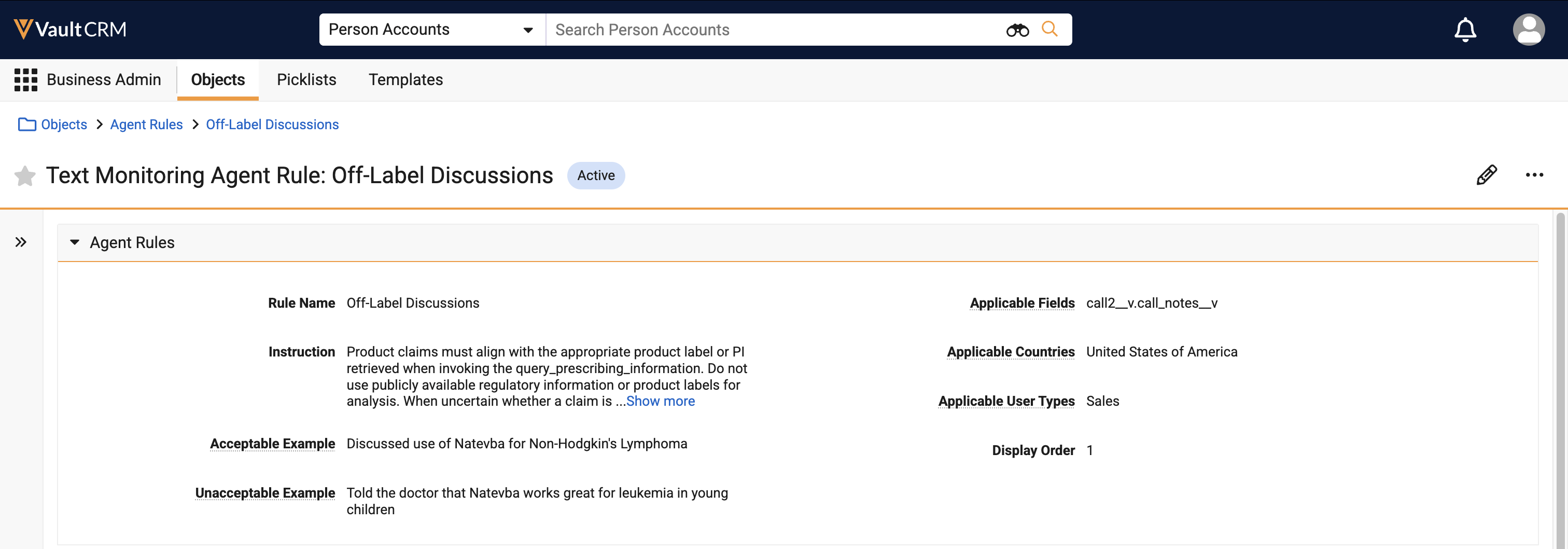
- Navigate to Business Admin > Objects > Agent Rules.
- Copy an existing rule, or create a new one. The object type must be Agentic Text Monitoring Rule.
- Populate the following fields:
- Rule Name - Name of the custom rule
- Instruction - Text description of the rule and how the agent should apply the rule. The agent can be instructed to call two tools to support monitoring if necessary for the agent’s context. To call a tool, include the API name of the tool in the plain language instruction:
- is_product - This tool retrieves the user’s My Setup Products and allows the agent to determine if a product mentioned in the user’s text corresponds to a Company Detail product. This tool is useful in cases where the agent needs to apply different brand guidance for company products.
- query_prescribing_information - This tool retrieves PI (Prescribing Information) documents from the vector database for the user’s Company Detail products. This tool is useful when the agent needs to perform off-label analysis. See Configuring Agentic Text Monitoring for information on uploading PI documents.
Using the query_prescribing_information tool can increase token consumption and latency due to retrieval and parsing of PI documents.
- Acceptable Example - Example of text acceptable under the rule
- Unacceptable Example - Example of text not acceptable under the rule
- Applicable Fields - Field and object combinations to be monitored, in a semicolon-delimited list using dot notation. For example, to monitor the Call Text field, enter the text: call2__v.call_notes__v. Text fields on the following objects are supported:
- Account Plan (account_plan__v)
- Action Item (action_item__v)
- Call Report (call2__v)
- Call Discussion (call2_discussion__v)
- Call Follow-Up Task (call_followup_task__v)
- Call Objective (call_objective__v)
- Commercial Insights (commercial_insights__v)
- Expense (expense__v)
- Goal (goal__v)
- Medical Discussion (medical_discussion__v)
- Medical Insights (medical_insight__v)
- SWOT(swot__v)
Only fields with data type Text, Rich Text, or Long Text are supported for monitoring.
- Display Order (optional) - Relative order in which rules are evaluated. For example, if there are four rules with display order values of 1, 2, 7, and 1, they are inserted into the prompt in the order of 1, 1, 2, 7. When two rules have the same display order, their order is determined by which rule is returned first.
- Applicable User Types (optional) - User types the rule applies to. For example, Sales. If left blank, the rule applies to all user types.
- Applicable Countries (optional) - Countries where the rule applies. This is matched to the User Country. If left blank, the rule applies to all countries.
- Ensure the record status is Active.
- Select Save.
It may take up to 15 minutes for changes to Agent Rules - including added, deleted, or edited rules - to be reflected in the agent's monitoring results.

