Adding Vault Documents to X-Pages in X-Pages Studio
Content developers can add documents from the Vault library to X-Pages as selectable data elements for quick access to important information. This allows users to reference critical supporting documentation, for example, regulatory guidelines, process guidelines, or checklists, as elements on X-Pages without switching interfaces. For example, a Service Center rep can follow up on an HCP’s question quickly and accurately by referencing the appropriate documentation within the Service Center interface.
Who can use this feature?
- Content Developers - Browser
- Creating Document-Enabled X-Pages
- End Users - Browser
- Using Document-Enabled X-Pages
- Users do not require an additional license
Configuring Adding Vault Documents to X-Pages for
 Content Developers
To configure this feature:
- Ensure Configuring X-Pages is complete.
- Ensure Configuring X-Pages Studio is complete.
- Navigate to Admin > Users & Groups > Permission Sets.
- Select the appropriate permission set.
- Select Objects.
-
Grant the following permissions:
Object Object Permission Object Types Fields Field Permission html_report__v R All studio_id__v Read
Creating Document-Enabled X-Pages in X-Pages Studio as
Content Developers
In X-Pages Studio, content developers can create interactive X-Pages with document data elements, document lists, and click-to-open links.
To create document-enabled X-Pages in X-Pages Studio:
- Sign into X-Pages Studio.
- Select or create a new Page.
- Add the Documents data element:
- Navigate to the appropriate X-Page’s Data tab
- Select Add Data > Documents to open the Get Documents modal
- Populate the Get Document modal’s fields:
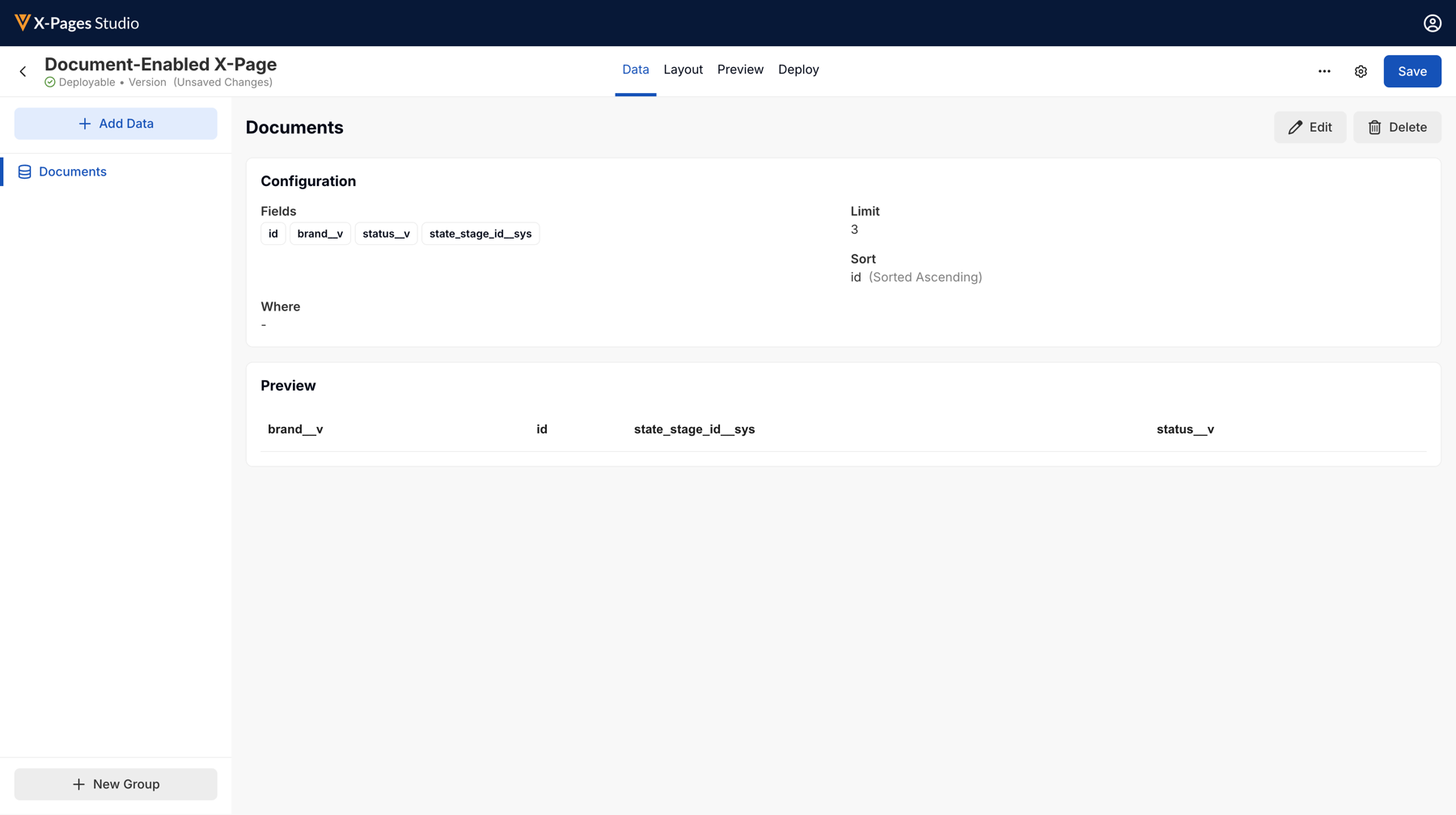
- Fields - Select the searchable metadata fields that display on the X-Page, for example, Name, Title, or Document Number
- Where - Optionally, filter displayed documents via a Where clause
To retrieve only binders, use the clause binder__v = true. To retrieve only standalone documents, use the clause binder__v = false.
- Limit - Optionally, specify the maximum number of returned documents
- Sort - Optionally, set the display order
- Select Save.
- Add the Documents List display element:
- Navigate to the Layouts tab
- Drag-and-drop the Documents display element onto the canvas
- Select the Documents display element to open the Add Documents modal
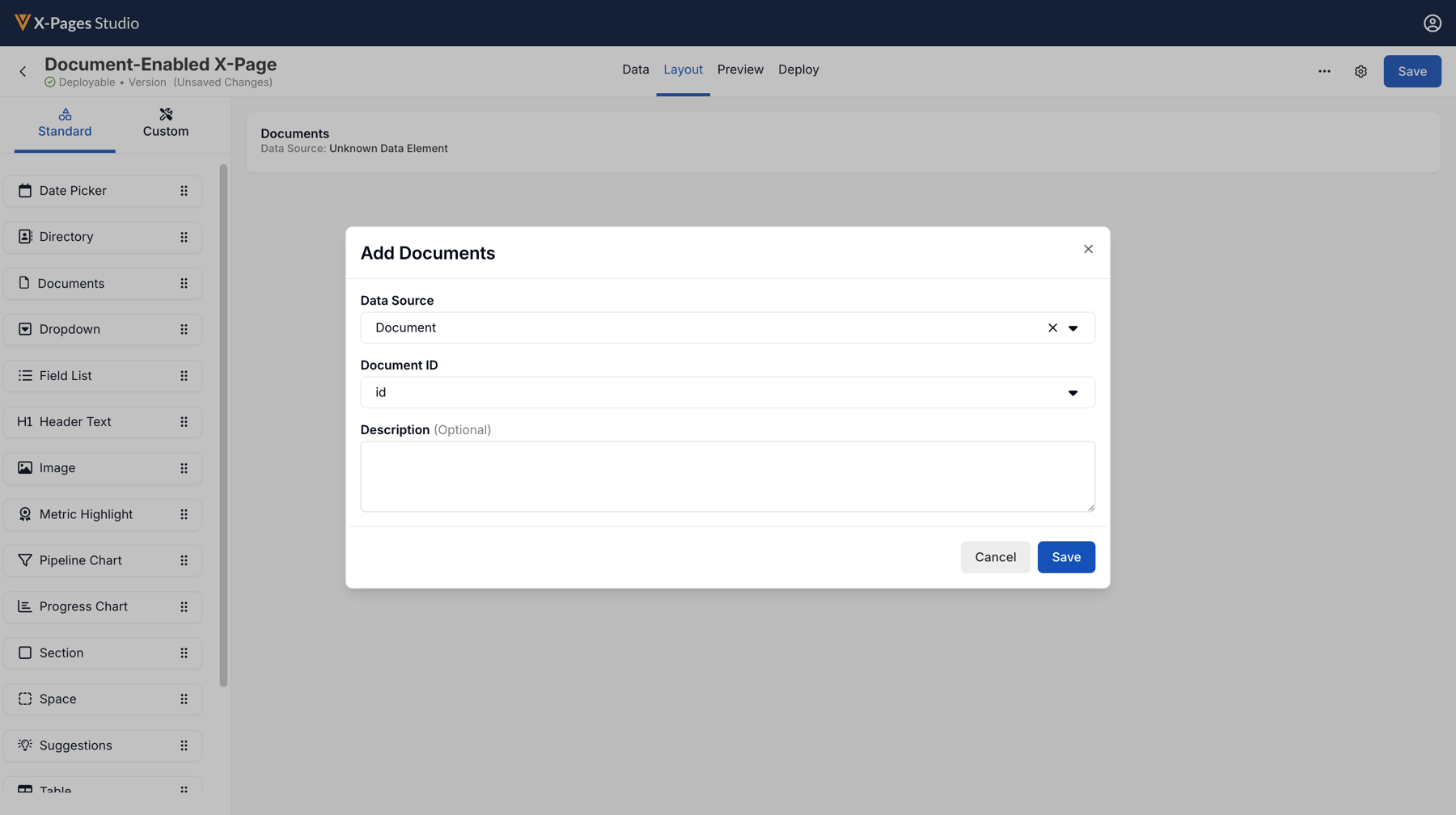
- Data Source - Select the appropriate Documents data element
- Documents ID - Enter the appropriate Document ID
- Description - Optionally, enter a description for additional context
- Select Save.
- Navigate to the Preview tab to preview the layout.
- Save the X-Page or continue to the Deploy tab to publish the X-Page. See Deploying Pages to Vault CRM Using X-Pages Studio for more information.
Adding an Interactive Click-to-Open Document
Text elements on an X-Page, for example, detail fields or metric highlights, can be configured to open a Vault document when selected. This is only available to content types that support Deep Linking. See Using Deep Linking in X-Pages for more information.
To add an interactive click-to-open document:
- Sign into X-Pages Studio.
- Select the appropriate X-Pages.
- Navigate to the Layout tab.
- Drag-and-drop supported Documents display elements onto the canvas.
- Select the element’s View Actions > Open Document.
- Populate the Document ID field.
- Select Save.
Using Document-Enabled X-Pages as
End Users
Documents are organized in the Documents section on the X-Page, based on the Documents List display element. Select a document to display it in the Vault document viewer.

