Detailing Priority in Territory Feedback
End Users can review and adjust product detailing priority for their products within Territory Feedback to ensure that only products detailed in the correct order count toward their goal attainment.
Within Align, Align Operational Users establish default detail priority preferences and feedback controls to guide the end user and streamline review and handling of feedback changes.
Who can use this feature?
- Align Operational Users - Browser
- Defining Detailing Priority
- End Users - iPad
- Using Detailing Priority in Territory Feedback
- Users require an Align License
Configuring Detailing Priority for
 Align Operational Users
To configure this feature:
-
Ensure the following features are configured:
- Navigate to Admin > Users & Groups > Permission Sets.
- Select the appropriate permission set.
- Select the Objects tab.
-
Grant the following permissions:
Object
Object Permission
Object Types
Fields
Field Permission
mc_cycle_plan_product__v
RE
All applicable object types
- aln_detail_priority_feedback_value__v
- aln_detail_priority_feedback__v
Edit
mc_cycle_product
RE
All applicable object types
- aln_default_detail_priority__v
- aln_default_detail_priority_feedback__v
Edit
End Users
To configure this feature, ensure Configuring Territory Feedback is complete.
Defining Detailing Priority as
Align Operational Users
Align Operational Users can define default detail priority preferences and feedback controls on cycle products that apply in the scenario when an Add as Target challenge is made:
- Edit the appropriate MC Cycle Plan record.
-
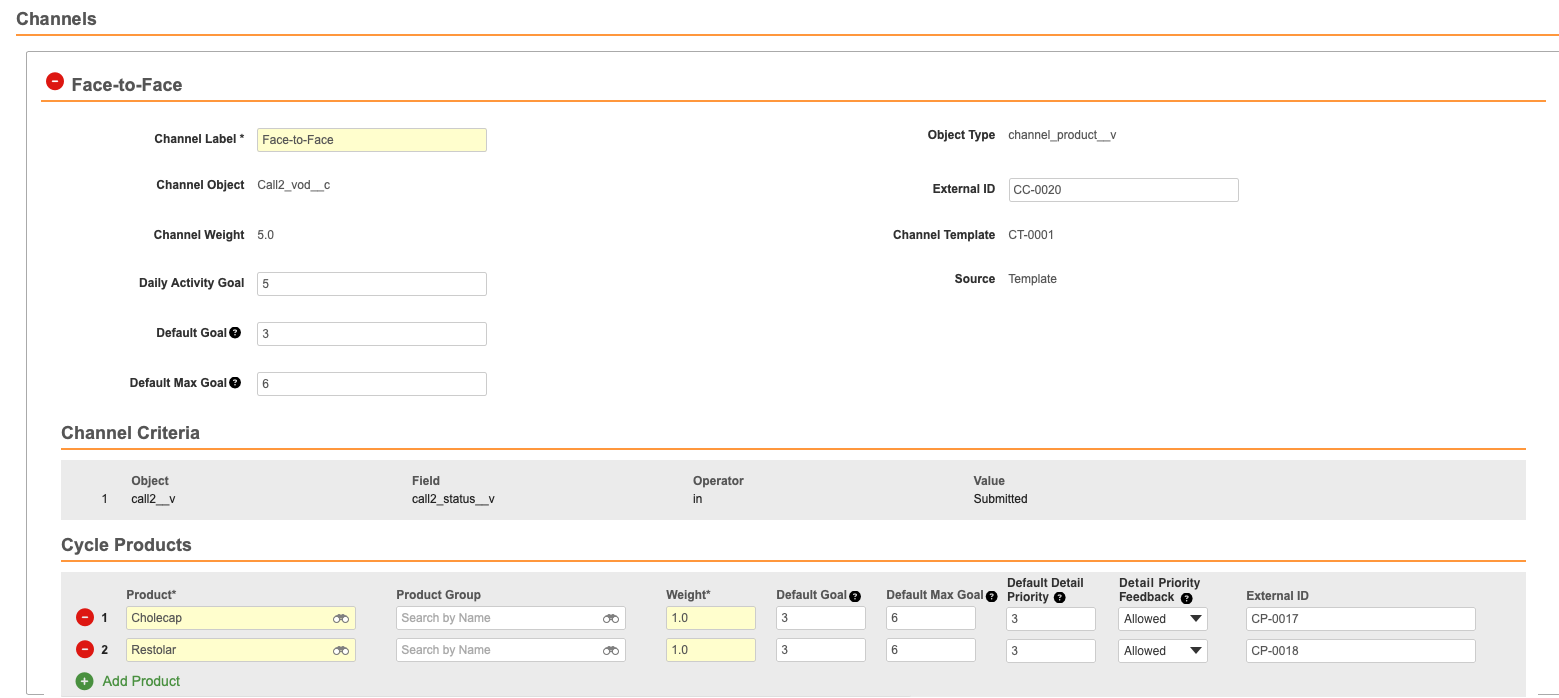
Navigate to the Cycle Products section.
-
Populate the following fields for the appropriate products:
- Default Detail Priority – Enter the appropriate priority number. Ensure the number does not exceed the total number of products in the channel.
- Default Detail Priority Feedback – Select the appropriate value:
- Allowed – Enables end users to edit the Detail Priority value for targets they've added themselves
- Not Allowed –The default value. Does not enable end users to edit the Detail Priority value for targets they've added themselves.
- Select Save.
Using Detailing Priority in Territory Feedback as
End Users
To edit Detail Priority on the iPad:
- Open the appropriate Account Profile.
-
Navigate to the Goals and Priority section. Products with editable priorities display with a blue Priority link.
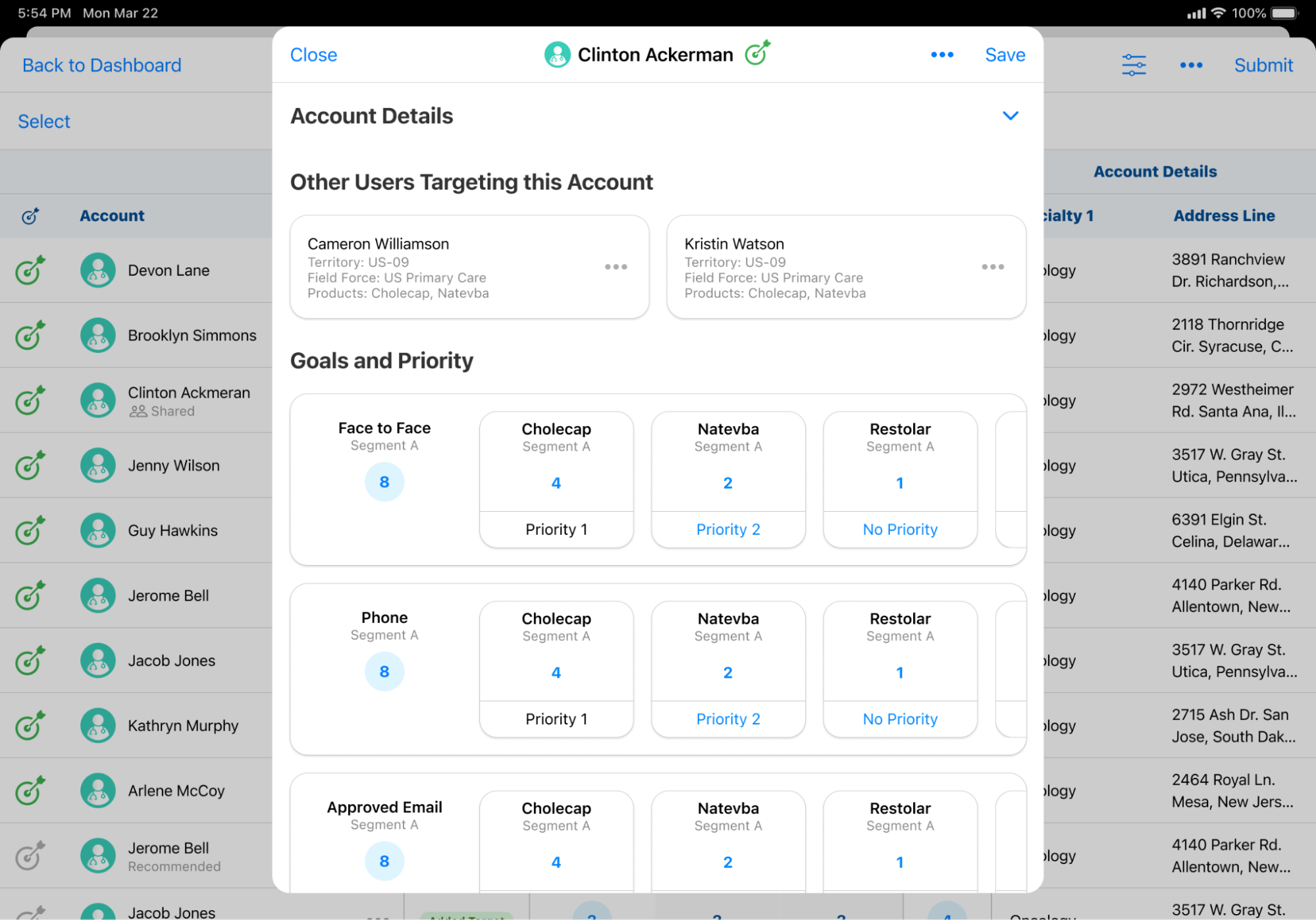
- Select the blue Priority link for the appropriate product.
-
Use the + and - icons to edit the priority appropriately.
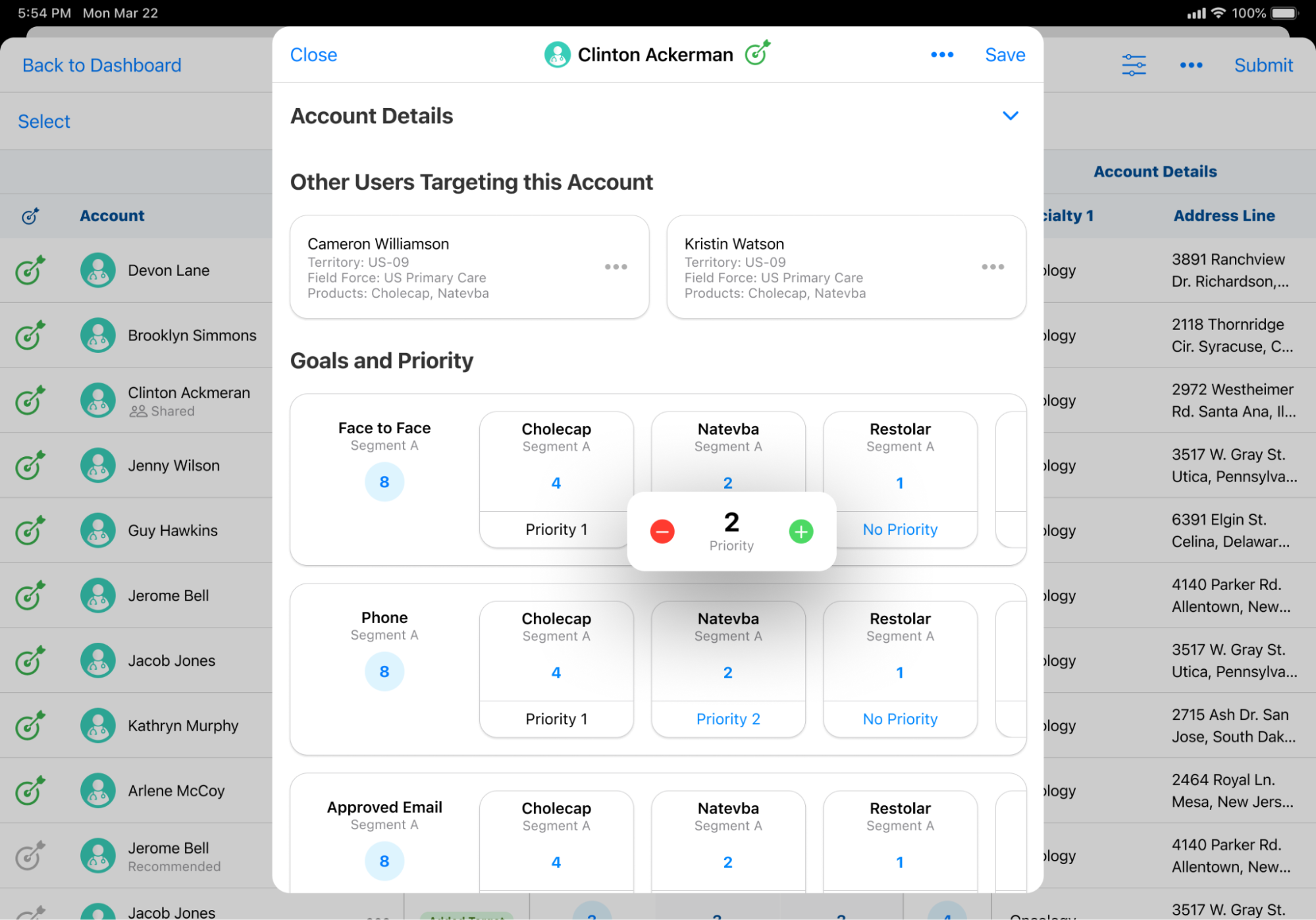
Users can enter the same priority level for multiple products.
- Select away from the Priority popover to update the priority value.
- Select Save. Updates to detailing priorities result in an Edit Goals challenge.
- Select the required reasons for the challenge type from the reason selector.
- Select Done to submit the challenge to Align.
If the challenge is approved, Automated Feedback Handling automatically promotes the feedback value to the actual Detail Priority.

