Business Calendar
Brand Managers and end users can access the centralized Business Calendar to visualize and track sales cycles, campaigns, account plans, and company or industry events. This horizontal timeline view provides a read-only visualization of multiple event types in a single interface to help identify the best timeframes for new campaigns. Business administrators can create a company calendar, facilitating communication of company-defined holidays, industry-level events, and company-specific events.
Who can use this feature?
- Business Admin Users - Browser
- Creating a Company Calendar
- Creating Company Calendar Events
- Brand Managers, End Users - Browser
- Viewing the Business Calendar
- Users do not require an additional license
Configuring Business Calendar for
 All Users
To configure this feature, grant users access to the Business Calendar tab, then configure one or more of the event types to display them on the calendar.
The Business Calendar is blank if no event types are configured.
To configure the Business Calendar tab:
- Navigate to Admin > Users & Groups > Permission Sets.
- Select the appropriate permission set.
- Navigate to the Tabs tab.
- Grant View access to the business_calendar_tab__v tab.
- Navigate to the Pages tab.
- Grant View access to the business_calendar_page__v page.
Configuring Business Calendar Events for
Business Admin Users
Configure one or more business calendar event types to display them on the calendar:
- Account Plans
- Multichannel Cycle Plans
- Campaigns
- Vault CRM Campaigns
- Campaign Manager Campaigns
- Company Calendar Events
To display Account Plans on the Business Calendar:
- Ensure Configuring Account Plans is complete.
- Navigate to Admin > Users & Groups > Permission Sets.
- Select the appropriate permission set.
- Select the Objects tab.
- Grant Edit access to the following fields on the account_plan__v object.
- modified_date__v
- progress__v
For information on creating Account Plan, see Account Plans Overview.
To display Multichannel Cycle Plans in the Business Calendar, ensure Configuring Multichannel Cycle Plans is complete. For information on creating Multichannel Cycle Plans, see Creating Multichannel Cycle Plans
Campaigns come from two sources: Vault CRM Campaigns and Campaign Manager (Suite) Campaigns. Both display on the Business Calendar and use the same product color logic, but they require different object types and fields.
To display Vault CRM Campaigns on the Business Calendar:
- Ensure configuring Vault CRM Campaigns is complete.
- Navigate to Admin > Users & Groups > Permission Sets.
- Select the appropriate permission set.
- Select the Objects tab.
-
Grant the following permissions:
Object Object Permission Object Types Fields Field Permission campaign__v
CRED
-
base__v
-
core_crm_campaign__v
-
name__v
-
campaign_status__v
-
detail_group__v
-
end_date__v
-
product__v
-
modified_date__v
-
start_date__v
Edit
product__v
CRED
N/A
brand_color_code__v
Edit
-
-
Populate the brand_color_code__v field with a hex color code for all appropriate product__v records. This field is optional and defines the color of campaigns for the product in the Business Calendar.
The # character must be included in the entered hex color code.
For information on creating Vault CRM Campaigns, see Vault CRM Campaigns.
To display Campaign Manager Campaigns on the Business Calendar:
- Ensure Configuring Campaign Manager is complete.
- Navigate to Admin > Users & Groups > Permission Sets.
- Select the appropriate permission set.
- Select the Objects tab.
-
Grant the following permissions:
Object Object Permission Object Types Fields Field Permission campaign__v
CRED
suite_campaign__v
-
name__v
-
campaign_status__v
-
description__v
-
end_datetime__v
-
modified_date__v
-
scheduled_activation_datetime__v
-
vcountry__v
Edit
product__v
CRED
N/A
brand_color_code__v
Edit
-
-
Populate the brand_color_code__v field with a hex color code for all appropriate product__v records. This field is optional and defines the color of campaigns for the product in the Business Calendar.
The # character must be included in the entered hex color code.
For information on creating Campaign Manager Campaigns, see Creating Campaigns in Campaign Manager.
Suite Campaigns are validated based on the Scheduled Activation Datetime and End Datetime fields. Records with unpopulated values for these fields may save properly, but not render in the Business Calendar.
To display Company Calendar events in the Business Calendar:
- Navigate to Admin > Users & Groups > Permission Sets.
- Select the appropriate permission set.
- Select the Objects tab.
-
Grant the following permissions:
Object Object Permission Object Types Fields Field Permission calendar__v
CRED
-
base__v
-
event__v
-
holiday__v
-
name__v
-
object_type__v
-
status__v
Edit
calendar_event__v
CRED
-
base__v
-
calendar_event__v
-
calendar__v
-
name__v
-
start_date__v
-
end_date__v
-
description__v
-
modified_date__v
-
important__v
Edit
-
Brand Managers, End Users
Configure one or more business calendar event types to display them on the calendar:
- Account Plans
- Multichannel Cycle Plans
- Campaigns
- Vault CRM Campaigns
- Campaign Manager Campaigns
- Company Calendar Events
To display Account Plans on the Business Calendar:
- Ensure Configuring Account Plans is complete.
- Navigate to Admin > Users & Groups > Permission Sets.
- Select the appropriate permission set.
- Select the Objects tab.
- Grant Read access to the following fields on the account_plan__v object.
- modified_date__v
- progress__v
To display Multichannel Cycle Plans in the Business Calendar, ensure Configuring Multichannel Cycle Plans is complete.
Campaigns come from two sources: Vault CRM Campaigns and Campaign Manager (Suite) Campaigns. Both display on the Business Calendar and use the same product color logic, but they require different object types and fields.
To display Vault CRM Campaigns on the Business Calendar:
- Ensure configuring Vault CRM Campaigns is complete.
- Navigate to Admin > Users & Groups > Permission Sets.
- Select the appropriate permission set.
- Select the Objects tab.
-
Grant the following permissions:
Object Object Permission Object Types Fields Field Permission campaign__v
R
-
base__v
-
core_crm_campaign__v
-
name__v
-
campaign_status__v
-
detail_group__v
-
end_date__v
-
product__v
-
modified_date__v
-
start_date__v
Read
product__v
R
N/A
brand_color_code__v
Read
-
-
Populate the brand_color_code__v field with a hex color code for all appropriate product__v records. This field is optional and defines the color of campaigns for the product in the Business Calendar.
The # character must be included in the entered hex color code.
To display Campaign Manager Campaigns on the Business Calendar:
- Ensure Configuring Campaign Manager is complete.
- Navigate to Admin > Users & Groups > Permission Sets.
- Select the appropriate permission set.
- Select the Objects tab.
-
Grant the following permissions:
Object Object Permission Object Types Fields Field Permission campaign__v
R
suite_campaign__v
-
name__v
-
campaign_status__v
-
description__v
-
end_datetime__v
-
modified_date__v
-
scheduled_activation_datetime__v
-
vcountry__v
Read
product__v
R
N/A
brand_color_code__v
Read
-
-
Populate the brand_color_code__v field with a hex color code for all appropriate product__v records. This field is optional and defines the color of campaigns for the product in the Business Calendar.
The # character must be included in the entered hex color code.
To display Company Calendar events in the Business Calendar:
- Navigate to Admin > Users & Groups > Permission Sets.
- Select the appropriate permission set.
- Select the Objects tab.
-
Grant the following permissions:
Object Object Permission Object Types Fields Field Permission calendar__v
R
-
base__v
-
event__v
-
holiday__v
-
name__v
-
object_type__v
-
status__v
Read
calendar_event__v
R
-
base__v
-
calendar_event__v
-
calendar__v
-
name__v
-
start_date__v
-
end_date__v
-
description__v
-
modified_date__v
-
important__v
Read
-
Creating a Company Calendar as
Business Admin Users
After configuring the Business Calendar, business administrators create a company calendar facilitating communication of company-defined holidays, industry-level events, and company-specific events.
Creating a Company Calendar
To create a company calendar used to share events with end users, create a calendar__v record with the following fields populated:
-
Object Type – The following object types are available:
- event__v – Stores industry and company-level events. Calendar events in event__v type calendars display as light blue events on the Business Calendar.
- holiday__v – Stores company and national-level holidays. Calendar events in holiday__v type calendars display as light green events on the Business Calendar.
- country_code__v – Defines the country the calendar applies to
-
status__v – The following values are available for selection:
- draft__v – Does not display the events associated with this calendar to attendees. This is the recommended value when initially creating calendars.
- active__v – Displays the events associated with this calendar to users
- inactive__v – Inactivates the record. Events do not display to users.
If the system does not find an active calendar__v record, events of any type are not displayed in the Business Calendar.
Creating Company Calendar Events
To create calendar events for company calendars:
- Navigate to Business Admin > Objects > calendar__v.
- Select the appropriate calendar__v record.
- Navigate to the Calendar Events related list.
- Select New.
-
Create a new calendar_event__v record with the following fields populated:
- Name – The name of the event that displays on the Business Calendar
-
start_date__v – The start date of the event
If only a start date or end date is supplied, the record is not valid. Admins must enter both, or leave both fields blank.
- start_time_local__v – The local start time of the event
- end_date__v – The end date of the event
- end_time_local__v – The local end time of the event
- time_zone__v – The time zone of the event
- description__v – The event’s description that displays on the Business Calendar
-
important__v – Selecting this checkbox causes the event’s placement on the Business Calendar to be highlighted with a dotted line signifying the event’s start
Do not designate more than one event starting on the same day as important.
- Select Save.
Considerations
Keep the following considerations in mind when creating calendar events.
-
Populate all Start Date, Start Time, End Date, and End Time fields on the record
Records with unpopulated values for these fields may save properly, but not render in the Business Calendar.
- Ensure that the Start Date and Time values are earlier than the End Date and Time values
Viewing the Business Calendar as
Brand Managers, End Users
Brand managers and end users can visualize and track sales cycles, campaigns, account plans, and company or industry events from a single interface by navigating to the Business Calendar tab. The Business Calendar displays schedules based on local time zones and highlights brand-specific or product-specific timelines to ensure accurate planning.
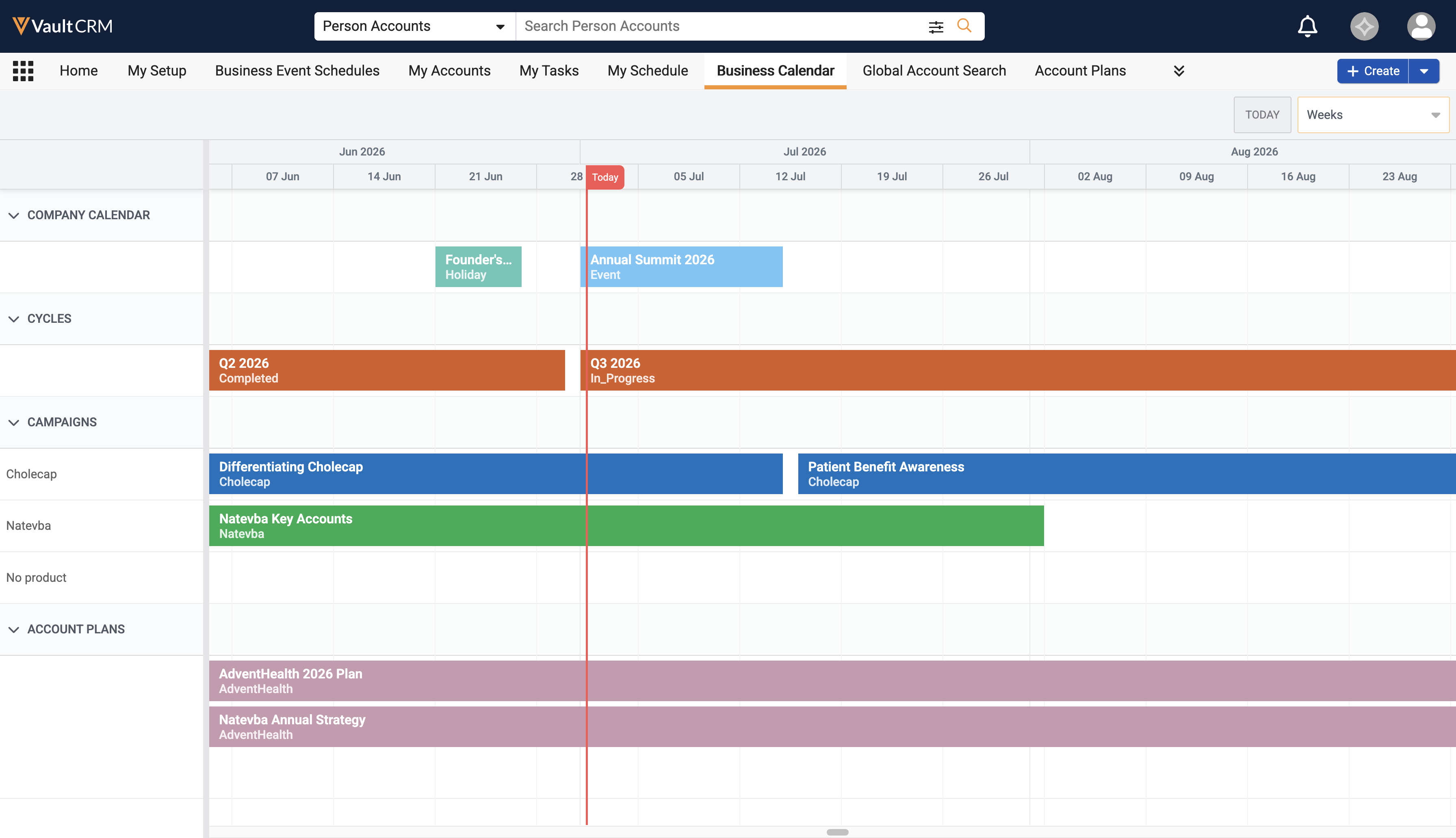
The system automatically enforces maximum record limits per category to optimize performance. The limits restrict Business Calendar displays to 500 of the last modified records for each event type.
The left panel displays sections for each type of calendar entry. Users can select a section name in the left panel to collapse or expand the section.
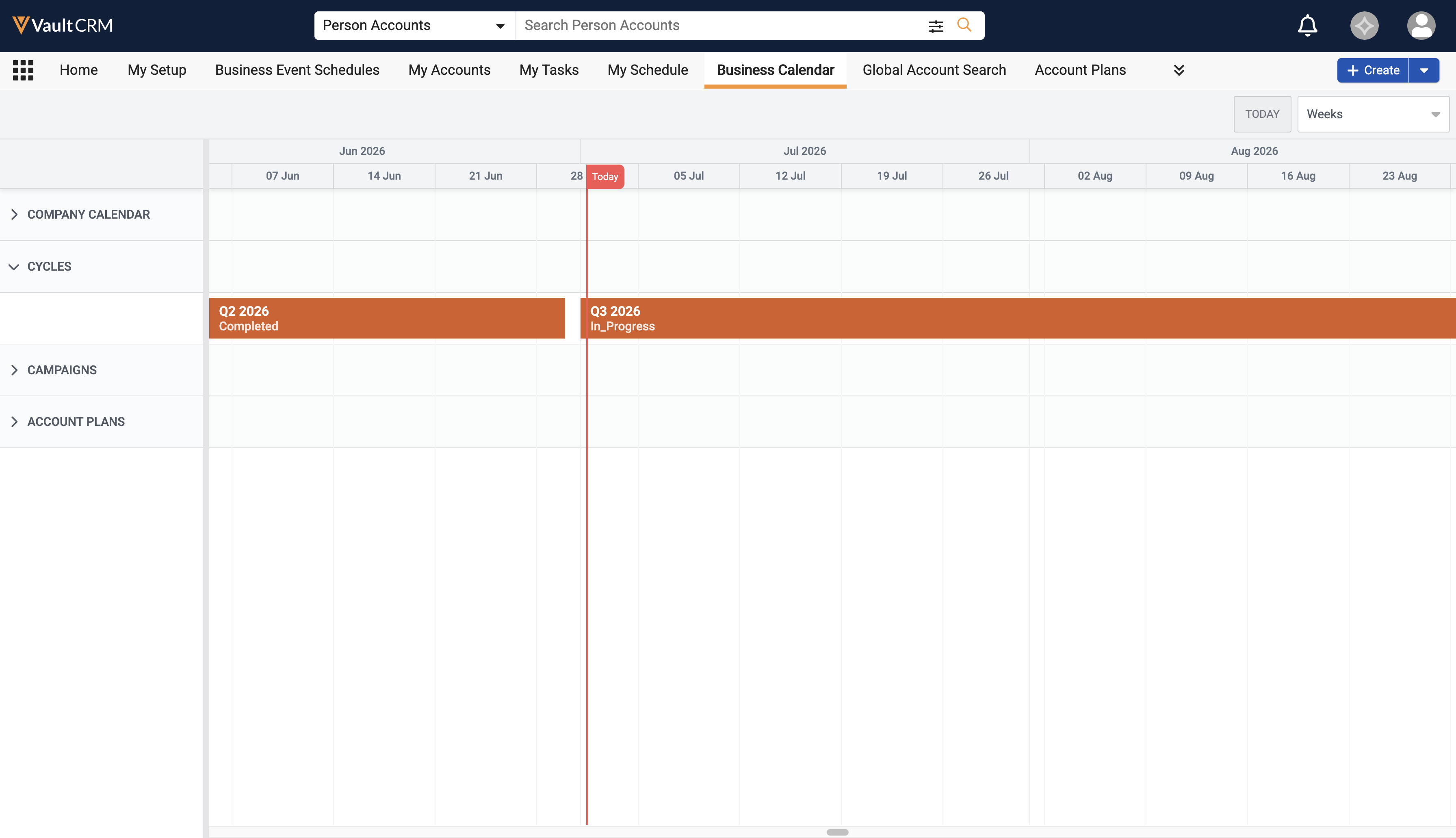
Available sections are:
- Company Calendar – Displays all defined company calendar events, including industry-level events and company or national holidays. See Creating a Company Calendar for more information.
- Cycles – Displays mc_cycle__v records based on their start_date__v and end_date__v fields. Cycles display as light red on the calendar.
-
Campaigns – Displays Campaign Manager campaigns and Vault CRM campaigns based on their start_date__v and end_date__v fields. Campaigns for each product display as subsections.
By default, campaigns display as orange on the calendar, though admins can populate the brand_color_code__v field on product__v records with a hex code to override this color for campaigns of a specific product. Campaign Manager campaigns and Vault CRM campaigns display identically, but selecting the More Details link navigates users to either Campaign Manager or the campaign record depending on the object type.
- Account Plans – Displays active account_plan__v records based on their start_date__v and end_date__v fields. Account plans display as light purple on the calendar.
Displaying Event Details
Hover over an event in the calendar to display a modal with details about the event.
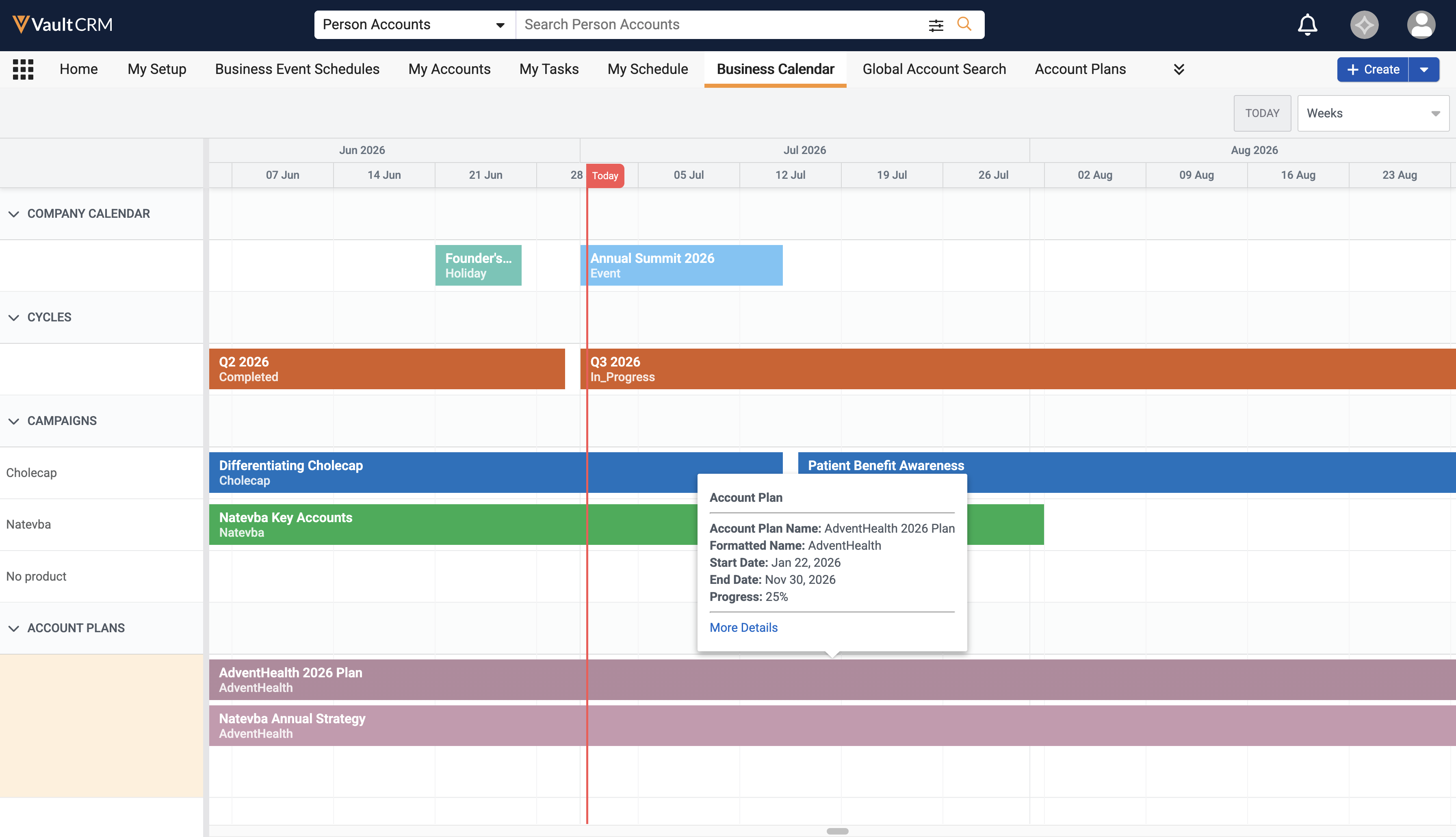
Select the More Details link in the modal to display the record associated with the event, for example, the campaign__v or account_plan__v record.
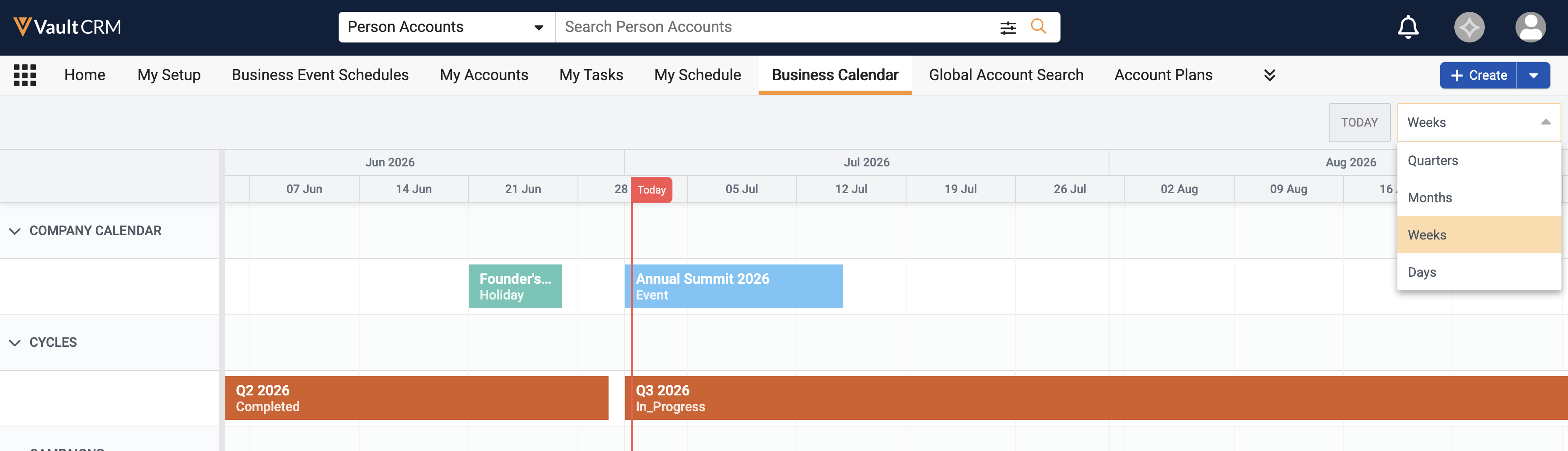
Changing the View of the Business Calendar
Select the View picklist in the top right corner of the calendar to change the calendar’s view. The current view displays as selected in the picklist.
The following options are available:
- Quarters – Groups events and long-term activities on the calendar based on fiscal quarter
- Months – Groups events and long-term activities on the calendar by month. This is the default selection.
- Weeks – Groups events and long-term activities on the calendar week by week
- Days – Groups events and long-term activities on the calendar on a daily basis
Select the Today button to view the current day.
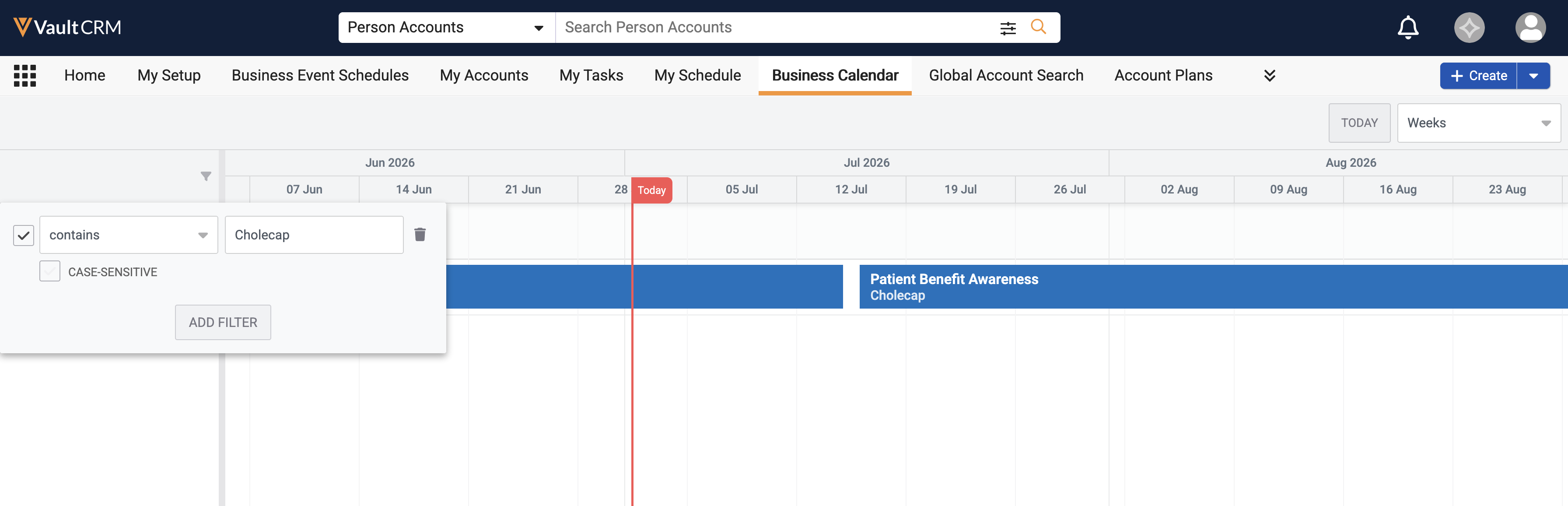
Filtering Campaigns in the Business Calendar
When large numbers of Campaigns are available, users can filter the Business Calendar to only display relevant Campaign events:
- Navigate to the filter icon in the left column header.
- Select Apply Filter.
- Enter the appropriate term to filter.
- Select Enter.
Only sections and calendars matching the entered term display. If a section does not contain any matching calendars, the section does not display.