Using Approved Email as Document Model in Events
- Document Model
Events Management users can compose and send Approved Emails from their event to communicate with attendees or speakers, for example, to invite them to an event or to provide follow-up material after the event ends.
Content creators can create and approve new Email Templates in Vault PromoMats or MedComms and indicate which Country, Product, Event Configuration, and Event Topic the templates are valid for. Content creators can also add RSVP links for attendees to an email template or include a link to a registration portal.
Who can use this feature?
- Admin Users - Browser
- Adding RSVP Links to Approved Emails for Events Management
- Content Creators - Browser
- Creating Approved Email Content for Events Management
- Adding RSVP Links to Approved Emails for Events Management
- End Users - Browser, iPad
- Using Approved Email in Events Management
- Users require an Approved Email and Events Management license
Configuring Approved Email in Events for
 Admin Users, Integration Users, and Content Creators
To configure this feature:
- Ensure the following features are configured:
- Navigate to Admin > Users & Groups > Permission Sets.
- Select the appropriate permission set.
- Select the Objects tab.
- Grant the following permissions:
Object
Object Permission
Object Types
Fields
Field Permission
em_event_material__v
CRED
email_template__v
- email_template_document__v
- generated_by_em_rule__v
- subtype__v
Edit
sent_email__v
CRED
events_management__v
- account_email__v
- email_template_document__v
- em_attendee__v
- em_event_speaker__v
- em_event_team_member__v
- event__v
- events_management_subtype__v
- user__v
Edit
Configuring RSVP Links
Admins can also enable adding RSVP links to Approved Email content. Recipients can select these links to directly RSVP to the event.
To configure this feature, grant the following permissions:
Object | Object Permission | Object Types | Fields | Field Permission |
|---|---|---|---|---|
multichannel_message__v | CRED |
|
| Edit |
Restricting Email Recipients by Audience Type
Approved Email for Events Management supports the ability to designate a target audience type for a given email template document. Allowed audience types are Attendee, Speaker, and Team Member.
To configure this, populate the event_audience__v field on the applicable email template documents.
End Users
To configure this feature:
- Ensure the following features are configured:
- Navigate to Admin > Users & Groups > Permission Sets.
- Select the appropriate permission set.
- Select the Objects tab.
- Grant the following permissions:
Object
Object Permission
Object Types
Fields
Field Permission
em_event_material__v
CRED
email_template__v
- email_template_document__v
- generated_by_em_rule__v
- subtype__v
Edit
sent_email__v
CRED
events_management__v
opened__v
Read
- email_template_document__v
- account_email__v
- em_attendee__v
- em_event_speaker__v
- em_event_team_member__v
- event__v
- events_management_subtype__v
- user__v
Edit
user__sys
R
n/a
language__sys
Read
- Navigate to the em_event__v object in the selected permission set.
- Grant Execute permission to the send_email__v object action.
- Navigate to Business Admin > Objects > approved_email_settings__v.
- Ensure the enable_approved_email_documents__v check box is selected.
- Add send_email__v to the visible_buttons__v field of the appropriate em_event_layout__v records. See Defining Event Layouts for more information.
Configuring RSVP Links
Admins can also enable adding RSVP links to Approved Email content. Recipients can select these links to directly RSVP to the event.
To configure this feature, grant the following permissions:
|
Object |
Object Permission |
Object Types |
Fields |
Field Permission |
|---|---|---|---|---|
|
multichannel_message__v |
CRED |
|
|
Edit |
Configuring Filtering by My Recipients
End users can filter the list of an event’s attendees to quickly view attendees to add as recipients to Approved Emails based on record ownership or territory alignment, improving efficiency when sending invitations or updating attendee statuses. This is useful when looking for attendees in large events, often in collaboration with other team members.
To configure filtering by My Recipients:
- Navigate to Admin > Users & Groups > Permission Sets.
- Select the appropriate permission set.
- Select the Objects tab.
- Grant the following additional permissions:
Object
Object Permission
Object Types
Fields
Field Permission
events_management_settings__v
R
All
recipient_filter_type__v
Read
- Navigate to Business Admin > Objects > Events Management Settings.
- Edit the appropriate record.
- Populate the recipient_filter_type__v field with one of the following values:
- Mandatory – The filtering is automatically applied. End users do not have the option of toggling filtering.
- Optional On – The filtering is default applied and can be toggled off by end users.
- Select Save.
Configuring Approved Email Integration for
Admin Users, Integration Users, and Content Creators
Customers have the option to use PromoMats or MedComms to build Email Templates, Email Fragments, and Template Fragments that are reviewed and approved in PromoMats and MedComms. When admins use the PromoMats or MedComms to build email content, the integration can sync CRM Event Types and Event Topics metadata to align the applicable metadata to the content.
To configure this feature:
- Ensure Integrating Vault CRM and PromoMats / MedComms for Approved Email is configured.
- Enable the following outbound integration points In Vault CRM, under the PromoMats/MedComms-CRM: Approved Email Integration:
- <Connection Name>: Event Topic - <connection_name>_ae_em_topic_oip__v
- <Connection Name>: Event Type - <connection_name>_ae_em_type_oip__v
- Enable the following inbound integration points in PromoMats or MedComms, PromoMats/MedComms-CRM: CRM Metadata Sync Event Management Integration:
- CRM Event Type Inbound Integration Point - crm_event_type_iip__v
- CRM Event Topic Inbound Integration Point - crm_event_topic_iip__v
- Ensure all Event Topic (em_catalog__v) and Event Configuration (em_event_configuration__v) records have vexternal_id__v populated. Records without an external ID are not synchronized to PromoMats or MedComms for aligning to email templates.
- Optional, if country is used for aligning email templates
- Activate the country field rule under the <Connection Name>: Approved Email Integration Rule
- Add country__v as a document field on the Email Template document type
CRM Event Types are based on object types on the em_event__v object. These are mapped to the crm_event_type__v picklist in PromoMats and MedComms.
Event Topics are also pushed from CRM to Vault. Event Topics are stored in the em_catalog__v object using the event_topic__v object type. In PromoMats/MedComms, they are stored in the crm_event_topic__v object.
Only production metadata for Event Types and Event Topics is synchronized to PromoMats/MedComms Vaults.
Creating Approved Email Content for Events Management as
Content Creators
Templates are aligned to events via document fields (event_type__v, event_topic__v, country__v, detail_product__v). When creating an Approved Email Template in Vault CRM or PromoMats/MedComms, the content administrator can select which Event Types and Event Topics the template is valid for. When an event is created or updated, available templates are matched based on event type, topic, product, and country attributes.
Setting up Templates
Content creators can create email template documents in either Vault CRM or PromoMats/MedComms.
- Create an Email Template:
- Select Events Management Template in the Email Template Type field.
- Populate the following fields in the Events Management Properties section. These fields determine usage and visibility in Vault CRM:
- Events Management Subtype (events_management_subtype__v)
- Event Type (event_type__v) — select the em_event_configuration__v records for the applicable event types
- Event Topic (event_topic__v) — select the em_catalog__v records for the applicable topics
- Event Audience (event_audience__v) — select the applicable audience type. This is optional.
- Optionally, populate the Country (country__v) field to align the template to the appropriate countries.
Confirmation and Rejection Email Templates
To specify Approved Email templates automatically sent to registrants when they are approved or rejected from the event:
- Navigate to the appropriate email template document in Vault CRM.
- In the Events Management Properties section:
- Ensure Events Management Subtype is populated with Registration Confirmation or Registration Rejection.
- Populate the Registration Form field with the registration form (em_catalog__v) records that the template applies to.
- Select Save.
Content creators can assign the same registration form to multiple email templates with different languages.
Supported Approved Email Tokens in Events Management Content
Content creators are responsible for creating and managing Email Templates. See Creating Approved Email Templates for more information.
The following Approved Email Configuration Tokens are supported for content used for Events Management purposes:
- {{accCredentials}} – Displays the account's credentials
- {{accFname}} – Displays the account's first name
- {{accLname}} – Displays the account's last name
- {{accTitle}} – Displays the account's title
- {{addToCalendar}} – Adds an .ICS file attachment that recipients can use to add the event to their calendar
- {{customContent}}
Caution: This token is only supported in emails sent to in-territory recipients.
- {{customText()}}
- {{$VaultDocID}} – Generates a link to a PromoMat Vault document
- {{emailTemplateFragment}} – Defines a section in the footer where Email Fragments are inserted
- {{insertEmailFragments}} – Defines a section in the template where Email Fragments are inserted
- {{ObjectAPIName.FieldAPIName}} – Limited to the following objects:
- em_event__v
- em_attendee__v – Only as a recipient
- em_event_speaker__v – Only as a recipient
- em_event_team_member__v – Only as a recipient
- {{ObjectAPIName.RelationshipName.FieldAPIName}} – Limited to the following objects:
- em_event__v
- em_attendee__v – Only as a recipient
- em_event_speaker__v – Only as a recipient
- em_event_team_member__v – Only as a recipient
- em_speaker__v – Only available as the middle RelationshipName parameter
- em_catalog__v – Only available as the middle RelationshipName parameter
- {{approvedEmailAction}} – Tokens that create a link in the email
- {{ISILink}} – Generates a link to an Important Safety Information Vault document
- {{timeZone}} – Displays the time zone of the device
- {{userEmailAddress}} – Displays the user's email
- {{userName}} – Displays the user's name
- {{userPhoto}} – Displays the user's photo, if available
- {{unsubscribe_product_link[External URL,Value of the appropriate unsubscribe_identifier__v field]}} – See Adding and Customizing Unsubscribe Links for more information
- {{PieceLink}} – Generates a link to a Related Piece Vault document
- {{PILink}} – Generates a link to a Prescribing Information Vault document
Adding RSVP Links to Approved Emails for Events Management as
Admin Users
Admin users can add RSVP links to templates by creating multichannel_message__v records. These records are referenced by content creators in Approved Email content stored in PromoMats and MedComms instances.
|
Name |
Object Type |
message_identifier__v |
event_attendee_status__v |
html_message__v |
|---|---|---|---|---|
|
Event Accept |
events_management_action__v |
event_accept |
accept__v |
<html><body><header><h3><span class="hidden">Your response 'Accept' has been saved.</span></h3> </header></body></html> |
|
Event Reject |
events_management_action__v |
event_reject |
reject__v |
<html><body><header><h3><span class="hidden">Your response 'Reject' has been saved.</span></h3> </header></body></html> |
|
Event Maybe |
events_management_action__v |
event_maybe |
maybe__v |
<html><body><header><h3><span class="hidden">Your response 'Maybe' has been saved.</span></h3> </header></body></html> |
Content Creators
RSVP links redirect to a customer-defined landing page using the following format:
<a href={{approvedEmailAction[CUSTOMER LANDING PAGE,RSVP IDENTIFIER]}}></a>
For example, if the landing page is hosted on https://example.com and selecting the link registers the recipient response as Yes, the link would be:
<a href={{approvedEmailAction[https://example.com,Event_Accept]}}>Yes</a>
Customer-hosted landing pages for RSVP links should contain the HTML defined by the html_message__v field for the appropriate action, as well as the following JavaScript snippet:
<div align="center" id="multichannelmessage"> </div>
<!-- The iFrame and Multichannel Message Page will replace the above <div> tag. Please note that the id of the <div> matches the first parameter of the constructor →
<script>
var tag = document.createElement('script');
tag.src = "//cdnmc1.vod309.com/multichannel/veeva/js/externalrequest/embed-multichannelmessage.js";
var firstScriptTag = document.getElementsByTagName('script')[0];
firstScriptTag.parentNode.insertBefore(tag, firstScriptTag);
// This function creates an <iframe> (and multichannelmessage iframe viewer)
// after the API code downloads.
var multichannelMessage;
function onMultichannelMessageAPIReady() {multichannelMessage= new MUL.Frame('multichannelmessage', {height: '600px',width: '80%',});}
</script>
Using Approved Email in Events Management as
End Users
To send Approved Emails from an event:
- Navigate to the appropriate event.
- Select the Send Email button from the More Actions menu. The list of templates displays based on Event Material records. Templates available for an event are matched based on the document fields for country, product, event configuration, and topic.
Templates are a match to the event if any of the document fields match. If both Country and Event Type are populated on the document, the event must match both.
- Select the appropriate template. Users can search for and filter each column to locate the appropriate template to use.
- Select the appropriate recipients. If a selected recipient cannot receive the email due to consent, a warning displays before the list of attendees.
- Select the appropriate template tab to preview and compose the Approved Email. See Composing Approved Emails for more information.
Sending Registration Confirmation and Rejection Emails
When registration confirmation or rejection emails are sent using Attendee Self-Registration, an email template is sent based on the following order and the event’s registration form (em_catalog__v) record:
-
When the registration form has the confirmation (confirmation_email_template__v) or rejection (rejection_email_template__v) email template field populated, the email template document matching the associated Approved Document record is sent.
-
When the template fields are blank, the email template document matching the recipient’s account (language_cda__v) is sent. If no matching language is found, the first email template document is sent.
Filtering Approved Email Recipients
To filter recipients when sending an Approved Email:
- Initiate sending an Approved Email from an Event.
- Select the Only Show My Recipients toggle. Only attendee records within the user’s territory or who are owned by the user display in the filtered list. em_event_speaker__v and em_event_team_member__v records are excluded from filtering and always display.
When Mandatory is selected for the setting, the toggle is hidden and end users cannot disable the filtering.
Consent in Approved Emails for Events Management
Consent is respected when sending invitations for Events Management. If an account has explicit consent and there are no opt-in records, or if the account has implicit consent but has an opt-out record, users are not able to send the email to that recipient.
Both product level and content type consent are supported when sending invitations for Events Management. See Creating Consent Lines for more information about creating content type consent.
Users cannot manage consent or email addresses from the recipient selector screen. The recipient must have a valid, consented email address in order to send an email.
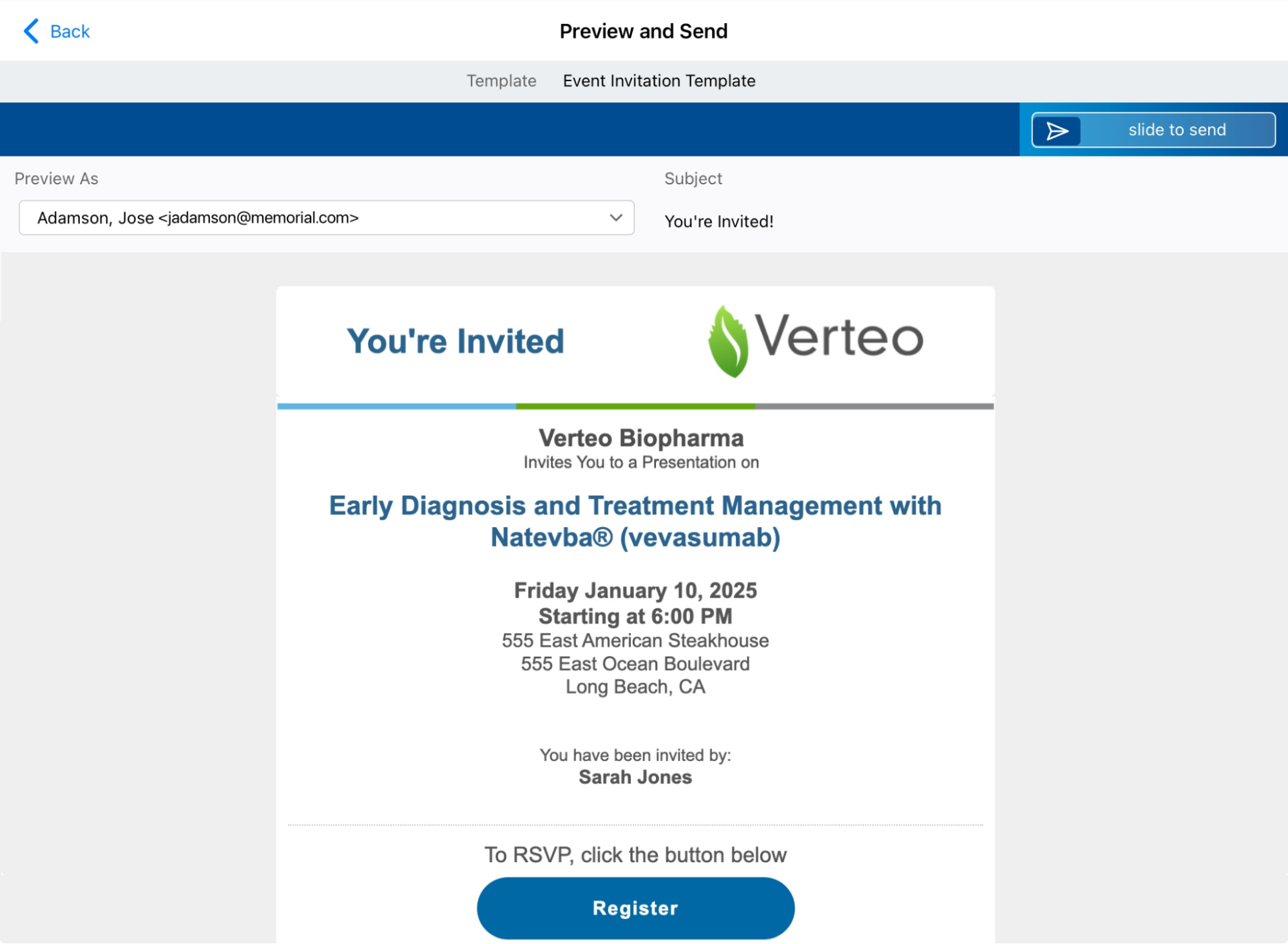
Once recipients are selected, the user can preview the template for all recipients and enter data in any configured fields that allow for user inputs.
Sending Approved Emails to Out of Territory Accounts
Event organizers can send Approved Emails to Event Speakers and Event Attendees outside of their territory. This enables users to still send follow-up information to these accounts.
Consent is respected when sending Approved Emails to out-of-territory Event Speakers and Event Attendees, however, users are not able to capture consent for accounts outside their territory.
Users can select out-of-territory Event Attendees and out-of-territory Event Speakers as recipients for an Approved Email just as they would for an in-territory recipient, including selecting any email address associated with the out-of-territory recipient and previewing the email.

