Capturing Consent from Events
Users can capture consent from event attendees during event registration and sign-in to ensure continuous communication through Approved Email and SMS and comply with regulatory privacy requirements. Capturing consent at high-value engagement points maximizes opt-in rates, maintains regulatory compliance under GDPR laws, and instantly enables ongoing communications. Events represent a high-value opportunity to capture consent because HCPs who attend speaker programs, advisory boards, and educational events are already engaged with the company and more receptive to opting in to ongoing communications.
Consent can be captured from the Digital Sign-In Sheet, QR Sign-In Sheet, and Event Registration. The event attendee reviews consent text and disclaimers for the applicable channels, opts in to one or more channels, and, where supported, provides a digital signature. Consent is only requested for channels the attendee has not already opted in to or out of, including an opt-in or opt-out for a single product. Opting in creates a global opt-in that covers the whole channel. Attendees cannot opt out of a channel through this feature. The HCP's consent records are created or updated in Vault CRM, either immediately or after the attendee is reconciled to an account.
Who can use this feature?
- Business Admin Users — Browser
- Creating Consent Capture Event Rules
- Configuring Walk-In Forms and Registration Forms for Consent Capture
- End Users — Browser, iPad
- Reconciling Walk-ins and Open Registrants
- Retrying Failed Consent Processing
- Event Attendees — Browser, iPad
- Providing Consent During Events
- Users require Events Management and Approved Email licenses
Configuring Capturing Consent from Events for
 Business Admin Users
To configure this feature:
- Ensure the following configuration is complete:
- Events Management, including Walk-In Forms and Event Registration Forms
- Consent Capture, including Consent Type, Consent Header, and Multichannel Consent records for the channels to be captured
- Navigate to Admin > Users & Groups > Permission Sets.
- Select the appropriate Permission Set.
- Select Objects.
- Grant the following permissions:
Object
Object Permission
Object Types
Fields
Field Permission
em_event_rule__v
CRE
sign_in_consent_capture__v
- allow_channel_source_updates__v
- consent_type__v
- country_override__v
- event_configuration__v
- walk_in_type__v
Edit
Integration Users (Required if using QR Sign-In or Event Registration)
The integration user requires Edit access to the captured_consent__v field on the em_attendee__v object for this feature to be considered enabled; if this access is missing, QR Sign-In and Event Registration continue to function but without consent capture.
To configure this feature:
- Navigate to Admin > Users & Groups > Permission Sets.
- Select the appropriate Permission Set.
- Select Objects.
- Grant the following permissions:
Object
Object Permission
Object Types
Fields
Field Permission
account__v
RE
All Applicable
- approved_email_opt_type__v
- vcountry__v
- clm_opt_type__v
- Channel source fields (when channels have configured sources)
Read
Channel source fields (when the event rule allows channel source updates) Edit
approved_email_settings__v
R
All Applicable
multichannel_explicit_opt_in__v
Read
consent_header__v
R
All Applicable
- country__v
- consent_header_status__v
- language__v
Read
consent_type__v
R
All Applicable
- channel_label__v
- consent_header__v
- channel_source__v
- default_consent_type__v
- zvod_consent_default_consent_text_file__v
- consent_text_required__v
- consent_expires_in__v
- zvod_consent_activity_tracking__v (when activity tracking is configured)
- disclaimer_text_file__v (when a channel disclaimer is configured)
- Custom zvod_consent_* fields (when configured)
Read
em_attendee__v
CRE
All Applicable
account__v
Read
- captured_consent__v
- consent_processing_status__v
- country__v
- email__v
- registration_method__v
- registration_status__v
- registration_timestamp__v
Edit
em_event__v
R
All Applicable
- event_configuration__v
- registration_form__v
Read
em_event_configuration_country__v
R
All Applicable
country__v
Read
em_event_rule__v
R
sign_in_consent_capture__v
- consent_type__v
- country_override__v
- allow_channel_source_updates__v
- event_configuration__v
Read
multichannel_consent__v
RE
All Applicable
- account__v
- consent_header__v
- consent_type__v
- capture_datetime__v
- default_consent_text_file__v
- opt_expiration_date__v
- opt_method__v
- opt_type__v
- channel_source__v
- channel_value__v (when channels have configured sources)
- disclaimer_text_file__v (when a channel disclaimer is configured)
- activity_tracking__v (when activity tracking is configured)
- Custom fields matching consent_type__v (when custom consent text is configured)
Edit
vcountry__v
R
All Applicable
- alpha_2_code__v
- country_name__v
- id
Read
End Users (Required if using the iPad Sign-In Sheet)
To configure this feature:
- Navigate to Admin > Users & Groups > Permission Sets.
- Select the appropriate Permission Set.
- Select Objects.
- Grant the following permissions:
Object
Object Permission
Object Types
Fields
Field Permission
account__v
RE
All Applicable
- approved_email_opt_type__v
- vcountry__v
- clm_opt_type__v
- Channel source fields (when channels have configured sources)
Read
Channel source fields (when the event rule allows channel source updates) Edit
approved_email_settings__v
R
All Applicable
multichannel_explicit_opt_in__v
Read
consent_header__v
R
All Applicable
- language__v
- country__v
- consent_header_status__v
Read
consent_type__v
R
All Applicable
- channel_label__v
- consent_header__v
- channel_source__v
- default_consent_type__v
- zvod_consent_default_consent_text_file__v
- consent_text_required__v
- consent_expires_in__v
- zvod_consent_activity_tracking__v (when activity tracking is configured)
- disclaimer_text_file__v (when a channel disclaimer is configured)
- custom zvod_consent_* fields (when configured)
Read
em_attendee__v
CRE
All Applicable
- account__v
- walk_in_type__v
Read
- country__v
- captured_consent__v
- consent_processing_status__v
Edit
em_event__v
R
All Applicable
event_configuration__v
Read
em_event_rule__v
R
sign_in_consent_capture__v
- consent_type__v
- country_override__vwalk_in_type__v
- allow_channel_source_updates__v
- event_configuration__v
Read
multichannel_consent__v
RE
All Applicable
- content_type__v
- detail_group__v
- object_type__v
- product__v
Read
- account__v
- consent_header__v
- consent_type__v
- opt_type__v
- opt_expiration_date__v
- capture_datetime__v
- default_consent_text_file__v
- opt_method__v
- channel_source__v
- channel_value__v (when channels have configured sources)
- disclaimer_text_file__v (when a channel disclaimer is configured)
- activity_tracking__v (when activity tracking is configured)
- signature__v
- signature_datetime__v (when signature capture is configured)
- Custom fields matching consent_type__v (when custom consent text is configured)
Edit
- Select the Application tab within the permission set.
- Grant access to File Staging.
Creating Consent Capture Event Rules as
Business Admin Users
Business admins must create a Consent Capture Event Rule for each channel to capture. A Consent Capture Event Rule must be unique across Event Configuration, Country Override, and Consent Type fields.
To create a Consent Capture Event Rule:
- Navigate to the Event Business Rules tab.
- Create an Event Rule with the sign_in_consent_capture__v object type.
- Select Next.
- Specify the following:
- Event Configuration — The event configuration the rule applies to
- Consent Type — The consent channel to capture
- Country Override (optional) — The country the rule applies to; leave blank to apply the rule to all countries
- Walk-In Type (optional) — The walk-in type or types the rule captures consent from; leave blank to apply the rule to all walk-in types. Known attendees and registrants are not filtered by walk-in type.
- Allow Channel Source Updates — Select this checkbox to allow updating existing channel source values (for example, email addresses) on an account; otherwise channel source values display as read-only
- Select Save.
Configuring Walk-In Forms and Registration Forms for Consent Capture as
Business Admin Users
Walk-in forms and registration forms must collect the attendee’s country and contact information before consent can be captured.
To configure walk-in and registration forms:
- Navigate to the Event Business Rules tab.
- Add the country__v field to each walk-in fields Event Rule used to collect consent, in the walk_in_fields__v, prescriber_walk_in_fields__v, non_prescriber_walk_in_fields__v, or other_walk_in_fields__v field. A walk-in form without country__v does not display consent capture.
- Add a channel source field (for example, an email or phone field) to the same walk-in fields Event Rules for each channel that has channel sources configured. The field name and data type must match an account-based channel source field. A channel is not captured for a walk-in unless a matching field is on the form.
- Add the country__v field and the matching channel source fields to the registration_fields__v field of each registration form used to collect consent. Include at least one required email field. A registration form without country__v does not display consent capture.
Providing Consent During Events as
Event Attendees
Event attendees can provide consent for communication channels while signing in to an event on an iPad, signing in using a QR code on a browser, or registering for an event online.
When an email channel uses double opt-in, the attendee receives a confirmation email after opting in. For walk-ins and open registrants, the email is sent after they are reconciled to an account.
Signing In as a Walk-In
To sign in as a walk-in:
- Select the walk-in type that describes the event attendee’s role.
- Enter the required and optional walk-in form fields, including country.
- Select Continue. When at least one consent channel applies to the walk-in's country and walk-in type, the Manage Consent screen displays.
- Review the consent text and any custom consent, activity tracking consent, or channel disclaimer text for each channel.
- Select the checkbox for each consent text to agree to. The attendee is opted in to a channel when every required consent text for that channel is selected. Optional consent text is labeled as (Optional).
- Select Register to advance to the next channel, or to the Meal Opt-In screen or Signature screen once all channels have been reviewed.
- Review the event disclaimer on the Signature screen.
- Sign in the signature capture area.
- Select Finish.
Signing In as a Known Attendee
A known attendee is an attendee already linked to an account in Vault CRM. Known attendees can sign in and provide consent for any channel they have not already opted in to or out of. On the iPad, consent is not captured from known attendees whose account is not on the device, for example out-of-territory accounts.
To sign in as a known attendee:
- Select the attendee's name from the Attendee Search screen. When the attendee is missing consent for one or more applicable channels, the Manage Consent screen displays. A known attendee's channel source fields (for example, email address or phone number) display as editable or read-only fields.
- Review or correct the channel source value displayed for each channel (if the field is editable).
- Select the checkbox for each consent text to agree to. The attendee is opted in to a channel when every required consent text for that channel is checked. Optional consent text is labeled as (Optional).
- Select Register to advance to the next channel, or to the Meal Opt-In screen or Signature screen once all channels have been reviewed.
- Review the event disclaimer on the Signature screen.
- Sign in the signature capture area.
- Select Finish.
Registering as an Open Registrant
After selecting an open event registration link, an event attendee who has not yet registered for the event can register and provide consent during registration.
To register as an open registrant:
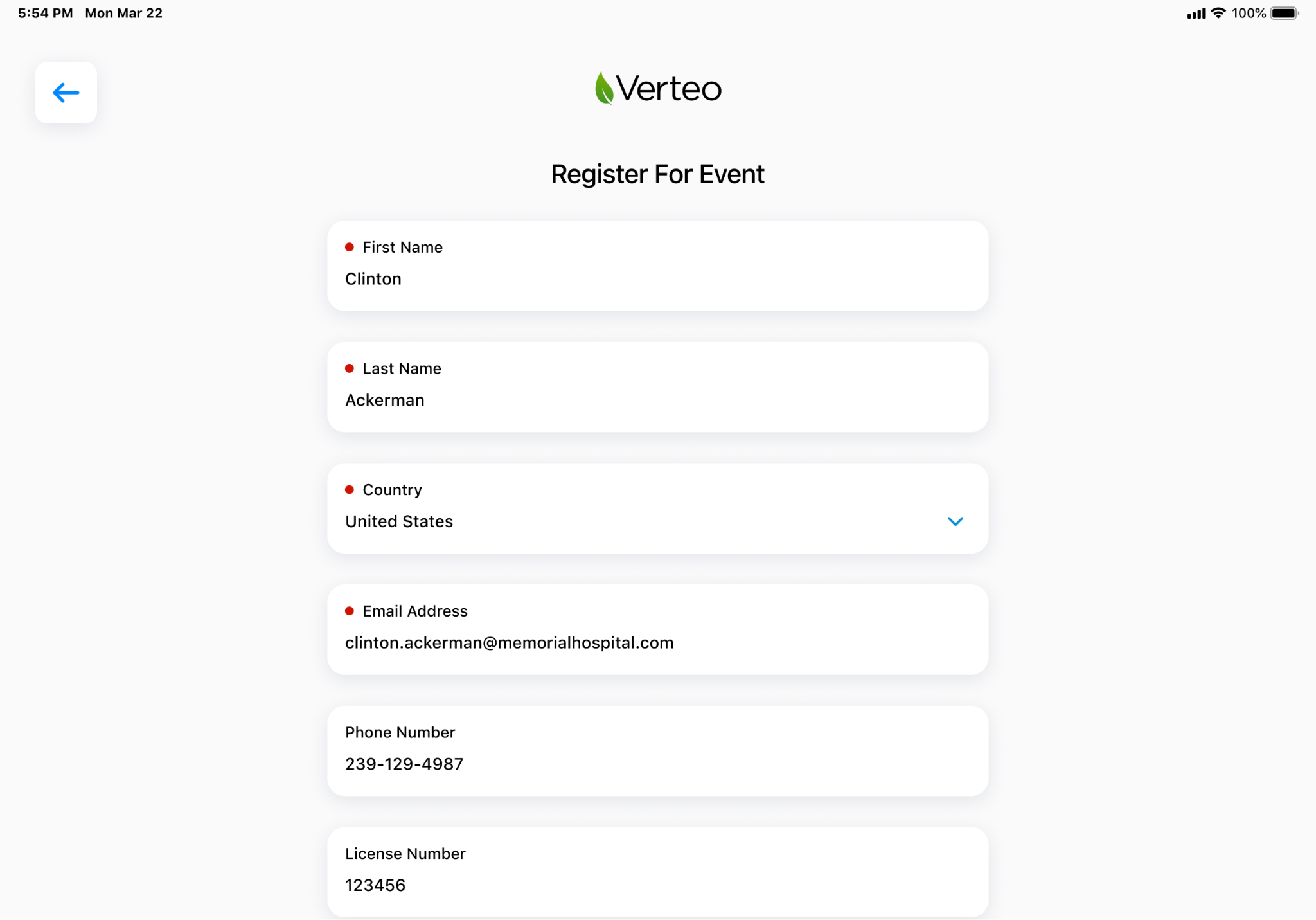
- Enter the required and optional registration form fields, including name, country, and at least one email field.
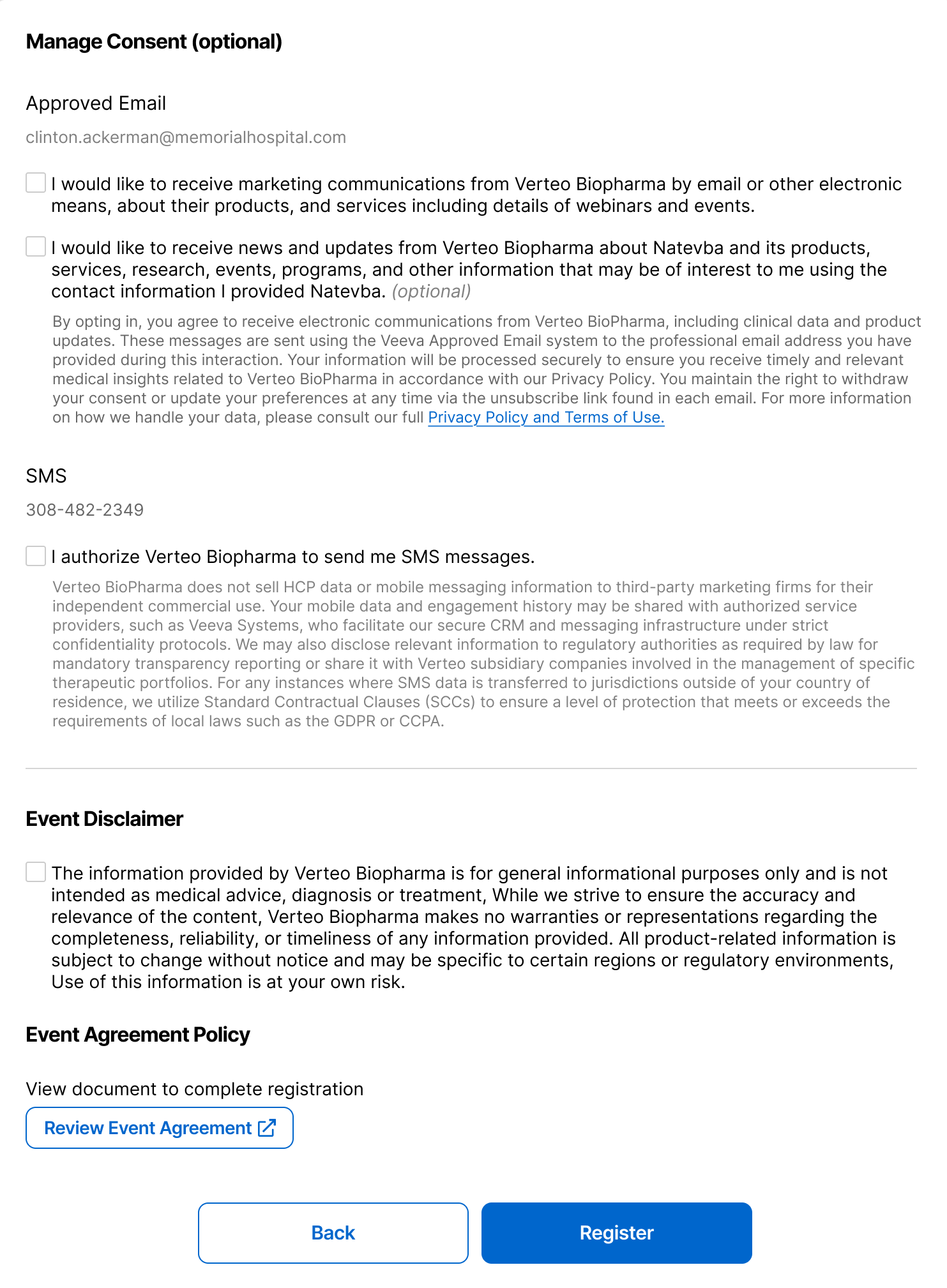
- Select Continue. The Registration screen displays the consent channels, based on the information entered on the Registrant Details screen, along with the event disclaimer and any attendee agreement.
- Review the consent text and any custom consent, activity tracking consent, or channel disclaimer text for each channel.
- Select the checkbox for each consent text to agree to. The attendee is opted in to a channel when every required consent text for that channel is checked. Optional consent text is labeled (Optional).
- Select the event disclaimer checkbox, if the event disclaimer is required.
- Select Review Event Agreement, if an attendee agreement is configured, and review the document.
- Select Register.
Registering as a Targeted Registrant
After selecting a targeted event registration link, an event attendee whose information is already associated with an account in Vault CRM can register and provide consent for any channel missing from their account.
To register as a targeted registrant:
- Review the pre-populated name, country, and channel source fields on the Registrant Details screen.
If one or more channel source fields are editable, select Continue to display the consent channels, event disclaimer, and any attendee agreement on the Registration screen. Correct the values as needed. Complete any other required form fields. If no channel source fields are editable, they display on the same page, below the registrant details.
- Review the consent text and any custom consent, activity tracking consent, or channel disclaimer text for each channel.
- Select the checkbox for each consent text to agree to. The attendee is opted in to a channel when every required consent text for that channel is checked. Optional consent text is labeled as (Optional).
- Select the Event Disclaimer checkbox, if the event disclaimer is required.
- Select Review Event Agreement, if an attendee agreement is configured, and review the document.
- Select Register.
Reconciling Walk-ins and Open Registrants as
End Users
Event owners can reconcile walk-ins and open registrants to Vault CRM accounts so that consent captured before reconciliation is applied to the correct account, and so that they can retry consent that failed to process. After an event ends, walk-ins and open registrants with captured consent must be reconciled to an account before their consent records are created.
To reconcile a walk-in or open registrant:
- Select Attendee Reconciliation from the event.
- Select the walk-in or open registrant to reconcile. The country captured on the walk-in or registration form displays as a column in the reconciliation table.
- Search for a matching account, or select Create New Account if no match exists.
- Select the matching account, select Create New Account, or select Dismiss.
Reconciling to an existing account updates the account's channel source values, where the applicable Consent Capture Event Rule allows updates, and creates consent records for each channel opted in to. Reconciling to a new account writes the captured channel source values to the new account and creates consent records for each channel opted in to. Dismissing a walk-in does not create consent records for any channel.
- Select Complete Reconciliation once all walk-ins and open registrants are reconciled.
Retrying Failed Consent Processing as
End Users
Event owners can retry failed consent from attendee records in Vault CRM.
To retry failed consent processing:
- Open the Consent Processing Failure notification for the attendee, or locate the attendee record directly.
The notification is sent as a Vault notification and an email to the attendee owner. When the attendee was created through QR Sign-In or Event Registration, it goes to the event team members with the Event Organizer role. Open the notification received for the failed attendee, or locate the attendee record directly.
- Edit the attendee record.
- Set Consent Processing Status to Captured. Setting the status to Captured triggers the system to reprocess the attendee's consent.
- Save the record.