Hosting Virtual Events Using Zoom Meetings
Event organizers can schedule, manage, and execute virtual meetings using their existing corporate Zoom® licenses and configurations, ensuring a seamless experience for both organizers and attendees.
Who can use this feature?
- End Users - Browser, iPad
- Using Virtual Events with Zoom® Meetings
- Switching a Virtual Event from Engage to Zoom
- Users require an Events Management and an Engage license
Configuring Zoom Enterprise Integration for
 End Users
To configure this feature:
- Ensure Events Management is configured.
- Ensure Approving the Veeva Engage App in the Zoom Marketplace is configured
- Navigate to Admin > Users & Groups > Permission Sets.
- Select the appropriate permission set.
- Select Objects.
- Grant the following permissions:
Object
Object Permission
Object Types
Fields
Field
Permission
em_event__v
CRED
All appropriate object types
- zoom_remote_meeting__v
- virtual_type__v
- assigned_host__v
Edit
- meeting_id__v
- meeting_password__v
- meeting_link__v
- modified_date__v
Read
remote_meeting__v
CRED
zoom_event_meeting__v
- assigned_host__v
- description__v
- latest_meeting_start_datetime__v
- meeting_id__v
- meeting_name__v
- meeting_outcome_status__v
- meeting_password__v
- mobile_id__v
- name__v
- object_type__v
- scheduled_datetime__v
- scheduled__v
- vexternal_id__v
- zoom_meeting_external_id__v
- zoom_meeting_join_link__v
- zoom_meeting_start_link__v
Edit
user__sys
R
n/a
enable_zoom__v
Read
- Grant Execute permission to the schedule_zoom__v and start_webinar__v actions on the em_event__v object.
- Select the start_webinar__v action.
- Update the Label field to “Start Virtual Event” or another appropriate label. This step is optional but recommended.
- Navigate to Admin > Configuration > Objects > em_event__v.
- Select the Object Types tab
- Enable the schedule_zoom__v and start_webinar__v actions for the appropriate object types
- Navigate to Business Admin > Objects > Users.
- Select the appropriate user
- Select the enable_zoom__v check box for the appropriate user__sys records
- Select em_event_layout__v.
- Add schedule_zoom__v and start_webinar__v to the visible_buttons__v field of the appropriate em_event_layout__v records. See Defining Event Layouts for more information.
Optional Configuration
- To display zoom meeting information on the event, add the meeting_id__v, meeting_password__v, and meeting_link__v fields to the appropriate em_event__v layouts.
- To add a calendar reminder to Approved Email content used for Events Management, see Adding Calendar Reminders to Events Management Approved Emails. When Hosting Virtual Events Using Zoom Meetings (this feature) is enabled, the meeting_link__v field is automatically populated.
Using Virtual Events with Zoom® Meetings as
End Users
Users can schedule, modify, and start Zoom meetings directly from an event.
Scheduling, modifying, and starting a Zoom Meeting for an event requires an internet connection.
Authenticating with Zoom
To authenticate with Zoom:
- Select Schedule Zoom or Start Virtual Event from an event.
- Follow the on-screen prompts on the Zoom Authentication page if you are not currently authenticated.
Scheduling a Virtual Event with Zoom
To schedule a Zoom meeting for an event:
- Navigate to the appropriate event record.
- Select Schedule Zoom from the All Actions menu. If both Engage and Zoom are enabled and no meeting is scheduled yet, select the Schedule Virtual action, then select Zoom.
To share meeting details with attendees, select the Send Invitations button to generate a participant link that can be distributed via Approved Email. See Sending Zoom® Meeting Invites via Approved Email for more information.
Starting a Virtual Event with Zoom
To start a virtual event:
- Navigate to the event on My Schedule, or to the Event record.
- Select the Start Virtual Event button. The landing page displays and automatically references the unique host start link to launch the Zoom application.
Updating Zoom Meeting Details
To update Zoom meeting details:
- Open an event that is currently scheduled with Zoom.
- Select Edit to modify either the name__v or event_display_name__v fields on the event record, or select Reschedule to edit the event start or end time.
- Select Reschedule. The system syncs the change directly to your enterprise Zoom account.
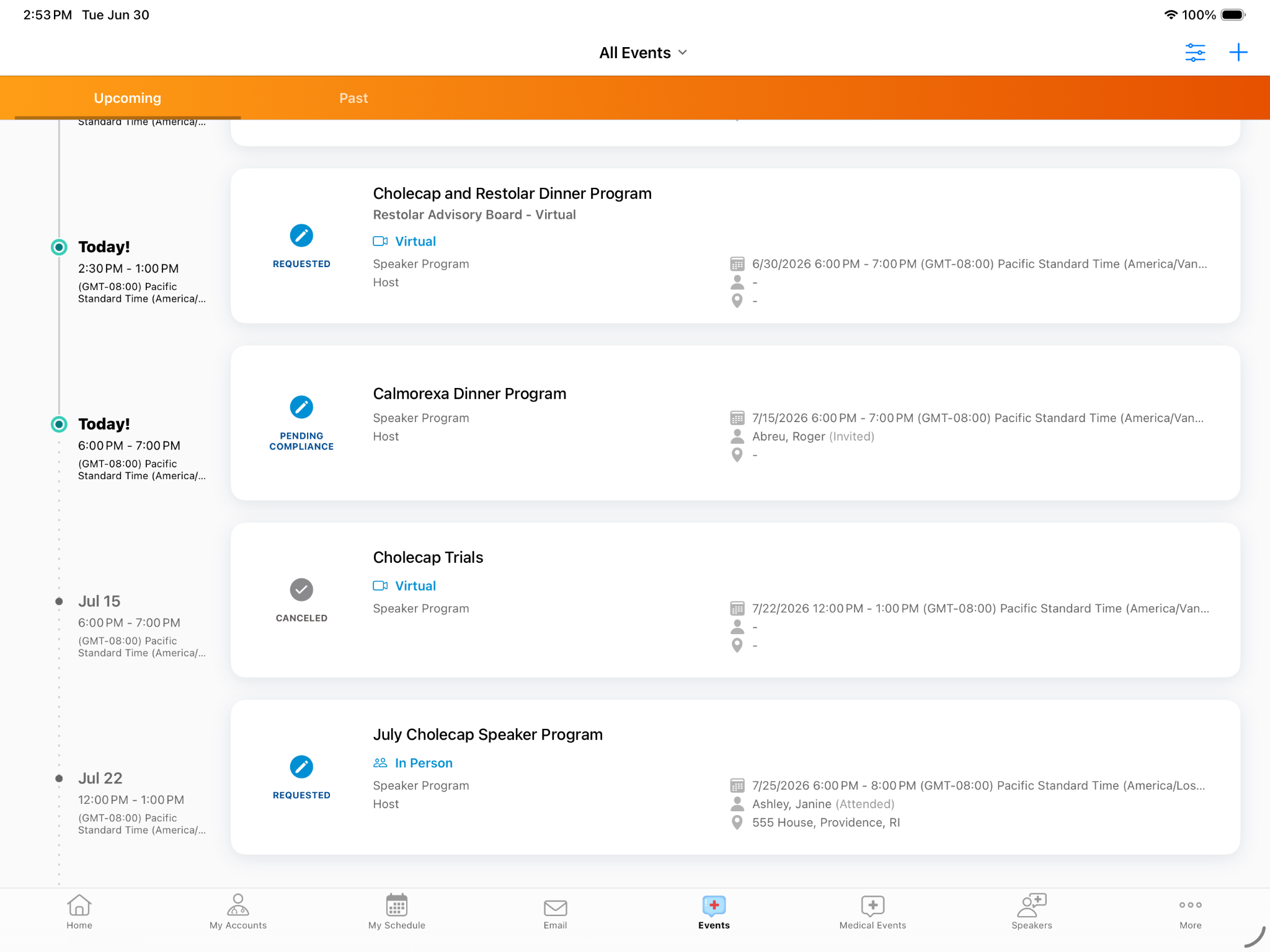
Events scheduled with Zoom display with a Virtual icon on the My Schedule calendar and Events tab event lists, making it easy to identify virtual engagements at a glance.
Authenticating with Zoom
To authenticate with Zoom:
- Select Schedule Zoom or Start Virtual Event from the All Actions menu of an event.
- Follow the on-screen prompts on the Zoom Authentication page if you are not currently authenticated.
Scheduling a Virtual Event with Zoom
To schedule a Zoom meeting for an event:
- Navigate to the appropriate event record.
- Select Schedule Zoom from the All Actions menu. If both Engage and Zoom are enabled and no meeting is scheduled yet, select the Schedule Virtual action, then select Zoom.
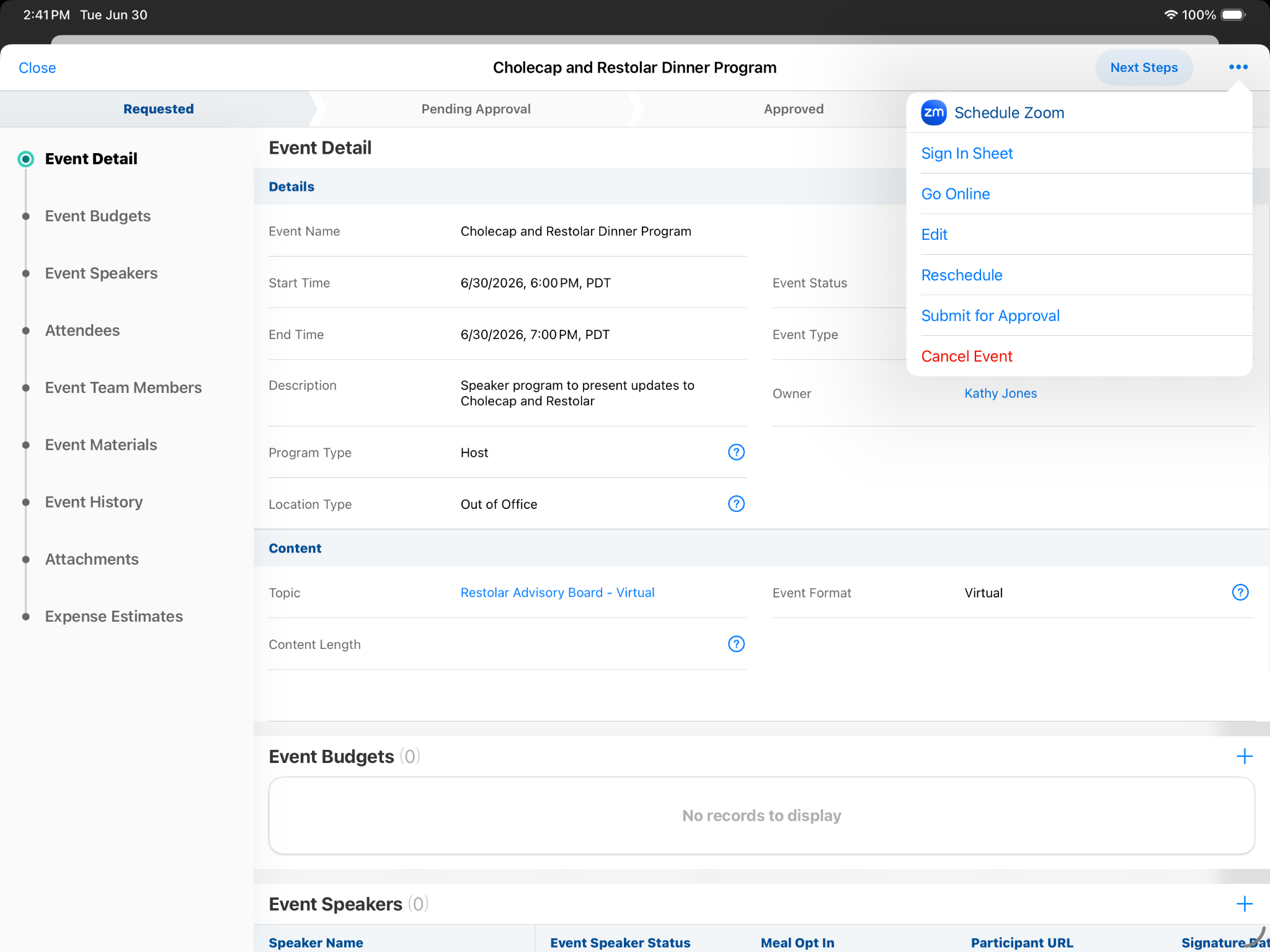
To share meeting details with attendees, select the Generate Invitations button to generate a participant link that can be distributed via Approved Email. See Sending Zoom® Meeting Invites via Approved Email for more information.
Starting a Virtual Event with Zoom
To start a virtual event:
- Navigate to the event on My Schedule, or to the Event record.
- Select the Start Virtual Event button. The landing page displays and automatically references the unique host start link to launch the Zoom application.
Updating Zoom Meeting Details
To update Zoom meeting details:
- Open an event that is currently scheduled with Zoom.
- Select Edit from the All Actions menu.
- Modify either the name__v or event_display_name__v field on the event record, or select the Reschedule action to update the event start or end time.
Switching a Virtual Event from Engage to Zoom as
End Users
To switch an event from Engage to Zoom:
- Open an event that is currently scheduled with Veeva Engage.
- Select Schedule Zoom from the All Actions menu.
- Review the confirmation dialog warning that this action will remove Engage participant join URLs.
- Select Continue to process the switch. The system shifts the virtual type to Zoom and automatically clears previous Engage participant link fields.
To switch an event from Engage to Zoom:
- Open an event that is currently scheduled with Veeva Engage.
- Select Schedule Zoom from the All Actions menu.
- Review the confirmation dialog warning that this action will remove Engage participant join URLs.
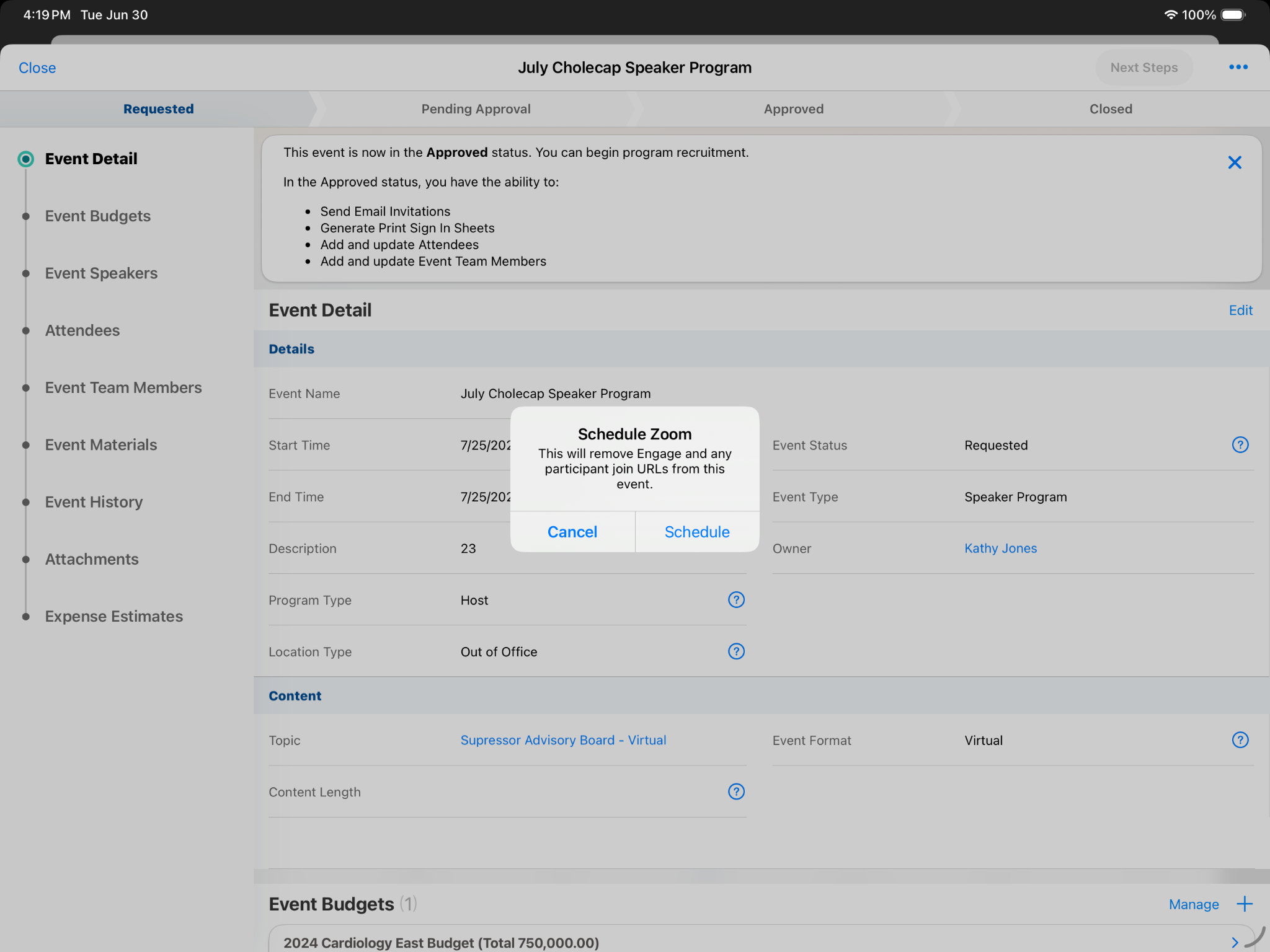
- Select Schedule to process the switch. The system shifts the virtual type to Zoom and automatically clears previous Engage participant link fields.

