Using Suggestions
Field users can use the Suggestions tab to help them plan their interactions with Health Care Professionals (HCPs). The Suggestions tab provides a modern, upgraded interface for viewing, filtering, sorting, and acting on suggestions. This allows users to quickly take the appropriate action, for example, scheduling a call or sending an email, directly from the suggestion.
Who can use this feature?
- End Users — Browser, iPad,
- Viewing the Suggestions Tab
- Filtering and Sorting Suggestions
- Understanding the Suggestions Card
- Viewing Full Suggestion Details
- Acting on Suggestions
- Users do not require an additional license
Configuring the Suggestions Tab for
 All Users
To configure this feature, ensure the following are complete:
Using the Suggestions Tab as
End Users
Viewing the Suggestions Tab
End users can view and interact with their assigned suggestions from the Suggestions tab.
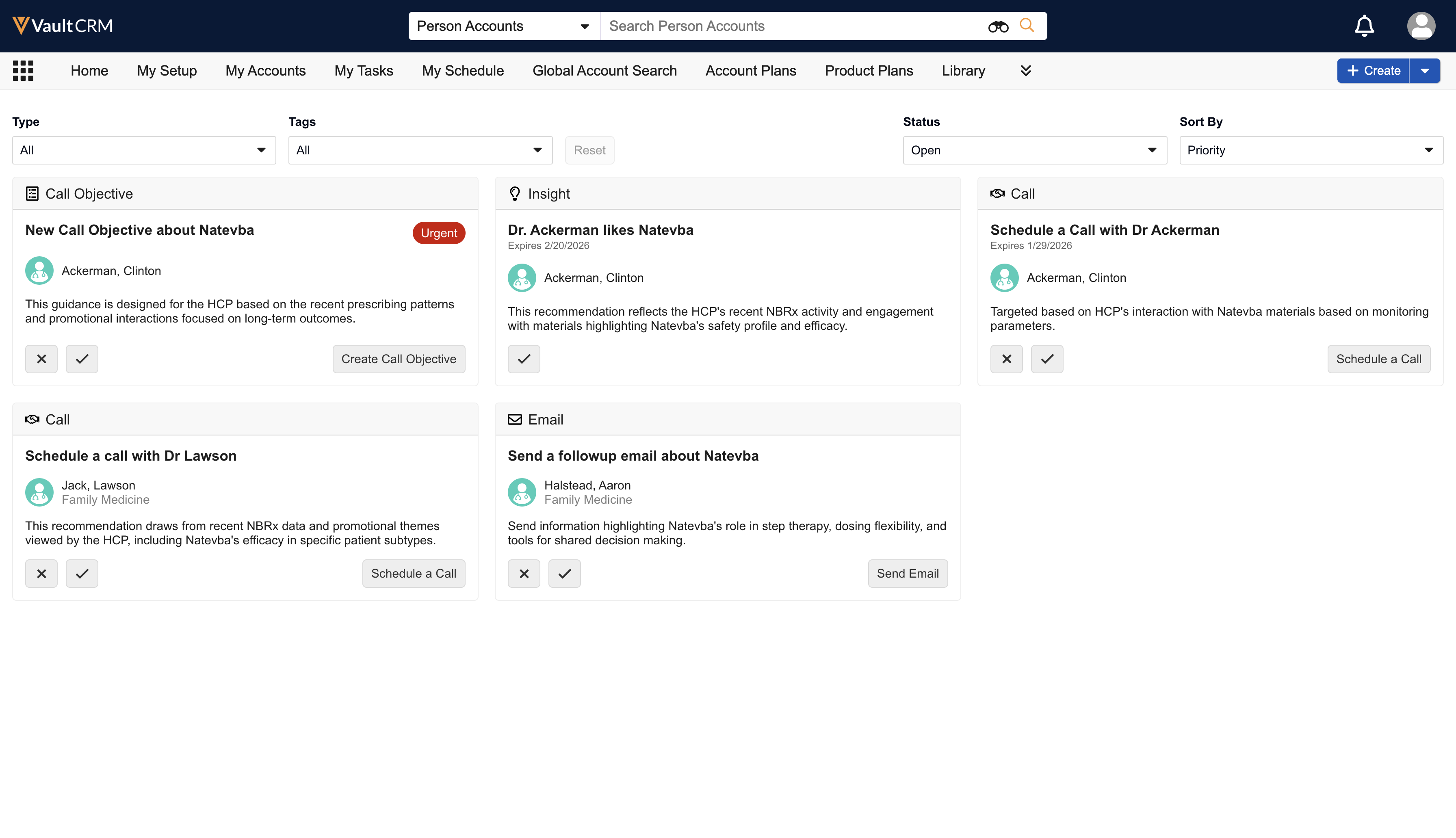
The tab displays all suggestions for accounts the user has access to.
The Suggestions tab displays up to 500 suggestions. If this limit is exceeded, a message displays stating that only the first 500 are included.
Suggestion Status
Suggestions have a status of either Open or Closed:
-
Open - Suggestion has not been executed, dismissed, marked as complete, and is not expired. Open suggestions display first in the Suggestions tab.
-
Closed - Suggestion was executed, dismissed, marked as complete, or has expired. Closed suggestions display after open suggestions in the Suggestions tab.
Product Specific Suggestions
Suggestions tagged with a specific product only display if the user is aligned to the product in My Setup. If the product is on the restricted products list
Filtering and Sorting Suggestions
Suggestions are initially sorted by urgency. Users can filter and sort the list of suggestions to focus on the most relevant items.
To filter the list of suggestions, select one or more of the following filter options:
-
Type - Select a suggestion type (for example, Call, Email) to view only suggestions of that type
-
Tags - Select a Product or Driver tag to view suggestions associated with that tag
-
Status - View suggestions based on their status. The list defaults to Open. Select Closed to view suggestions acted upon, dismissed, marked complete, or have expired.
The list updates in real-time to show only suggestions matching all selected filter criteria. Any selected filters persist as long as the user remains logged into Vault CRM. Users can select the Reset button to clear any applied filters.
To sort the list of suggestions, select an option from the Sort By picklist.
-
Priority (Default) - Sorts by urgent suggestions first, then by account priority score (descending), then by posted date (newest first)
-
Posted Date - Sorts by posted date (newest first), then by priority score (urgent first), then by account priority score (descending), then by expiration date (soonest first)
-
Expiration Date - Sorts by expiration date (soonest first), then by priority score (urgent first), then by account priority score (descending), then by posted date (newest first)
-
Priority Score - Sorts by priority score (descending), then by priority (urgent first), then by posted date (newest first)
-
Last Modified - Sorts by modified date (most recent first), then by priority (urgent first), then by expiration date (soonest first), then by account priority score (descending)
Understanding the Suggestion Card
Each suggestion displays on a card with key details to help users quickly understand the recommendation. A card can include:
-
Type - The type of suggestion, for example, Schedule a Call or Send Email, along with an identifying icon
-
Name - A brief name for the suggestion, for example, Schedule a call with Dr. Ackerman
-
Posted Date - Date when the suggestion was created
-
Expiration Date - Date when the suggestion expires and no longer displays
-
Urgent - Status indicator displays if the suggestion is marked as urgent
-
Priority - A score indicating the account's priority, if configured
-
Account - The name and identifier of the associated account. Users can select the account name to view the account detail page.
-
Actions - Buttons to Dismiss, Mark Complete, or execute the suggested action, for example, Schedule a Call
-
Reason - A description of the suggestion
Viewing Full Suggestion Details
-
Select the suggestion card.
A modal displays all the information from the card.
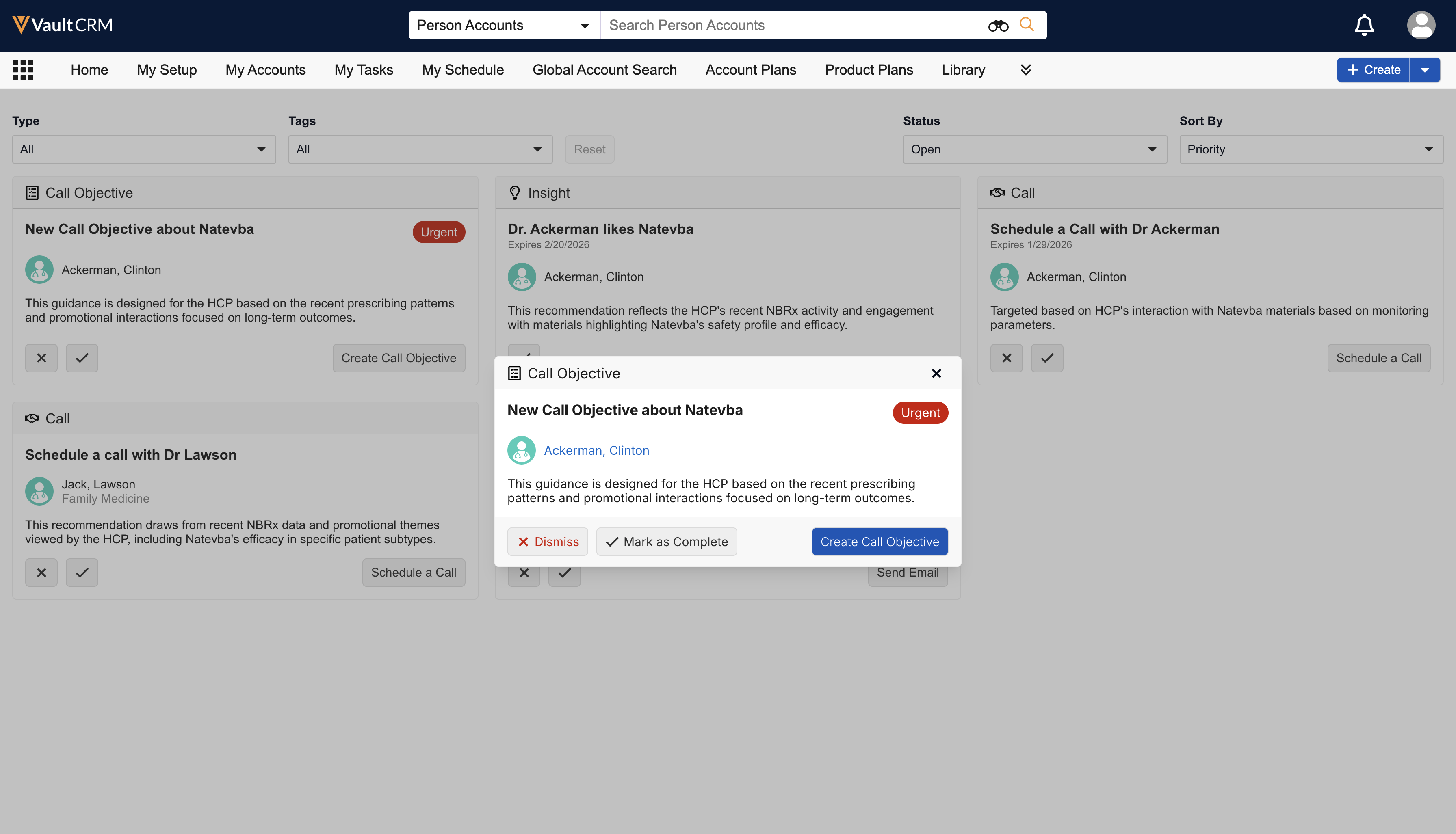
The modal also displays the full text of the Reason field and any associated Tags (for example, Product or Driver tags) related to the suggestion.
-
Select the X button to close the modal and return to the Suggestions tab.
Acting on Suggestions
Users can perform actions on a suggestion directly from the suggestion card.
-
Dismiss a suggestion - This action is only available if the display_dismiss__v field is enabled for the suggestion. For more information, see Completing or Dismissing Suggestions.
-
Mark a suggestion as complete - This action is only available if the display_mark_as_complete__v field is enabled for the suggestion.
-
Execute the primary action - Select the action button, for example, Schedule a Call or Send Email. An error displays if users do not have permission to create the associated record.

