Agentic Insight Quality for Commercial Insights
AI-powered Agentic Insight Quality provides real-time feedback to help users submit complete, actionable insights, turning field observations into reliable data for stronger business intelligence. The agent intelligently checks users’ entries in the Insight field on Commercial Insights against configurable quality and completeness rules, and suggests specific improvements before submission.
Who can use this feature?
- End Users — Browser, iPad, iPhone
- Using Agentic Insight Quality for Commercial Insights
- A Veeva AI license is required
Configuring Agentic Insight Quality for Commercial Insights for
 End Users
To configure this feature:
-
Ensure the following configuration is complete:
- Configuring Agentic Insight Quality
- Commercial Insights
- For access from the call report, ensure configuration for Commercial Insights on the call report is complete
- Navigate to Admin > Users & Groups > Permission Sets.
- Select the appropriate Permission Set.
- Select Objects.
-
Grant the following permissions:
Object
Object Permission
Object Types
Fields
Field Permission
commercial_insight__v CRE All applicable object types - insight
- insight_quality_agent_ran__v
Edit - Navigate to Admin > Configuration > Objects > Commercial Insights > Layouts.
- Add the insight__v field in a one-column detail form section on the layout. This should be the only field in the section.
-
Navigate to Business Admin > Objects > Agent Rules.
-
Update the applicable Agent Rule records to include Commercial Insights as the Insight Type.
If any existing Agent Rules, either standard or custom, should apply to Commercial Insights, they must be updated to include Commercial Insight as the Insight Type. Alternatively, create new custom Insight Quality Rules for Commercial Insights.
For Agentic Insight Quality to run, there must be at least one active Agent Rule record with the Insight Quality Rule object type with Commercial Insight (commercial_insight__v) selected as the Insight Type.
Using Agentic Insight Quality for Commercial Insights as
End Users
End users can view quality guidelines and run evaluation checks on Commercial Insights to refine captured feedback, ensuring their insight is complete and comprehensive. Agentic Insight Quality is available both for individual Commercial Insight records and for Commercial Insights on the call report, if enabled.
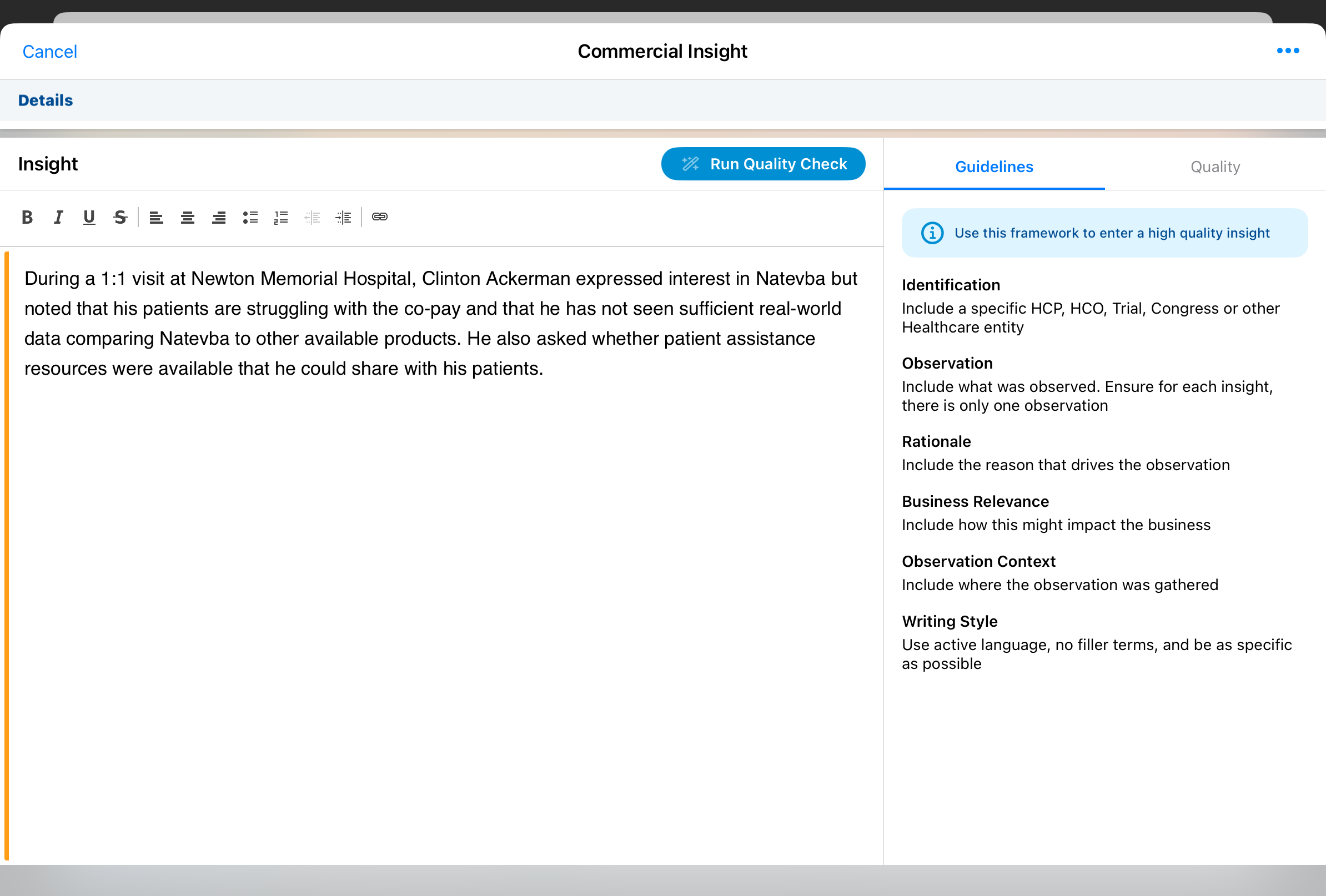
Accessing Agentic Insight Quality from Commercial Insights Records
To access Agentic Insight Quality from an individual Commercial Insight record, navigate to the Commercial Insight record. A panel displays on the right side of the screen (Browser, iPad) or as a tab strip (iPhone) with three tabs.
Accessing Agentic Insight Quality from the Call Report
To access Agentic Insight Quality from the call report:
- Select the Add Commercial Insights action
- Select the Edit Insight or Run Quality Check buttons for an existing Commercial Insight
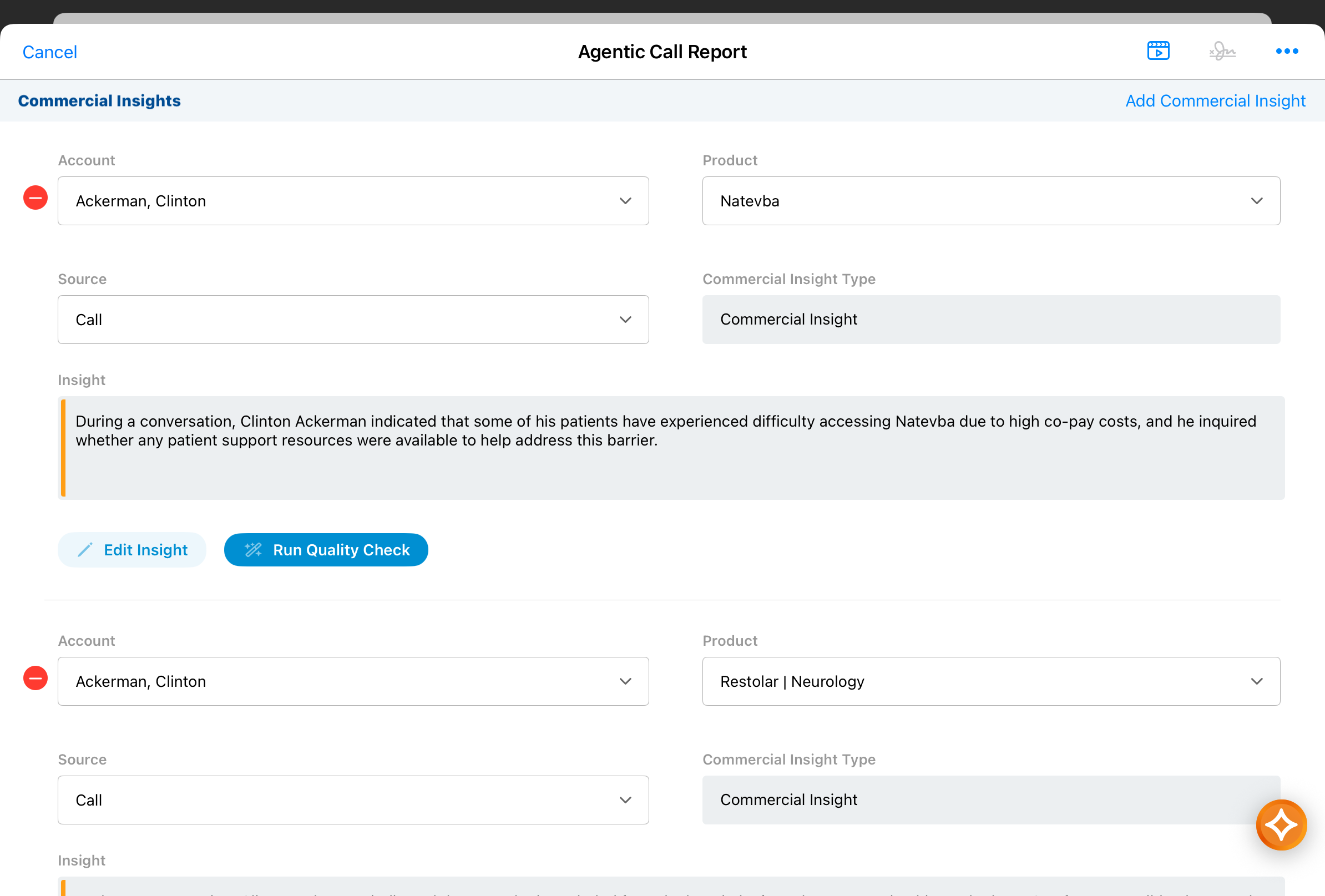
The Agentic Insight Quality screen displays (in a modal on Browser, or as a tab strip on iPhone).
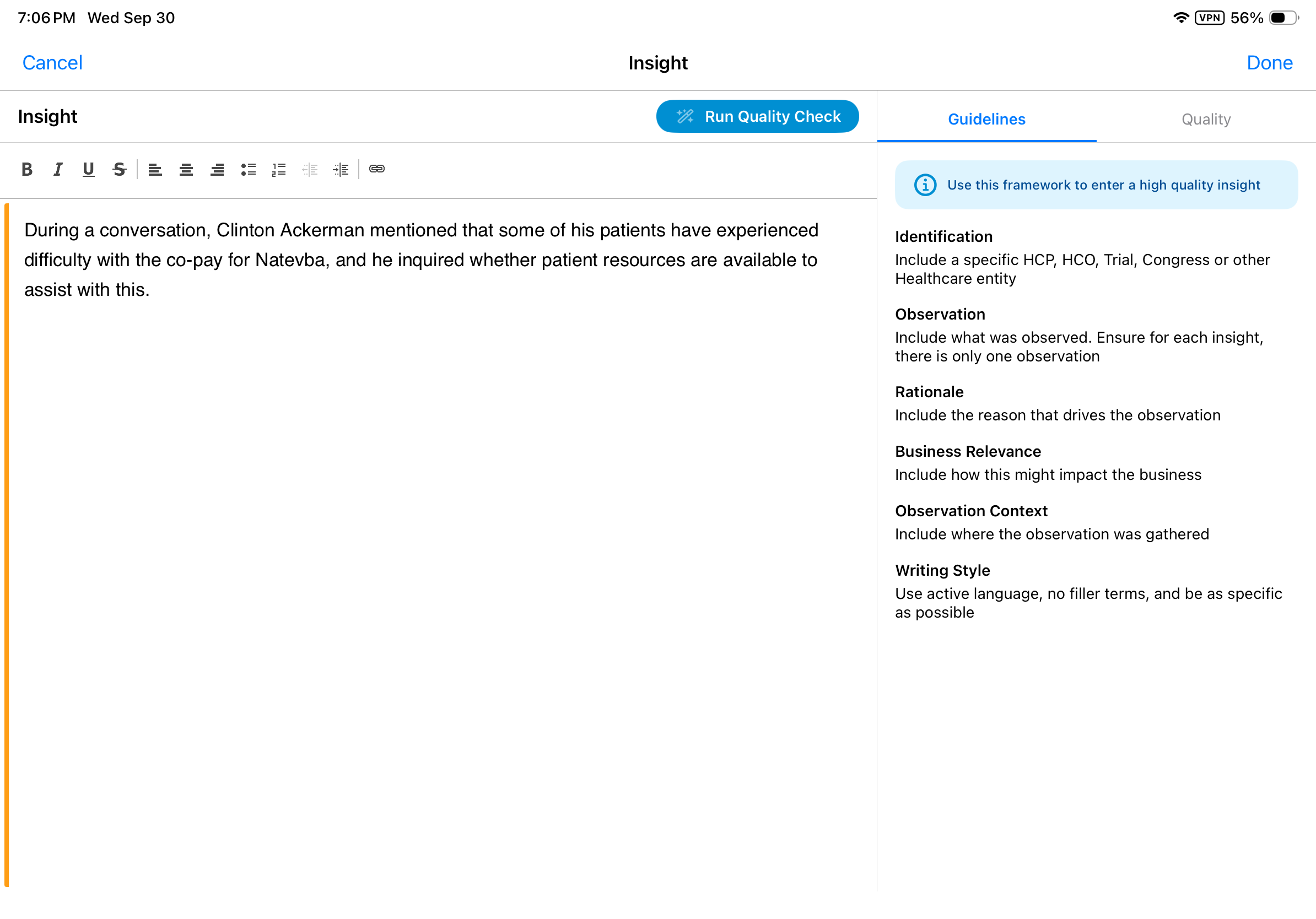
Reviewing Guidelines
Select the Guidelines tab to review rule names and guideline descriptions ordered by display order. These guidelines are based on the Veeva-provided or custom quality rules defined for Agentic Insight Quality.
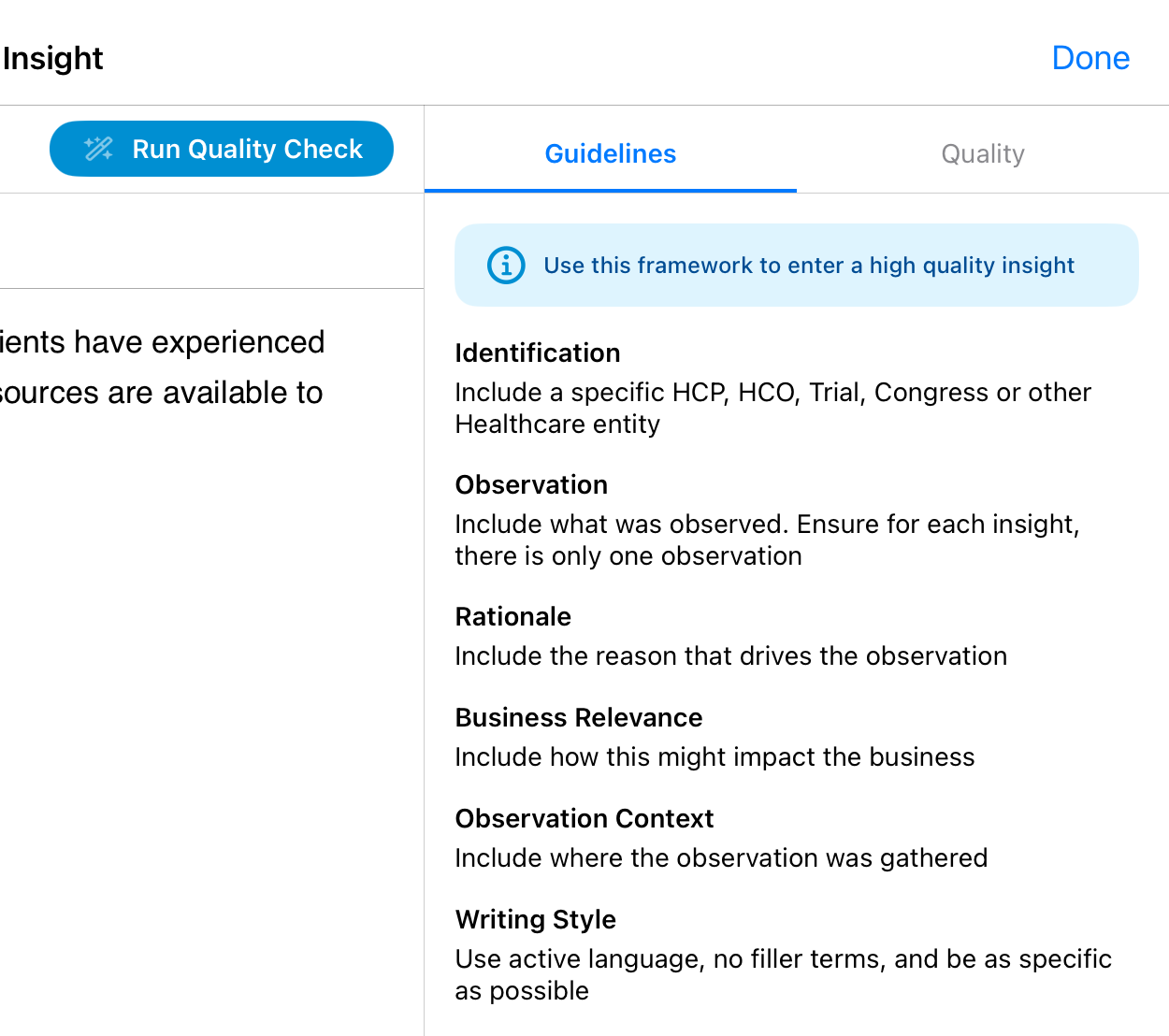
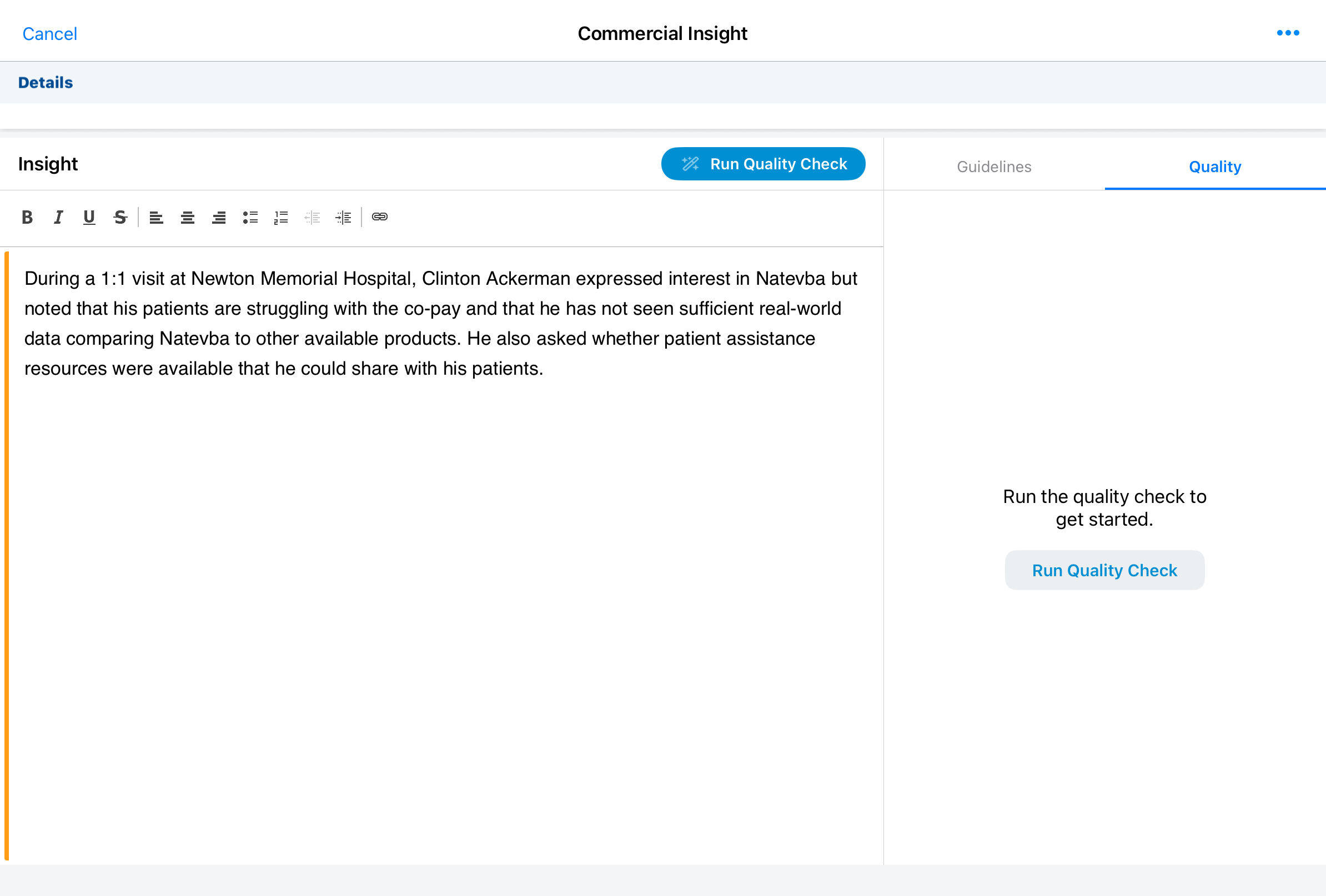
The Quality tab displays the results of a quality check. If the user selects the Quality tab prior to running a quality check, the tab displays a button to run the quality check.
Running a Quality Check
The Quality tab displays the results of a quality check. If the user selects the Quality tab prior to running a quality check, the tab displays a button to run the quality check.
To run a quality check:
-
Enter text in the Insight field manually or using the Voice Agent.
-
Select Run Quality Check below the Insight field or from the Quality tab. A No Internet message displays if the user attempts to run the quality check while disconnected from the internet.
Modifying text while the quality check runs will cancel the quality check. Users can also cancel a quality check by selecting the Cancel button.
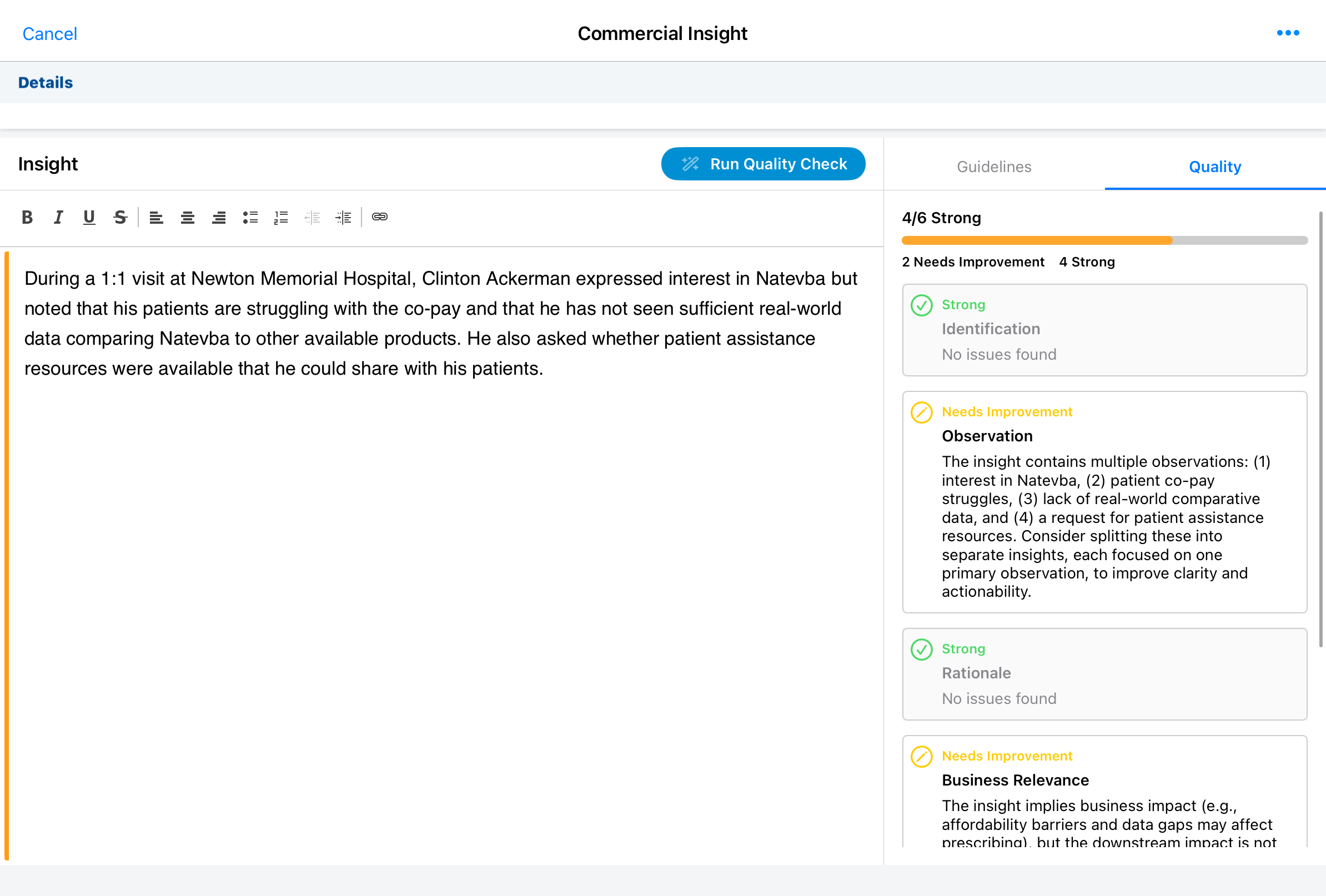
When the agent’s quality check is complete, the Quality tab displays the results.
-
Review feedback categorized into three levels:
- Strong (green check icon): Confirmed rules met successfully.
- Needs Improvement (yellow pencil icon): Suggestions provided for enhancement.
- Missing (red X icon): Required elements absent from the text.
-
Modify the text and select Run Quality Check again to perform a fresh, standalone evaluation. The entire insight is re-evaluated.
On the call report, quality check results are also displayed below the individual Commercial Insight when the user returns to the call report.
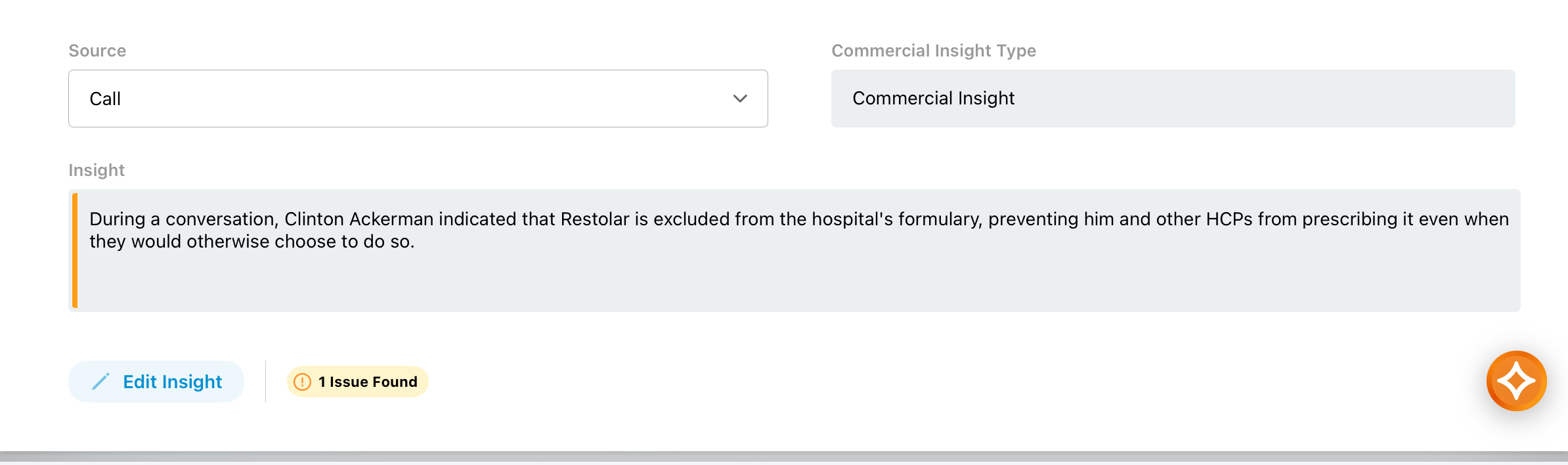
If the user reopens the Commercial Insight after saving or submitting the call report, issue history is not visible.
Saving or Submitting the Insight
Regardless of the outcome of the quality check, users can continue to save or submit the individual Commercial Insight record or call report as usual. If users select Save, Submit, or Cancel while the quality check is running, a confirmation message displays. Select Cancel Quality Check to stop evaluation and complete the record action, or select Close to allow processing to continue.

