Using the Opportunity Overview Template
The Opportunity Overview template helps content creators to quickly create an X-Page that allows end users to view information regarding their opportunities, including KPIs, pipeline, and revenue. Content creators can customize the template using X-Pages Studio. The Opportunity Overview template, when deployed, creates a home page for the Opportunity Management Overview dashboard.
For information on using X-Pages Studio templates and configuring content creators to use templates, see Using X-Pages Studio Template Library .
Who can use this feature?
- Content Creators - Browser
- Using the Opportunity Overview Template
- End Users - Browser
- Using the Opportunity Overview Template
- Users do not require an additional license
Configuring the Opportunity Management Template for
 Content Creators
To configure this feature, ensure Configuring X-Pages Studio is complete and the user has deployment permissions.
End Users
To configure this feature:
- Ensure Configuring Opportunity Management is configured.
- Ensure Configuring X-Pages is complete.
- Navigate to Admin > Users & Groups > Permission Sets.
- Select the appropriate permission set.
- Select the Objects tab.
- Grant the following permissions:
Object
Object Permission
Object Types
Fields
Field Permission
html_report__v
R
opportunity_management__v n/a
n/a
order_campaign__v R order_campaign__v - created_by__v
- created_date__v
- modified_by__v
- modified_date__v
- ownerid__v
Read user__sys n/a n/a preferred_currency__sys Read - Navigate to the Tabs tab.
- Grant View permission for the Opportunity Overview tab
- Navigate to the Pages tab:
- Grant View permission for the Opportunity Overview page
Using the Opportunity Overview Template as
Content Creators
To use the Opportunity Overview template:
- Log into X-Pages Studio.
- Select the Studio Templates tab.
- Select the Opportunity Overview template.
- Select Use Template.
- Customize the new page as needed. This step is optional.
- Deploy the new page using X-Pages Studio.
End Users
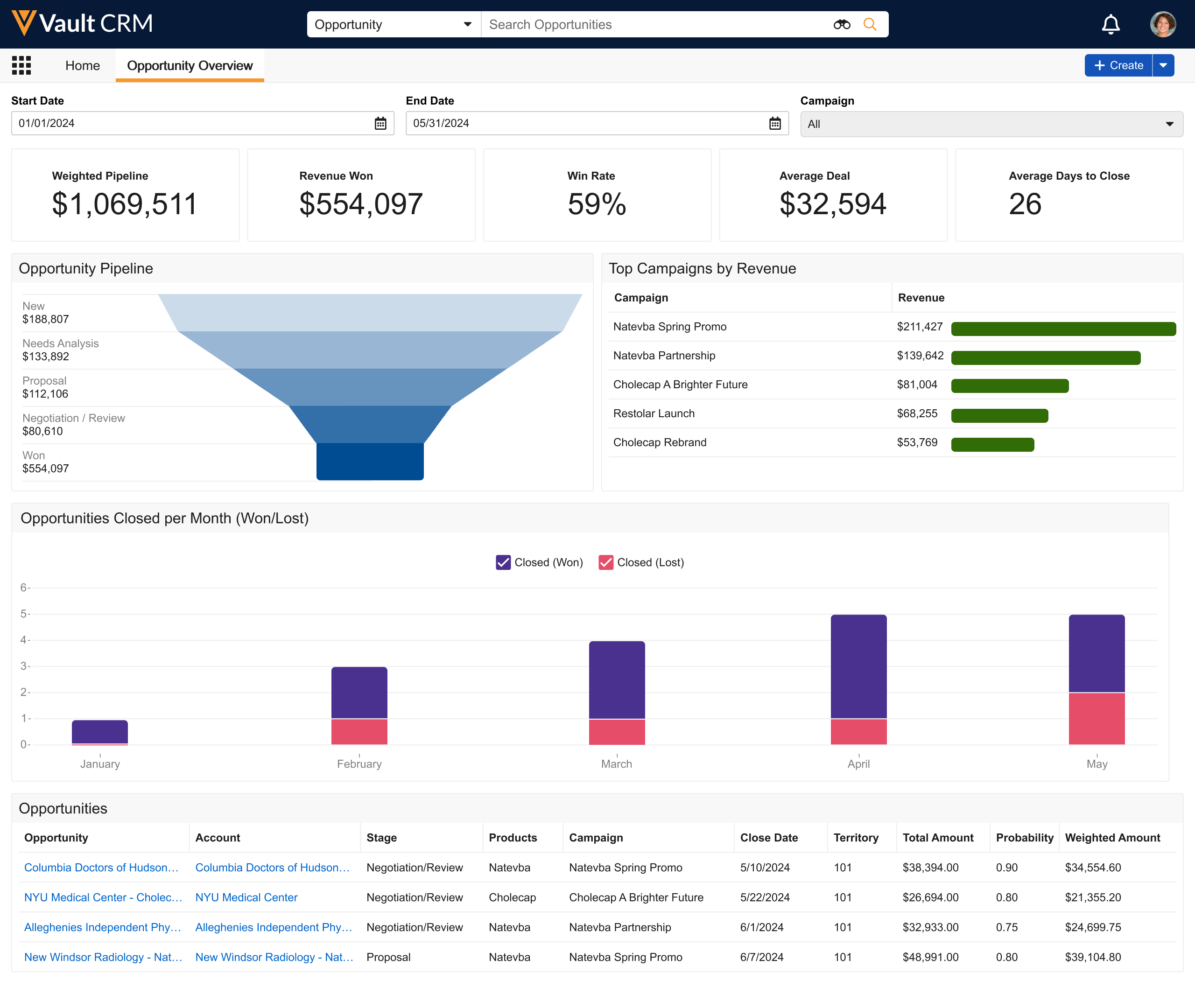
Before any customization, users can view information in the following sections:
- Filter Row - Allows the user to filter all items on the page, based on close date, campaign, and product
- Overall KPIs - Several KPIs display high level information around the user's current opportunities
- Opportunity Pipeline - Pipeline that displays the different opportunities and their current state (minus Closed (Lost)), to compare the amounts within the different states
- Top Campaigns by Revenue - Table that displays the top 5 campaigns and their total amount, or revenue, to have a quick view the top campaigns
- Opportunities Closed per Month (Won/Lost) - Trend chart that displays the amount of opportunities that have been won and lost over time
- Opportunities - Table that displays all opportunities and their important information at a glance

