Visualizing Campaigns and Journeys
The Flows tab enables marketers to visualize the sequence, timing, and relationships between campaign actions by transforming complex campaign logic into an intuitive, end-to-end view. Marketers have the ability to export an image of the campaign flow to easily communicate the campaign plan to other team members.
Who can use this feature?
- Marketing Users – Browser
- Visualizing Campaign and Journey Flows
- Users require a Campaign Manager license
Configuring Journey Visualization
 Marketing Users
To configure this feature, ensure Configuring Campaign Manager is complete.
Visualizing Campaign and Journey Flows as
Marketing Users
To visualize campaign and journey flows, navigate to the Flows tab of the appropriate multi-action campaign or journey. The Flows tab is available once there’s at least one flow action added on the Overview tab.
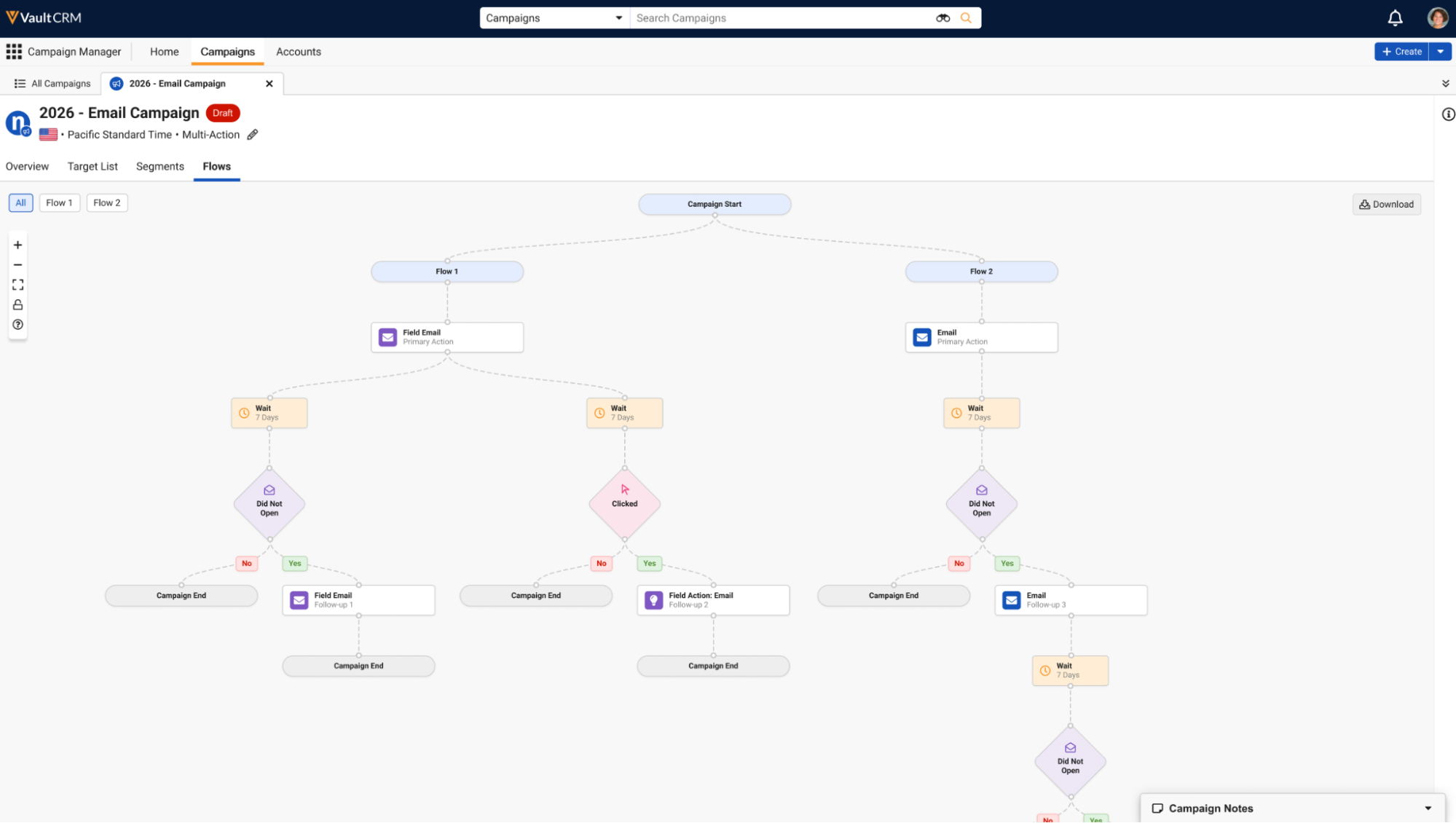
The flows tab is not available to single action campaigns or journeys, as well as for multi-action journeys using Journey Builder.
The following controls are available:
- Zoom in and Zoom out (+/-) – Controls the zoom level. Zooming using a mouse wheel or trackpad is also supported.
- Fit View (
 ) – Select this button to automatically reset the zoom and pan settings so that all rendered nodes completely fill the canvas tab area
 - Lock and Unlock (
 ) – Select this button to lock or unlock the canvas controls, disabling or re-enabling zoom and pan adjustments
 - Legend (
 ) – Select this button to display the chart legend
Select the Download button on the toolbar to save an image of the entire journey as an .svg file.
Viewing Flows
Each defined flow of the campaign or journey displays as a branch from the Start node. Marketing users can filter the Flows sub-tab to only display specific flows via the buttons at the top-right corner of the canvas.
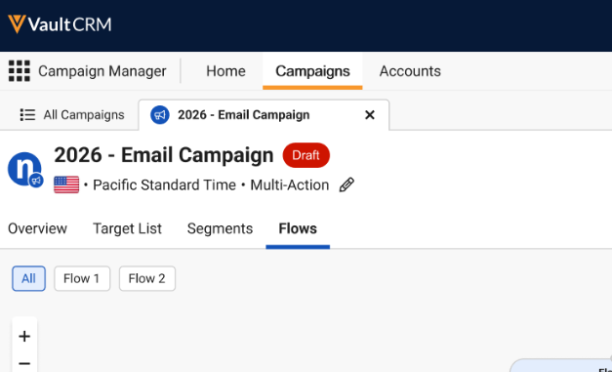
When viewing a filtered list of flows and selecting the Download button, only displayed flows are saved to the resulting .svg file.
Select a node in the flow to display details about that node. The following node types are available:
- Flow - Displays information about the flow, including assigned segments, as well as further information about those segments
-
Action – Includes primary and followup channel actions, including;
Specific channel availability is still dependent on using a campaign versus a journey.
For email-based channels, select the template thumbnail to display the Preview Email Template modal, enabling marketing users to preview the email prior to activation, as well as send test emails.
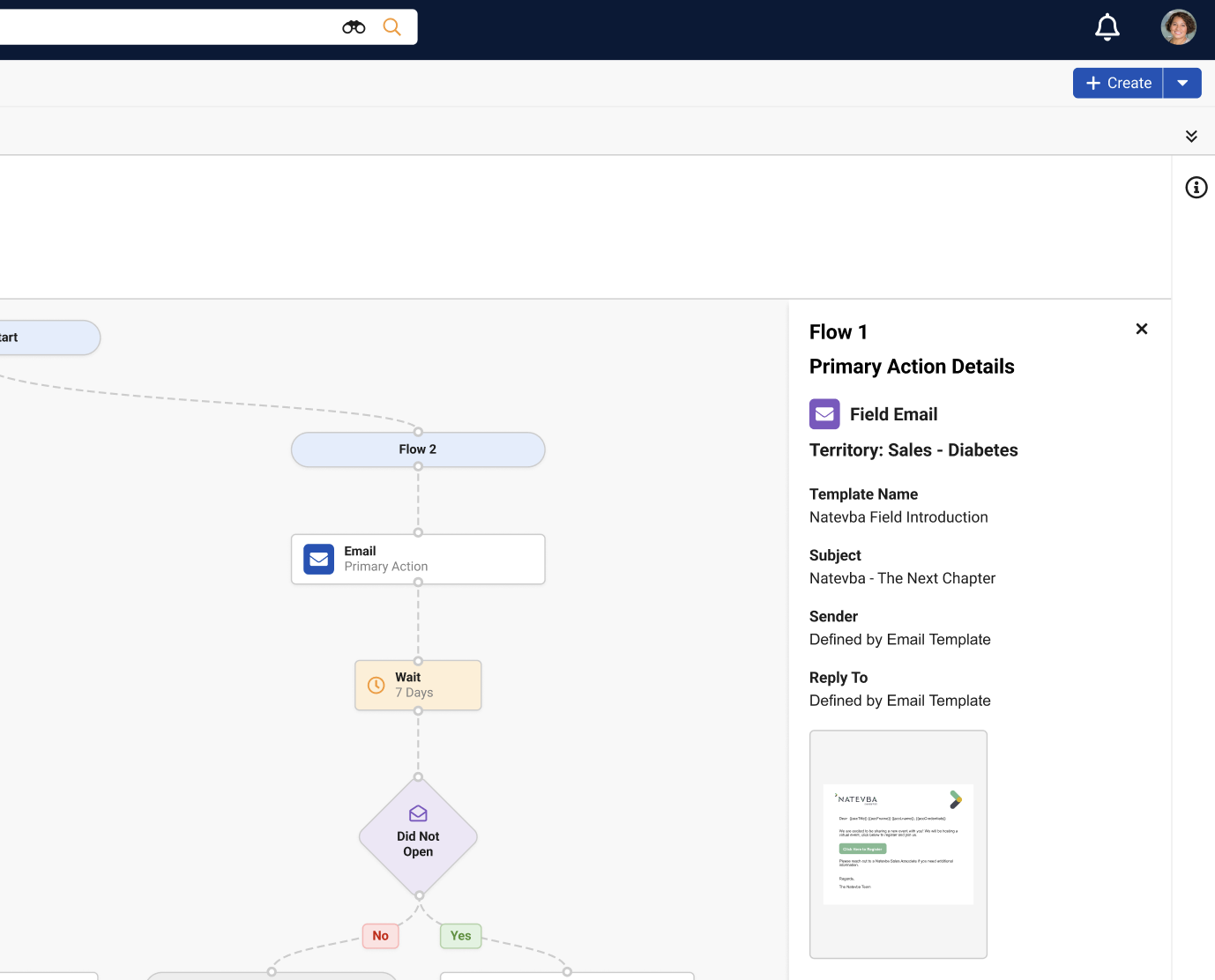
Users can also access these features in Field Action emails using the All Actions menu.
Selecting a node that is part of a Follow-up Action also highlights the upstream Action that the Follow-up is dependent on
- Wait – Represents a period of time that must pass before a follow-up action is executed
- Split – Branching points in the journey or campaign timeline based on interaction requirements by targets within the campaign or journey
- End - Selecting an End node highlights the entire path from Start to to that exit point

