Appointment Booking for HCPs
HCPs can request meetings with CRM users via the appointment booking site. The appointment booking site displays calendar availability for CRM users, making it easy for HCPs to request meetings or reschedule meetings when scheduling conflicts occur.
Who can use this feature?
- HCPs - Android, iPad, iPhone, Web
- Requesting meetings from the appointment booking site
- Rescheduling meetings from the appointment booking site
- Users require an Engage license
Configuring Appointment Booking for
 Business Admin Users
To configure this feature:
- Ensure at least one of the following entry points for the appointment booking site is configured:
- Approved Email – Ensure Appointment Booking: Sending Meeting Requests via Approved Email is configured
- Engage (web or mobile) – Enable the Enable HCP-Initiated Meeting Requests Engage Connect group setting for a specific group or for the Vault CRM instance and ensure Using Digital Business Cards is configured
- Ensure Appointment Booking: Managing Meeting Requests in My Schedule is configured.
Requesting Meetings from the Appointment Booking Site as
HCPs
HCPs can submit meeting requests according to the CRM user’s availability from the appointment booking site:
- Navigate to the appointment booking site from the following entry points:
- A link in an Approved Email sent from a CRM user
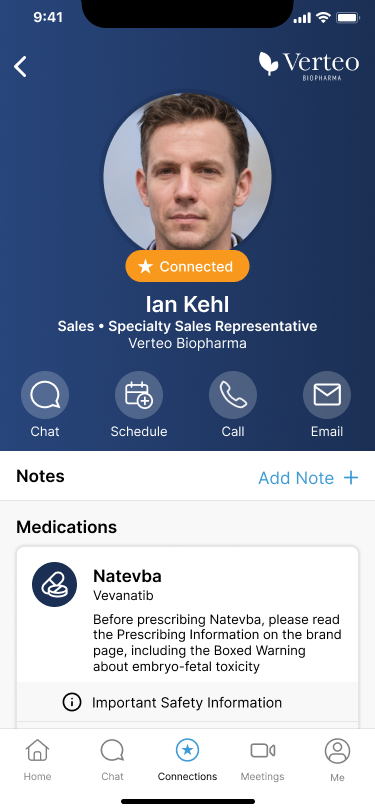
- The Schedule button (mobile) or Schedule Meeting (Browser) button on digital business cards for CRM users
- After signing into Engage, the Schedule button (mobile) or Schedule Meeting (web) button in chat threads or CRM user profiles in the Engage (web or mobile)
In the browser, the site renders in the viewer’s browser language and is available in all Veeva supported languages. If the viewer is using a language not supported by Veeva, the browser language defaults to English.
If recipients select the link on a device with the Engage app for iOS or Android installed, the app opens and the recipient creates the meeting request from within the application. Recipients without the app installed can continue via the browser to create the meeting request.
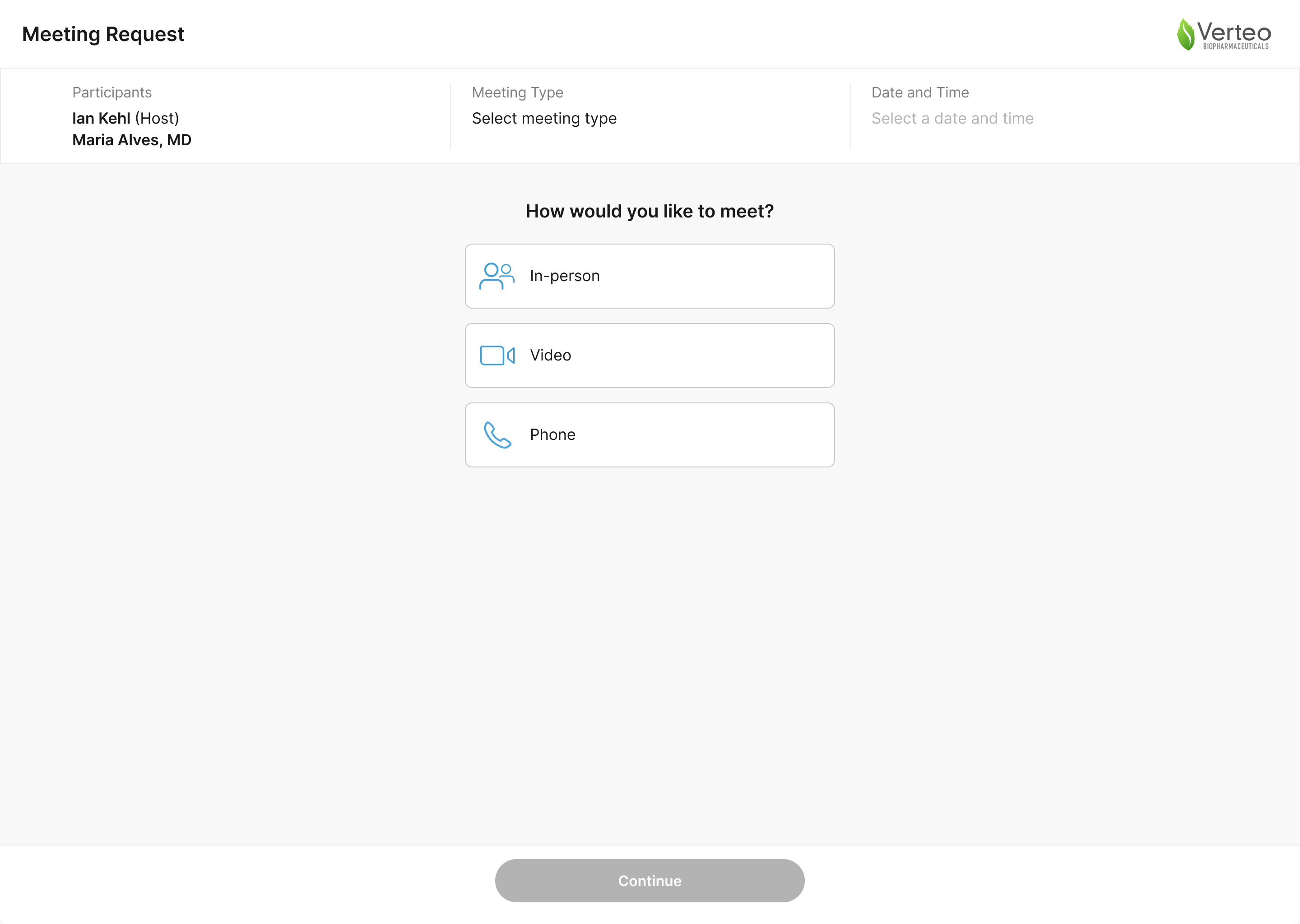
- Select the appropriate Meeting Type:
The meeting type options are not configurable.
- In Person
- Video
- Phone
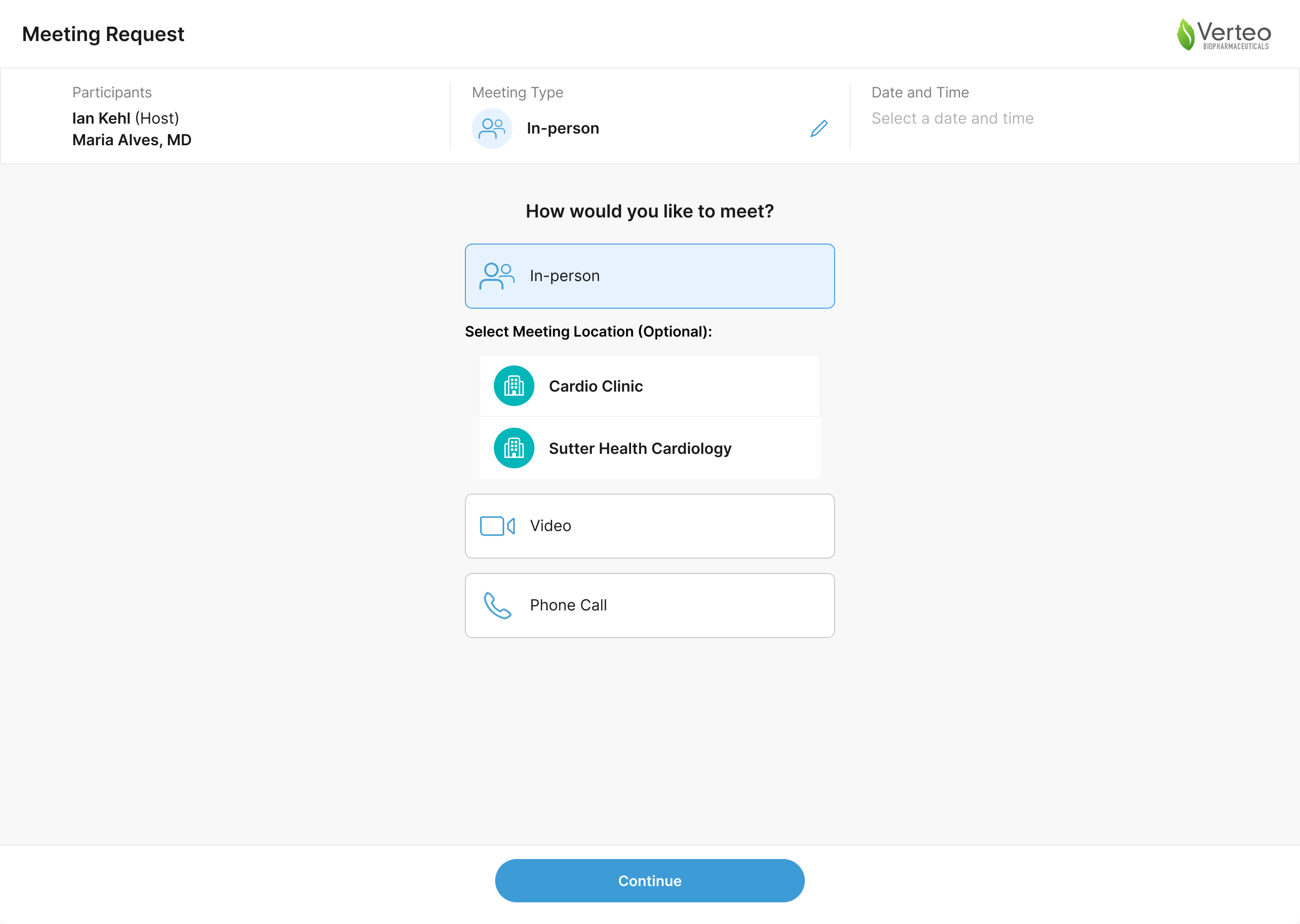
If the HCP selects In Person for the meeting type and their account has multiple associated offices in Engage, they can select which address to associate with the request.
- Select the appropriate date and time. HCPs can book meetings up to 90 days in advance. Time slots for unavailable time and previously requested or scheduled meetings are grayed out and not available for selection.

- Select Submit Request. The confirmation page displays the meeting request information.

HCPs can select the pencil button in the Meeting Type section of the header to change the requested meeting type at any point in the scheduling process.
After submitting the request, the HCP receives an automated confirmation email acknowledging receipt of their meeting request. When the CRM user accepts the request, the HCP receives another confirmation email indicating their request has been accepted. Both confirmation emails contain a Reschedule button, allowing the HCP to request a scheduling update.
If the HCP was signed into their Engage account when sending the meeting request, the meeting request status also displays in Engage. For more information, see Viewing Meeting Request Status in Engage in Engage.
Rescheduling Meetings from the Appointment Booking Site as
HCPs
HCPs can resolve scheduling conflicts by rescheduling meeting requests from the appointment booking site. This ensures the meetings in end users’ calendars are always up-to-date.
To reschedule a meeting request, HCPs can navigate to the confirmation email received after submitting the initial request or after the CRM user accepted the initial request, and select Reschedule.

The appointment booking site displays in the browser, and HCPs can select a new date and time for the meeting request.
After submitting the rescheduled request, the HCP receives an automated confirmation email containing both the original and rescheduled dates and times.
Reschedule links can only be used once. To reschedule again, HCPs must use the link from the most recent confirmation email or acceptance email. Reschedule links in previous confirmation emails are automatically expired.

