Multi-Product and Multi-Topic Events
To optimize event planning flexibility and data accuracy, end users can associate multiple products and topics with their events. This supports events with multiple brands or disease states as well as events with multiple decks presented to attendees.
Who can use this feature?
- Business Admin Users - Browser
- Associating Multiple Products to Topics
- End Users - Browser, iPad
- Creating and Editing Events with Multiple Products
- Adding and Managing Multiple Topics on an Event
- Considerations and Interactions When Using Multi-Product and Multi-Topic Events
- Users require an Events Management License
Configuring Multi-Product Events for
 Business Admin Users
To configure this feature:
-
Ensure the following features are configured:
- Navigate to Admin > Users & Groups > Permission Sets.
- Select the appropriate permission set.
- Select the Objects tab.
-
Grant the following permissions:
Object
Object Permission
Object Types
Fields
Field Permission
em_event__v
n/a
n/a
products__v
Edit
em_event_product__v
CRED
event_product__v
- event__v
- product__v
- mobile_created_datetime__v
- mobile_id__v
- mobile_last_modified_datetime__v
- object_type__v
Edit
em_catalog__v
(Optional, enable to filter Topic by products)
CRED
n/a
products__v
Edit
End Users
To configure this feature:
-
Ensure the following features are configured:
- Navigate to Admin > Users & Groups > Permission Sets.
- Select the appropriate permission set.
- Select the Objects tab.
-
Grant the following permissions:
Object
Object Permission
Object Types
Fields
Field Permission
em_event__v
n/a
n/a
products__v
Edit
em_event_product__v
CRED
event_product__v
- event__v
- product__v
- mobile_created_datetime__v
- mobile_id__v
- mobile_last_modified_datetime__v
- object_type__v
Edit
em_catalog__v
(Optional, enable to filter Topic by products)
R
n/a
products__v
Read
- Navigate to Admin > Configuration > Objects > em_event__v > Layouts.
- Place the products__v field on the appropriate layout.
- Navigate to Business Admin > Objects > VMobile Object Configurations.
- Enable the appropriate VMOCs for the em_event_product__v object.
Events created prior to this feature enabled will still display the product__v field. New events created after the feature enabled will display only the products__v field. Customers should remove the product__v field from the layout when it is no longer needed after enabling this feature.
Configuring Multi-Topic Events for
Business Admin Users
To configure this feature:
-
Ensure the following features are enabled:
- Navigate to Admin > Users & Groups > Permission Sets.
- Select the appropriate permission set.
- Select the Objects tab.
-
Grant the following permissions:
Object
Object Permission
Object Types
Fields
Field Permission
em_event__v
n/a
n/a
products__v (optional)* Edit
em_event_session__v
CRED
event_topic__v
- event__v
- products__v (optional)*
- mobile_created_datetime__v
- mobile_id__v
- mobile_last_modified_datetime__v
- object_type__v
- topic__v
- speakers__v
- session_title__v
Edit
em_event_session_attendee__v
CRED
event_session_speaker__v
- event_session__v
- speaker__v
- ctrl_event__v
- mobile_created_datetime__v
- mobile_id__v
- mobile_last_modified_datetime__v
- object_type__v
Edit
em_event_product__v (optional)*
CRED
event_product__v
- event__v
- product__v
- event_session__v
- mobile_created_datetime__v
- mobile_id__v
- mobile_last_modified_datetime__v
- object_type__v
Edit
em_catalog__v (optional)*
CRED
n/a
products__v Edit
* Enabling Products for Multi-Topic Events is only required to filter topics by product
End Users
To configure this feature:
-
Ensure the following features are enabled:
- Navigate to Admin > Users & Groups > Permission Sets.
- Select the appropriate permission set.
- Select the Objects tab.
-
Grant the following permissions:
Object
Object Permission
Object Types
Fields
Field Permission
em_event__v
n/a
n/a
products__v (optional)* Edit
em_event_session__v
CRED
event_topic__v
- event__v
- products__v (optional)*
- mobile_created_datetime__v
- mobile_id__v
- mobile_last_modified_datetime__v
- object_type__v
- topic__v
- speakers__v
- session_title__v
Edit
em_event_session_attendee__v
CRED
event_session_speaker__v
- event_session__v
- speaker__v
- ctrl_event__v
- mobile_created_datetime__v
- mobile_id__v
- mobile_last_modified_datetime__v
- object_type__v
Edit
em_event_product__v (optional)*
CRED
event_product__v
- event__v
- product__v
- event_session__v
- mobile_created_datetime__v
- mobile_id__v
- mobile_last_modified_datetime__v
- object_type__v
Edit
em_catalog__v (optional)*
R
n/a
products__v Read
* Enabling Products for Multi-Topic Events allows users to specify products when selecting a topic. Topics are filtered based on selected products.
- Navigate to the em_events__v object within the permission set.
- Grant View permission to the topics_section__v object control.
- Navigate to Admin > Configuration > Objects > em_event__v > Layouts.
- Place the topics_section__v control on the appropriate layouts. Set Display as Read-Only to true for layouts where users are not allowed to add or remove topics.
- Navigate to Admin > Configuration > Objects > em_event_session__v > Layouts.
-
Place the following fields on the appropriate layouts:
- topic__v
- speakers__v
- products__v – Optional, only required when filtering topics based on products
- Navigate to Business Admin > Objects > VMobile Object Configurations.
-
Activate the appropriate VMOCs for the following objects:
- em_event_session__v
- em_event_session_attendee__v
- em_event_product__v
When filtering topics by products for Multi-Topic Events, only the products__v field at the em_event_session__v object is supported. Using the product__v or products__v fields on the em_event__v object is not supported.
Using Event Business Rules with Multi-Topic Events
When using Event Business Rules with Per Topic or Per Topic Category enabled, admins can update the corresponding Veeva Warning Message to include the {{emtopic}} token, enabling soft and hard warnings to display the specific topic causing the violation. This applies to the following types of Event Business Rules:
- Event Speaker Rules
- em_per_speaker_engagement_limit_rule__v
- em_cross_event_per_speaker_engagement__v
- Event Attendance Rules
- em_per_attendee_attendance_limit_rule__v
- em_cross_event_per_attendee_attendanc__v
- em_meal_opt_in_attendance_limit_rule__v
- em_cross_event_meal_opt_in_attendance__v
Associating Multiple Products to Topics as
Business Admin Users
Business Admin Users can associate multiple products to topic records to allow end users to filter topics by product when updating an event.
To associate multiple products to an em_catalog__v record:
- Edit the appropriate em_catalog__v record.
- Use the products__v field to search for and select the appropriate products.
- Select Save.
em_catalog__v records are saved with products__v field stamped with comma-delimited product__v record IDs of the selected products.
Creating and Editing Events with Multiple Products as
End Users
To add multiple products to an event:
- Edit the appropriate event.
-
Use the products__v field to search for and select the appropriate products. Only detail and detail topic products assigned to the user via My Setup display for selection.
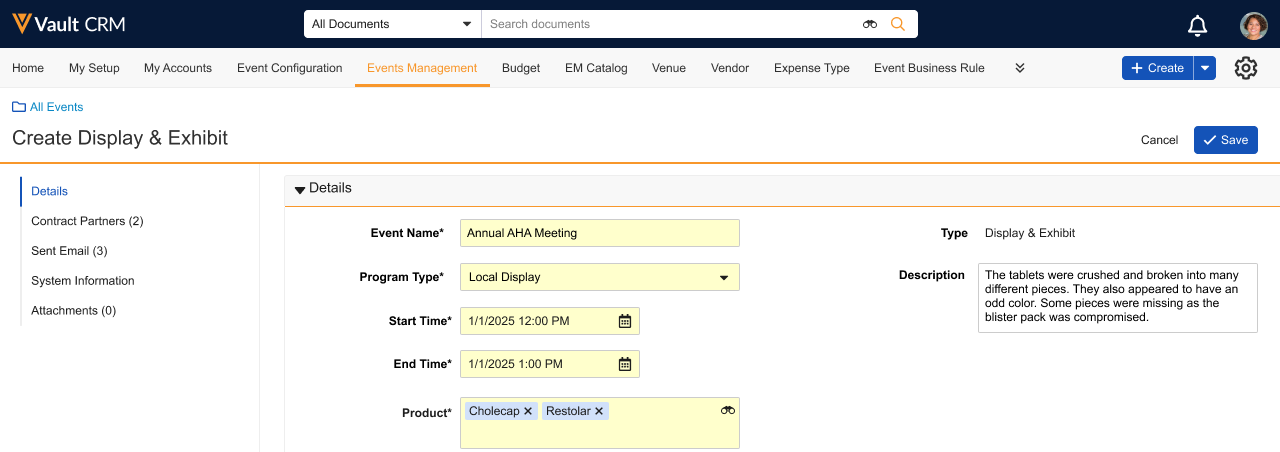
If the user does not have products aligned, all products display.
- Select Save.
An em_event_product__v record is created for each selected product.
When selecting a Topic for an event with multiple products, the list of available topics are filtered based on the event products matching the assigned products on the topic.
Adding and Managing Multiple Topics on an Event as
End Users
To add multiple topics within an event:
- Navigate to the Topics section of the appropriate event.
-
Select the + Add Topic button.
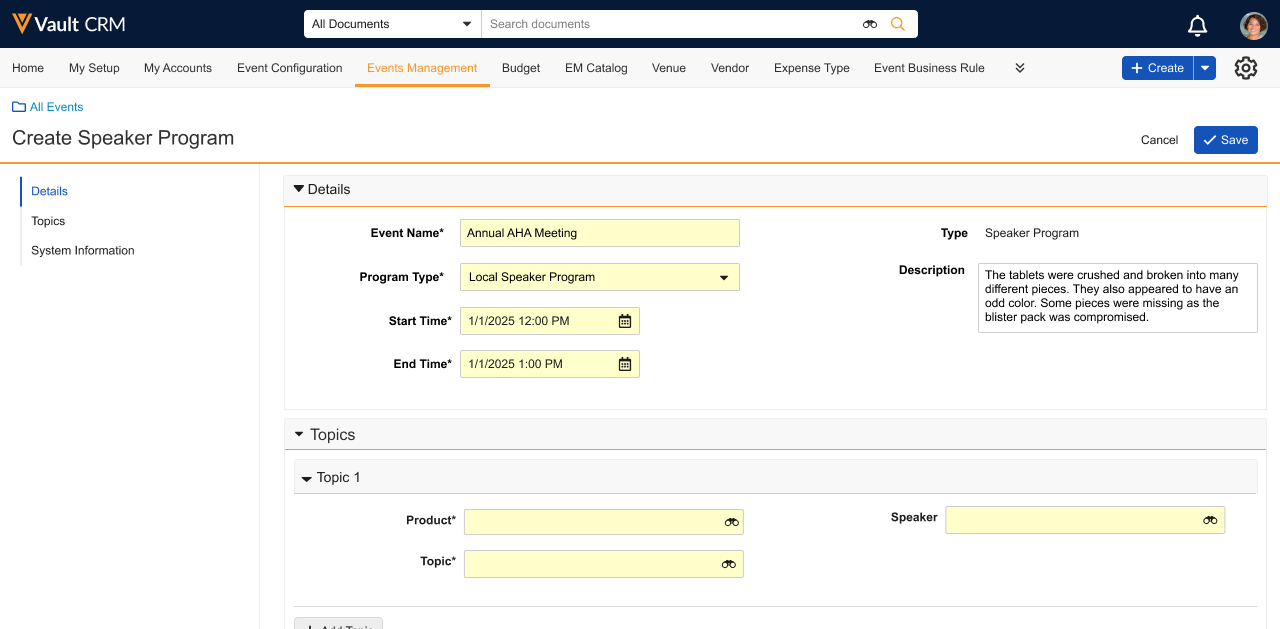
- Populate the following fields:
- Topic – Select the appropriate topic
- Speaker – Select the appropriate speaker or speakers. Speaker qualification event rules are applied when displaying the list of speakers. See Adding Event Speakers to an Event for more information.
- Product – Select the appropriate product, if applicable
- Repeat this process for the number of applicable topics.
- Select Save.
An em_event_session__v record is created for each topic row. Additionally, em_event_speaker__v and em_event_session_attendee__v records are also created linking the speakers to the corresponding session topic records.
Adding Speakers from the Related List
End users can also add speakers to a multi-topic event from the Event Speaker related list:
- Navigate to the Event Speaker section of the appropriate event.
- Select the + button. The Select Topic modal displays.
-
Select the appropriate topic from the drop-down.
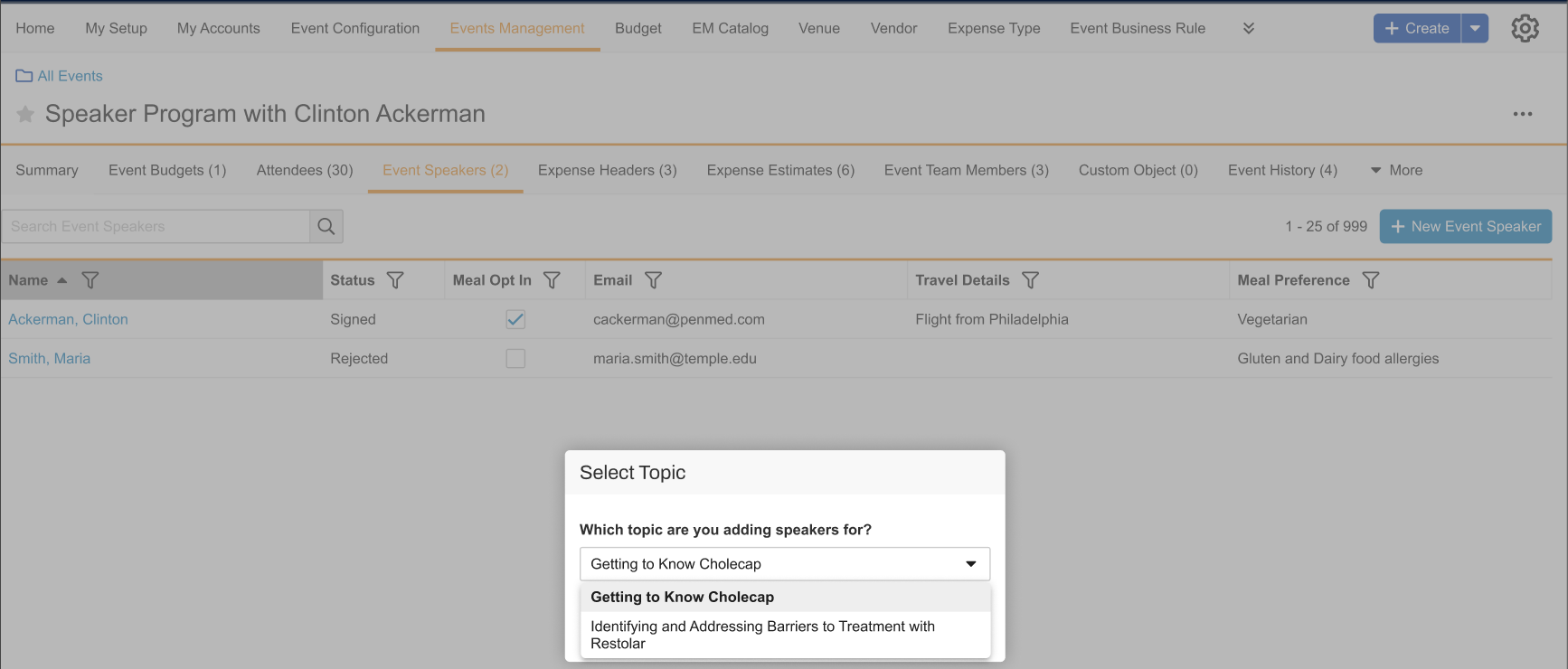
- Select Continue.
- Complete the speaker selection process.
Considerations When Using Multi-Product or Multi-Topic Events as
End Users
When Multi-Product and Multi-Topic Events are enabled, several other Events Management features evaluate data across the underlying em_event_product__v and em_event_session__v objects to ensure configuration, rules and validations are respected.
- Speaker Qualification Validation – Speaker qualifications recalculate against the updated event start time for each independent session topic row. If a speaker fails qualification on any row, an error displays and blocks the save action.
- Event Materials – Event materials are generated for the applicable product and topic selected
- The following types of Business Rules respect Multi Product or Multi Topic Events
- Attendance Rules – When an attendance business rule has per_event_topic__v or per_event_topic_category__v set to true, an attendee is evaluated against each session topic or unique topic category on a multi topic event, respectively.
- Restricted Products – Attendees violate this rule when any selected event products are designated as restricted for that Account.
- Speaker Rules – When a speaker business rule has per_event_topic__v set to true, an event speaker is evaluated against each topic they are speaking on in a multi topic event.
- Speaker Product Caps – Expense Committed and Actual costs for multi product events are split equally to all Speaker Cap records matching to the event products. YTD Utilization is incremented to all Speaker Cap records matching to the event products. The Speaker Attendance By Product Cap business rule evaluates against each event product that the speaker has a Speaker Cap record for.
- Expense Estimate Rates – When generating expense estimates for Event Speaker, the matching Rate Assignment record based on the selected products is used
- Budget Filtering – When Filtering Budgets is enabled, a budget is a match if its aligned product matches any of the selected event products

