Agentic Insight Capture for Commercial Insights
Agentic Insight Capture for Commercial Insights allows end users to capture high-value market intelligence on the go using voice dictation. Agentic Insight Capture operates on individual records or alongside Agentic Call Report™, where it evaluates dictated Call Voice Notes against Insight Definition Rules to automatically identify and extract relevant Commercial Insights.
By converting spoken Voice Notes into structured Commercial Insight records, this feature reduces manual data entry and enables detailed information to be recorded while fresh in the user’s memory. This ensures critical intelligence is captured, providing richer data to inform commercial strategy.
Who can use this feature?
- End Users — iPad, iPhone
- Starting Dictation
- Capturing Commercial Insights
- Creating Commercial Insights
- Creating Commercial Insights from Call Voice Notes
- Reconciling Saved Voice Notes
- Saving and Submitting Commercial Insights
- A Vault AI license is required
Configuring Agentic Insight Capture for Commercial Insights for
 End Users
To configure this feature:
-
Ensure the following configuration is complete:
- Navigate to Admin > Users & Groups > Permission Sets.
- Select the appropriate permission set.
- Select Objects.
-
Grant Edit permission to the following fields on the commercial_insight__v object:
- insight_capture_agent_used__v
- insight_definition_rule__v (when capturing Commercial Insights from Call Voice Notes)
Starting Dictation as
End Users
End users dictate the details of Commercial Insights using Voice Notes, which capture the user’s speech and transcribe it into text.
Users can capture Commercial Insights dictation in two main ways:
- Start dictation and capture as a Commercial Insight Voice Note – Start dictation with a Commercial Insights-specific option, capture the relevant information as a Commercial Insight Voice Note, then select Create Commercial Insight to convert the transcribed text into a Commercial Insight (or select Save for Later, to save the Voice Note and convert the transcription later). This dictation path is covered within this section.
- Capture automatically from a Call Voice Note – When converting a Call Voice Note into an Agentic Call Report™, Agentic Insight Capture can evaluate the transcript against active Insight Definition Rules and extract dictated Commercial Insights automatically. See Creating Commercial Insights from Call Voice Notes for information on this path.
Users can start dictation using multiple methods: hands-free access with Siri, long-pressing the AI icon in Vault CRM, or selecting a dictation option from the My Notes tab header. Voice Note dictation and transcription is supported for any of Vault CRM's Supported Languages.
Using Siri to Start Dictation
To start dictating using Siri, use one of the following methods:
- Say, ‘Hey Siri ‘, followed by a Vault CRM-specific command
- Long press the iPhone's power button, then speak or type a specific Vault CRM command
- Select a Vault CRM-specific prompt from iOS Shortcuts or iOS Suggestions
Once Siri is activated, clearly speak a command that includes the label of the commercial_insight__v object. For example, “Create a Commercial Insight.”
Dictation via Siri is not supported when the user has unsaved changes. For example, when creating or editing a record, or when collecting a signature. If users attempt to start dictation from an unsupported page, Siri alerts the user with the following message: “There are unsaved changes in Vault CRM. Save your work and try again.”
Using the AI Icon to Start Dictation
To start dictating using the AI icon:
-
Long-press the AI icon from one of the following entry points:
- Vault CRM Home Page
- Account Detail
- Address Detail
- Call Reports, when viewing a submitted call
- CLM Media tab
- Commercial Insights Detail
- Commercial Insight tab
- Medical Insights Detail
- Medical Insights tab
- My Notes tab
-
Select the Dictate Commercial Insight option.
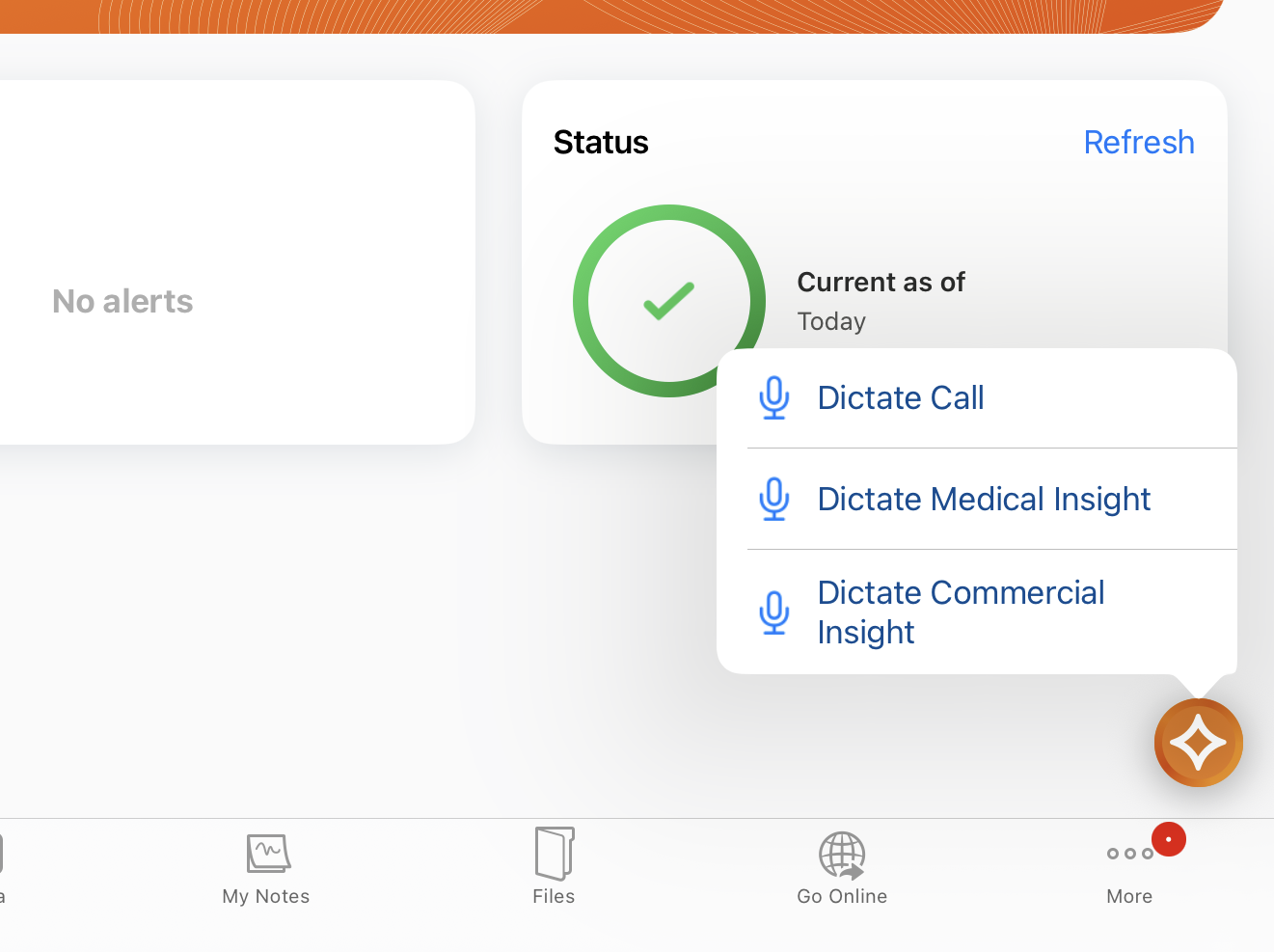
Dictating from the My Notes Tab
To start dictating from the My Notes tab:
- Navigate to My Notes.
- Select the Plus (+) icon.
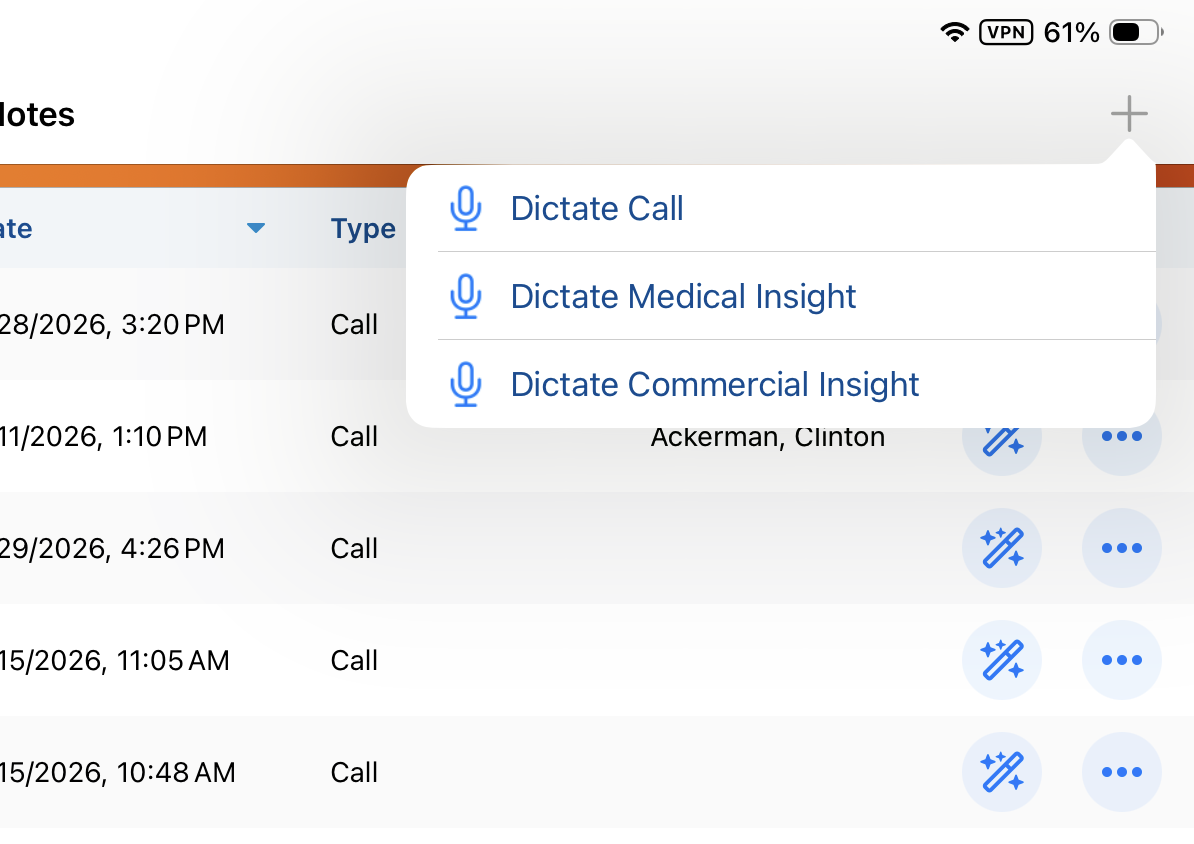
- Select the Dictate Commercial Insight option.
Capturing Commercial Insights as
End Users
After users start dictation, a Voice Note opens to capture the user’s speech. Recording and transcription begin automatically. Users describe the interaction and include any information relevant as a Commercial Insight. For example, the account, relevant products, and the insight information. For best results, it is recommended to speak at a clear, moderate pace in an environment with minimal background noise.
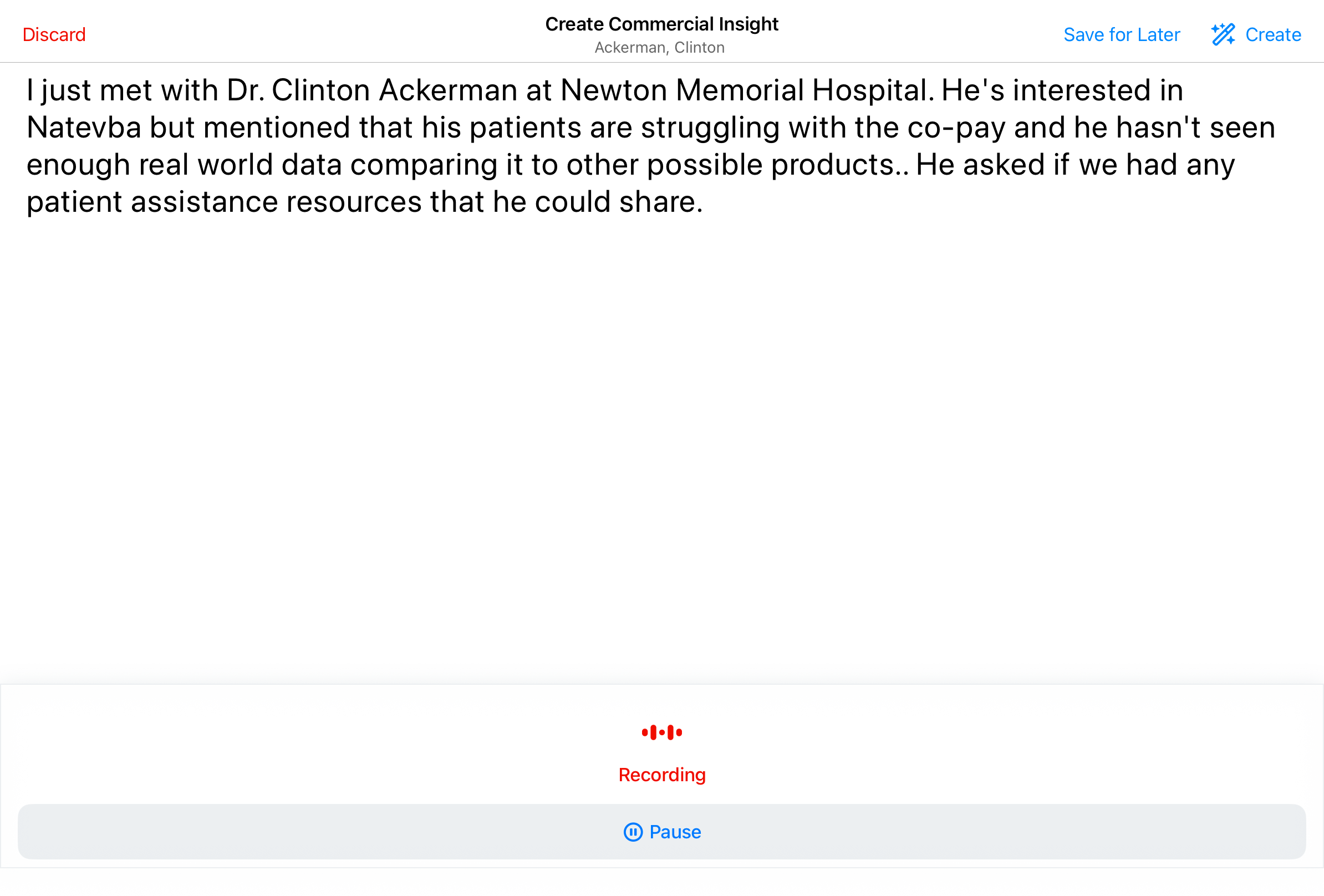
To pause the recording, select the Pause icon from the Voice Note. To resume the recording, select the Resume icon.
To complete the Voice Note, select one of the following options from the header:
- Create Commercial Insight - Immediately sends the Voice Note for processing. Agentic Insight Capture analyzes the text, identifies relevant Commercial Insights, and populates the relevant fields on the Commercial Insight record or call report.
- Save for Later - Saves the Voice Note for later review. Users can access the saved Voice Note from My Notes and create a Commercial Insight at a later time. The Voice Note only exists on the user’s device and is not synced to the Vault CRM database.
If users select Cancel on an unsaved record created from a Voice Note, the record is discarded and the Voice Note is saved for later.
- Discard - Permanently deletes the recording and Voice Note without creating a record. Users are prompted to confirm the Discard action before the Voice Note is deleted.
Working Offline
Although recording and transcription occur locally on the user's device using native iOS capabilities, an internet connection is required to generate records from Voice Notes. If an internet connection is not available when a user selects Create Commercial Insight, a Connection Issue alert displays. In these instances, users can instead select Save for Later to store the audio and transcript on the device.
Voice Notes are strictly device-bound; they do not sync to the Browser or other devices and remain only on the device where they were captured. These notes persist through database refreshes but are permanently deleted once the final record is submitted or the note is manually discarded.
Error Messaging
Error messages display when users encounter the following issues:
- Connection issues which prevent the LLM from responding
- LLM response time exceeds 120 seconds
- User’s request exceeds the maximum token usage
- User’s request contains words or phrases rejected by the LLM’s usage policies
Creating Commercial Insights as
End Users
When users create a Commercial Insight from the Voice Note, Agentic Insight Capture intelligently processes the transcribed text and populates the new Commercial Insight based on the information in the Voice Note.
Key information is automatically populated, if specified in the Voice Note:
- Account
- Detail Products
- Insight Text
The listed sections and fields must be placed on the commercial_insight__v layout in order to be populated.
Capturing the Account
Agentic Insight Capture identifies the account for the Commercial Insight based on where the user initiates the process and the content of the Voice Note.
The appropriate account is automatically populated on the Commercial Insight when users initiate Agentic Insight Capture from one of the following account-specific entry points:
- Account Detail pages
- Address Detail pages
- Call Reports, in View mode
When users initiate dictation from one of the other entry points, not specific to an account, the agent attempts to identify account names from Voice Note text:
- Single Match - If only one account matches the name mentioned, it is automatically populated
- No Match - If a matching account is not found, the account is not pre-populated
- Multiple Matches - If there are multiple potential matches, these selections are included as Suggested Accounts when users open the account selector on the Commercial Insight.
Suggested Accounts from Agentic Insight Capture are not retained if users navigate away from the Commercial Insight.
Capturing Detail Products
Detail Products are identified for each product name in the Voice Note matching the My Setup Product assigned to the user. Only detail products clearly named in the Voice Note, or product name near-matches as identified by the LLM, are captured. The agent does not infer product names from context. Similarly, when two products have the same name or it is unclear which of two products are being referred to, the agent does not select a product automatically.
If Detail Groups are configured, the appropriate Detail Product-Detail Group combination is identified and captured on the Commercial Insight:
- If a product belongs to only one Detail Group, the Detail Product-Detail Group combination is captured on the Commercial Insight regardless of whether the user mentioned the product’s Detail Group
- If a product belongs to multiple Detail Groups and the user mentions a specific group, the Detail Product-Detail Group combination is captured on the Commercial Insight as specified
If a single Detail Product or Detail Group is not clearly identifiable (for example, there are either no matching values or multiple matching values) Agentic Insight Capture does not automatically set the value. Users can still select the appropriate value on the Commercial Insight.
Capturing Insight Text
Based on the dictated information, Agentic Insight Capture populates the Insight field on the Commercial Insight with all relevant information, written as a third-person observation report. The agent replaces phonetic mistranscriptions and removes conversational filler without altering the intended meaning of the text.
If Agentic Insight Quality for Commercial Insights is enabled, quality checks run by default on captured insight text to provide users feedback. Admins can use the Insight Quality Check (insight_quality_check__v) AI Setting to modify this behavior if desired.
Creating Commercial Insights from Call Voice Notes as
End Users
When users convert a Call Voice Note into an Agentic Call Report™, Agentic Insight Capture evaluates the transcribed text against active Insight Definition Rules, if configured. The agent extracts any relevant text into new Commercial Insights records (one per relevant insight) and adds them to the Commercial Insights section of the call report.
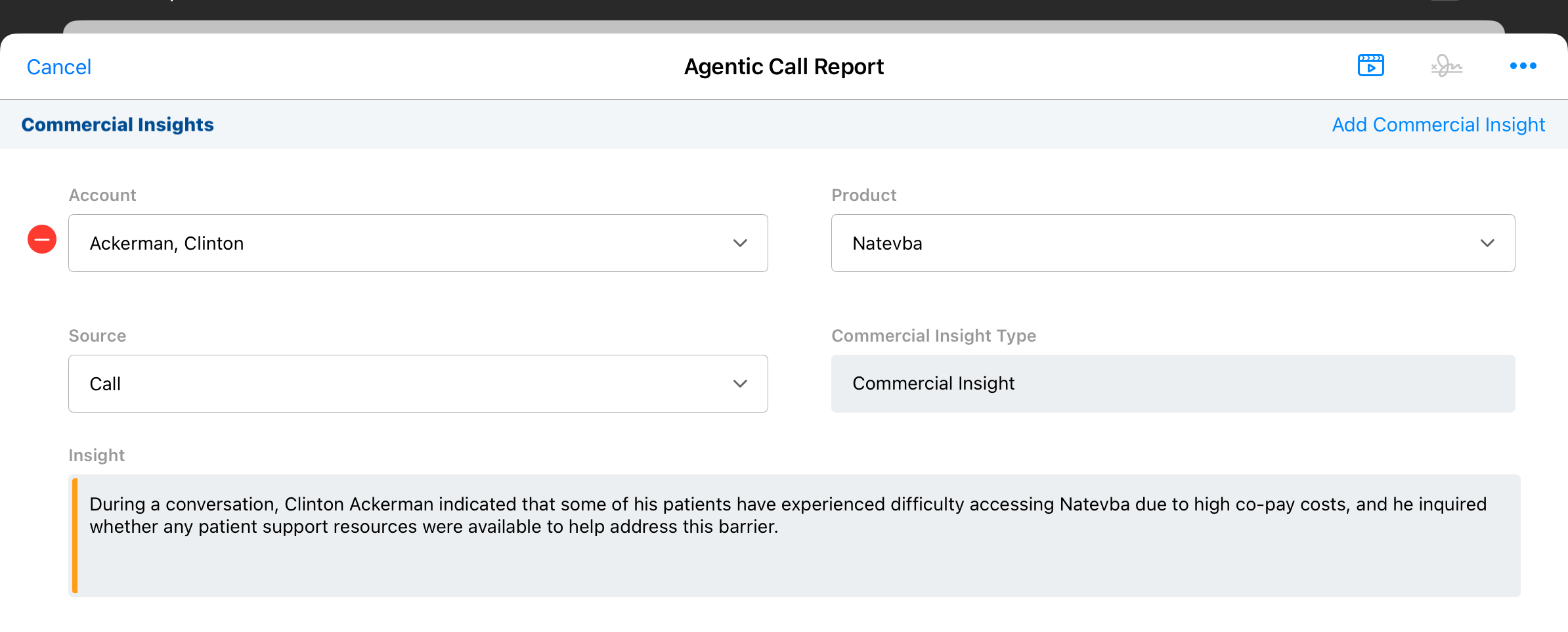
To maintain clarity between Commercial Insights and Call Text, information included in the Insight field is not duplicated in the Call Text field.
Reconciling Saved Voice Notes as
End Users
Saved Voice Notes are available on the My Notes tab. Users can review their recordings, delete them, or reconcile them into records.
To reconcile a saved Commercial Insight Voice Note from My Notes:
- Navigate to the My Notes tab.
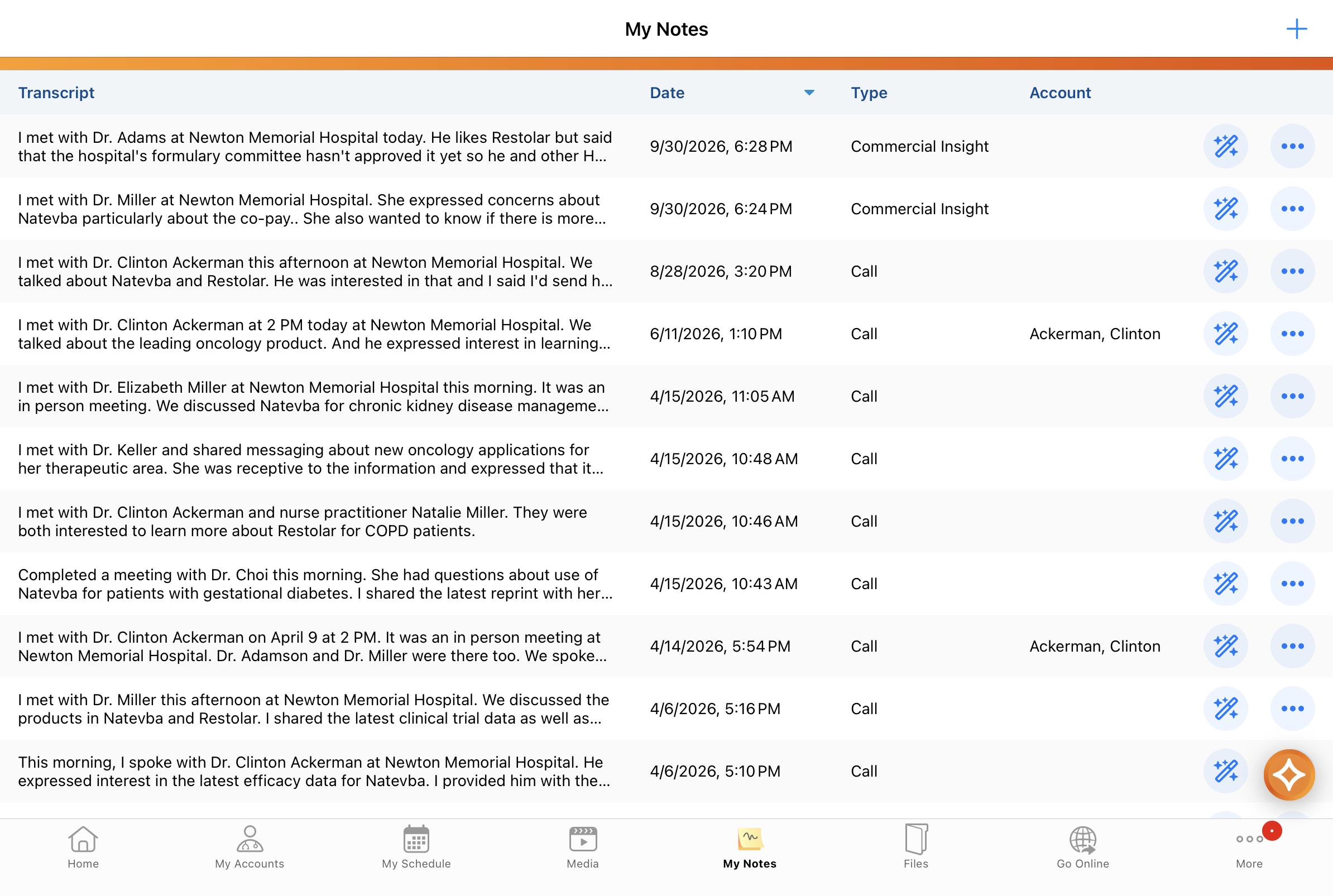
- Select the Wand icon on the target Commercial Insight Voice Note, or select Create from the Voice Note Detail page.
Review the populated fields on the Commercial Insight creation screen and make any necessary edits before saving.
For more information on managing Voice Notes in My Notes, see My Notes.
Saving and Submitting Commercial Insights as
End Users
To ensure accuracy, users can review and manually save the Commercial Insight before submitting it. Select Save after reviewing the generated Commercial Insight and making any necessary edits or additions.
Until the Commercial Insight is submitted, users can access the original Voice Note from the All Actions menu for the record. Select the View Commercial Insight Voice Note option to access the original Voice Note audio and text.
 of CommercialinsightView.png)
For compliance and data privacy, Voice Note audio and text are permanently deleted when users submit the record. If the record is deleted, Voice Note audio and text are also permanently deleted.