Using the My Accounts Console
The My Accounts console presents a multi-pane view which allows users to quickly search for accounts and access account details without navigating away from the account list. The tab includes a dedicated Details pane, integration with Global Account Search, and the ability to edit multiple accounts in a grid layout.
Who can use this feature?
- End Users — Browser
- Using the My Accounts Console
- Users do not require an additional license
Configuring the My Accounts Console for
 End Users
To configure this feature, ensure Configuring Accounts is complete. If Child Accounts are used, ensure Configuring Child Accounts is complete.
Configuring Multi-Edit from Account Lists and Views
To enable users to edit multiple accounts using the Multi-Edit button on Views and Lists:
-
Navigate to Business Admin > Objects > Veeva Settings.
-
Select the Enable My Accounts Multi-Edit Veeva Setting at the user profile level. For more information on profile-specific Veeva Settings, see Veeva Settings.
Optional Configuration for DCR Enabled Vaults
If Data Change Requests (DCRs) are enabled (DCR Mode > 0), ensure users have all required DCR permissions (including Read access on data_change_request__v, data_change_request_lines__v, dcr_field_type__v, and Network mapping objects).
If DCR permissions are missing, the Multi-Edit button is hidden.
Using the My Accounts Console for
End Users
The My Accounts tab has subtabs for accessing Hot Lists, Account Search, and Account Views and Lists.
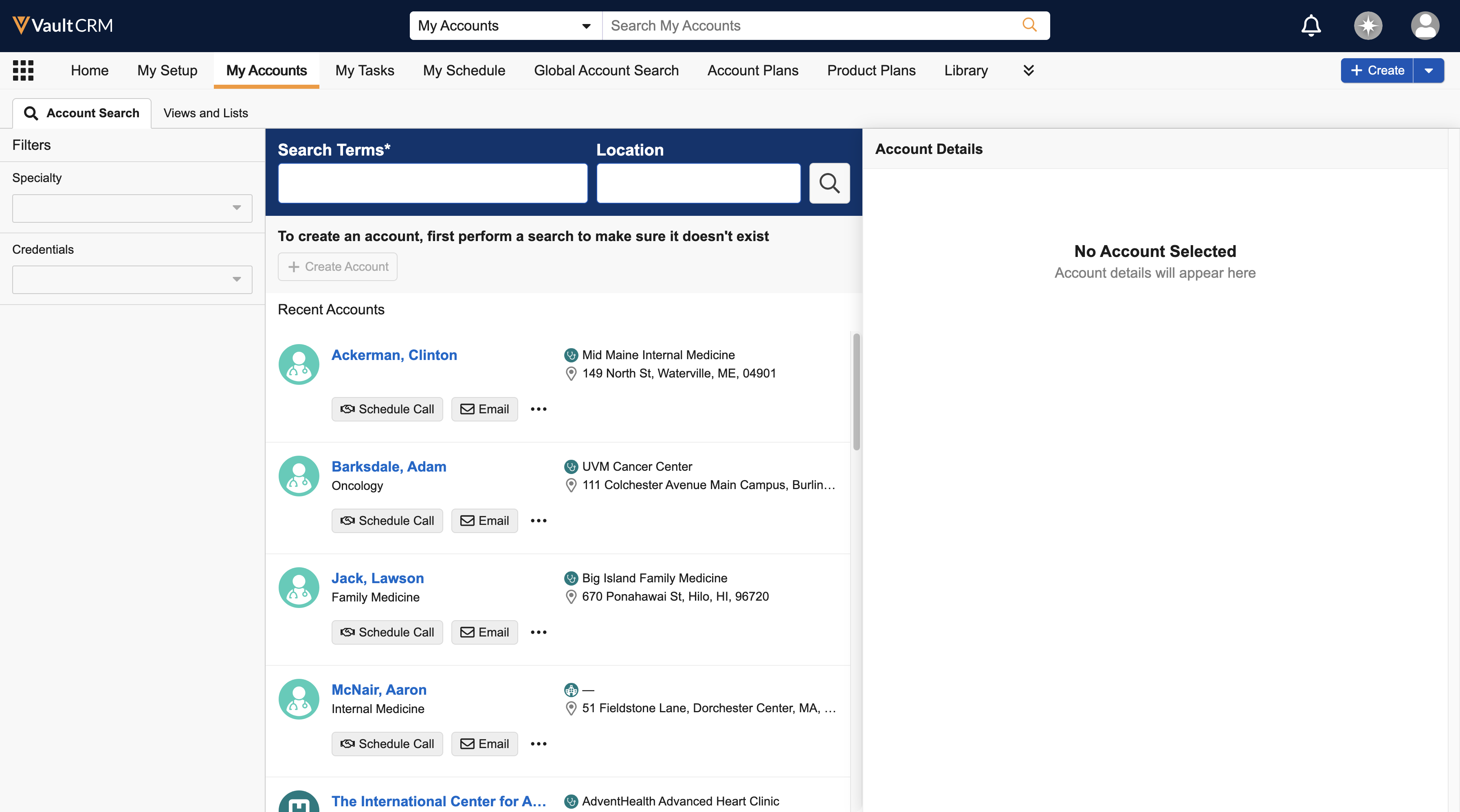
For more information, see Account Hot Lists, Searching for Accounts and Account Views and Lists.
Account Details pane
A dedicated Account Details pane displays in My Accounts. This side-by-side view enables users to review data and execute actions—for example, scheduling calls or sending emails—without navigating away from the account list.

The information presented in the Account Details pane is view-only.
When a user navigates to My Accounts, the Account Details pane is collapsed by default on the Views and Lists subtab, and the Account Search subtab when viewing recent accounts. The Details pane displays when a user selects an account.
When a user interacts with the Account Details pane (expanding or collapsing it), the pane retains its state for the duration of the user’s interaction with the current view. Users can expand or collapse the pane by selecting the Information icon. The Details pane returns to its default collapsed state when users sort or filter on a column in a List or View.
The Information icon is hidden if a user selects one or more accounts using the checkboxes next to the account names.

On the Account Search tab, users can select an account from the Recent Accounts list to display the Account Details pane.

When users search for an accountand select the account row for a result, the Account Details pane displays. No Account Selected displays if the user performs a search with no in-territory results and the Details pane is expanded.

On the Account Views and Lists tab, the Account Details pane displays

Users can select the account name or a Related Information link in the Account Details pane to open the detailed information in a new browser tab.
Users can switch to Table View to view account data as columns, utilizing the column headers to sort data and apply filters to display matching accounts.

In Territory Accounts
When users select an in-territory account, the Account Details pane displays the following information:
-
Summary information
-
Object type icon
-
Formatted Name
-
Primary Parent
-
Primary Address (Street address 1, City, State, and Postal Code)
-
Actions - Displays the first two actions the user has permissions to use (based on the order defined below), along with a More Actions button for accessing the other actions
-
Schedule a Call
-
Send Email
-
Add to List
-
Orders
-
Inventory Monitoring
-
Record Summary Fields - Displays any Record Summary Fields defined at the object or object type level in two columns. If no fields are configured, this section does not display. Fields for which the user does not have at least Read permission are not displayed.
-
Related information - Displays a list of related objects and section controls, including Addresses, Members Of, and Members, for the account, and the number of records associated with each object. Users can select a link in the list to open a tab displaying the associated related list on the Account Details page.
-
Details - Displays information defined in the account__v layout, including Detail Form type sections. This section does not display other VOF section types (for example Help or Text), or section controls (for example, Product Metrics, TSF Fields, or X-Pages).
The Account Details pane does not display section controls, for example, Product Metrics or Territory Specific Fields.
Out-of-Territory Accounts
When users select an account outside of their territory, the Account Details pane displays the following information:
-
Summary information:
-
Object type icon
-
Formatted Name
-
Primary Parent
-
Primary Address (Street address 1, City, State, and Postal Code)
-
Add to Territory action - Users can select the Add to Territory action to add the selected account to their territory. After an account is added, the Account Details pane displays the account as an in-territory account.
-
Record Summary Fields - Displays any Record Summary Fields defined at the object or object type level in two columns. If no fields are configured, this section does not display. Fields for which the user does not have at least Read permission are not displayed.
-
Addresses - Displays up to 20 related address records, sorted by Primary address (first), then Created Date (oldest first). If there are no active address records matching the account, this section does not display.
-
Parent organizations - Displays up to 20 organizations that are parent accounts for the selected account, listed alphabetically. If there are no matching records, this section does not display.
Multi-Edit Subtab
When users select up to 100 accounts from an Account View or List and select the Multi-Edit button, a dedicated subtab displays alongside existing subtabs.
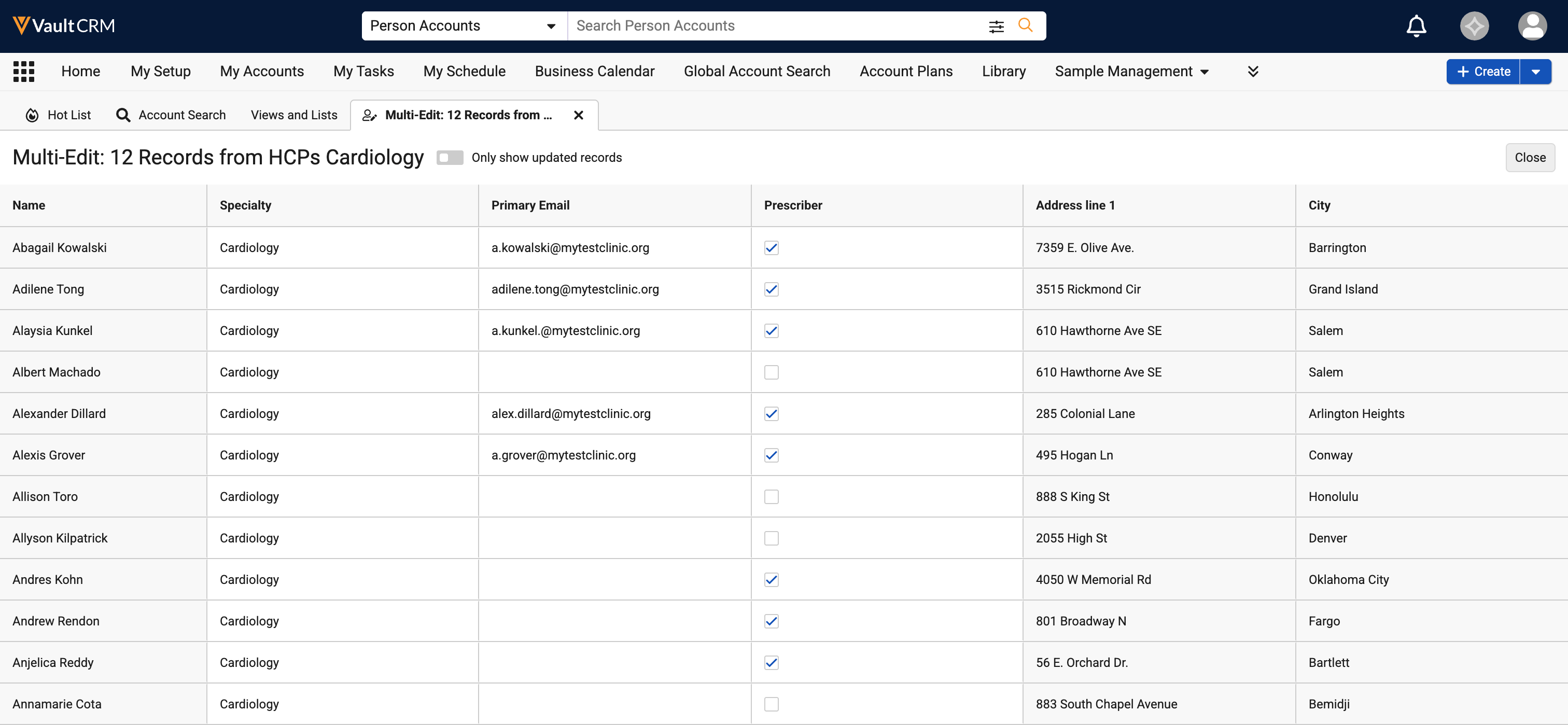
If the user already has an active multi-edit session open, a dialog displays asking if they would like to discard unsaved changes and open a new session. If the user attempts to open a new multi-edit session with the same accounts open in a current session, the user is directed to the current session.
The multi-edit grid displays editable fields for the account__v object based on the source view or list layout.
The Account Name column and fields from related objects display as read-only.
When users edit standard fields, the updated values are immediately stored as the user exits each cell. Edit functionality is supported on the following field types:
- Text
- Link
- Long Text
- Phone
- Text
- Number
- Currency
- Number
- Percent
- Date & Time
- Date
- DateTime
- Time
- Reference
- Object Reference
- Other
- Picklist
- Yes/No
Edits to DCR Controlled Fields display the standard Data Change Request (DCR) modal. Column headers display a DCR icon for DCR Controlled Fields.
The Multi-Edit button does not display if DCR is enabled (Data Change Request Mode Veeva Setting has a value other than 0) and the user is missing any permissions required by the DCR configuration.
Required fields display a yellow background when the user selects the field. The following Required configurations are supported:
- Object level requiredness
- Object type level requiredness
- DCR required
- DCR editable required
Fields that have been edited by the user are highlighted, and a banner at the top of the grid displays how many fields have been edited.
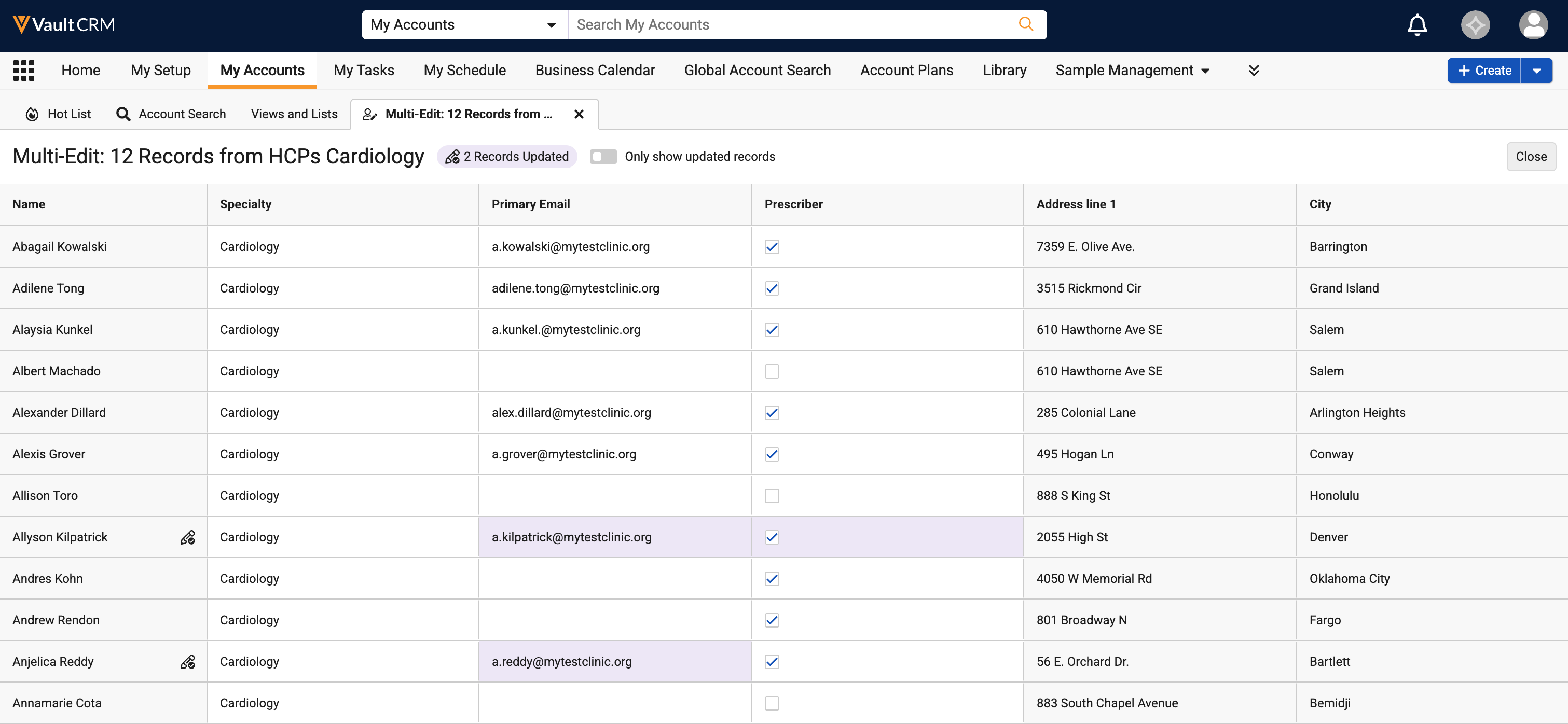
Users can select the Only show edited Accounts toggle to display only the rows with changed fields. If an edit results in an error, all fields in that account row are disabled until the user reverts the changes or fixes the error. The user can edit another row before fixing the error.
After making edits, users can close the Multi-Edit subtab using the Close button, the Close icon on the sub-tab, or navigating to another top-level tab. A confirmation message displays if any edits are unsaved.
The Multi-Edit button does not display for child accounts.